Skip to content
amagicsoft logo icon
  • Home
  • Products
    • Magic Data Recovery
    • Magic Recovery Key
  • Store
  • Blog
  • More
    • About Amagicsoft
    • Contact US
    • Privacy Policy
    • Terms
    • License Agreement
    • Refund Policy
  • English
    • 日本語
    • 한국어
    • Deutsch
    • Français
    • Español
    • Italiano
    • Português
    • 繁體中文
Documents Recovery

How to Recover Deleted PDF Files | Step-by-Step Guide
06.01.2026 Jason Comments Off on How to Recover Deleted PDF Files | Step-by-Step Guide
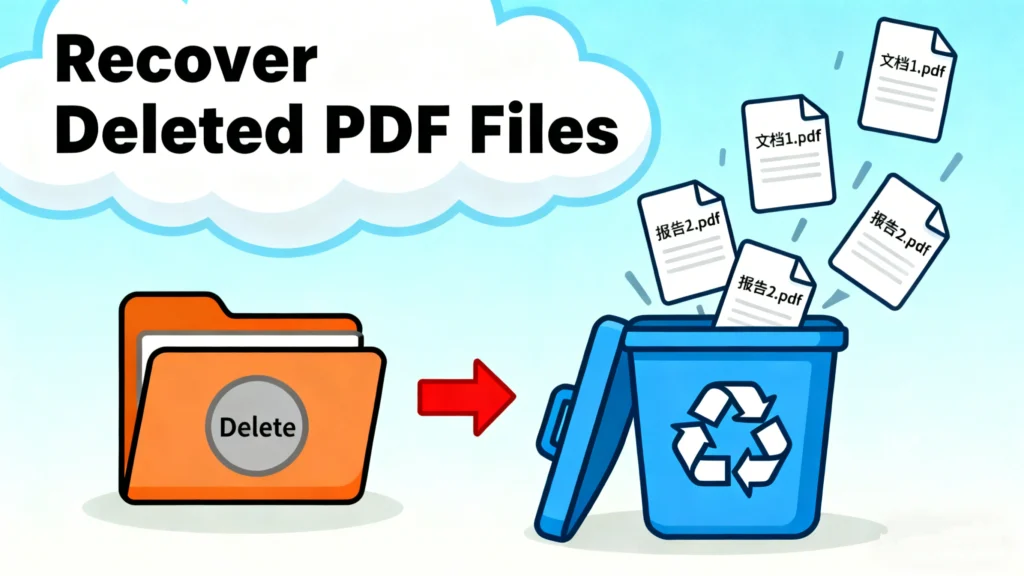
how can i recover deleted pdf files

Losing a PDF file can be a real headache, especially if it contains important documents such as contracts, invoices, or personal records. Whether it’s due to accidental deletion, a system crash, or a formatting error, recovering deleted PDF files can seem like an impossible task. However, you don’t have to panic. With the right tools and steps, recovering your lost PDF files is entirely possible.

In this guide, we’ll show you the most effective methods for recovering deleted PDF files, highlighting both free and paid solutions. We’ll also introduce you to Magic Data Recovery, a powerful tool that can help you recover your lost PDF files in just a few easy steps.

Download Magic Data Recovery

Supports Windows 7/8/10/11 and Windows Server

Table of Contents

Why Do PDF Files Get Deleted?

Before diving into recovery methods, it’s important to understand why PDF files can become deleted in the first place. Here are some common scenarios:

  1. Accidental Deletion: Sometimes, we delete files unintentionally, and the PDF file is lost before we realize it.
  2. System Crashes: A sudden system crash or power failure can cause files to go missing or become corrupted.
  3. Disk Formatting or File System Errors: When a hard drive is formatted, or file system errors occur, your data can be wiped, including your PDFs.
  4. Corruption: If a PDF file becomes corrupted due to disk errors or other issues, it may no longer open and could be perceived as deleted.

Understanding these causes will help you identify the best way to recover deleted PDF files.

How to Recover Deleted PDF Files: The Best Methods

1. Manual Recovery: Recycle Bin and Cloud Backups

The first thing to check is your Recycle Bin or Trash. If the PDF was deleted recently, it might still be in there. If you use cloud services like Google Drive or OneDrive, check their backup options for a possible recovery as well.

However, these methods can only recover files that were recently deleted and still exist in the cloud or on the hard drive. If the file was permanently deleted or the Recycle Bin was emptied, manual recovery won’t be enough.

2. Using Data Recovery Software: The Best Option for Deep Recovery

For more complex situations, you’ll need data recovery software. Here’s where Magic Data Recovery comes in. This tool is designed to recover lost files from all kinds of data loss scenarios, including accidental deletion, system errors, and disk formatting.

Here’s why Magic Data Recovery stands out:

  • Comprehensive Recovery: It supports recovery from various storage devices, including external hard drives, USB drives, and memory cards.
  • Powerful Deep Scan: Magic Data Recovery uses a deep scanning algorithm that can detect and recover deleted PDF files even if they’ve been lost for a long time.
  • Preview and Select: You can preview recoverable files before restoring them, ensuring you only recover the files you need.

Other tools, like Nucleus Technologies, Pandora Recovery, and Stellar Info, are also available, but they lack the powerful scanning and recovery capabilities of Magic Data Recovery. While these tools can be helpful, Magic Data Recovery offers better ease of use, advanced features, and higher recovery success rates.

Step-by-Step Guide: How to Recover Deleted PDF Files Using Magic Data Recovery

To get started, follow these simple steps to recover your deleted PDF files using Magic Data Recovery:

1. Download and Install Magic Data Recovery: Begin by downloading the software from the official website and installing it on your computer.

Download Magic Data Recovery

Supports Windows 7/8/10/11 and Windows Server

2. Launch the Software: Open the software, and you’ll be greeted with an easy-to-use interface.

3. Select the Drive: Choose the drive or partition where your deleted PDF file was stored. The program supports internal and external storage devices.


Recover deleted pdf file using magic data recovery
4. Click “Search for lost data” to scan your lost files: It will start a quick scan then a deep scan for files that were deleted a long time ago.
Search for lost pdf file
5. Preview and Recover: Once the scan is complete, Magic Data Recovery will display the recoverable PDF files. Preview them to confirm that they are intact, then select the ones you wish to restore and click Recover.
Recover your files to safe drive

Best Practices to Prevent PDF Data Loss

To avoid losing PDF files in the future, follow these best practices:

  1. Regular Backups: Always back up your PDF files to external storage or cloud services like Google Drive or Dropbox.
  2. Use Magic Data Recovery for Regular Monitoring: Magic Data Recovery is not just for recovery—it also helps in monitoring the health of your storage devices to prevent data loss.
  3. Keep Software Updated: Ensure your operating system and software are updated to prevent file corruption or other issues that may lead to data loss.

By adopting these strategies, you can significantly reduce the risk of losing your valuable PDF files in the future.

Conclusion

In this guide, we’ve shown you how to recover deleted PDF files using various methods, with an emphasis on Magic Data Recovery. This powerful tool offers the best solution for recovering lost or deleted PDF files, thanks to its deep scan, high success rate, and ease of use.

If you’re facing trouble recovering deleted PDF files, Magic Data Recovery is the most reliable and effective tool to get your files back. With its advanced features and user-friendly interface, it’s the best choice for both beginners and experts alike.

Don’t wait until it’s too late—download Magic Data Recovery today and restore your lost PDF files with ease!

Download Magic Data Recovery

Supports Windows 7/8/10/11 and Windows Server

FAQs

1. How to recover permanently deleted PDF files?

To recover permanently deleted PDF files, you'll need to use data recovery software like Magic Data Recovery. These tools perform a deep scan on your storage device to locate and restore files that are no longer in the Recycle Bin. The software can recover deleted files even if they were permanently deleted from the system or formatted, as long as the data hasn’t been overwritten.

2. How do I recover a file I accidentally deleted?

If you accidentally deleted a file, the first step is to check your Recycle Bin or Trash. If the file is not there, you can use data recovery software like Magic Data Recovery. The software will perform a quick or deep scan of your device to find the deleted file and allow you to recover it.

3. Can a PDF be recovered?

Yes, PDF files can be recovered, especially if you act quickly. If a PDF file was deleted recently, you can try recovering it from the Recycle Bin or use data recovery tools such as Magic Data Recovery for more comprehensive recovery. These tools are designed to restore files from various loss scenarios, including accidental deletion, formatting errors, and system crashes.

4. Can permanently deleted files be recovered?

Yes, permanently deleted files can often still be recovered using specialized data recovery software. Even if files have been emptied from the Recycle Bin, they may still exist on your hard drive or storage device unless they have been overwritten by new data. Software like Magic Data Recovery scans your device for traces of the deleted files and recovers them if possible.

5. Are permanently deleted files really gone?

Not necessarily. When files are permanently deleted, they are usually marked as free space on the storage device, but the data itself might still exist until it’s overwritten by new data. Data recovery software can often restore these files if they haven’t been overwritten. However, once the storage space is reused, the chances of recovery decrease.

6. How to retrieve deleted files from Recycle Bin?

To retrieve deleted files from the Recycle Bin, simply open the Recycle Bin on your computer, find the file you want to restore, right-click on it, and select Restore. This action will return the file to its original location on your computer. If the file is not in the Recycle Bin, you may need to use a data recovery tool like Magic Data Recovery to recover it from your device.

7. How to recover a deleted file not in the Recycle Bin?

If a file is not in the Recycle Bin, it may have been permanently deleted. To recover it, you can use data recovery software such as Magic Data Recovery. This software scans your storage device for remnants of the deleted file and can help you restore it, even if it’s not in the Recycle Bin. Be sure to avoid saving new files to the drive, as this can overwrite the space where the deleted file was stored.
  • How to
  • Magic Data Recovery
Jason

Jason has over 15 years of hands-on experience in the computer data security industry. He specializes in data recovery, backup and restoration, and file repair technologies, and has helped millions of users worldwide resolve complex data loss and security issues.

文章导航

Previous
Next

Search

Categories

  • Bitlocker Recovery
  • Deleted File Recovery
  • Disk Issue Fix
  • Documents Recovery
  • Format File Recovery
  • Hard Drive Recovery
  • License Key Recovery
  • Lost File Recovery
  • Memory Card Recovery
  • News
  • Partition Recovery
  • Password Recovery
  • Photo Recovery
  • SSD Recovery
  • USB Drive Recovery
  • User Guide
  • Video Recovery
  • Wiki
  • Windows Issue Fix

Recent posts

  • Learn how to perform pen drive data recovery after format
    Pen Drive Data Recovery After Format: Step-by-Step Guide
  • how to delete a recovery partition safely
    Deleting a Recovery Partition Safely: How to Recover if Lost Data
  • Dealing with a Tesla not recognizing USB drive
    Tesla Not Recognizing USB Drive? How to Fix and Recover Data

Tags

CHKDSK and Disk Tools Disk Repair Error Troubleshooting How to Magic Data Recovery Magic Recovery Key WiKi

Related posts

Learn how to perform pen drive data recovery after format
USB Drive Recovery

Pen Drive Data Recovery After Format: Step-by-Step Guide

10.01.2026 Jason No comments yet

Realizing that you have accidentally wiped your USB drive can be a heart-sinking moment. Many users believe a quick click means permanent loss, but you can actually perform pen drive data recovery after format with the right approach. Whether the loss happened due to a misclick, a forced system prompt, or a file system error, […]

how to delete a recovery partition safely
Partition Recovery

Deleting a Recovery Partition Safely: How to Recover if Lost Data

09.01.2026 Jason No comments yet

A recovery partition is designed to protect your system. However, many users attempt to remove it to reclaim disk space or reorganize storage. During this process, mistakes happen. Deleting the wrong partition, selecting an incorrect disk, or using DiskPart without full understanding can instantly lead to serious data loss. If you are searching for how […]

best ntfs partition recovery software
Partition Recovery

Best NTFS Partition Recovery Software for Lost Data

09.01.2026 Jason No comments yet

Losing important data due to deleted NTFS partitions can be alarming. Users often accidentally delete a partition, format a drive, or experience system errors, leading to unexpected data loss. The situation is even more critical for business files, personal media, and sensitive documents. Fortunately, effective NTFS partition recovery software exists to address these challenges. This […]

amagicsoft logo icon

Our vision is to become a globally renowned software brand and service provider, delivering top-tier products and services to our users.

Products
  • Magic Data Recovery
  • Magic Recovery Key
Policy
  • Terms
  • Privacy Policy
  • Refund Policy
  • License Agreement
Company
  • About Amagicsoft
  • Contact US
  • Store
Follow Us

Copyright © 2025 Amagicsoft. All Rights Reserved.

  • Terms
  • Privacy Policy
