
Word Document Recovery Program: Recover Lost Files

A reliable word document recovery program can quickly restore important documents after unexpected data loss. Many users lose Word files due to accidental deletion, system crashes, or document corruption. As a result, the file suddenly disappears from Windows, which often causes panic.
However, the situation is rarely permanent. In many cases, the document still exists on the disk even though the operating system can no longer locate it. Therefore, using professional word document recovery software often makes it possible to retrieve document files before they become overwritten.
This guide explains the most common causes of Word document loss. In addition, it explores built-in recovery methods provided by Microsoft Word. Finally, it shows when a professional document recovery program becomes necessary and how Magic Data Recovery can help restore lost documents safely.
Supports Windows 7/8/10/11 and Windows Server
Wondering if your files can be recovered? Find out in seconds with our quick check below.
Data Recovery Assessment
Answer 3 quick questions to estimate your recovery chances
Table of Contents
Common Causes of Word Document Loss
Understanding why files disappear helps determine the best recovery method. In practice, Word documents usually disappear because of several common situations.
Accidental Deletion
First, users frequently delete documents unintentionally while cleaning folders. After emptying the Recycle Bin, the document disappears from Windows even though the data may still remain on the disk.
Word or System Crash
Next, Word sometimes crashes because of software conflicts or unexpected shutdowns. Consequently, the application closes before the document saves the latest changes.
Document Corruption
Meanwhile, document corruption may occur during interrupted saving operations. For example, power failures or disk errors can damage the internal structure of a DOCX file.
Storage Device Problems
Finally, storage devices may develop file system issues. As a result, documents stored on a damaged partition may suddenly become inaccessible.
Because these scenarios vary, selecting the right document recovery software becomes essential for successful recovery.
Built-in Recovery Methods Before Using a Word Document Recovery Program
Before installing any word document recovery program, users should first try the recovery tools already available in Microsoft Word and Windows. In many cases, these built-in solutions restore recently lost documents.
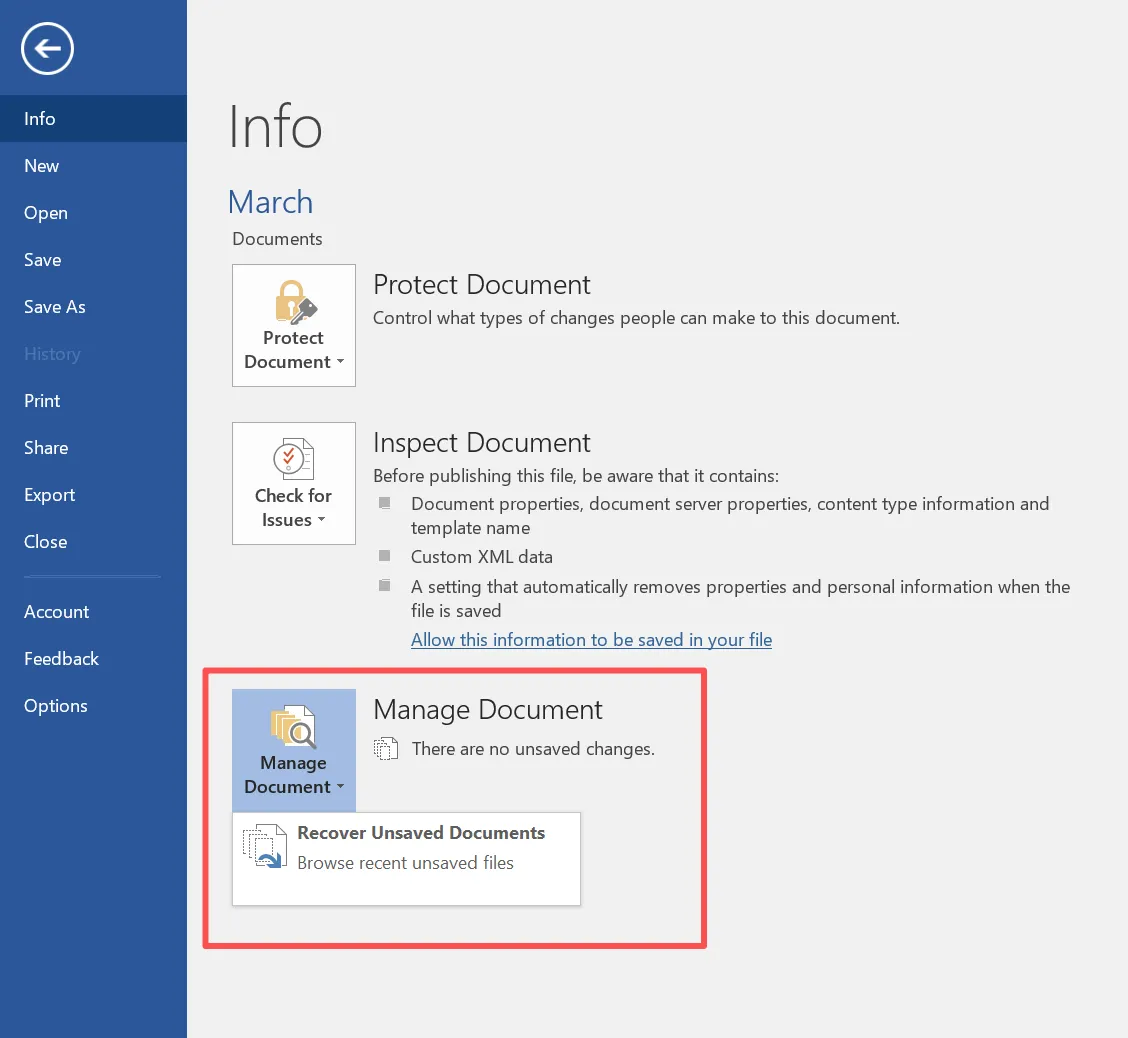
Recover Unsaved Documents
First, Word automatically saves temporary copies during editing sessions.
To locate them:
- Open Microsoft Word
- Click File → Info → Manage Document
- Select Recover Unsaved Documents
If a temporary version exists, Word allows the document to open and save normally.
Check AutoRecover Files
Meanwhile, Word periodically stores AutoRecover files. These files usually appear in the following location:
C:\Users\Username\AppData\Roaming\Microsoft\Word
Files typically use the .asd extension. Opening them in Word may restore recent work.
Search Temporary Files
Additionally, Windows sometimes creates temporary document files. Therefore, searching the system for .asd, .tmp, or .wbk files may reveal recoverable versions.
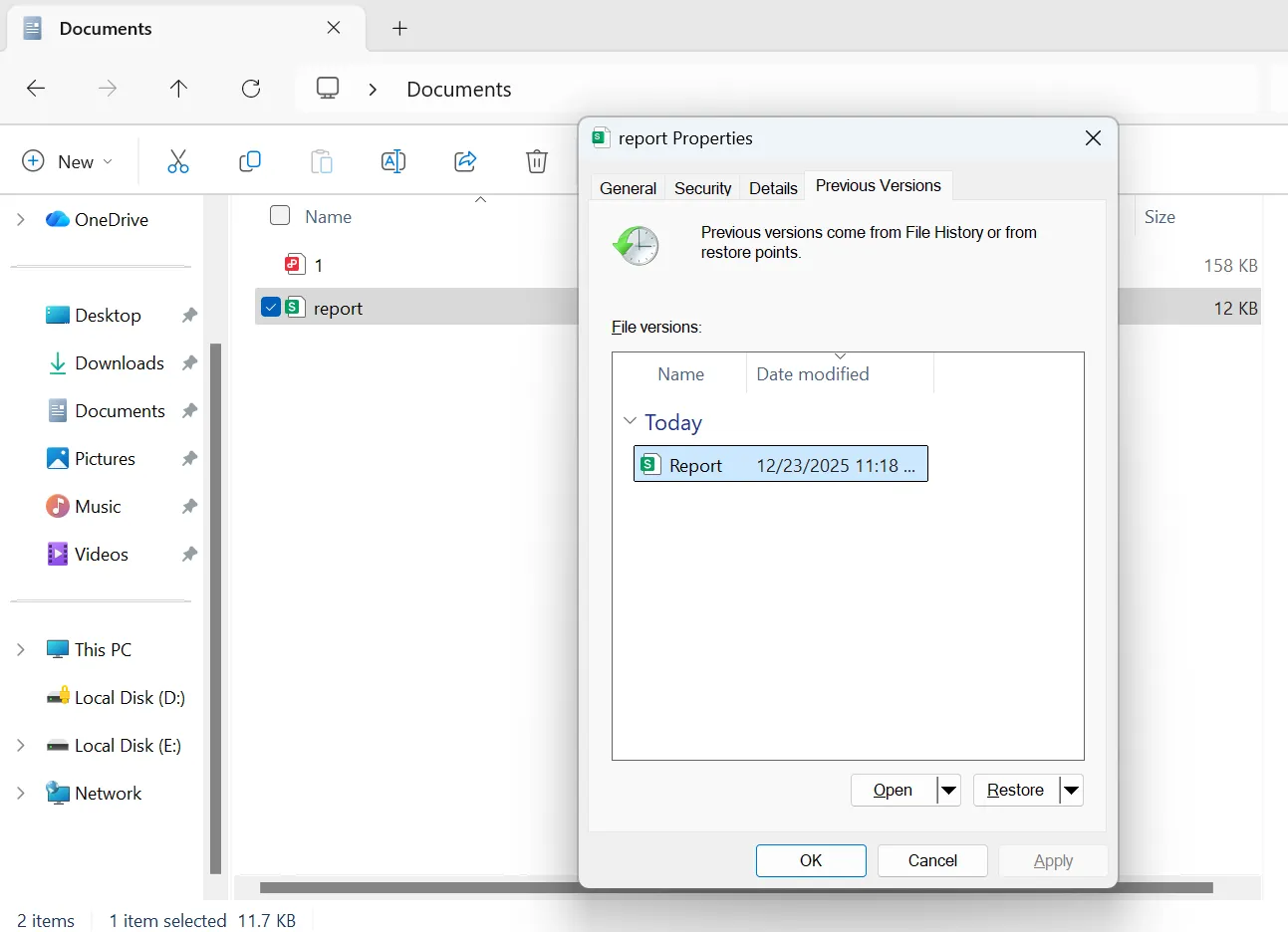
Restore Previous Versions
Finally, Windows File History may contain earlier document copies. Right-click the folder that stored the document and choose Restore previous versions.
However, these methods only work in limited situations. When documents disappear permanently, a specialized word document recovery program becomes the most reliable solution.
Why a Word Document Recovery Program Is Necessary
When a document disappears completely, the operating system no longer references the file within the directory structure. Nevertheless, the data often remains on the disk until new information overwrites it.
Therefore, a professional word document recovery program scans storage devices at a deeper level. Instead of relying on the file system index, the software analyzes disk sectors and reconstructs lost files.
Compared with manual recovery attempts, modern word document recovery software provides several important advantages.
- First, it scans entire storage devices instead of individual folders
- Additionally, it detects deleted DOC and DOCX files after the Recycle Bin is emptied
- Moreover, it previews documents before recovery
- Finally, it supports HDDs, SSDs, and USB drives
Consequently, a reliable document recovery program often restores files that built-in tools cannot locate.
Best Word Document Recovery Program: Magic Data Recovery
When selecting a word document recovery program, reliability and ease of use both matter. Magic Data Recovery from Amagicsoft offers a balanced solution designed to address multiple data-loss situations.
Unlike many basic utilities, this word document recovery software analyzes disk structures directly. As a result, it can locate Word documents even when Windows no longer detects them.
Problems the Software Solves
Magic Data Recovery helps recover documents in several scenarios.
- Permanently deleted Word files
- Documents lost after disk formatting
- Missing files caused by partition problems
- Data loss after system crashes
- Documents removed during folder deletion
Because the software scans raw disk data, it often detects documents that appear completely lost.
Advantages of This Document Recovery Software
Several features make Magic Data Recovery a reliable document recovery software solution.
Deep scanning technology
The software analyzes disk sectors and identifies recoverable files even when file system metadata becomes damaged.
Preview before recovery
Users can check DOC or DOCX content before restoring files. Consequently, only the correct files are recovered.
Broad device compatibility
The software supports internal drives, memory cards, and USB storage devices.
Simple recovery workflow
Additionally, the interface organizes recovery into clear steps. As a result, even beginners can perform recovery safely.
How to Recover Files with a Word Document Recovery Program
Recovering documents with a word document recovery program becomes much easier when the process follows a clear workflow.
Step 1: Download and Install Magic Data Recovery
First, download Magic Data Recovery and install it on a drive different from the affected disk. Installing recovery software on the same drive may overwrite lost data.
Supports Windows 7/8/10/11 and Windows Server
Step 2: Select the Drive to Scan
Next, launch the program. Then choose the drive where the Word documents were deleted and start scanning.

Step 3: Scan the Drive for Lost Files
After that, the software automatically performs an advanced scan. Meanwhile, recoverable documents gradually appear in the results panel.

Step 4: Preview the Recoverable Documents
Then use the preview feature to verify the content of each file. This step helps ensure the correct document is restored.

Step 5: Recover the Files Safely
Finally, select the documents and save them to another storage location. Saving files to the original disk may overwrite additional recoverable data.

Tips to Prevent Word Document Loss
Although a word document recovery program can restore missing files, prevention always reduces risk.
Therefore, consider the following best practices.
- Enable AutoSave in Microsoft Word
- Maintain regular backups
- Use reliable storage devices
- Avoid disconnecting drives during file transfers
- Store important documents in cloud storage
Consequently, these habits significantly reduce the risk of document loss.
Conclusion
Losing a Word document can interrupt important work and create serious frustration. Fortunately, recovery often remains possible. Built-in Word recovery tools should always be the first step because they may restore recently unsaved files.
However, when those methods fail, a professional word document recovery program becomes essential. Dedicated word document recovery software scans storage devices deeply and reconstructs files that the operating system cannot locate.
Magic Data Recovery provides a practical solution for these scenarios. It combines deep scanning technology, document preview capabilities, and a clear recovery workflow. Therefore, it stands out as a dependable document recovery software option for restoring lost Word documents safely.
If you need an efficient way to retrieve missing document files, trying Magic Data Recovery can be a practical next step.
Supports Windows 7/8/10/11 and Windows Server
FAQ About Word Document Recovery Programs
What is the best word document recovery program?
The best word document recovery program depends on the data-loss situation. Tools like Magic Data Recovery scan disks and restore deleted or inaccessible Word documents.
Can document recovery software restore deleted Word files?
Yes. Reliable document recovery software can locate deleted DOC or DOCX files as long as the disk sectors remain intact.
Can a word document recovery program recover files after formatting?
Yes. Many professional recovery tools scan formatted drives and reconstruct lost files.
Is word document recovery software safe?
Yes, provided the program scans the disk in read-only mode and does not modify the original data.
Can corrupted DOCX files be repaired?
Sometimes Word’s built-in repair function works. However, recovery software may still extract usable content from severely damaged files.
When should I use a document recovery program?
Use a document recovery program when built-in recovery methods fail or when documents disappear after deletion or formatting.
How can I improve recovery success?
Stop using the affected drive immediately. Then run a word document recovery program as soon as possible to avoid overwriting the lost data.

Vasilii is a data recovery specialist with around 10 years of hands-on experience in the field. Throughout his career, he has successfully solved thousands of complex cases involving deleted files, formatted drives, lost partitions, and RAW file systems. His expertise covers both manual recovery methods using professional tools like hex editors and advanced automated solutions with recovery software. Vasilii's mission is to make reliable data recovery knowledge accessible to both IT professionals and everyday users, helping them safeguard their valuable digital assets.