
Saved Over Word Document Recovery Guide
Accidentally overwriting a Word document is one of the most frustrating mistakes during daily work. A user may edit the wrong file, press Save instead of Save As, or replace a document with a newer draft. As a result, important content disappears instantly. Therefore, many people start searching for a reliable saved over word document recovery method.
Fortunately, overwriting a document does not always mean the original data is permanently lost. In many cases, earlier versions still exist in system backups, version history, or temporary files. Moreover, even if those options fail, disk-level document recovery tools may still locate earlier document fragments.
In this guide, you will learn several proven saved over word document recovery techniques. First, we explore built-in Microsoft Word features. Next, we examine Windows recovery options. Finally, we discuss how tools such as Magic Data Recovery can help search for earlier document versions when standard solutions no longer work.
Supports Windows 7/8/10/11 and Windows Server
Table of Contents
What Happens When a Word Document Is Overwritten
Before attempting saved over word document recovery, it is helpful to understand what happens when a file is overwritten.
When Word saves a document, the operating system updates the file entry on the disk. However, modern file systems often create a new record rather than rewriting the entire file immediately. Consequently, fragments of the older version may still remain on the storage device.
Nevertheless, recovery success depends on several factors:
- Whether version history exists
- Whether Windows backups were enabled
- Whether new files were written after the overwrite
- Whether temporary Word files remain available
Therefore, stopping unnecessary disk activity can improve the chances of successful saved over word document recovery.
Can Saved Over Word Document Recovery Actually Work
Yes, saved over word document recovery is sometimes possible. However, the result largely depends on where the document was stored and whether backup systems were active.
For example, cloud storage platforms such as OneDrive automatically maintain version history. Similarly, Windows File History may store earlier snapshots of files. In addition, Word itself generates temporary recovery files during editing sessions.
Therefore, several recovery paths exist:
- Version history in cloud storage
- Windows Previous Versions
- Word AutoRecover files
- Temporary Word files
- Disk scanning using recovery software
Ideally, users should try these methods in order, starting with the simplest solution.
Saved Over Word Document Recovery Using Version History
One of the easiest saved over word document recovery methods involves Word’s built-in version history feature. When a document is stored in OneDrive or SharePoint, Microsoft Word automatically tracks earlier versions.
How to restore a previous version
- Open the Word document
- Click File → Info
- Select Version History
- Browse earlier document versions
- Restore the correct version
When this method works best
This approach works well when:
- The file was saved in OneDrive
- Version history remained enabled
- Previous versions were not deleted
However, locally stored documents may not include version history.
Saved Over Word Document Recovery Using Windows Previous Versions
Another useful option for saved over word document recovery involves Windows backups. Specifically, the File History feature periodically stores file snapshots.
Steps to restore a previous version
- Open File Explorer
- Locate the Word document
- Right-click the file
- Select Properties
- Open the Previous Versions tab
- Restore an earlier copy
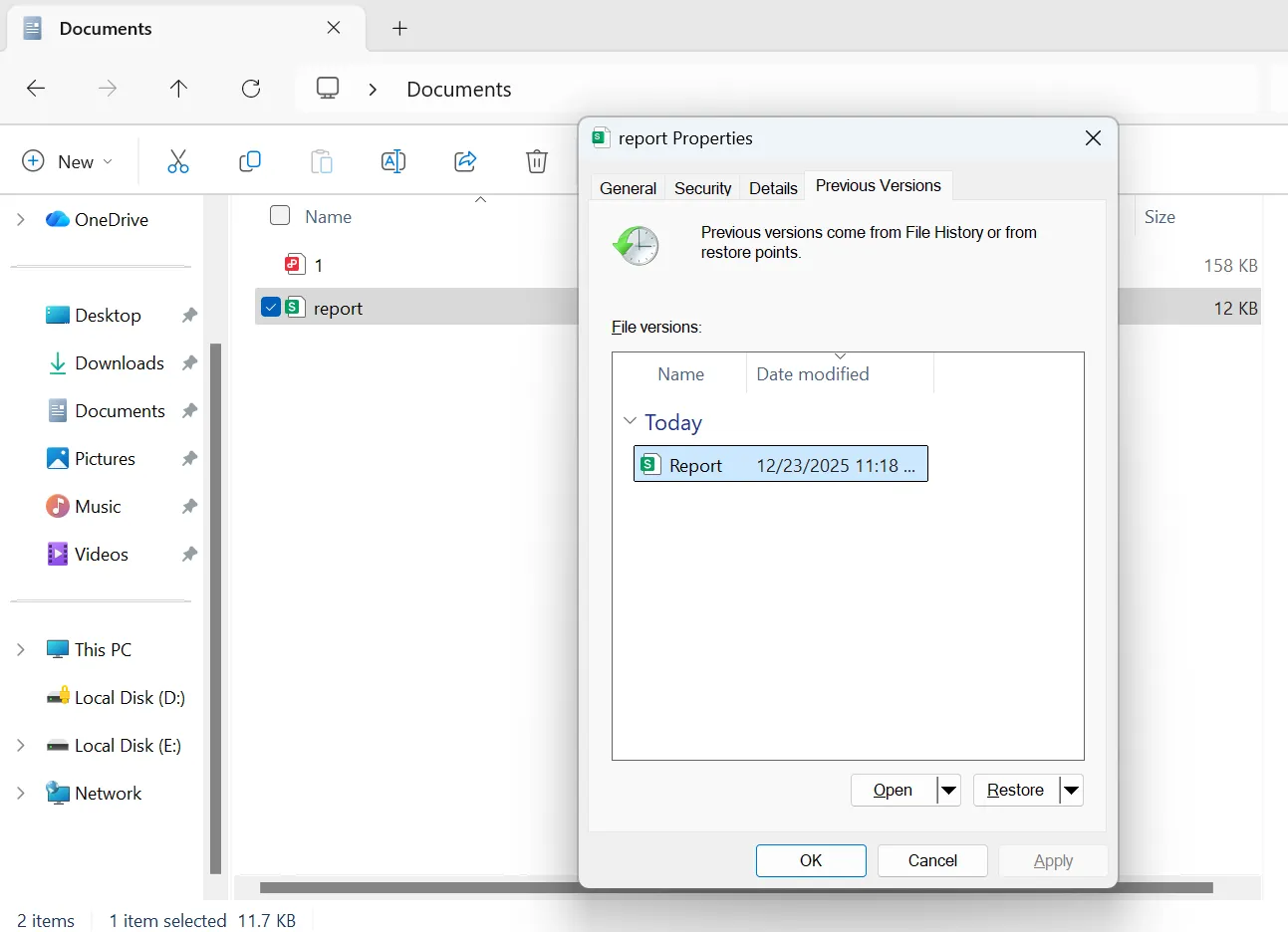
Because many organizations enable automatic backups, this method often solves saved over word document recovery situations in workplace environments.
Saved Over Word Document Recovery Using AutoRecover
Microsoft Word also generates temporary recovery files while users edit documents. Consequently, these files may contain earlier document content.
Steps to access AutoRecover files
- Open Microsoft Word
- Click File → Info
- Select Manage Document
- Choose Recover Unsaved Documents
These files usually appear with the .asd extension.
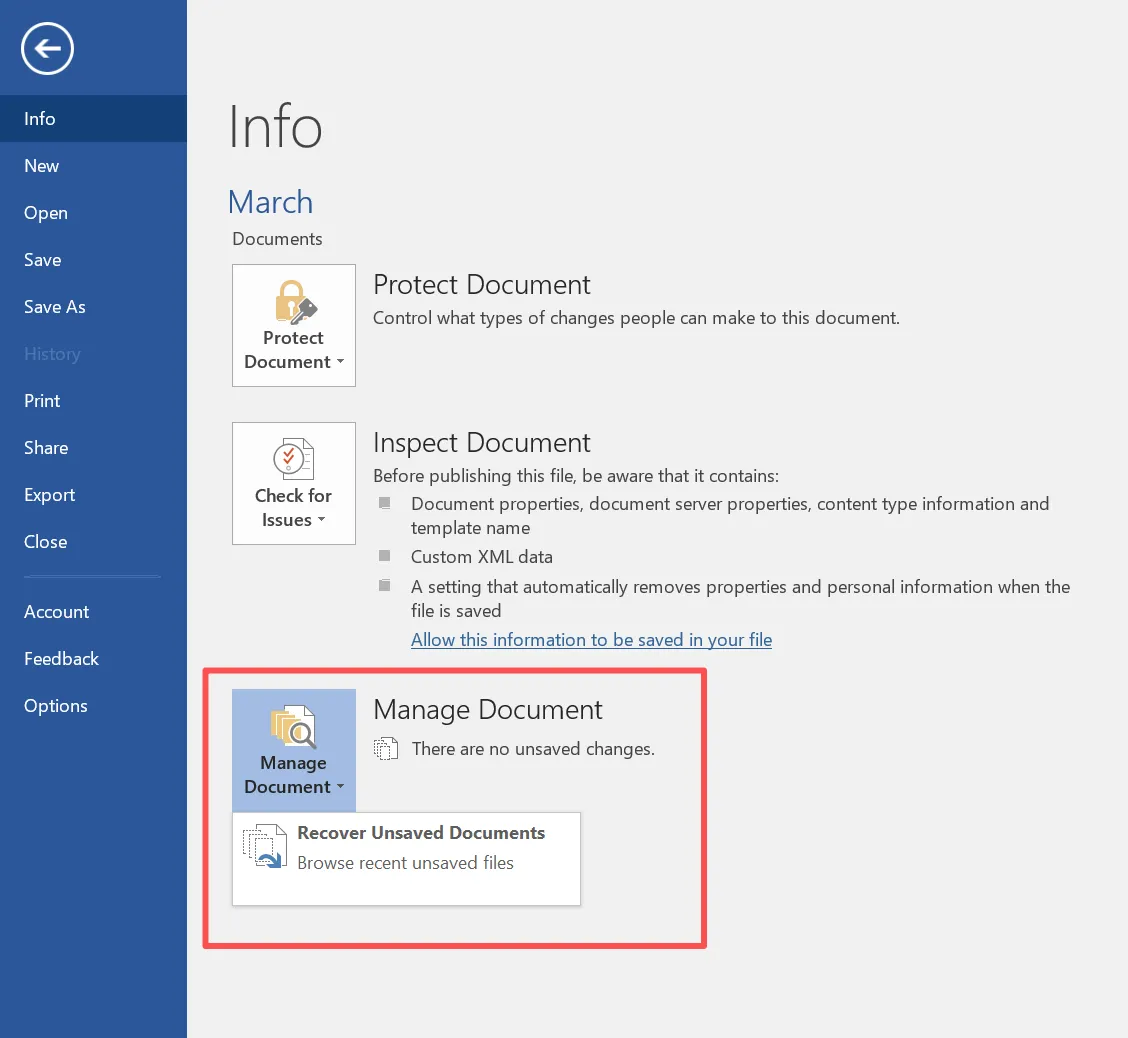
However, AutoRecover mainly protects unsaved work after crashes. Therefore, if a document was intentionally saved again, the earlier version may not exist.
Saved Over Word Document Recovery Using Temporary Files
Sometimes temporary files preserve fragments of older documents. Because Word creates these files during editing sessions, they may contain earlier content.
Common file extensions include:
- .tmp
- .asd
- .wbk
Typical location of temporary files
C:\Users\Username\AppData\Local\Microsoft\Word
Although this approach does not always succeed, it occasionally helps with saved over word document recovery.
Saved Over Word Document Recovery Using Magic Data Recovery
If built-in solutions fail, users often explore disk-level recovery tools. One example is Magic Data Recovery. It cannot directly restore a document that has been fully overwritten. If the new file completely replaces the original data blocks, recovery may become impossible.
However, overwritten files frequently leave traces on the disk. For instance, earlier versions may remain in unused sectors or hidden file records. Therefore, Magic Data Recovery scans the entire storage device to locate those remaining fragments.
Because of this scanning approach, the software may discover earlier document versions created before the overwrite occurred. As a result, it can assist in certain overwritten document recovery situations where standard tools fail.
Situations where this approach may help
- The document was stored locally
- Version history was not enabled
- Windows backup was disabled
- The disk has not been heavily used afterward
Under these conditions, Magic Data Recovery provides an additional recovery option beyond standard Word tools.
Step-by-Step Saved Over Word Document Recovery with Magic Data Recovery
Step 1: Download and install Magic Data Recovery
First, download Magic Data Recovery and install the software on your computer. The installation process usually takes only a few minutes.
Supports Windows 7/8/10/11 and Windows Server
Step 2: Select the drive to scan
Next, launch the program and choose the drive where the Word document was originally stored. Then start the scanning process.

Step 3: Scan the disk for recoverable files
After selecting the drive, the software performs a comprehensive scan. Meanwhile, it analyzes file records and displays recoverable files during the process.

Step 4: Preview the files
Once the scan finishes, preview the detected documents. This feature helps confirm whether the file contains the correct version.

Step 5: Recover the selected files
Finally, choose the files you want to restore and save them to a safe location on your computer.

Real Scenarios of Saved Over Word Document Recovery
Real situations illustrate how different recovery methods work.
Overwritten thesis document
A student accidentally replaced a thesis chapter while editing multiple drafts. Because the file was stored locally, version history was unavailable. Nevertheless, Magic Data Recovery located an earlier version during disk scanning.
Replaced office report
An employee saved a template over an existing financial report. Fortunately, Windows File History contained an earlier copy. Therefore, the document was restored within minutes.
Autosave replaced a manuscript
A writer edited a manuscript for hours and saved the changes over the original file. However, AutoRecover files preserved an earlier draft.
These cases show that the overwritten document recovery depends on the available recovery tools.
Tips to Avoid Saved Over Word Document Recovery Situations
Although recovery methods can help, prevention remains the safest strategy.
Therefore, consider these best practices:
- Use Save As when creating new document versions
- Enable AutoSave in OneDrive
- Turn on Windows File History
- Maintain regular backups
- Store critical documents in cloud storage
As a result, these habits significantly reduce the risk of needing saved over word document recovery.
Conclusion
Accidentally overwriting a document can feel devastating. However, several document recovery solutions make saved over word document recovery possible. Version history, Windows backups, and temporary files provide the first recovery options.
Nevertheless, when those methods fail, disk-level scanning tools may still locate earlier document fragments. Magic Data Recovery cannot directly reverse a full overwrite. However, it can scan the disk and search for earlier file remnants created before the overwrite occurred.
Therefore, if built-in Word recovery methods do not work, Magic Data Recovery offers an additional approach that may help retrieve important document versions.
Supports Windows 7/8/10/11 and Windows Server
FAQ
Can a Word document be recovered after it was saved over?
What is the easiest saved over word document recovery method?
Where are Word AutoRecover files stored?
Can overwritten files always be recovered?
How does Magic Data Recovery help recover overwritten documents?
How quickly should recovery attempts begin?
How can users avoid overwriting Word documents?

Vasilii is a data recovery specialist with around 10 years of hands-on experience in the field. Throughout his career, he has successfully solved thousands of complex cases involving deleted files, formatted drives, lost partitions, and RAW file systems. His expertise covers both manual recovery methods using professional tools like hex editors and advanced automated solutions with recovery software. Vasilii's mission is to make reliable data recovery knowledge accessible to both IT professionals and everyday users, helping them safeguard their valuable digital assets.