
How to Access Auto Recovery Files in Word

Many users search for how to access auto recovery files in Word after losing important documents. For example, Word may crash, the system may shut down, or you might accidentally click “Don’t Save.” As a result, hours of work can disappear instantly.
Fortunately, Microsoft Word includes built-in recovery features. However, these methods do not always succeed. In many cases, files are missing, overwritten, or never saved properly. Therefore, this guide explains how to access auto recovery files in Word step by step. In addition, it shows how to recover unsaved Word document files across different scenarios. Finally, when built-in methods fail, you will learn a more reliable solution using professional document recovery software like Magic Data Recovery.
Supports Windows 7/8/10/11 and Windows Server
Table of Contents
How to Access Auto Recovery Files in Word and Understand Their Role
Before applying any method, you should understand how AutoRecover works. Otherwise, you may try the wrong solution and lose valuable recovery time.
Word automatically creates temporary backup files while you edit documents. These files usually use the .asd format. Moreover, they store recent changes at scheduled intervals.
Key Concepts You Should Know
- AutoRecover saves temporary versions periodically
- AutoSave works continuously but only with cloud files
- Auto recovery files help restore unsaved work
Therefore, knowing how to access auto recovery files in Word depends on whether these temporary files still exist and remain usable.
How to Access Auto Recovery Files in Word Using Built-in Methods
Next, you should try the built-in methods first. These options are fast, simple, and require no additional software. However, each method works under specific conditions.
Use Document Recovery Pane After a Crash
If Word crashes unexpectedly, it usually displays the recovery panel automatically.
Steps
- Reopen Microsoft Word
- Locate the Document Recovery panel
- Select the latest version
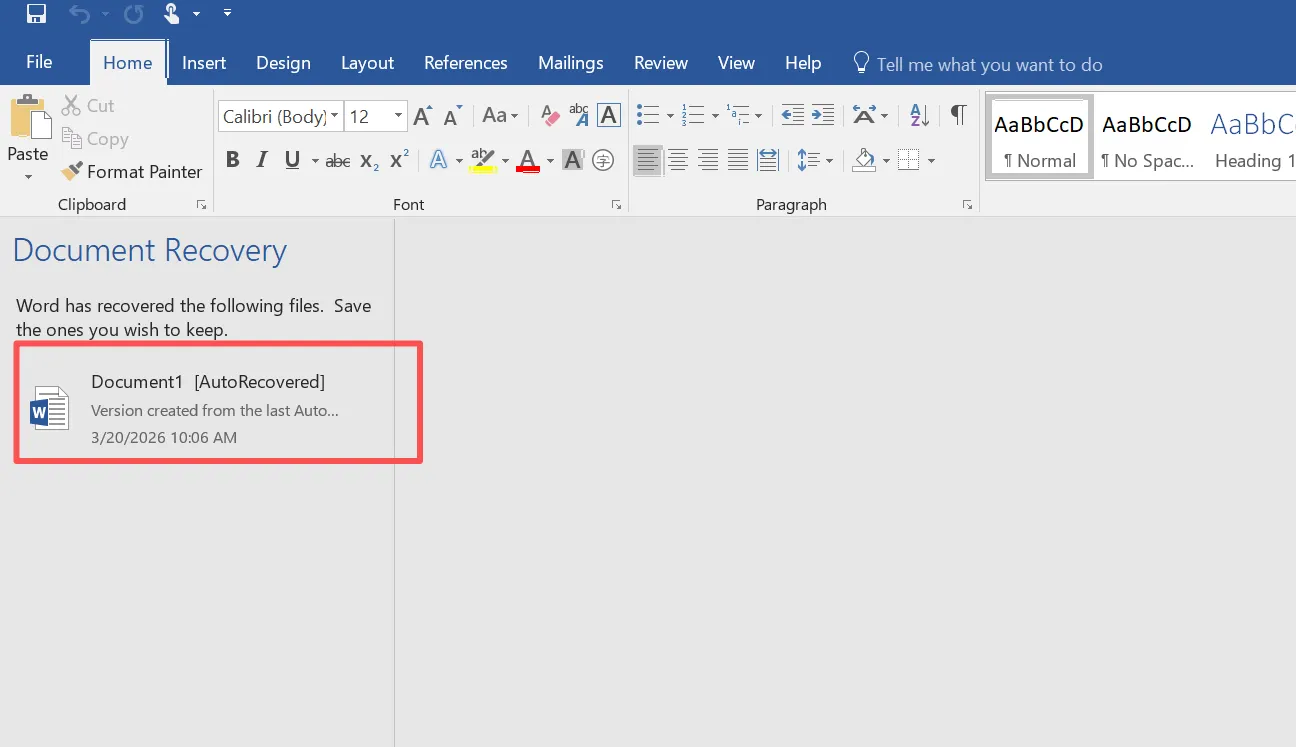
As a result, this method provides the quickest way to restore files. Moreover, it requires no manual searching.
Recover Unsaved Word Document via Manage Document
If you closed Word without saving, you can still recover your work.
Steps
- Open Word
- Click File > Info > Manage Document
- Select Recover Unsaved Documents
- Open the desired file
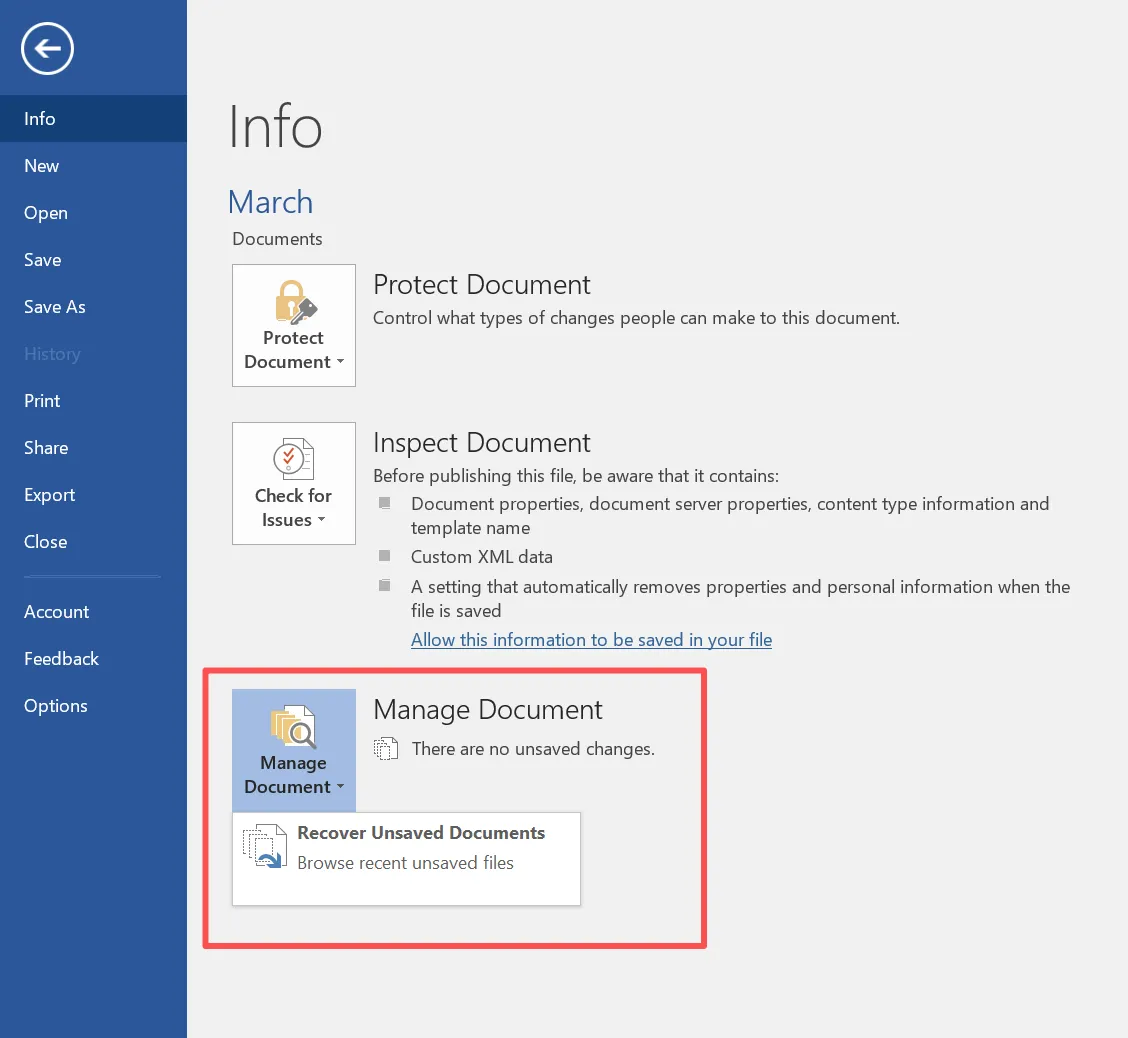
Therefore, this method directly supports recover unsaved word document scenarios. In addition, it works even after restarting Word.
Manually Access Auto Recovery Word Files (.asd)
Sometimes Word does not show recovery files automatically. In that case, you must locate them manually.
Steps
- Open File Explorer
- Navigate to:
C:\Users\YourName\AppData\Roaming\Microsoft\Word - Search for
.asdfiles - Open them using Word
As a result, this method becomes essential when learning how to access auto recovery files in Word beyond default tools.
Find Temporary Files When Auto Recovery Fails
In some situations, Word stores data in temporary files instead.
Steps
- Press
Win + R - Type
%temp% - Search for
.tmpfiles - Try opening them in Word
However, this method provides lower success rates. Therefore, you should treat it as a secondary option.
Where to Access Auto Recovery Word File Locations Quickly
Instead of searching blindly, you should go directly to the correct folders. This saves time and improves recovery efficiency.
Common Storage Paths
- AutoRecover files
C:\Users\YourName\AppData\Roaming\Microsoft\Word
- Unsaved files
C:\Users\YourName\AppData\Local\Microsoft\Office\UnsavedFiles
Therefore, accessing these paths helps you quickly locate auto recovery word files without relying on Word’s interface.
Why Auto Recovery Word Methods Sometimes Fail
Although built-in features help, they have clear limitations. Therefore, relying on them alone is risky.
Common Failure Reasons
- AutoRecover was disabled
- Save interval was too long
- Temporary files were deleted
- Data was overwritten
As a result, even if you know how to access auto recovery files in Word, recovery may still fail.
Advanced Solution When Auto Recovery Word Methods Do Not Work
When built-in solutions fail, you need a more advanced approach. Instead of relying on temporary files, professional tools scan the disk directly.
Therefore, this is where Magic Data Recovery becomes essential.
Why Magic Data Recovery Is More Reliable
Unlike Word’s internal system, this tool works at the storage level. As a result, it can recover files even when no AutoRecover data exists.
Key Advantages
- Recovers unsaved and deleted Word documents
- Performs deep scans beyond file system limits
- Supports DOC and DOCX formats
- Allows preview before recovery
Moreover, it works in complex scenarios such as overwritten or missing files. Therefore, it offers a more reliable word file recovery solution.
How to Use Magic Data Recovery for Word File Recovery
When built-in methods cannot restore your document, you can rely on a deeper scan approach. Magic Data Recovery helps you recover lost or unsaved Word files by scanning the storage directly rather than depending on temporary files.
Step 1: Download and Install Magic Data Recovery
First, download Magic Data Recovery and install it on a different partition or disk. This step is important because it helps prevent overwriting any recoverable data.
Supports Windows 7/8/10/11 and Windows Server
Step 2: Select the Location to Scan
Next, launch the software. From the main interface, choose the drive or location where your Word document was lost. Then, start the scanning process.

Step 3: Perform an Advanced Scan
After that, the program automatically runs a deep scan. During this process, it continuously lists recoverable files, including Word documents, as they are detected.

Step 4: Preview & Recover Files to a Safe Location
Finally, select the files you need and save them to another location. Avoid restoring them to the original path, because doing so may overwrite remaining data and reduce recovery success.

Tips to Avoid Losing Word Files Again
Although recovery is possible, prevention remains the best strategy. Therefore, you should follow these practices:
- Enable AutoRecover every 5 minutes
- Save files regularly
- Use cloud backup solutions
- Avoid overwriting important documents
- Maintain regular backups
Consequently, you reduce the need to search for how to access auto recovery files in Word in the future.
Conclusion
Understanding how to access auto recovery files in Word helps you recover many unsaved documents quickly. First, built-in methods provide a convenient starting point. However, they often fail in complex scenarios such as deletion or overwriting.
Therefore, using a professional solution becomes necessary. Magic Data Recovery stands out because it scans storage directly, bypasses system limitations, and supports multiple recovery scenarios. As a result, it offers a more reliable and practical Word document recovery solution when standard methods no longer work.
Supports Windows 7/8/10/11 and Windows Server
FAQs
Where can I access auto recovery files in Word?
You can access auto recovery files in Word through the AppData folder or by using the “Recover Unsaved Documents” feature. In addition, checking the UnsavedFiles directory improves your chances of finding recent versions.
Can I recover unsaved Word document after closing Word?
Yes, you can often recover unsaved Word document files after closing Word. You should reopen Word and use the recovery option. Moreover, checking temporary folders may help if the file does not appear automatically.
What is an auto recovery word file?
An auto recovery word file is a temporary backup created during editing. It usually has an ASD format. Therefore, it helps restore unsaved changes after crashes or unexpected shutdowns.
Why are auto recovery files missing?
Auto recovery files may be missing if AutoRecover was disabled or temporary files were deleted. In addition, system cleanup processes can remove them automatically, which reduces recovery chances significantly.
Can overwritten Word files be recovered?
Recovering overwritten files is difficult with built-in tools. However, advanced word file recovery software can scan disk sectors and locate previous data if it has not been fully overwritten.
How long does Word keep auto recovery files?
Word keeps auto recovery files temporarily while documents remain open. After normal closure, it may delete them. Therefore, acting quickly improves the chances of successful recovery.
Is Magic Data Recovery safe to use?
Yes, Magic Data Recovery is safe when used correctly. It allows file preview before recovery and prevents overwriting. Therefore, it provides a reliable solution for recovering lost Word documents.

Vasilii is a data recovery specialist with around 10 years of hands-on experience in the field. Throughout his career, he has successfully solved thousands of complex cases involving deleted files, formatted drives, lost partitions, and RAW file systems. His expertise covers both manual recovery methods using professional tools like hex editors and advanced automated solutions with recovery software. Vasilii's mission is to make reliable data recovery knowledge accessible to both IT professionals and everyday users, helping them safeguard their valuable digital assets.