
Recover Files Adobe Acrobat: Step-by-Step Guide

Losing a PDF file during editing in Adobe Acrobat can be stressful, especially when the document disappears after a crash or unexpected shutdown. Many users immediately search for how to recover files Adobe Acrobat, yet they often discover that built-in recovery options do not always work.
However, the good news is that recovery is still possible in many cases. In fact, depending on the situation, you can restore unsaved or deleted PDFs using system tools, temporary files, or advanced recovery software. In this guide, you will learn the most effective methods step by step, and you will also understand when a professional tool like Magic Data Recovery becomes the best solution.
Supports Windows 7/8/10/11 and Windows Server
Table of Contents
Why You May Need to Recover Files Adobe Acrobat
Before starting recovery, it is important to understand why files get lost. This helps you choose the right method and increases your success rate when trying to recover Adobe Acrobat files.
Common causes include:
- Acrobat crashing during editing
- System shutdown without saving
- Autosave not triggered in time
- Temporary file cleanup after closing the app
- Accidental deletion of PDFs
- Corrupted session or cache files
Therefore, the recovery method depends heavily on how the file was lost.
Can You Recover Files Adobe Acrobat After Loss?
Fortunately, yes—you can often recover Adobe Acrobat files, but success depends on timing and storage conditions.
For example, if autosave was active, recovery becomes easy. However, if the file was deleted or overwritten, you may need deeper recovery techniques. Therefore, choosing the right method matters more than simply trying random solutions.
Best Methods to Recover Files Adobe Acrobat (Step-by-Step Guide)
Below are the most effective recovery methods ranked from basic to advanced.
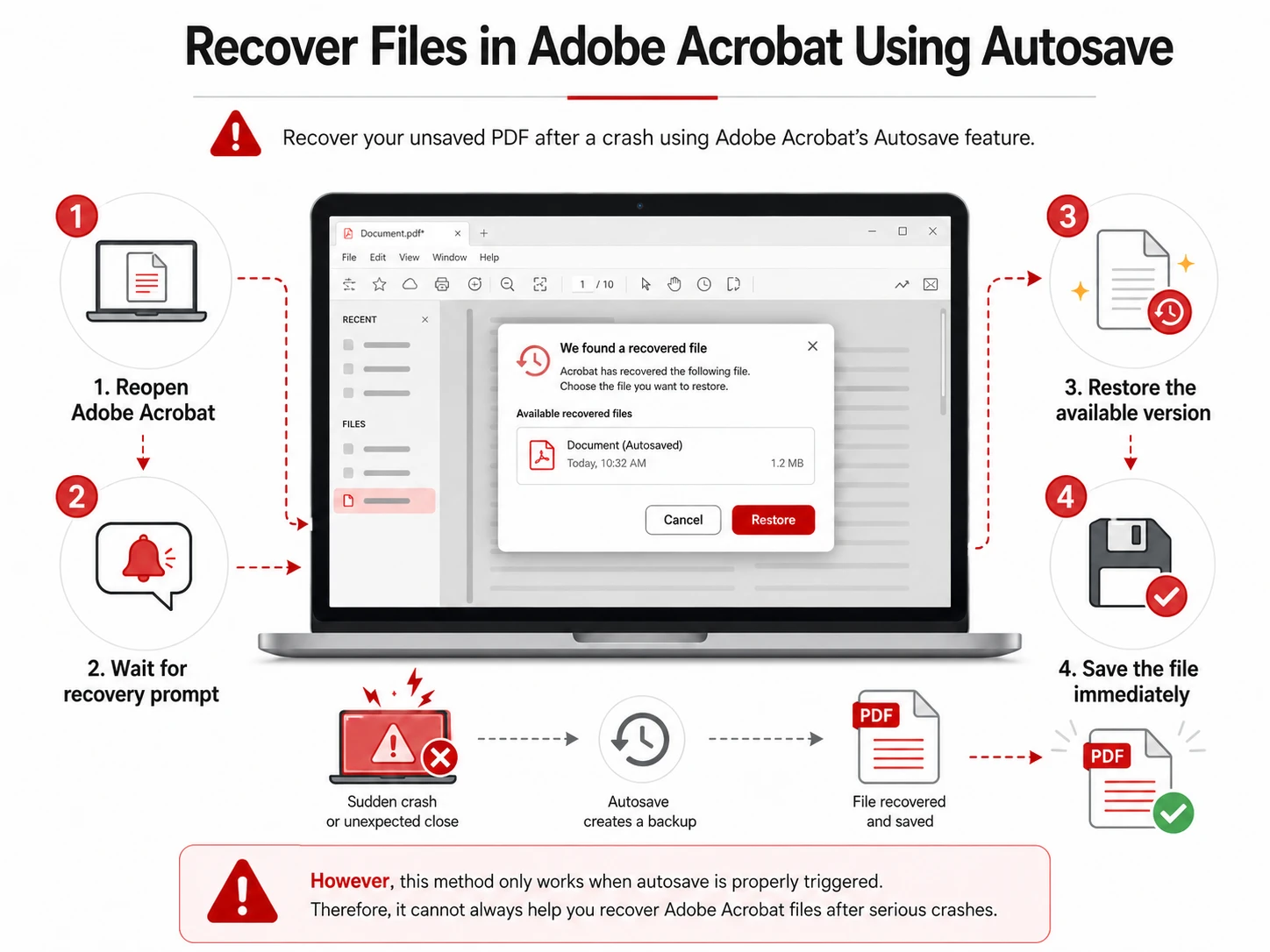
Method 1 – Recover Files Adobe Acrobat Using Autosave
Adobe Acrobat includes an autosave feature that periodically saves your progress.
If the program crashes, it may automatically restore your document when you reopen it.
Steps:
- Reopen Adobe Acrobat
- Wait for recovery prompt
- Restore the available version
- Save the file immediately
However, this method only works when autosave is properly triggered. Therefore, it cannot always help you recover Adobe Acrobat files after serious crashes.
Method 2 – Recover Files Adobe Acrobat from Temporary Files
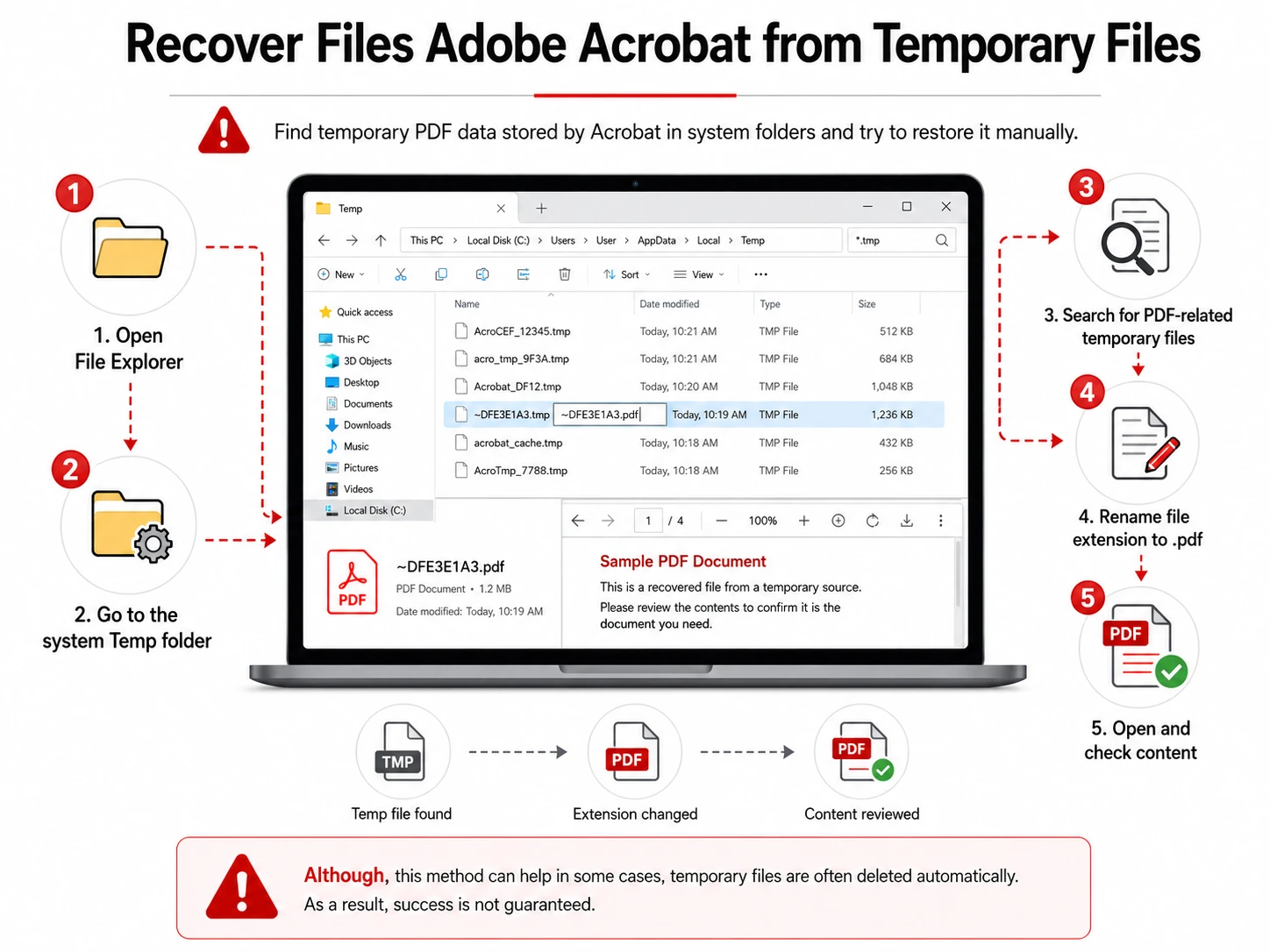
In many cases, Acrobat stores temporary versions of your work in system folders.
Steps:
- Open File Explorer
- Go to the system Temp folder
- Search for PDF-related temporary files
- Rename file extension to
.pdf - Open and check content
Although this method can help in some cases, temporary files are often deleted automatically. As a result, success is not guaranteed.
Method 3 – Restore Previous Versions in Windows
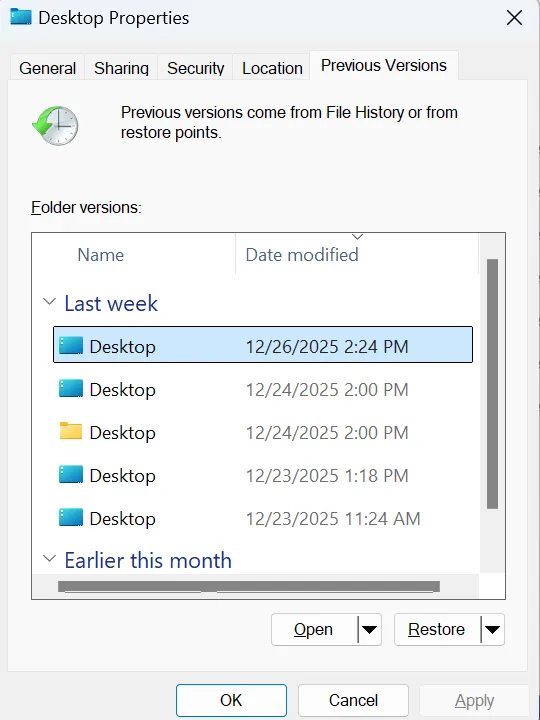
Windows may store older versions of files if backup features are enabled.
Steps:
- Right-click the folder containing the PDF
- Select “Restore previous versions”
- Choose a backup version
- Restore the file
However, many users do not enable this feature. Therefore, its effectiveness is limited when trying to recover Adobe Acrobat files.
Method 4 – Deep Recovery Using Magic Data Recovery
When all built-in methods fail, a professional tool becomes necessary. Unlike Acrobat’s recovery tools, Magic Data Recovery performs a deep scan of your storage device to locate deleted or lost PDF data. As a result, it can recover files even when autosave or temp files are unavailable.
Why this method works better
Most recovery failures happen because:
- Files were overwritten
- Temp data was cleared
- System crash removed session cache
However, Magic Data Recovery scans the disk at a deeper level. Therefore, it can detect file fragments that normal tools cannot access.
Key advantages
- Recovers deleted or lost PDF files
- Works after system crash or shutdown
- Performs deep scan beyond Acrobat cache
- Easy for non-technical users
- Supports multiple file types
Therefore, when you need to recover Adobe Acrobat files, this method often provides the highest success rate.
How to Use Magic Data Recovery
If you choose Magic Data Recovery by Amagicsoft, the process is simple and user-friendly. Follow the steps below to restore lost Adobe Acrobat files effectively.
Step 1: Download and Install Magic Data Recovery
First, download Magic Data Recovery from the official website and install it on a separate drive from where the lost files were stored. This prevents new data from overwriting recoverable PDF fragments and improves the success rate when you try to recover Adobe Acrobat files.
Supports Windows 7/8/10/11 and Windows Server
Step 2: Select the Drive to Scan
Next, open the software and select the drive where your Adobe Acrobat files were originally saved. Then, start the scan process.

Step 3: Scan for Lost PDF Files
After that, the system will begin an advanced scan automatically. Meanwhile, it will display recoverable files in real time as it analyzes storage.

Step 4: Preview Files Before Recovery
Once scanning is complete, preview the recovered files before restoring them. This step ensures you only recover the correct Adobe Acrobat documents and avoid unnecessary files.

Step 5: Recover Files Safely
Finally, select the files you need and save them to a safe location. Do not save them to the original drive, as this may reduce recovery success.

Comparison of Recovery Methods
Method | Success Rate | Best Use Case |
Autosave | Medium | Quick crash recovery |
Temp Files | Low–Medium | Recent sessions |
Windows Restore | Medium | Backup-enabled systems |
Magic Data Recovery | High | Severe data loss |
Tips to Prevent Losing Adobe Acrobat Files
To avoid needing to Adobe Acrobat data loss, you should:
- Enable autosave frequently
- Save files manually during editing
- Use cloud backup storage
- Avoid forced shutdowns
- Keep recovery tools ready
These habits significantly reduce file loss risk.
Conclusion
To recover Adobe Acrobat files, you should first try built-in options like autosave and temporary files. However, these methods do not always work, especially after serious crashes or deletions.
Therefore, when basic methods fail, Magic Data Recovery provides a more reliable and deeper recovery solution by scanning storage directly. This makes it a strong option for users who need to restore important PDF files quickly and safely.
Supports Windows 7/8/10/11 and Windows Server
FAQ: Recover Adobe Acrobat Files
Can I recover files Adobe Acrobat after a crash?
Yes, in many cases you can recover files Adobe Acrobat after a crash using autosave or temporary files. However, if these methods fail, you may need a deeper recovery tool like Magic Data Recovery to restore lost PDF data from your storage device.
Where does Adobe Acrobat store temporary files?
Adobe Acrobat stores temporary files in system folders such as the Windows Temp directory. These files may contain unsaved PDF data. However, they are often deleted automatically after closing the program, so recovery success varies depending on timing.
What should I do if autosave does not work?
If autosave fails, you should immediately check temporary files and previous versions. If no results appear, then use a professional recovery tool. This is often the most reliable way to recover files Adobe Acrobat in severe loss situations.
Can deleted PDF files be restored?
Yes, deleted PDF files can often be restored unless they have been overwritten. Recovery software scans storage sectors to locate deleted data fragments. The sooner you act, the higher your chances of successful recovery.
Is Magic Data Recovery safe to use?
Yes, Magic Data Recovery is designed for safe file restoration. It does not modify original data during scanning. Instead, it only reads storage to locate recoverable files, which helps maintain data integrity during recovery.
What is the best way to recover files Adobe Acrobat?
The best method depends on the situation. Autosave works for minor crashes, while recovery software works for serious data loss. Overall, deep scan tools provide the highest success rate when other methods fail.
Why do Acrobat files disappear after editing?
Files may disappear due to crashes, unsaved sessions, or system cleanup processes. In such cases, recovery is still possible because file data often remains on the disk until it is overwritten.

Vasilii is a data recovery specialist with around 10 years of hands-on experience in the field. Throughout his career, he has successfully solved thousands of complex cases involving deleted files, formatted drives, lost partitions, and RAW file systems. His expertise covers both manual recovery methods using professional tools like hex editors and advanced automated solutions with recovery software. Vasilii's mission is to make reliable data recovery knowledge accessible to both IT professionals and everyday users, helping them safeguard their valuable digital assets.