
How to Recover Files Deleted from Flash Drive Safely
You open a USB flash drive to find an important document, only to realize you deleted it while cleaning up folders. Perhaps you used Shift+Delete, removed an entire folder, or lost photos during a file transfer. If you need to recover deleted files from flash drive storage, those missing files may still be recoverable.
Recovery depends on what happened after deletion. When the original file content remains accessible, recovery software may retrieve it. However, overwriting, formatting, flash memory management, or physical damage can reduce the chances. Even recently deleted files are not always recoverable.
Stop using the flash drive before trying anything else. Do not copy new files onto it or attempt repairs. This guide helps you identify what happened, choose a safe recovery method, and verify the results. For related device-specific solutions, visit our USB Flash Drive Recovery Hub.
Table of Contents
Before Recovery: Protect Your Deleted USB Files
Every new write operation can potentially overwrite storage space containing deleted files. Therefore, protecting the flash drive should come before troubleshooting.
Follow these precautions:
- Stop using the USB drive. Avoid adding, editing, or moving files onto it.
- Do not format or initialize it. Cancel any Windows prompt asking you to format the drive.
- Avoid CHKDSK and file-system repairs. These operations may change metadata needed for recovery.
- Install recovery software elsewhere. Use your computer’s internal storage.
- Save recovered files to another drive. Never recover directly onto the affected USB drive.
If the flash drive overheats, disconnects repeatedly, or has a broken connector, stop attempting software recovery. Hardware problems require a different approach.
Can You Recover Deleted Files from a Flash Drive?
Yes, deleted flash drive files may be recoverable if their underlying data remains accessible.
Deleting a file does not always erase its content immediately. Instead, the file system may mark the occupied storage space as available for reuse. Recovery tools can sometimes locate that information before other data replaces it.
However, the correct approach depends on your situation.
What happened? | Recovery possibility | Recommended action |
Files disappeared but storage space remains occupied | Files may be hidden | Check File Explorer settings |
Recently deleted files or folders | Recovery may be possible | Check backups, then scan |
Shift+Delete or permanent deletion | Depends on remaining data | Use a recovery tool |
Quick-formatted flash drive | Some original data may remain | Stop writing and scan |
Full format or secure erase | Recovery may be severely limited | Assess whether data still exists |
USB shows RAW or requests formatting | Logical recovery may be possible | Recover before repair |
USB is physically damaged or repeatedly disconnects | Software recovery may be unsafe | Stop DIY attempts |
The most important distinction is whether the flash drive remains readable and whether its original file content still exists.
Why Did Your Flash Drive Files Disappear?
Before attempting recovery, determine whether the files are genuinely deleted or simply inaccessible.
Files Are Hidden but Still Occupy Storage Space
Symptom: File Explorer shows an empty or nearly empty USB drive, but Properties reports that significant space remains occupied.
Possible cause: Hidden file attributes, changed Explorer settings, or malware may prevent Windows from displaying existing files.
How to check:
- Open File Explorer and select the affected USB drive.
- In Windows 11, choose View > Show > Hidden items.
- Check whether the missing folders reappear.
- If they do, copy them to a healthy drive and verify their contents.
This method cannot reconstruct genuinely deleted files. However, it can resolve situations where data was never deleted.
Avoid changing file attributes or running repair commands until you have secured any important deleted data.
The Files Were Accidentally or Permanently Deleted
Symptom: You remember deleting a file, emptying a folder, or using Shift+Delete. The USB otherwise works normally.
Likely cause: Windows removed the file-system reference, while some original content may remain on the drive.
How to verify: Check whether Windows still detects the flash drive with its expected capacity. Look for backup copies before beginning a scan.
Next step: If no usable copy exists, try Windows File Recovery or dedicated recovery software.
Windows Asks You to Format the USB Drive
Symptom: Windows reports that the drive needs formatting or displays an inaccessible volume.
Possible cause: The file system may have damaged metadata, or Windows may no longer recognize its structure.
Open Disk Management by right-clicking Start and selecting Disk Management. Check the drive’s reported capacity and status without changing partitions.
If the correct capacity appears and the device remains stable, logical recovery may be possible.
Do not format the drive just to make it accessible. Recover important files first.
The Flash Drive Is Missing or Unstable
Symptom: The USB shows 0 bytes, reports No Media, disconnects repeatedly, or does not appear in Disk Management.
These signs may indicate controller, connector, or flash memory failure.
If reconnecting the device once to a known-working USB port does not resolve the issue, avoid repeated scans.
For a more detailed explanation of device detection problems, see How to Fix USB Drive Not Recognized in Windows. However, postpone repairs that modify the drive until your important data is secure.
Professional evaluation may be safer when the drive contains irreplaceable files.
Why Deleted Flash Drive Files Can Sometimes Be Recovered
To understand how to recover deleted files from flash drive storage, it helps to know what Windows does during deletion.
A file system maintains records describing file names, directories, and the storage locations of file contents. Deletion often changes those records and marks the corresponding storage space as reusable.
However, marking space as available is not the same as immediately destroying every stored byte.
Recovery software searches for remaining file-system records or recognizable file content. Depending on the available information, it may reconstruct complete files, partial files, or files without their original names.
Does FAT32, exFAT, or NTFS Affect Recovery?
Yes. The file system influences which recovery methods work and how much information a scanner may reconstruct.
- FAT32: Common on older or compatibility-focused USB drives. Recovery may depend on surviving directory entries and data allocation information.
- exFAT: Widely used on modern flash drives. It supports large files, but damaged metadata and fragmentation can complicate reconstruction.
- NTFS: Maintains detailed file records that may help recover original filenames and directory structures.
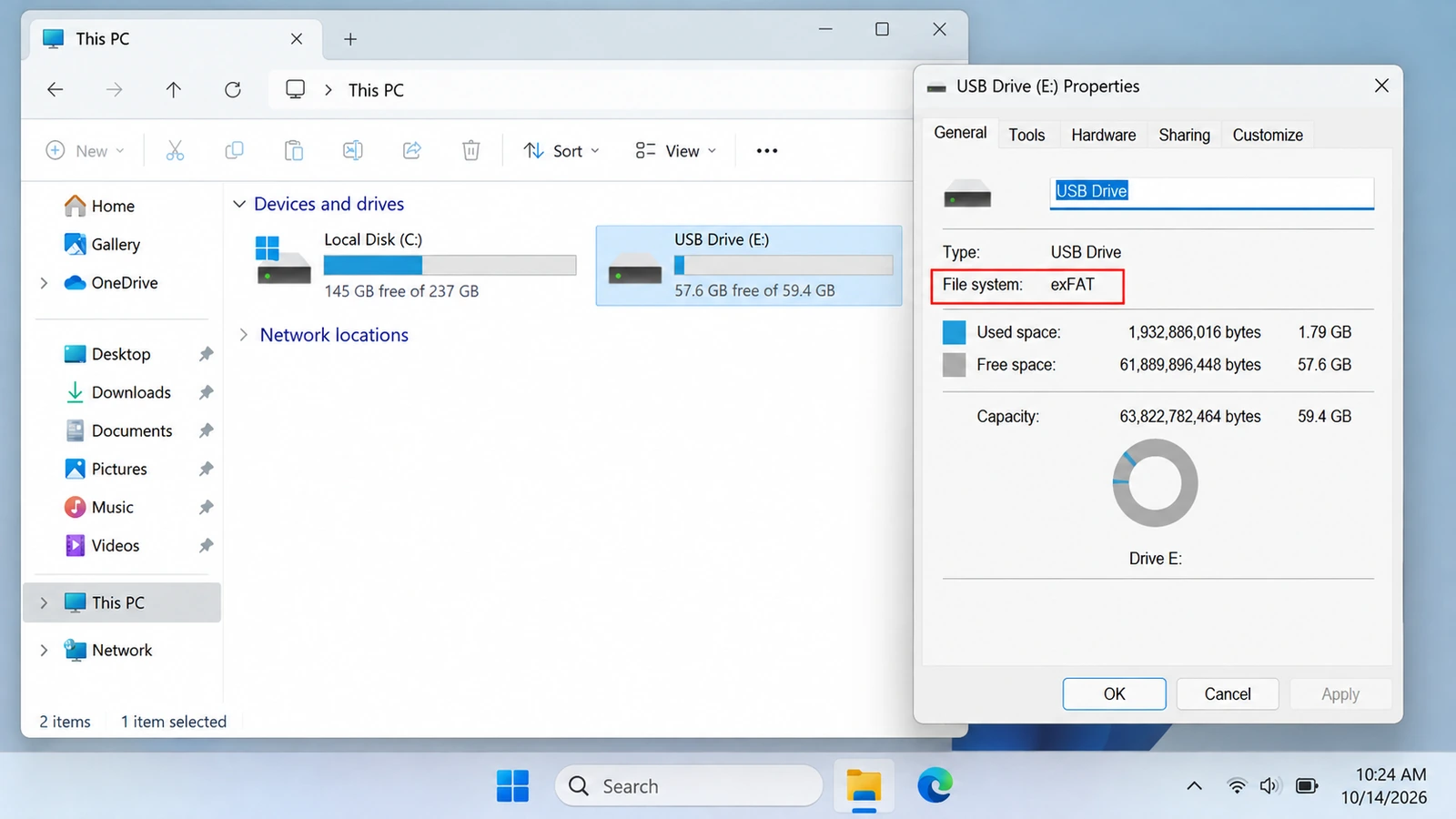
You can identify the file system by opening File Explorer, right-clicking the USB drive, and selecting Properties.
Can Flash Memory Management Erase Deleted Files?
USB flash drives use controllers that manage how information is stored in flash memory.
Wear leveling, garbage collection, and device-specific handling of discarded storage blocks can affect recovery. Some devices also support commands that inform storage hardware when data is no longer needed.
Consequently, avoiding new writes improves your position but does not guarantee that deleted data remains available.
Practical takeaway: Preserve the device’s current state and attempt recovery promptly. If the underlying data has already been overwritten or discarded, software cannot reconstruct the missing bytes.
How to Recover Deleted Files from Flash Drive: Choose the Right Method
Use the least invasive option that fits your situation.
If a backup contains the missing files, restoring that copy is preferable to scanning the USB. When no copy exists, Microsoft’s recovery utility provides a free option. A graphical recovery program is worth considering when you need easier file selection and previews.
For physically unstable devices, skip software recovery and consider professional assistance.
Method 1: Restore Deleted Flash Drive Files from Backups
Best for: Users who previously copied, synchronized, or backed up the missing files.
Restoring an existing copy is the safest first method because it avoids scanning or modifying the affected flash drive.
Step 1: Check Other Copies and the Recycle Bin
Look for the missing files in locations where you might have previously saved them:
- Your computer’s Documents, Downloads, or Desktop folders.
- OneDrive, Google Drive, or Dropbox.
- Email attachments and shared folders.
- Other computers or backup drives.
- The Windows Recycle Bin.
Most files deleted directly from removable USB flash drives bypass the usual Windows Recycle Bin. However, a copy deleted from your computer’s internal storage may still be there.
If you find an intact copy, restore it to a safe location.
Step 2: Check Windows File History
If File History was configured before the deletion and included a copy of the missing data:
- Open Control Panel > System and Security > File History.
- Select Restore personal files.
- Browse the available dates and versions.
- Find the missing file or folder.
- Restore it to a safe location.
You can also inspect Properties > Previous Versions for an eligible backed-up folder.
File History does not automatically protect every removable USB drive. Therefore, this method generally helps when a previous copy existed in a location that Windows backed up.
Microsoft provides more information in its Windows backup documentation.
Expected result: You recover an intact previous copy without scanning the USB.
If it fails: When no usable backup exists, proceed to a recovery scan.
Method 2: Recover Deleted Files from Flash Drive Free with Windows File Recovery
Best for: Windows 10 and Windows 11 users who want a free recovery option and are comfortable entering commands.
Microsoft’s Windows File Recovery utility scans supported storage devices for deleted files. It can help when files have disappeared from normal file-system views but some recoverable information remains.
Unlike backup restoration, it does not require a previously saved copy.
However, you must select the correct recovery mode, source drive, destination drive, and file filters.
Step 1: Install Windows File Recovery
Open the Microsoft Store and install Windows File Recovery.
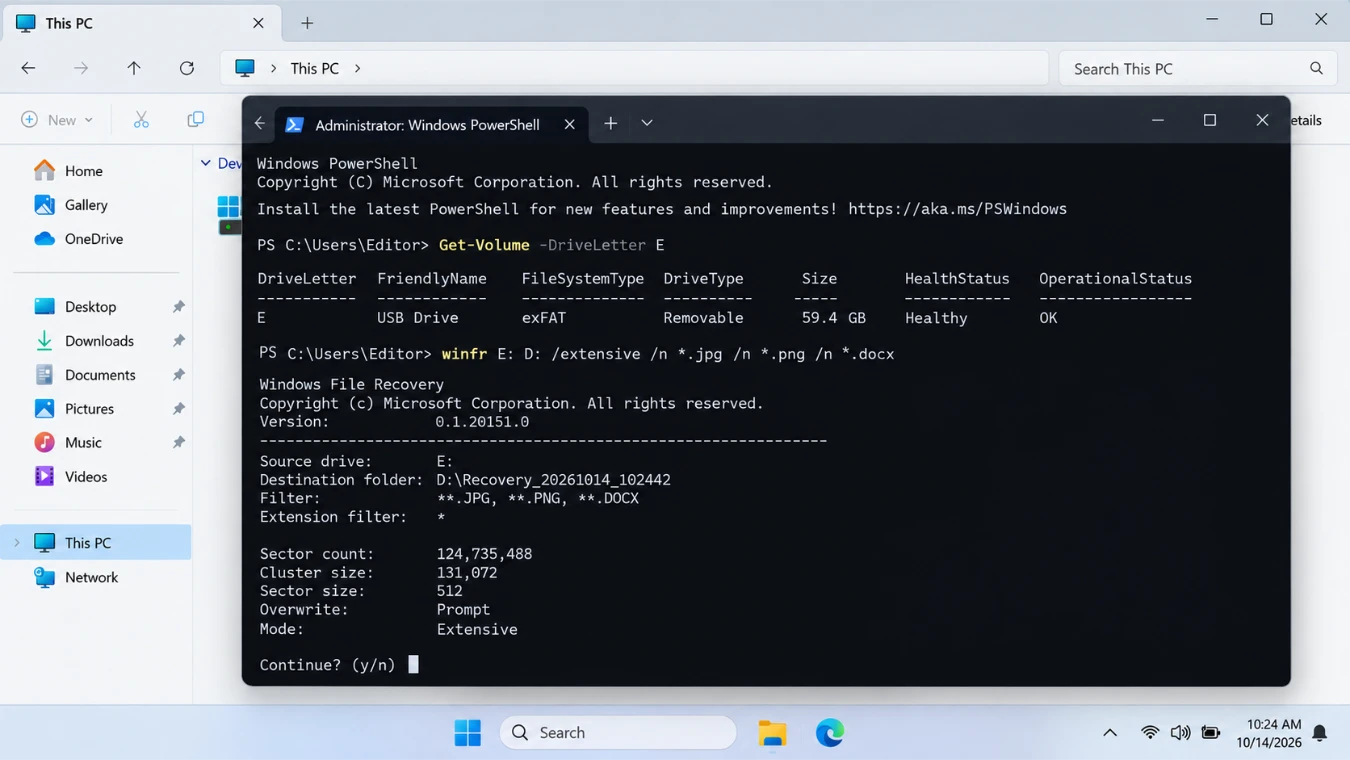
Connect the affected flash drive and confirm its drive letter in File Explorer.
For the following example:
E:represents the affected USB flash drive.D:represents a separate healthy destination drive.
Your drive letters may differ.
Step 2: Identify the File System
Right-click the USB drive in File Explorer and select Properties.
Choose the recovery mode according to its file system and condition:
File system | Situation | Mode |
NTFS | Recently deleted files | Regular |
NTFS | Older deletion, formatting, or corruption | Extensive |
FAT32 | Any supported recovery situation | Extensive |
exFAT | Any supported recovery situation | Extensive |
Microsoft confirms that recovery from non-NTFS file systems requires Extensive mode.
Step 3: Run the Recovery Command
For a FAT32 or exFAT flash drive, enter:
winfr E: D: /extensive /n *.jpg /n *.png /n *.docx
This command searches for JPG, PNG, and Word files.
For recently deleted files on a healthy NTFS flash drive, you can instead try:
winfr E: D: /regular /n *.docx
Replace the drive letters and file filters as needed.
Confirm the operation when prompted. Windows File Recovery creates a recovery directory on the destination drive.
Step 4: Inspect the Results
Open the generated recovery folder and look for the missing files.
Check the file contents rather than relying only on names. Some recovered files may have altered names, missing folder paths, or incomplete data.
Expected result: You find recovered files in the destination folder and can open them normally.
Limitations: The utility requires command-line input, and it may not preserve filenames or folder structures in every situation.
If it fails: Try the appropriate mode and carefully review your filters. If the drive remains stable but the needed files do not appear, a graphical recovery program provides another option.
Method 3: Recover Deleted Files from Flash Drive with Magic Data Recovery
Best for: Users who have no usable backup, can still access a stable USB device, and want to scan, preview, and recover files through a graphical interface.
Suppose you accidentally deleted a project folder containing Excel spreadsheets, PDF documents, and photographs from a thumb drive. Windows still detects the device, but File Explorer no longer shows the folder.
Windows File Recovery may help, although identifying the correct files through command-line results can be inconvenient.
In this situation, Magic Data Recovery provides a visual alternative.
Why Consider Magic Data Recovery?
Magic Data Recovery is a Windows data recovery application designed for logical data loss, including deletion, accidental formatting, and certain file-system problems.
For flash drive recovery, its relevant capabilities include:
- Device-level scanning: Search the selected USB drive for deleted or lost files.
- File filtering: Narrow the results by file type and available search options.
- File preview: Inspect supported content before selecting files for recovery.
- Common USB file-system support: Work with FAT32, exFAT, and NTFS storage.
- Selective recovery: Save the files you need rather than recovering every scan result.
The advantage over ATTRIB or hidden-file checks is that Magic Data Recovery can search for genuinely deleted data, not merely reveal existing files.
Compared with Windows File Recovery, the graphical workflow makes it easier to inspect results before choosing what to recover.
The software also offers up to 500 MB of free recovery, allowing users to evaluate a limited recovery before considering a paid license.
However, it cannot repair physical damage, recover overwritten content, or guarantee that every discovered file remains intact.
How to Recover Deleted Files from a Thumb Drive with Magic Data Recovery
These steps also apply to USB pen drives and other supported removable flash storage devices.
Step 1: Download and Install Magic Data Recovery
Download Magic Data Recovery from its official website and install it on your computer’s internal drive or another healthy storage device.
Do not install it on the affected USB.
Step 2: Select the Flash Drive
Open Magic Data Recovery and locate the affected USB device.
Confirm its drive letter, storage capacity, and device information. Select the correct drive and begin scanning.
Step 3: Scan for Deleted Files
Allow the scan to search for lost file records and recognizable data.
The application may display discovered files as scanning progresses. However, waiting for the scan to finish gives you a more complete set of results.
Step 4: Preview the Files You Need
Browse the results and use file categories or filters to locate important content.
For example, when searching for deleted vacation photographs, filter for image files and preview likely matches.
Check file names, sizes, and supported previews before making a selection.
Step 5: Recover Files to Another Drive
Select the desired files and choose a healthy destination.
Save the recovered data to your computer or another storage device, never to the original USB drive.
Once the operation finishes, open the restored files to verify their contents.
For additional interface instructions and system requirements, consult the official Magic Data Recovery User Guide.
Expected result: The selected files are saved to a separate drive and open correctly.
If it fails: Review the completed scan for alternate file names or file-type categories. However, if the files remain missing or damaged, repeated scans with similar settings may not produce a better result. Consider the recovery limits and device condition before proceeding.

How to Verify That Your Flash Drive Files Were Successfully Recovered
Finding a filename during scanning does not necessarily mean that recovery succeeded.
A scanner may identify an old directory entry even when the file content has been partially overwritten.
To verify recovered data, check the following:
- Open the file. Confirm that Word documents, photographs, PDFs, or videos work normally.
- Check the file size. A 0 KB file or an unexpectedly small result may indicate missing data.
- Inspect the actual content. A photograph should display correctly, and a document should contain the expected text.
- Verify important files completely. Test essential spreadsheets, archives, and longer videos rather than relying on thumbnails.
- Confirm the destination. Make sure the recovered files reside on a healthy drive separate from the affected USB.
For example, recovering a 200 MB video file does not automatically mean that all its frames and audio remain intact. Previewing a short section is useful, but opening and inspecting the saved file provides stronger evidence.
Successful recovery means that the required data is usable, not merely that a scanner listed it.
Special Cases That Can Change Your Recovery Strategy
Recovering Permanently Deleted Files from a Flash Drive
Using Shift+Delete or deleting directly from removable storage often bypasses the ordinary Recycle Bin restoration process.
However, permanent deletion does not always immediately destroy the underlying file content.
If recoverable data remains, a suitable scan may retrieve it. The result depends on overwriting, file-system metadata, and flash storage behavior.
Recovering Files After a Quick Format
Quick formatting generally rebuilds or replaces file-system structures without necessarily overwriting all previous file content.
Therefore, data recovery may remain possible after an accidental quick format.
However, the original folder structure may be incomplete, and subsequent writes can reduce the available data.
Do not format the flash drive again. Attempt recovery before repairing or reusing it.
Recovering Files from a RAW Flash Drive
A RAW volume indicates that Windows cannot interpret the file system normally.
If the device still reports a plausible capacity and remains stable, recovery software may be able to inspect its storage.
Avoid formatting, initializing, or running file-system repairs before securing important data.
Why CHKDSK, ATTRIB, and Formatting Should Not Come First
Windows repair commands serve different purposes from file recovery.
CHKDSK examines file-system consistency and can modify file-system structures when performing repairs. It may help restore normal disk operation, but those modifications can also affect information needed for recovering missing files.
ATTRIB changes file attributes, such as Hidden or Read-only. It can reveal existing hidden files, but it does not reconstruct deleted content. Changing attributes also involves file-system modifications.
Formatting recreates file-system structures so that Windows can use a volume. It does not protect your previous data and may make recovery more difficult.
These operations can have valid uses once your important files are secure. For a device that remains logically corrupted after recovery, see our guide to fixing a corrupted USB drive without losing data.
The safer sequence is:
Recover or back up data → Verify recovered files → Repair the device → Reformat or reuse if appropriate.
If the flash drive continues to behave unpredictably after recovery, replace it rather than relying on repeated repairs.
When Should You Stop DIY Flash Drive Recovery?
Not every USB data loss problem can be handled safely with software.
Stop recovery attempts when:
- The USB connector is physically broken or bent.
- The flash drive becomes unusually hot.
- Windows repeatedly loses its connection to the device.
- Disk Management consistently reports No Media or 0 bytes.
- The drive suffered water, fire, impact, or circuit damage.
- Repeated reading causes the device to become less stable.
- The files represent the only copy of irreplaceable or highly valuable data.
These symptoms suggest that software scanning may be inappropriate.
A professional data recovery service may use specialized equipment to investigate controller or flash memory failures. Such work differs from scanning a normally functioning USB drive.
Professional recovery is not guaranteed either. Nevertheless, avoiding unnecessary repeated access can help preserve the remaining recovery options.
How to Prevent Future USB Flash Drive Data Loss
Once you have recovered and verified your files, take steps to avoid another loss.
Keep Independent Backups
Do not use a flash drive as the only location for important documents.
Maintain at least one separate copy on a computer, external drive, or backup service. For particularly valuable files, consider the 3-2-1 backup principle: three copies, two types of storage, and one off-site copy.
Use Version History for Important Work
For documents that change frequently, enable version history or periodic backup where available.
OneDrive, Google Drive, and other services may preserve previous file versions. However, synchronization alone is not a complete backup strategy because deletions and unwanted changes can also synchronize.
Verify Files Before Formatting
Before formatting or repairing a USB drive, confirm that you have copied all important data elsewhere.
Open a sample of the copied files to make sure the transfer succeeded.
Eject USB Drives Safely
Avoid disconnecting a flash drive while Windows is writing data to it.
Use the appropriate eject procedure and wait until file transfers finish.
Replace Unreliable Devices Early
A flash drive that frequently disconnects, shows recurring errors, or behaves inconsistently should not continue storing your only important copies.
Transfer accessible data to healthy storage and replace the device before the problem becomes more serious.
Conclusion
You can often recover deleted files from flash drive storage when the original data remains accessible and the device has not suffered serious damage. However, choosing the right method matters more than repeatedly trying different tools.
If the files are merely hidden, check File Explorer settings. When a backup exists, restore it first. For genuinely deleted files on a stable USB drive, Windows File Recovery offers a free official option.
If you need a graphical way to scan and inspect deleted files, Magic Data Recovery is worth considering. Its file filtering, previews, and selective recovery process help Windows users identify useful results without relying on command-line operations. It is particularly suitable for accidental deletion, quick formatting, and certain logical storage problems.
Nevertheless, software cannot restore overwritten data or repair physically damaged flash memory. Stop DIY recovery when the device becomes unstable, and never save recovered files back to the original USB before securing everything important. For additional USB data recovery guidance, visit our USB Flash Drive Recovery Hub.
Supports Windows 7/8/10/11 and Windows Server
FAQ
Can I recover deleted files from a flash drive without paying?
Where do deleted files from a USB flash drive go?
Can I recover deleted files from a thumb drive after several months?
Does copying new files onto a USB drive reduce recovery chances?
Why does Windows File Recovery find no files on my USB drive?
Can recovery software restore files from a USB drive that shows 0 bytes?
Is it safe to save recovered files back to the original flash drive?

Vasilii is a data recovery specialist with around 10 years of hands-on experience in the field. Throughout his career, he has successfully solved thousands of complex cases involving deleted files, formatted drives, lost partitions, and RAW file systems. His expertise covers both manual recovery methods using professional tools like hex editors and advanced automated solutions with recovery software. Vasilii's mission is to make reliable data recovery knowledge accessible to both IT professionals and everyday users, helping them safeguard their valuable digital assets.