
LaCie Data Recovery: Restore Lost Files
A LaCie Rugged drive may show an empty project folder, or Windows may ask to format a disk holding your photos. LaCie data recovery may help after deletion or file-system damage, but the safest method depends on the cause. See Amagicsoft’s hard drive recovery hub for related HDD cases.
Deleted files may remain until overwritten, and quick formatting can leave content intact. However, SSD TRIM, secure erasure, and physical damage can prevent recovery. A missing drive icon does not necessarily mean erasure.
Stop using the affected drive. Below, diagnose the loss, try backups, and decide whether software or a recovery lab makes sense.
Table of Contents
Before LaCie Data Recovery: Protect the Original Files
- Do not copy, download, or save anything to the LaCie drive. New writes may overwrite deleted data.
- Cancel prompts to format or initialize the disk. Do not create a new partition.
- Avoid CHKDSK /f, Disk Utility First Aid, and partition repair until you have recovered or securely copied important files. Such tools may change file-system records.
- Keep recovery output on a different physical drive. Never install software on the affected disk.
- Stop if the drive clicks, grinds, overheats, or repeatedly disconnects. Further power cycles and scans may worsen hardware damage.
If the drive holds your only irreplaceable copy and seems damaged, seek professional advice before testing again.
Can LaCie Data Recovery Work? Choose Your Situation
What you see | Likely situation | Best first step |
A file or folder vanished, but the disk opens | Wrong path, hidden file, or deletion | Search locations; check Recycle Bin or Trash |
You emptied Recycle Bin or used permanent deletion | File records may be removed | Stop writing; look for backups |
The LaCie disk was quick-formatted | Recreated file-system metadata | Avoid reuse; restore backup or scan a stable disk |
Windows shows RAW or asks to format | Unreadable file-system metadata | Cancel prompt; diagnose before repair |
Disk is missing from File Explorer/Finder | Cable, mounting, format, or hardware issue | Check safe connection and disk detection |
Clicking, impact damage, or unstable connection | Possible physical failure | Disconnect; ask a recovery lab |
Logical loss means storage remains readable but file records or paths are damaged. Physical failure means hardware cannot reliably read the disk. LaCie data recovery software cannot repair damaged heads or electronics.
LaCie Data Recovery Diagnosis: Missing or Unreadable Drive
Check Cables and Disk Detection
Try another compatible cable or direct USB/Thunderbolt port. Check power on desktop models. Stop if you hear unusual sounds.
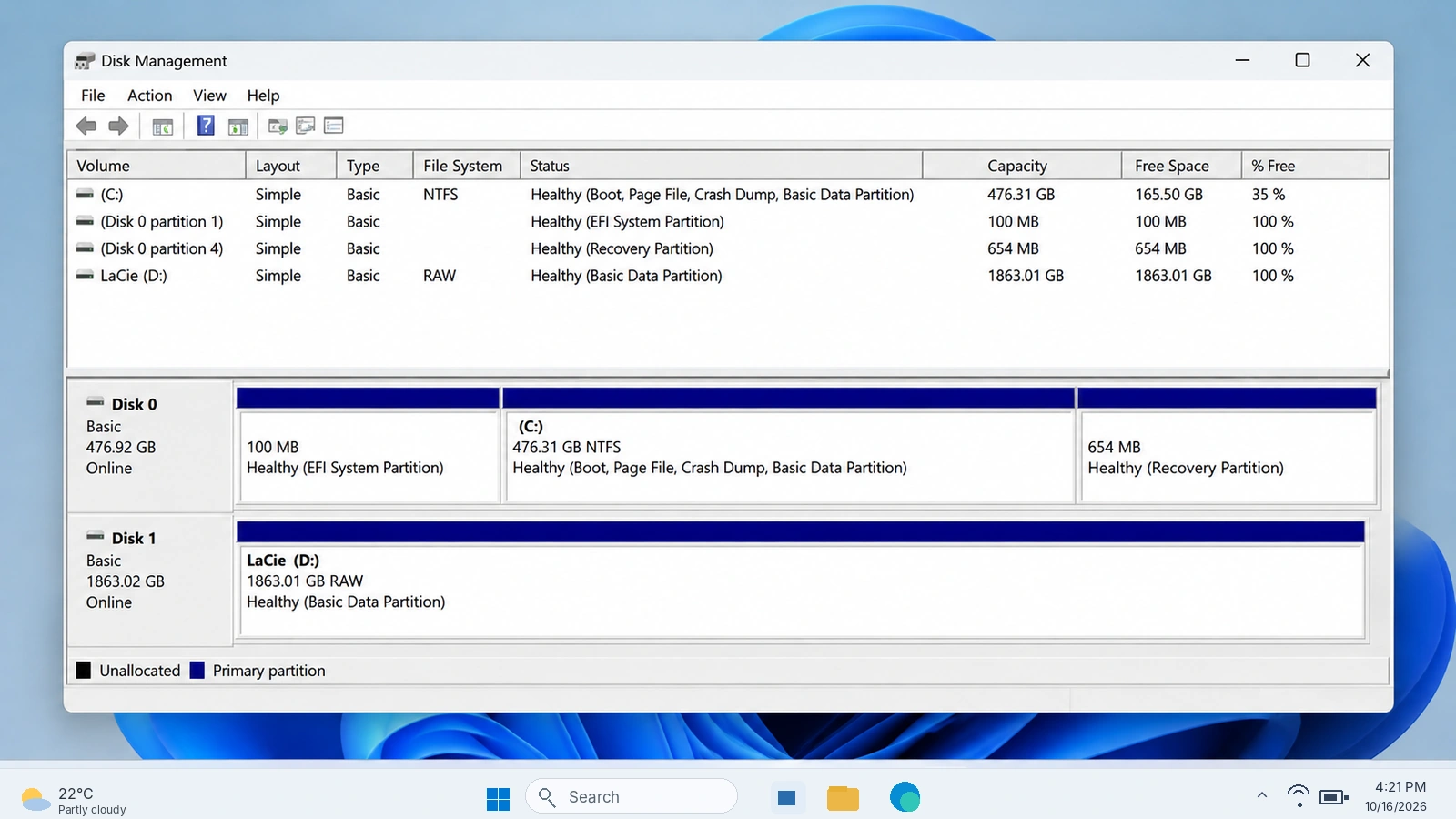
On Windows, right-click Start > Disk Management. Identify the LaCie device by its capacity. On Mac, open Disk Utility > View > Show All Devices.
- Healthy partition without a letter: On Windows, a missing drive letter may explain its absence in File Explorer. Assigning an unused letter can help when the file system itself is healthy.
- RAW / Unallocated / Not Initialized: Windows cannot interpret the volume or its partition information. This does not necessarily mean every file is erased. Do not format or initialize it.
- Disk missing entirely or reporting an implausible size: Suspect the cable, enclosure, or device hardware. If simple connection checks fail, stop DIY recovery.
If detected normally, check hidden or renamed folders. See our external hard drive recovery guide.
Check Mac File Systems and Security
Windows cannot natively open APFS or HFS+ volumes. Check the drive on a Mac before attempting LaCie data recovery. exFAT normally works on both systems.
LaCie Secure drives may require a password in Seagate Toolkit. According to Seagate Secure documentation, Factory Reset and Crypto Erase delete data. Password-reset keys must be configured beforehand.
Why Deleted, Formatted, and RAW LaCie Drives Need Different Solutions
Deletion usually marks storage space as reusable; content may survive until overwritten. Thus, LaCie data recovery tools sometimes find invisible files.
A quick format rebuilds file-system structures. A full overwrite or secure erase can destroy recoverable content. RAW means the operating system cannot interpret the file system; it does not mean files were explicitly deleted.
On SSDs, TRIM marks blocks as unused; garbage collection can make them unrecoverable. Therefore, LaCie data recovery outcomes differ between HDDs and SSDs.
Start LaCie Data Recovery with Existing Copies
Check Recycle Bin, Trash, and Other Copies
Best for: Files accidentally deleted while the drive still works.
LaCie data recovery is simplest when another usable copy already exists.
Check folders and cloud version history, then Recycle Bin (Windows) or Trash (Mac). External-drive deletion sometimes bypasses Recycle Bin, so an empty bin proves little.
Limit: You need an existing copy. Restore it to healthy storage and check that it opens.
Restore a Previous Backup Version
Best for: Files included in a backup before the loss.
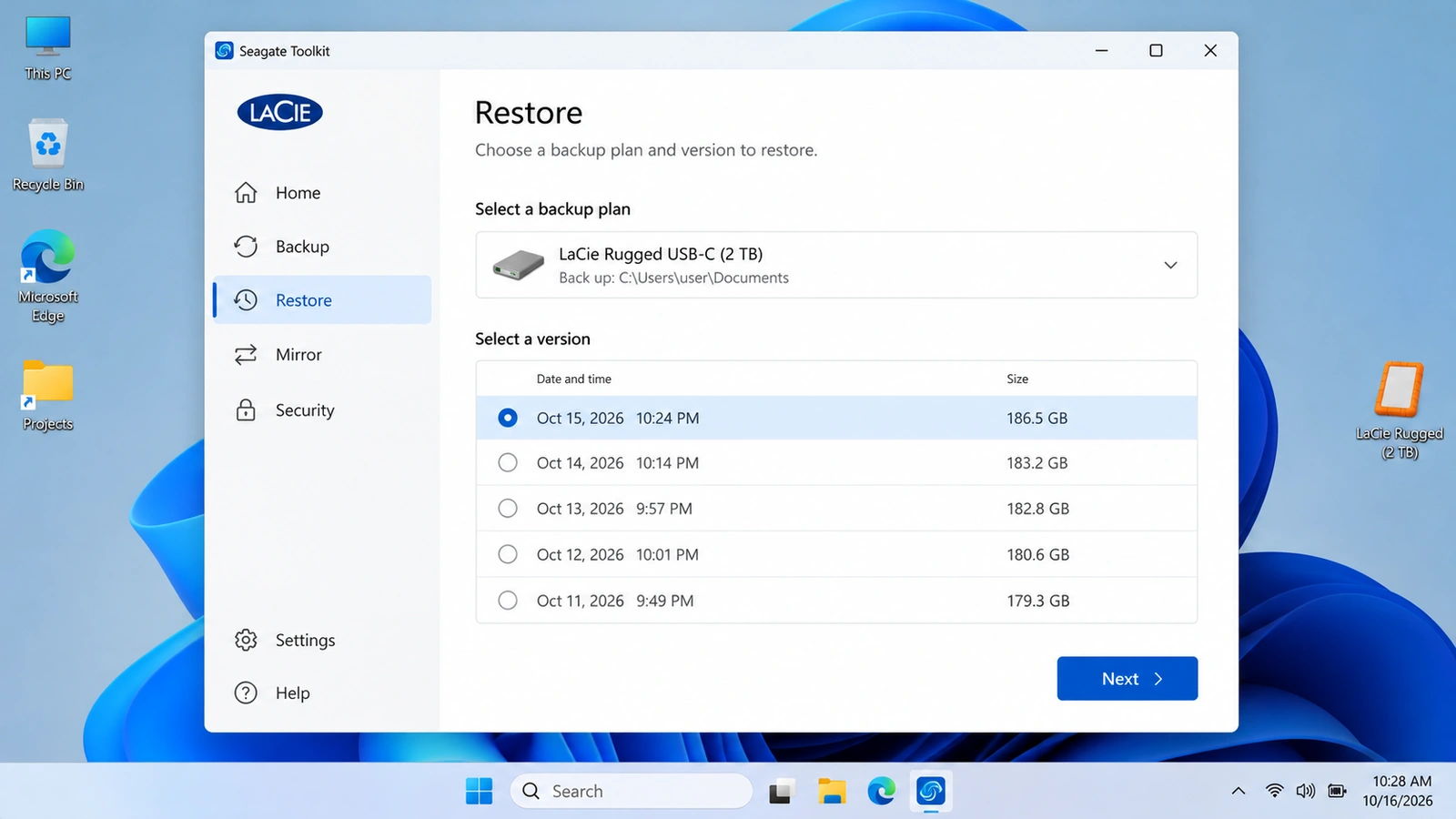
If you used LaCie Toolkit Backup on Windows, follow Seagate’s Restore instructions: open Toolkit, select Restore, choose the plan and version, then set a safe destination. Toolkit backs up selected computer folders to external storage; a backup stored only on the failed disk may also be inaccessible.
Windows File History or macOS Time Machine can restore previously backed-up folders. However, Toolkit Mirror is not a versioned backup: deletions can propagate to both synced folders. Autosave helps with unsaved application work, not all deleted files.
If no accessible copy exists, move to recovery software only if the LaCie disk reads consistently.
Try Microsoft’s Free Windows File Recovery
Best for: Windows users comfortable with commands, whose readable LaCie volume has an accessible drive letter and contains deleted files.
Install Windows File Recovery on an unaffected drive. For a LaCie source E: and healthy destination D:, use winfr E: D: /extensive. Confirm the letters first.
This offers a free LaCie data recovery option, although it requires an appropriate source drive and a separate destination.
Limit: This command-line tool cannot fix missing hardware or unlock encryption. For graphical filtering and preview, see below.
Use Magic Data Recovery When LaCie Files Are Really Lost
When Recycle Bin, backups, and native options cannot restore deleted or formatted files, Magic Data Recovery offers a Windows-based LaCie data recovery workflow for compatible, readable HDDs and SSDs.
It searches surviving file records and recognizable content, then lets you filter and preview supported results. Unlike backups and Recycle Bin, it does not require a saved copy or visible deleted-item listing. It suits permanent deletion, quick formatting, and some logical damage.
Limits: No physical repair, encryption bypass, overwritten-data recovery, or guaranteed SSD recovery. Mac-only file-system support should not be assumed.
How to Use Magic Data Recovery on a LaCie Drive
Step 1: Download and Install Magic Data Recovery
Download the installer from the product page. Install it on your Windows PC’s internal disk or another unaffected volume—not the LaCie partition that lost files.
Supports Windows 7/8/10/11 and Windows Server
Step 2: Select the LaCie Drive Where the Files Were Stored
Connect the stable LaCie drive, open Magic Data Recovery, identify the correct drive or partition by capacity, and start scanning.

Step 3: Scan for Lost LaCie Photos, Videos, or Documents
Allow the scan to examine the selected volume. Browse the files as results appear, using names, paths, or types where available.

Step 4: Preview Files Before Recovery
Use Preview for supported photos or documents to check whether the content matches what you need. Not all formats or damaged files can be previewed.

Step 5: Recover Files to a Different Drive
Select the files and save them to a separate healthy physical disk. Never save recovered data back to the source LaCie drive.

If built-in options no longer work, you can try Magic Data Recovery before further writes overwrite surviving files.
Verify Recovery Before Repairing the LaCie Disk
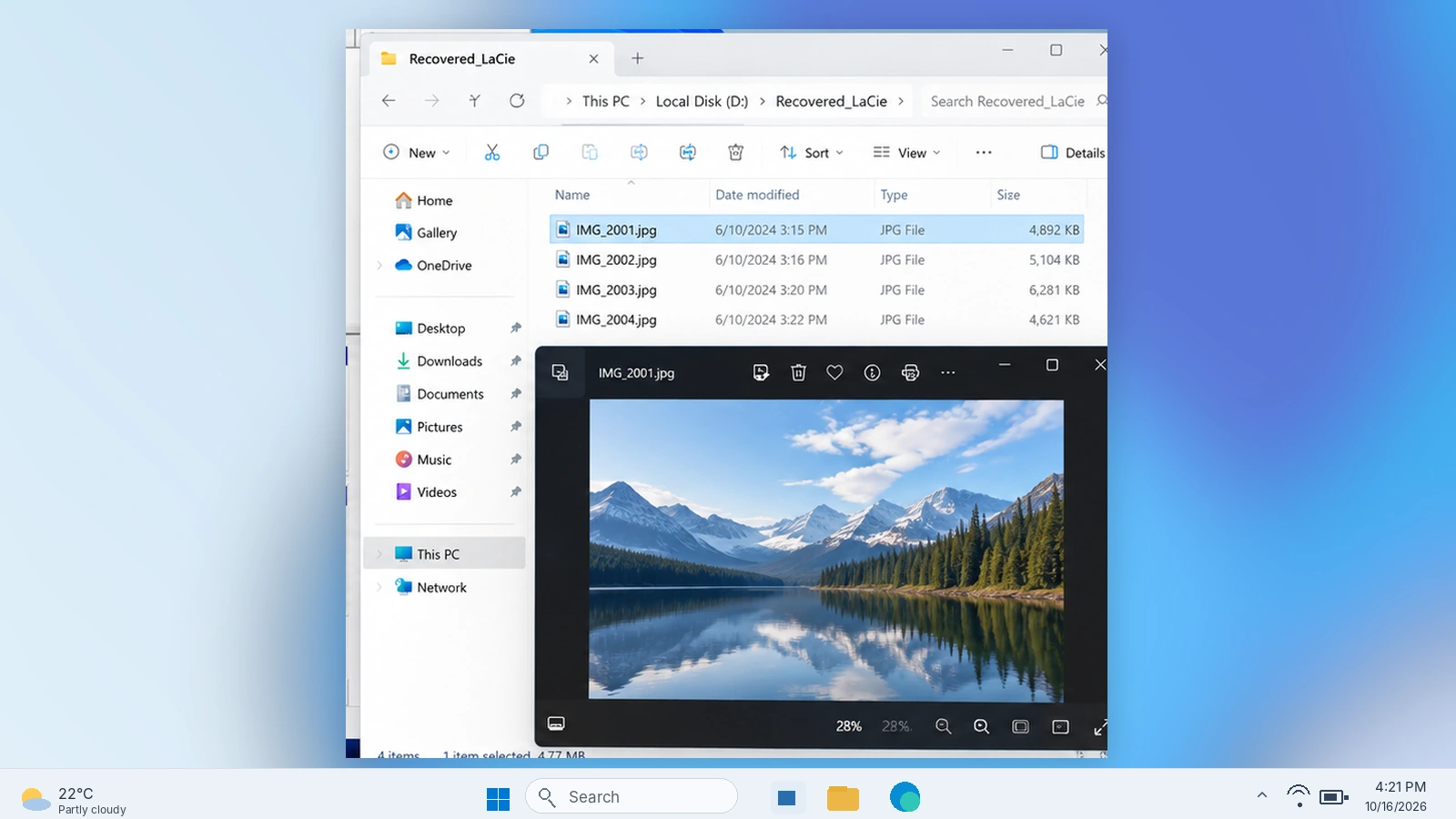
Finding a filename does not prove the file works. After LaCie data recovery, check recovered copies:
- Open several important files in their usual applications, not just the recovery tool’s preview.
- Compare file sizes, dates, and content with any available references.
- For video projects, test playback at different points and confirm linked media opens.
- Preserve the original drive until you have verified the files that matter.
A 0 KB file or one that will not open may have missing content. Repair or reformat the source only after verifying important recovered files.
When to Stop DIY LaCie Data Recovery
Choose professional LaCie data recovery services if the drive clicks, suffered impact damage, disconnects during reads, or holds irreplaceable originals. Do not repeatedly scan it.
Multi-disk LaCie 2big/5big/6big RAID devices need special care: a RAID 0 failure and RAID 1 mirror failure follow different recovery paths. Avoid changing RAID mode, rebuilding an array, or removing disks without documenting their original positions.
Some models include Seagate Rescue Data Recovery Services. Use the official Rescue plan lookup with your serial number to check coverage. Ordinary warranty coverage does not automatically include data recovery, and professional service cannot guarantee a result.
Prevent Future Data Loss on LaCie Drives
Keep an independent backup plus an off-site/cloud copy. Use version history, not only two-way sync. Verify backup files before formatting.
Keep project originals on separate devices, eject drives properly, and investigate new read errors. SSD TRIM may permanently remove deleted content without further user writes.
Conclusion
LaCie data recovery begins with the drive’s condition, not a download. If files are simply missing, verify paths and compatibility. If a backup or Recycle Bin copy exists, restore it first. For a stable, readable disk with permanently deleted or quick-formatted files, try native tools or Magic Data Recovery, always saving recovered files elsewhere.
However, a clicking HDD, unstable RAID, or physically damaged SSD needs professional assessment. Check results before attempting repairs, and use the hard drive recovery hub for other storage-related scenarios. The safest LaCie data recovery decision is the one that preserves your remaining options.
Supports Windows 7/8/10/11 and Windows Server
FAQ
Is LaCie Data Recovery Possible Months After Deletion?
Can LaCie Data Recovery Software Work If the Drive Is Not Detected?
Are There Free LaCie Data Recovery Options?
Does a Quick Format Erase Everything on a LaCie External Hard Drive?
What Happens If I Forget My LaCie Secure Password?
Can I Recover LaCie Files on Windows If the Drive Was Used on Mac?
Is Professional LaCie Data Recovery Covered by the Warranty?

Vasilii is a data recovery specialist with around 10 years of hands-on experience in the field. Throughout his career, he has successfully solved thousands of complex cases involving deleted files, formatted drives, lost partitions, and RAW file systems. His expertise covers both manual recovery methods using professional tools like hex editors and advanced automated solutions with recovery software. Vasilii's mission is to make reliable data recovery knowledge accessible to both IT professionals and everyday users, helping them safeguard their valuable digital assets.