
Data Recovery from External Hard Drive
You connect your external hard drive to Windows, but an important folder has disappeared. Perhaps you accidentally deleted files, formatted the wrong partition, or received a message asking you to format the disk. In these situations, data recovery from external hard drive storage may still be possible because missing files are not necessarily erased permanently.
Recovery depends on what happened to the files, whether new data has overwritten them, and whether the drive remains physically healthy. For example, a recently deleted folder on a working HDD may be recoverable, while a clicking drive requires professional attention.
The safest next step is to stop writing data and identify the actual problem. This guide helps you choose the appropriate recovery method, protect your original files, and verify the results. For additional storage guidance, explore our Hard Drive Recovery Guide.
Table of Contents
Important: Protect Your External Hard Drive Before Recovery
Before attempting external hard drive recovery, avoid actions that could change the original data.
- Stop writing new files. New data may overwrite previously deleted content.
- Do not format or initialize the disk. These operations can modify storage structures.
- Avoid CHKDSK repairs. File system repairs may alter metadata needed for recovery.
- Use a separate destination. Save recovered files to another physical drive.
- Stop if the HDD makes unusual noises. Clicking, grinding, or repeated disconnections can indicate hardware failure.
If the drive shows physical damage, disconnect it rather than repeatedly scanning it.
For a stable drive, follow one principle throughout the recovery process: Recover first, verify second, repair last.
Data Recovery from External Hard Drive: Which Method Should You Choose?
Quick Answer: If files remain in an existing backup, restore that copy first. When files were permanently deleted, quick-formatted, or lost because of logical corruption, recovery software may help. However, physically failing drives need professional assessment.
Use this decision table to identify your situation.
Your Situation | What It Usually Means | Best Next Step |
Files recently deleted | A restorable copy may exist | Check Recycle Bin |
Shift + Delete or emptied Recycle Bin | Deleted content may remain on disk | Check backups, then scan |
Files suddenly disappeared | Hidden files or changed paths | Check File Explorer |
External HDD quick-formatted | File system structures were recreated | Stop using and scan |
Drive shows RAW | Windows cannot interpret the file system | Recover before repairing |
Missing from File Explorer | Partition or connection issue | Check Disk Management |
HDD clicks or repeatedly disconnects | Possible hardware failure | Stop DIY attempts |
This distinction matters because not every missing file requires a recovery scan. Sometimes Windows simply cannot display its original location.
Diagnose the Problem Before Recovering External Hard Drive Files
A useful diagnosis answers three questions: What do you see? What could cause it? What should you do next?
Files Disappeared, but the Drive Still Opens
Symptoms: Windows opens the external HDD, but a folder is empty or missing.
Likely causes: Accidental deletion, hidden file attributes, incorrect paths, or misplaced folders.
How to check:
- Open File Explorer and select the external drive.
- Choose View > Show > Hidden items.
- Search for the missing filename or extension.
- Check whether the original folder moved elsewhere.
If you find the files, copy them to another healthy disk.
However, when File Explorer cannot locate them and no backup exists, a recovery scan may be appropriate.
The External Hard Drive Shows RAW or Unallocated Space
Symptoms: Windows asks you to format the volume, displays RAW, or reports an unallocated partition.
Likely causes: File system corruption, partition damage, or missing metadata.
Press Windows + X > Disk Management and locate the physical disk. Check its reported capacity and partition status without changing anything.
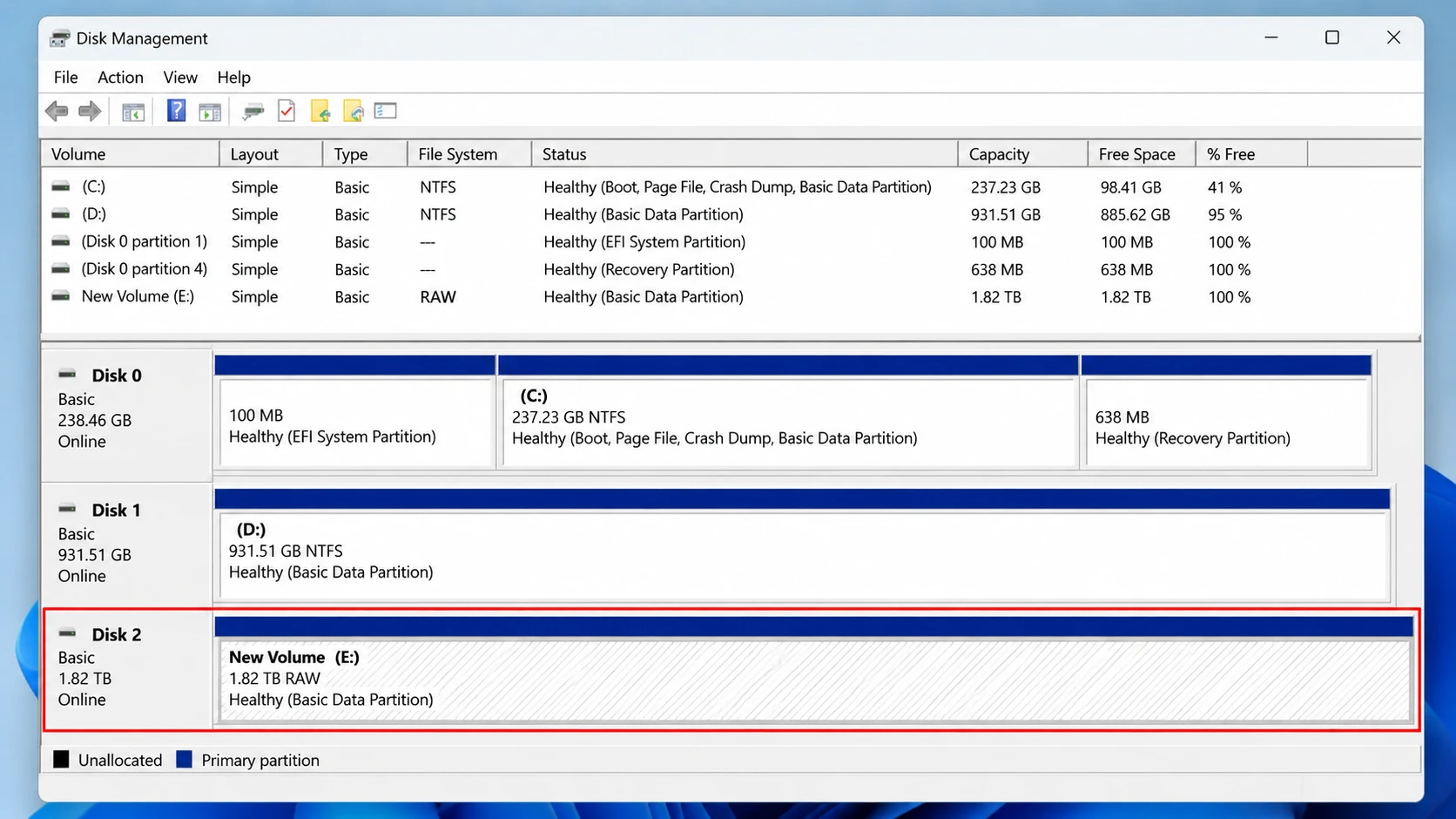
A RAW partition does not automatically mean Windows erased the files. However, do not create a new partition, initialize the disk, or accept the formatting prompt.
Microsoft’s Disk Management documentation explains how Windows identifies disks, partitions, and volumes.
For additional diagnosis, read our guide on an external hard disk showing a RAW file system.
Windows Cannot Recognize the External Hard Drive
Symptoms: The disk does not appear in File Explorer, or its connection repeatedly fails.
Likely causes: USB cable problems, power issues, enclosure faults, or physical disk failure.
For a drive without mechanical warning signs, check a different USB port or compatible cable. Then inspect Disk Management.
If Windows still cannot access the physical storage or reports an obviously incorrect capacity, ordinary software recovery may not work.
Our external hard drive recognition troubleshooting guide explains how to distinguish connection problems from more serious failures.
Why Is Data Recovery from External Hard Drive Sometimes Possible?
Deleting a file does not always erase its contents immediately.
On a traditional HDD, the file system may mark previously occupied space as available. The original content can remain until another operation overwrites those sectors.
For example, when you delete an NTFS document, Windows may update its file records while leaving some underlying content intact. Recovery software can sometimes locate the remaining metadata or recognize data through file signatures.
Similarly, quick formatting generally recreates essential file system structures without necessarily overwriting every sector containing old files.
However, three conditions can reduce recovery possibilities:
- Overwriting: New data replaces the original file content.
- Full formatting or secure erasure: These operations may make previous content inaccessible.
- Hardware deterioration: Damaged sectors or mechanical faults can prevent reliable reading.
External SSDs also require special consideration because TRIM and garbage collection may make deleted data unrecoverable.
Therefore, data recovery from external hard drive storage depends on what remains readable, not simply how recently the files disappeared.
How to Recover Files from an External Hard Drive: 5 Methods
Choose recovery methods in this order:
Existing copies → Windows recovery tools → Dedicated recovery software → Professional recovery service
This sequence favors the lowest-risk solutions before attempting deeper recovery.
Method 1: Restore Files from Recycle Bin
Best for: Recently deleted files that still exist in the Recycle Bin.
Why try it first: An existing Recycle Bin entry may provide a direct restoration path without scanning the entire drive.
- Open Recycle Bin on the Windows desktop.
- Search for the missing files.
- Check their original locations.
- Right-click the required files and select Restore.
Expected result: Windows restores the selected files to their original locations.
Important limitation: Some external-drive configurations and deletion methods bypass the Recycle Bin. Additionally, restoring files directly onto the affected HDD can create new writes. If other important files remain missing on that disk, avoid writing restored data to it until you have protected or recovered the remaining content.
If the files are missing, see our deleted files from external drive recovery guide.
Method 2: Recover External Hard Drive Files from Backups
Best for: Files previously protected by File History, cloud backups, or manual copies.
Backups are preferable to scanning because they can provide an intact version without depending on remaining deleted-file records.
First, inspect available cloud storage, backup disks, and network locations.
If Windows File History previously included the missing files:
- Open Control Panel > System and Security > File History.
- Choose Restore personal files.
- Browse the available versions.
- Select the required files.
- Restore them to a safe location.
You can also right-click an eligible folder and check Properties > Previous Versions.
Expected result: An earlier usable copy becomes available.
Limitation: File History must have protected the relevant files before they disappeared. It does not automatically back up every external drive.
Microsoft’s File History documentation explains the supported backup and restoration process.
If no backup exists, proceed to a recovery scan only after confirming that the HDD remains stable.
Method 3: Use Windows File Recovery
Best for: Permanently deleted files on a supported drive when you are comfortable using command-line tools.
Microsoft provides Windows File Recovery, a free utility that can scan supported internal and external storage.
After installing it from the Microsoft Store, open the program and enter a command such as:
winfr E: D: /extensive /n *.jpg
Here:
E:represents the external drive containing lost files.D:represents a separate physical recovery destination./extensiveenables a deeper recovery mode./n *.jpgfilters the search to JPG files.
Replace the example drive letters with the correct ones. The source and destination must be different physical drives.
For a healthy NTFS volume with recently deleted files, Regular mode may be suitable. Extensive mode can help with more complicated file loss or supported non-NTFS file systems.
Expected result: Windows File Recovery creates a recovery folder on the destination drive when it finds output to restore.
Limitations: The process requires command-line knowledge and a source drive that Windows can read. Recovered filenames and folder structures may also differ from the originals.
Microsoft’s official Windows File Recovery guide documents the supported modes, command syntax, and limitations.
If it fails: When the HDD remains stable but Windows File Recovery cannot locate usable files, a graphical recovery utility provides another option. Avoid repeated scans if the drive develops hardware errors.
Method 4: Data Recovery from External Hard Drive with Magic Data Recovery
Best for: Permanently deleted, quick-formatted, or logically inaccessible files when no usable backup exists and Windows can still read the storage device reliably.
At this stage, dedicated recovery software becomes a practical option because ordinary file restoration methods have failed.
Magic Data Recovery supports common Windows data-loss scenarios involving external HDDs, including accidental deletion, formatting, and RAW file system problems.
Its main advantage over command-line recovery is a graphical workflow that helps users select the correct disk, inspect scan results, preview supported files, and choose a safe recovery destination.
Step 1: Download and Install Magic Data Recovery
Download the software and install it on a healthy drive, not the disk containing your missing files.
Step 2: Select the Drive to Scan
Open the program and select the external HDD containing your lost data. Verify its capacity before proceeding.

Magic Data Recovery drive selection interface. Check the disk capacity and selected volume before starting a recovery scan.
Step 3: Scan for Missing Files
Start the scan and review the discovered files. Use the available file information and preview options to identify the content you need.
Step 4: Preview and Recover
Preview supported files, select the required items, and restore them to another physical drive.
After recovery, open the restored files to confirm their contents.
For additional interface instructions, see the Magic Data Recovery User Guide.
Expected result: You obtain usable copies of the files that the software can successfully recover.
For example, after accidentally quick-formatting a portable HDD, a user can scan the device and inspect previewable photographs before deciding which files to restore. This describes a typical recovery workflow, not a guaranteed outcome or a measured success rate.
Limitations: Magic Data Recovery cannot recover fully overwritten information, decrypt ransomware-encrypted files, or repair mechanical failures. A visible filename or successful preview does not guarantee that every recovered file will be complete.
If it fails: Check whether another backup exists. If the disk develops read errors, disconnections, or unusual noises, stop scanning and consider professional assessment.
Method 5: Contact a Professional Data Recovery Service
Best for: Physically damaged HDDs, unstable drives, or irreplaceable data where DIY attempts carry substantial risk.
Unlike ordinary recovery software, professional laboratories can assess certain hardware failures and use specialized equipment to image damaged storage.
For example, a dropped external HDD that produces repeated clicking sounds may have internal mechanical damage. Continuing to scan such a disk could worsen its condition.
Recommended steps:
- Stop using the affected drive.
- Avoid opening its sealed mechanism.
- Contact a reputable recovery laboratory.
- Explain the symptoms and previous recovery attempts.
Expected result: The laboratory assesses whether hardware-assisted recovery is feasible.
Limitation: Professional recovery can be expensive and does not guarantee that damaged or overwritten content will be recoverable.
How to Verify Recovered External Hard Drive Files
A recovery scan may identify thousands of filenames, but finding a file is not the same as successfully restoring its contents.
For data recovery from external hard drive storage, verification is essential before formatting or reusing the original disk.
Step 1: Check File Names, Sizes, and Extensions
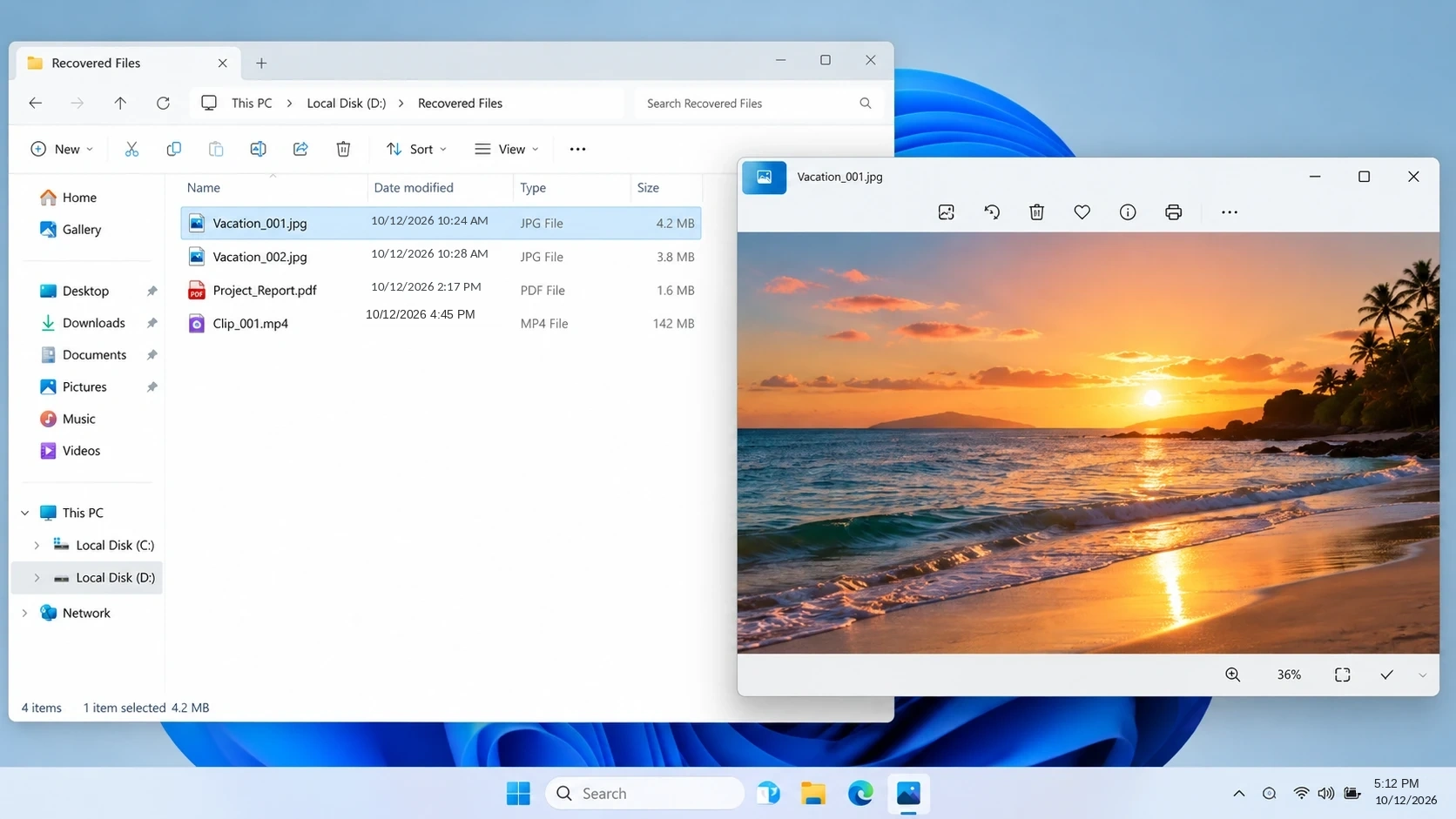
After saving recovered files to another drive, open the destination folder in File Explorer.
Check whether filenames, extensions, and folder structures appear reasonable.
Files that show 0 KB or unexpectedly small sizes deserve closer inspection. However, a normal file size alone cannot prove that the content is intact.
Step 2: Open Different Types of Recovered Files
Use the following verification checklist.
File Type | How to Verify | Warning Signs |
JPG / PNG | Open and inspect the entire image | Missing sections, decoding errors |
MP4 / MOV | Play the beginning, middle, and end | Freezing, playback errors |
DOCX / XLSX | Open the file and inspect its content | Repair warnings, missing data |
Open and check several pages | Blank pages, unreadable content | |
ZIP / RAR | Run an archive integrity test | CRC errors, extraction failures |
For example, a recovered MP4 file may display the correct filename and size but fail during playback because part of its content is missing.
Similarly, a document may open while containing damaged tables or embedded objects.
Therefore, verify actual file contents rather than relying only on a recovery scan’s file list.
Step 3: Compare Recovered Files with Available References
When another copy or reliable reference exists, compare important properties such as:
- File size and expected content.
- Number of document pages or spreadsheet worksheets.
- Image dimensions.
- Video duration.
- Archive contents and extraction results.
For critical business documents, inspect all important files individually.
If you have a known-good original and its checksum, matching cryptographic hashes provide stronger evidence that the recovered copy is identical.
Step 4: Confirm Recovery Before Repairing the Original Drive
A useful verification record should include the original problem, recovery method, destination, and whether the restored files opened successfully.
Verification Item | What to Record |
Source drive | Device model, capacity, file system |
Data-loss event | Deletion, formatting, RAW, or another issue |
Recovery method | Backup, Windows File Recovery, or recovery software |
Output destination | Separate physical drive |
File verification | Opened successfully, partially readable, or failed |
Remaining problems | Missing files, corruption, or read errors |
This checklist makes recovery results easier to evaluate and reproduce. It is not a claim that a particular recovery test has already been performed.
Once you confirm that the restored files are usable, create another backup copy.
Only then should you consider formatting, repairing, or reusing the original HDD.
Data Recovery from External Hard Drive After Formatting or RAW Errors
Two common scenarios deserve additional attention because Windows may encourage users to format a disk before they have secured their files.
Recover Files After Quick Formatting
A quick format generally recreates file system structures without necessarily overwriting all previous data.
Consequently, data recovery from external hard drive storage may remain possible if the disk has not received additional writes.
Suppose you accidentally quick-format an external HDD containing project documents and videos.
The appropriate response is to stop using the disk, avoid creating new files, and attempt recovery before making further changes.
However, a full format in modern Windows can overwrite the volume, significantly reducing recovery possibilities.
Our formatted external hard drive recovery tutorial explains the differences and recovery considerations in more detail.
Recover Data from a RAW External HDD
A RAW status means Windows cannot interpret the file system normally.
The drive may display:
“You need to format the disk before you can use it.”
Do not accept this prompt if the volume contains important data.
Instead, confirm the disk’s condition in Disk Management. When the hardware remains stable and Windows can read the underlying storage, recovery software may help retrieve files before repair.
However, if RAW status accompanies repeated disconnections, read errors, or abnormal noises, stop scanning and investigate possible hardware problems.
Why CHKDSK and Formatting Should Come After Recovery
Repair utilities and recovery tools serve different purposes.
CHKDSK can correct certain file system inconsistencies. However, repair parameters may modify directory records, allocation information, or other file system structures.
Similarly, formatting recreates file system information so Windows can use a volume again. This operation does not prioritize preserving missing files.
Microsoft’s CHKDSK documentation confirms that repair options such as /f correct file system errors, which involves changes to the affected volume.
These operations can be useful after data protection, but they are not substitutes for recovering missing content.
Therefore, follow this order:
Recover or back up important data → Verify file integrity → Repair or reformat if necessary.
If the disk remains physically unstable, do not proceed with repair commands. Seek professional assessment instead.
When Should You Stop DIY External Hard Drive Recovery?
Attempting another scan is not always the safest choice.
Stop DIY recovery when:
- The external HDD repeatedly clicks, grinds, or fails to spin.
- Windows frequently disconnects the drive during reading.
- The device reports inconsistent or obviously incorrect capacity.
- The HDD suffered water damage, fire damage, or a significant impact.
- Reading the disk becomes progressively slower or produces repeated hardware errors.
- The drive contains irreplaceable data and you cannot risk further damage.
These symptoms can indicate problems that normal external hard drive recovery software cannot solve.
If the HDD is unstable, professional disk imaging and diagnosis may offer a safer approach than repeated full-drive scans.
How to Prevent Future External Hard Drive Data Loss
Once you recover and verify your files, establish a backup routine to reduce future risk.
1. Follow the 3-2-1 backup principle. Keep three copies of important data, use at least two storage devices or media, and maintain one offsite copy.
2. Verify backups regularly. Open representative files and confirm that your backup process includes the correct folders.
3. Use file version history. File History, cloud versioning, or another backup system can preserve earlier versions after accidental changes.
4. Handle external HDDs carefully. Avoid moving mechanical drives while they operate, and safely eject storage before unplugging it.
5. Watch for drive-health problems. Repeated errors, connection failures, or unusual noises should prompt a backup and hardware assessment.
Remember that cloud synchronization alone is not always a complete backup. Deleted or damaged files may synchronize across devices.
Conclusion: Choosing the Safest External Hard Drive Recovery Method
Data recovery from external hard drive storage is often possible, but the correct next step depends on the type of loss and the device’s condition.
If an existing copy is available, restore it first. If files were permanently deleted or lost after quick formatting, suitable recovery tools may help when the HDD remains healthy and readable. For physical damage, stop DIY attempts and consult a specialist.
When Windows’ native methods cannot retrieve missing files, Magic Data Recovery offers a practical alternative. Its graphical scan, preview, and selective restoration workflow helps users approach logical data loss without advanced command-line knowledge.
However, no recovery tool can guarantee results or reconstruct completely overwritten data. Always open and verify important recovered files before repairing or reusing the source drive. For additional HDD recovery and troubleshooting resources, visit our Hard Drive Recovery Guide.
Supports Windows 7/8/10/11 and Windows Server
FAQ
How long do deleted files remain recoverable on an external hard drive?
Can I recover files after a full format instead of a quick format?
Is data recovery from an external SSD different from HDD recovery?
Can I recover data from a BitLocker-encrypted external hard drive?
Will a data recovery scan modify the original external hard drive?
Can I recover external hard drive files for free?
Why do recovered files sometimes fail to open?

Jason is a data recovery and technical support specialist with over 15 years of hands-on experience. He has worked extensively with frontline users, troubleshooting difficult data loss cases and providing practical recovery solutions for accidental deletion, formatted drives, damaged file systems, lost partitions, system failures, and other recovery emergencies. His expertise also includes backup and restoration, file repair, and disaster recovery, with a strong emphasis on safe, reliable, and technically accurate guidance.