
BitLocker for USB Drive: How to Encrypt, Unlock, and Recover the Key
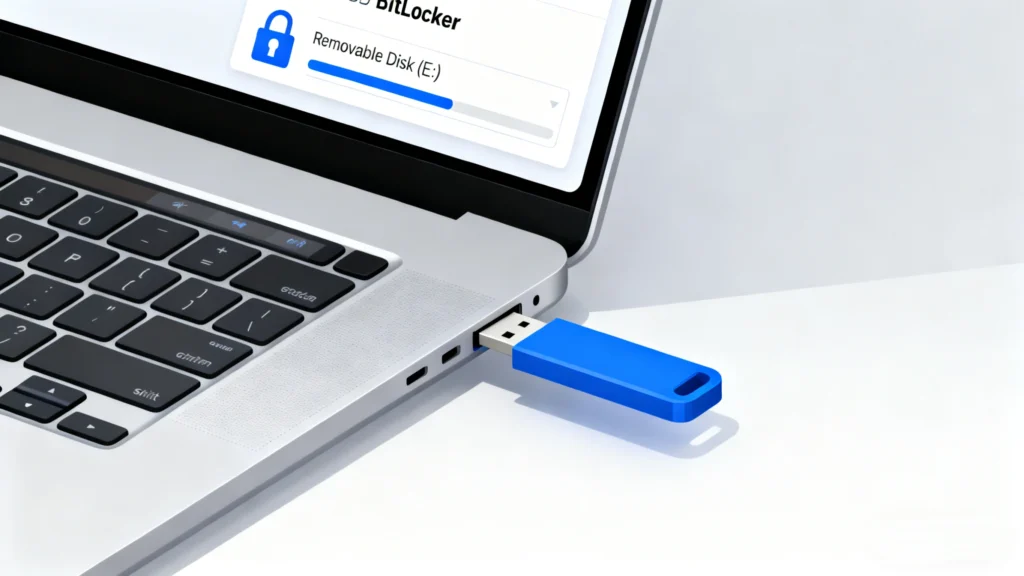
BitLocker for USB is a practical way to protect files stored on a USB flash drive, external hard drive, portable SSD, or other removable storage device. After you enable BitLocker for USB, Windows requires the correct password or BitLocker recovery key before anyone can open the USB drive.
This is especially useful when you use a USB drive to store business documents, private photos, financial files, client data, school files, or important backups. Because USB drives are small and easy to lose, using BitLocker for USB drive protection can help prevent unauthorized access if the device is lost, stolen, or connected to another computer.
In this guide, you will learn what BitLocker for USB means, how to encrypt a BitLocker USB drive, how to unlock it, how to back up the recovery key, how to turn off BitLocker, and what to do if you lose the BitLocker USB password or recovery key.
Table of Contents
What is BitLocker for USB?
BitLocker for USB means using Windows BitLocker Drive Encryption to protect a removable USB drive. When a USB drive is encrypted with BitLocker, the files on the drive are secured by encryption instead of being protected by a simple folder lock or hidden-file method.
After BitLocker is turned on, Windows requires a password, smart card, or recovery key before the drive can be accessed. If someone connects the encrypted USB drive to another computer, the files remain locked unless the correct unlock method is provided.
For most users, BitLocker for USB is used to protect:
USB flash drives
External hard drives
Portable SSDs
Memory cards connected through a USB reader
Backup drives
Work or school removable drives
A BitLocker USB drive is useful when you need to carry sensitive files between different computers but do not want the data to be exposed if the drive is lost.
BitLocker for USB vs BitLocker To Go
BitLocker for USB and BitLocker To Go are closely related. In many user searches, they refer to the same idea: encrypting a removable USB drive with BitLocker.
The difference is mainly the wording. “BitLocker To Go” is Microsoft’s official term for BitLocker encryption on removable data drives. “BitLocker for USB” is the phrase many users search when they want to password protect a USB drive, encrypt a USB flash drive, or unlock a BitLocker USB drive.
In this article, we use “BitLocker for USB” as the main term because it matches what users commonly search for. BitLocker To Go is mentioned only to help explain the official Windows feature behind it.
Before You Use BitLocker on a USB Drive
Before enabling BitLocker for USB drive protection, check the following points.
First, make sure your Windows edition supports BitLocker Drive Encryption. In general, BitLocker is available on Windows Pro, Enterprise, and Education editions. If you are using Windows Home, the “Turn on BitLocker” option may not appear in File Explorer or Control Panel.
Second, back up important files before encrypting the USB drive. BitLocker encryption is normally safe, but any drive operation can become risky if the USB drive is already unstable, corrupted, or disconnects during the process.
Third, prepare a strong password. Avoid using simple passwords such as 123456, password, your name, or your birthday. A strong password should be easy for you to remember but difficult for others to guess.
Fourth, save the BitLocker recovery key in a safe place. This is the most important step. If you forget the password and lose the recovery key, the encrypted files may become inaccessible.
How to Turn On BitLocker for USB Drive
You can enable BitLocker for USB drive encryption from File Explorer or Control Panel. The steps below apply to most Windows 10 and Windows 11 computers that support BitLocker.
Step 1. Connect the USB Drive to Your PC
Insert the USB flash drive, external hard drive, or portable SSD into your Windows computer. Wait until the drive appears in File Explorer.
Before continuing, make sure you select the correct USB drive. This is important when you connect multiple external drives to the same computer.
Step 2. Open BitLocker Drive Encryption
Open File Explorer and click This PC.
Right-click the USB drive you want to encrypt and choose Turn on BitLocker.
When this option does not appear, open Control Panel, go to System and Security, and select BitLocker Drive Encryption. Then find your removable drive and check whether Windows allows you to turn on BitLocker there.
Step 3. Choose How to Unlock the USB Drive
Windows will ask how you want to unlock the drive.
For most users, the easiest option is Use a password to unlock the drive. Enter a strong password and confirm it.
After you enable BitLocker for USB, you need this password whenever you connect the BitLocker USB drive to a computer.
Step 4. Back Up the BitLocker Recovery Key
Next, Windows will ask you to back up the BitLocker recovery key.
You may save the recovery key to your Microsoft account, save it to a file, or print it. Choose at least one safe backup method. For better protection, keep more than one copy in different secure locations.
Do not save the only copy of the recovery key on the same USB drive you are encrypting. If the drive becomes locked, you may not be able to access the key.
Step 5. Choose the Encryption Option
Windows may ask whether you want to encrypt used disk space only or encrypt the entire drive.
Choose Encrypt used disk space only for a new or empty USB drive. Choose Encrypt entire drive for a USB drive that already contains files or once stored important data.
Step 6. Start Encrypting the USB Drive
After confirming your settings, click Start encrypting.
Keep the USB drive connected until the encryption process finishes. Do not remove the drive while Windows encrypts it.
Once the process finishes, your USB drive becomes a BitLocker USB drive. The next time you connect it, Windows will ask for the password before opening the drive.
Which Encryption Option Should You Choose?
When you enable BitLocker for USB, Windows may ask how much of the drive you want to encrypt. The right option depends on how you use the USB drive.
For a new, empty, or recently formatted USB drive, choose Encrypt used disk space only. This option is faster because Windows only encrypts the part of the drive that currently contains files.
For an old or previously used USB drive, choose Encrypt entire drive. This option takes longer, but it protects the whole USB drive, including areas where deleted files may still leave traces.
Security-focused users should usually choose Encrypt entire drive for a used BitLocker USB drive, especially when the drive once stored private files, business documents, or client data.
How to Unlock a BitLocker USB Drive
After BitLocker encryption is enabled, unlocking the USB drive is simple if you remember the password.
1. Connect the BitLocker USB drive to your computer.
2. Open File Explorer.
3. Click the locked USB drive.
4. Enter the BitLocker password.
5. Click Unlock.
After the drive is unlocked, you can read, copy, edit, and save files normally. When you disconnect the USB drive and connect it again later, Windows will ask for the password again.
If you forget the password, click More options and choose Enter recovery key. Then enter the 48-digit BitLocker recovery key to unlock the drive.
How to Back Up or Find a BitLocker USB Recovery Key
The BitLocker recovery key is a 48-digit key that can unlock your encrypted USB drive if the password is forgotten or the drive requires recovery.
Depending on how you backed it up, you may find the BitLocker USB recovery key in several places.
Check your Microsoft account if you saved the key online.
Check a text file or document where you may have saved the recovery key.
Check printed documents if you printed the recovery key during setup.
Check your work or school account if the device is managed by an organization.
Ask your IT administrator if the USB drive was encrypted on a company or school computer.
Search your computer for files that may contain “BitLocker Recovery Key” in the file name.
It is strongly recommended to keep the recovery key separate from the encrypted USB drive. If both the USB drive and recovery key are lost together, the protection becomes less useful.
What Happens If You Lose the BitLocker USB Password or Recovery Key?
Losing the password or recovery key is one of the biggest risks when using BitLocker for USB. BitLocker protects your files through encryption, so Windows does not offer a simple bypass option.
If You Forgot the BitLocker USB Password
You can still unlock the BitLocker USB drive with the 48-digit recovery key. Connect the USB drive, click More options on the unlock screen, and choose Enter recovery key.
After entering the correct recovery key, Windows will unlock the drive. You can then access your files and change the BitLocker password if needed.
If You Lost the BitLocker Recovery Key
You should first check every place where you may have saved the key. Look in your Microsoft account, local folders, cloud storage, printed documents, work or school account, and other computers you used before.
You can also search your computer for file names that contain BitLocker Recovery Key. Many users save the key as a text file but forget the exact location later.
If Both the Password and Recovery Key Are Lost
If you lose both the password and the recovery key, you may not be able to access the encrypted files. This is how BitLocker protects data from unauthorized access.
Before formatting the USB drive, try to recover or locate the recovery key first. If you once saved the key on your Windows computer or another storage device, Magic Recovery Key may help scan for saved key information.
How to Recover a Lost BitLocker Recovery Key with Magic Recovery Key
Magic Recovery Key is designed to help users find lost software keys, product keys, passwords, and BitLocker recovery keys from Windows computers and storage devices. If you lost the BitLocker recovery key for a USB drive, you can use it to scan for possible saved key information.
To recover a lost BitLocker USB recovery key:
1. Download and install Magic Recovery Key on your Windows computer.
Supports Windows 7/8/10/11 and Windows Server

3. Scan for Lost Keys: The software will scan the drive for any traces of the lost recovery key.
4. Recover the Key: Once found, the recovery key will be displayed on your screen. You can now use it to unlock your BitLocker-encrypted USB drive.

Magic Recovery Key cannot break BitLocker encryption or bypass Microsoft’s security design. It is intended to help find recovery keys that were saved, stored, or left on accessible Windows systems or storage locations. For the best chance of success, stop making unnecessary changes to the computer or drive where the key may have been stored.
How to Turn Off BitLocker for USB Drive
If you no longer need encryption on the USB drive, you can turn off BitLocker and decrypt the drive.
1. Connect the BitLocker USB drive to your computer.
2. Unlock the drive with the password or recovery key.
3. Open Control Panel.
4. Go to System and Security.
5. Click BitLocker Drive Encryption.
6. Find the USB drive under removable data drives.
7. Click Turn off BitLocker.
8. Confirm the operation and wait for Windows to decrypt the drive.
Do not remove the USB drive during decryption. Once BitLocker is turned off, the USB drive can be opened without entering a password.
BitLocker Not Showing for USB Drive? Common Fixes
Sometimes users cannot find the Turn on BitLocker option for a USB drive. This does not always mean the USB drive is broken.
Here are several common reasons and fixes.
Your Windows edition may not support BitLocker. Check whether you are using Windows Pro, Enterprise, or Education.
The USB drive may not be detected correctly. Reconnect the drive or try another USB port.
The file system or partition condition may have problems. Back up your files and check the drive status.
BitLocker may be disabled by company or school policy. If the device is managed by an organization, contact the IT administrator.
You may not have administrator permission. Try using an administrator account.
File Explorer may not show the option, but Control Panel may still show BitLocker Drive Encryption. Check both locations before assuming BitLocker is unavailable.
If the USB drive contains important files and shows errors, avoid formatting it immediately. Fixing or formatting the drive without a backup may cause data loss.
Best Practices for Using BitLocker for USB Drives
To use BitLocker for USB safely, follow these best practices.
1. Use a strong but memorable password.
2. Save the BitLocker recovery key in more than one safe location.
3. Do not store the only recovery key on the encrypted USB drive.
4. Encrypt the entire drive if the USB drive has been used before.
5. Keep the USB drive connected during encryption and decryption.
6. Do not format a locked BitLocker USB drive unless you no longer need the files.
7. Label your encrypted USB drives clearly so you can identify them later.
8. For business files, follow your company’s data security policy.
These habits can reduce the risk of losing access to important files while keeping your USB data protected.
Conclusion
BitLocker for USB is a useful Windows feature for protecting files on USB flash drives, external hard drives, portable SSDs, and other removable storage devices. With a BitLocker USB drive, your files remain encrypted and cannot be opened without the correct password or recovery key.
For the best result, always back up the BitLocker recovery key before using the encrypted USB drive. If you lose the password, the recovery key may be the only way to unlock the drive.
If you have lost the BitLocker USB recovery key, Magic Recovery Key can help scan for saved or recoverable key information from your Windows computer or storage devices. It cannot bypass BitLocker encryption, but it may help you find a recovery key that was previously saved or left behind.
Supports Windows 7/8/10/11 and Windows Server
FAQs
Can I use BitLocker for USB drive encryption?
Is BitLocker for USB the same as BitLocker To Go?
How do I unlock a BitLocker USB drive?
Where can I find my BitLocker USB recovery key?
What happens if I lose the BitLocker USB password?
Can Magic Recovery Key recover a BitLocker USB recovery key?
Why is BitLocker not showing for my USB drive?
Can I turn off BitLocker for a USB drive?

Erin Smith is recognized as one of the most professional writers at Amagicsoft. She has continually honed her writing skills over the past 10 years and helped millions of readers solve their tech problems.