
How Do I Recover Deleted Files from a Flash Drive?
If you’ve ever wondered how do I recover deleted files from a flash drive, you’re not alone. Losing important files—whether it’s photos, work documents, or cherished memories—can be frustrating. But fortunately, recovering deleted files from a flash drive is possible, even if the files seem to be lost forever. In this article, we’ll guide you through the process of recovering deleted files using reliable methods and introduce Magic Data Recovery, a powerful tool designed to make file recovery easy and effective.
Supports Windows 7/8/10/11 and Windows Server
Wondering if your files can be recovered? Find out in seconds with our quick check below.
Data Recovery Assessment
Answer 3 quick questions to estimate your recovery chances
Table of Contents
Common Causes of File Deletion from a Flash Drive
Files can be deleted from a flash drive for various reasons. Understanding these causes can help you take preventative measures in the future. Common scenarios include:
- Accidental Deletion: You may have deleted files unintentionally while cleaning up your flash drive or organizing files.
- Virus or Malware Infection: Malware can corrupt files or even delete them without warning.
- System Errors: Flash drives can become corrupted due to unexpected system crashes, power failures, or improper ejection from a computer.
- Physical Damage: Damage to the flash drive, such as broken connectors or water damage, can cause data loss.
How Do I Recover Deleted Files from a Flash Drive
As long as the data has not been overwritten, you can recover deleted files from a flash drive. Deleting a file doesn’t immediately erase it from the drive, it only removes the reference to the file. This is why it’s crucial to act quickly and avoid writing new data to the drive, as this can overwrite the deleted files, making recovery impossible. To recover deleted files, follow the step-by-step guide below:
Method 1: Using Windows Built-in Tools
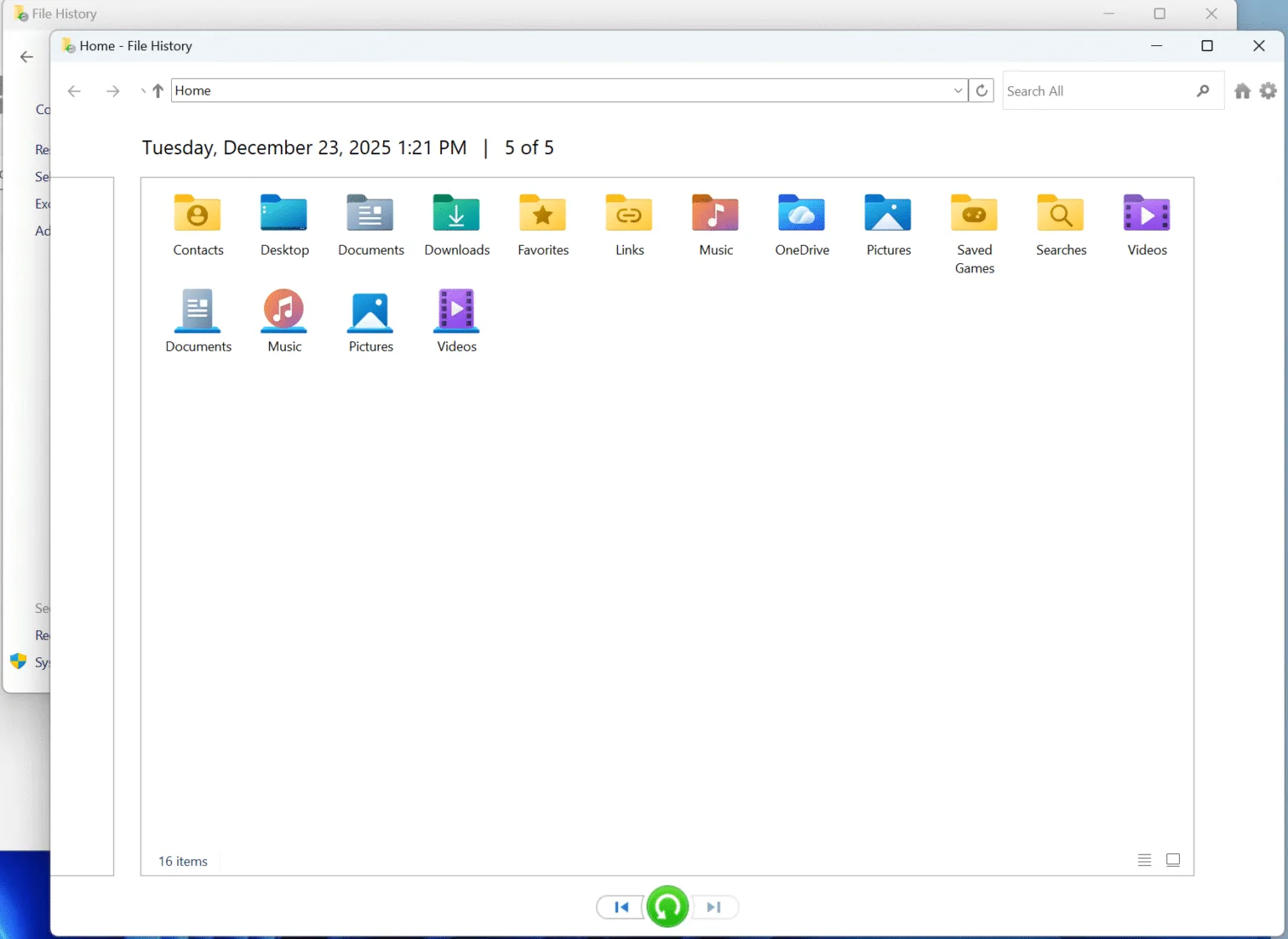
Windows provides some built-in feature, File History, that may help you recover deleted files from your flash drive if you made backups before data loss.
Using Windows File History
If you have set up File History (Control Panel—System and Security — File History) on your PC, you may be able to recover previous versions of your files. Click Restore personal files and choose the files you need to restore.
Method 2: Using Data Recovery Software Alternatives
A professional data recovery tool like Magic Data Recovery can recover the files efficiently and easily.
Step 1: Download and Install Magic Data Recovery
Start by downloading Magic Data Recovery from the official website and install it on a drive other than the affected USB flash drive. This will help prevent accidental overwriting of lost data.
Supports Windows 7/8/10/11 and Windows Server
Step 2: Select the Flash Drive to Scan
Launch the program. From the main interface, select the USB flash drive where you deleted files, and then start the scan process.

Step 3: Scan the Flash Drive for Deleted Files
Magic Data Recovery will automatically perform an advanced scan of your flash drive. As the scan progresses, it will display all the recoverable files.

Step 4: Preview Deleted Files Before Recovery
Before restoring files, you can preview them to ensure that they are the ones you need. This helps prevent unnecessary recovery of irrelevant files.

Step 5: Recover Files to a Safe Location
After selecting the files you wish to recover, save them to a different drive or storage device. This is essential, as restoring files to the same flash drive could risk data corruption.

Why Magic Data Recovery Is the Best Solution for Flash Drive Recovery
When it comes to recovering deleted files from a flash drive, Magic Data Recovery stands out for several reasons:
1. Advanced Scanning Technology: The software uses advanced scanning algorithms to find files that other recovery tools might miss, ensuring a higher success rate in recovery.
2. Ease of Use: Even if you’re not tech-savvy, the user-friendly interface guides you through the recovery process step-by-step, making it accessible to anyone.
3. Preview Feature: Before recovering files, you can preview them, ensuring you only restore the files you need.
4. Comprehensive File Support: Magic Data Recovery supports a wide range of file types, including documents, images, videos, and more.
5. Safe and Reliable: Magic Data Recovery ensures that the original data is not overwritten, which is critical for a successful recovery.
Why is it more reliable than other tools? Unlike some other recovery programs that may require additional steps or technical knowledge, Magic Data Recovery simplifies the process, making it one of the most efficient and user-friendly tools available.
Conclusion
How do I recover deleted files from a flash drive is a command question when data loss happens unexpectedly. While Windows built-in tools can sometimes help, using a specialized tool like Magic Data Recovery offers a higher success rate, particularly when dealing with complex data loss situations.
For those looking for a straightforward and efficient way to recover files, exploring a dedicated recovery tool like Magic Data Recovery can be a great option. With the right approach, you can successfully restore your deleted data from a flash drive with minimal hassle.
Supports Windows 7/8/10/11 and Windows Server
FAQs about How Do I Recover Deleted Files from a Flash Drive
Can you recover deleted files from a flash drive?
When you delete files from a USB, where do they go?
How do I recover a file I accidentally deleted?
How do I recover deleted files from USB on Windows 10?
Can I recover permanently deleted files?
What is the recovery tool for USB drives?
Are permanently deleted files really gone?
Do flash drives have a Recycle Bin?

Vasilii is a data recovery specialist with around 10 years of hands-on experience in the field. Throughout his career, he has successfully solved thousands of complex cases involving deleted files, formatted drives, lost partitions, and RAW file systems. His expertise covers both manual recovery methods using professional tools like hex editors and advanced automated solutions with recovery software. Vasilii's mission is to make reliable data recovery knowledge accessible to both IT professionals and everyday users, helping them safeguard their valuable digital assets.