
How to Recover Deleted Photos from Nikon Camera

If you accidentally erased JPEG or NEF images and want to know how to recover deleted photos from Nikon camera, stop taking pictures immediately. A deleted photo may no longer appear in playback, yet its data can remain on the memory card until new photos, videos, formatting, or other writes reuse that storage space.
Recovery therefore depends less on how recently you pressed Delete and more on what happened afterward. If the card has not been reused, recover deleted photos from Nikon camera storage may still be possible. However, overwritten data, certain full-format operations, and physical card damage can sharply reduce or eliminate DIY recovery options.
The safest sequence is simple: protect the original card, identify your loss scenario, check for an existing copy, and only then scan the card if necessary. For the broader logic behind deleted-file recovery, see Amagicsoft’s deleted file recovery guide.
Table of Contents
Quick Answer - Can You Recover Deleted Photos from Nikon Camera Storage?
Often, yes, but there is an important distinction between what the camera can restore and what may still exist on the memory card.
Nikon’s normal delete workflow does not provide a Recycle Bin-style undelete feature. Once an image is deleted in camera, you cannot simply select an Undo command and bring it back.
However, ordinary deletion does not always erase the image data immediately. On commonly used memory-card file systems, the file reference can be removed while the storage space is marked as available for future use.
If you want a deeper explanation of this behavior, Amagicsoft’s guide to recovering deleted files from an SD memory card explains why stopping new writes is so important.
Your recovery situation generally looks like this:
Situation | What it means for recovery |
Photo deleted, no new shooting | Recovery may still be possible |
New photos or videos recorded | Overwriting risk increases |
Card quick-formatted | Some original photo data may remain |
Card repeatedly formatted or heavily reused | Recovery becomes less likely |
Card is physically damaged or unstable | DIY scanning may be inappropriate |
Deleted storage blocks were overwritten | Original data usually cannot be reconstructed |
Therefore, do not assume that “deleted” means either “easy to restore” or “permanently gone.”
Before You Try Anything: Protect the Nikon Memory Card
When learning how to recover deleted photos from Nikon camera, your first actions can matter more than the recovery program you eventually choose.
Do not take another photo, record another video, format the card, or let Windows repair it before important images are safe.
Follow these precautions:
- Stop taking photos and recording video immediately.
- Turn the Nikon camera off before removing the memory card.
- Do not copy new files onto the affected card.
- Do not format the card even if the camera or Windows recommends it.
- Do not run CHKDSK before recovering important files.
- Do not repeatedly scan a card that disconnects or produces read errors.
- Never save recovered images back to the same card during recovery.
If the card is showing errors, becoming RAW, or asking to be formatted, use the recovery-first approach described in Amagicsoft’s corrupted SD card recovery guide rather than trying to repair the file system first.
Important: Treat the original card as the source you need to preserve. Recover first, verify important photos, and only then repair, reformat, or reuse the card.
Which Nikon Photo Loss Situation Are You In?
Before deciding how to recover deleted photos from Nikon camera, identify what actually happened. Different symptoms need different recovery paths.
What happened? | What it may mean | Best first action |
You intentionally or accidentally deleted photos in Nikon playback | File references were removed | Stop shooting and check existing copies |
You formatted the memory card | File-system structures changed | Stop using the card and recover before formatting again |
Photos were previously transferred | A separate copy may exist | Check computer, phone, cloud, or backup |
Your Nikon has two card slots | Another copy or RAW/JPEG version may exist | Check the second card |
Card says it needs formatting | File-system damage may exist | Cancel formatting and recover first |
Photos simply disappeared | Hidden files, directory damage, or deletion may be involved | Diagnose before assuming deletion |
Card is unstable or undetected | Hardware failure may be involved | Limit DIY attempts |
If your photos vanished without you knowingly deleting them, see SD card files disappeared for the difference between hidden files, deletion, formatting, and file-system problems.
Why Deleted Nikon Photos May Still Be Recoverable
A simple way to understand how to recover deleted photos from Nikon camera is to imagine the memory card’s file system as an index.
When you normally delete a photo, the camera may remove its reference from that index and mark the space as available. The image content can remain until new data occupies the same storage area.
That explains why continuing to shoot is risky.
A single high-resolution burst or video recording can create much more new data than a few ordinary computer operations. Consequently, a photographer who immediately removes the card may be in a very different recovery situation from someone who continues shooting for the rest of the day.
However, this principle has a hard limit: recovery software cannot reconstruct image bytes after they have genuinely been overwritten.
A filename or thumbnail appearing in scan results also does not prove that the entire JPEG or NEF file remains usable.
How to Recover Deleted Photos from Nikon Camera for Free
Before scanning the original card, look for another copy. Existing copies are safer and more predictable than reconstructing deleted data.
For more general no-cost options, you can also review Amagicsoft’s free SD card data recovery guide.
Check Previously Imported Nikon Photos
Best for: Photos that were transferred before they disappeared from the camera.
Check:
- Windows Pictures folders
- Your normal photo import directory
- Lightroom or another photo-management library
- External backup drives
- NAS storage
- Cloud-synced folders
- Recycle Bin if the computer copy was later deleted
This approach cannot restore a photo that existed only on the camera card. However, it should come before scanning because an intact existing copy is preferable to recovered data.
Check SnapBridge or Your Phone
Best for: Nikon users who had photo transfer enabled before deletion.
Open your phone’s Photos or Gallery app and check previously downloaded Nikon images. Also check any cloud service that automatically backs up the phone’s photo library.
Keep one limitation in mind: a transferred phone copy is not necessarily equivalent to every original file on the camera card. For example, photographers who shoot RAW should confirm whether the original NEF file was actually transferred rather than assuming the phone version is an identical backup.
SnapBridge is therefore an existing-copy route, not an undelete tool.
Check the Second Nikon Memory Card
Best for: Compatible Nikon cameras configured with two memory cards.
Some Nikon cameras support a secondary-slot Backup mode. Depending on the model and configuration, the second card may contain another copy.
Other configurations can store different versions across the two cards, such as RAW on one card and JPEG on another.
Therefore, before attempting to recover photos from Nikon camera storage, inspect both cards carefully. Even when the original NEF has disappeared, another usable version may still exist.
How to Recover Deleted Photos from Nikon Camera SD Card
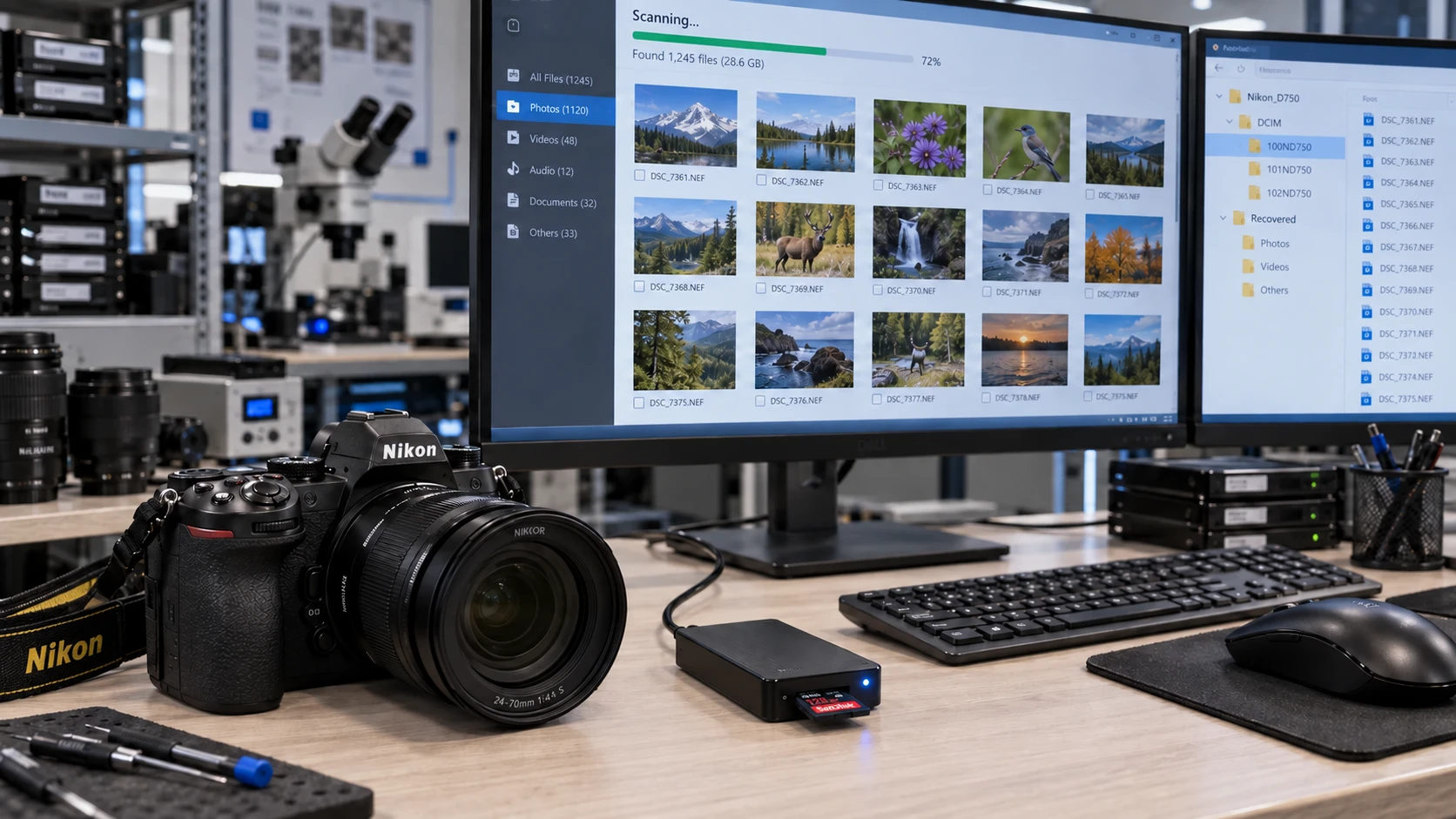
If there is no imported copy, phone transfer, backup, or second-card copy, how to recover deleted photos from Nikon camera sd card becomes a true data-recovery task.
Remove the card and connect it to a Windows computer through a reliable card reader.
At this stage:
- Confirm that Windows can detect the card consistently.
- Do not initialize or format it.
- Do not copy files onto it.
- Scan the card rather than trying to repair it first.
- Recover selected files to another physical location.
For a broader SD-card-specific workflow, see how to recover deleted files from an SD memory card. Amagicsoft’s current guidance likewise recommends stopping use, avoiding formatting and CHKDSK, and saving recovered data elsewhere.
What If You Formatted the Nikon SD Card?
Deleting a few pictures and formatting the entire card are not the same data-loss event.
If you accidentally formatted the Nikon card, stop using it. Do not format it again just because the camera or computer still shows an empty card.
A quick format may rebuild file-system information without immediately overwriting every photo’s underlying data. However, recovery depends on the card, formatting operation, subsequent use, and whether original blocks have been replaced.
For this scenario, follow the more specific recover photos from a formatted SD card guide instead of treating it as ordinary deletion.
That guide is particularly relevant for camera users because recovery results can be filtered by formats such as JPEG and camera RAW extensions including NEF.
When Recovery Software Becomes Necessary
If your deleted Nikon photos are not on your computer, phone, cloud account, backup drive, or second card, there may no longer be an existing copy to restore.
At that point, how to recover deleted photos from Nikon camera changes from “find another copy” to “inspect the original storage for data that may still exist.”
If the card remains stable and readable, Magic Data Recovery can scan the storage device for deleted image data. The current product page lists digital cameras, Nikon among supported camera brands, and memory cards including SD, microSD, CF, and XD media.
This differs from a backup:
- A backup restores a copy that already exists.
- SnapBridge can help when an image was transferred previously.
- Recovery software examines the source storage for lost file data.
For Nikon users, relevant image types include ordinary JPEG photographs and Nikon NEF RAW files.
However, software cannot undo genuine overwriting and cannot repair serious physical damage.
If the built-in recovery options no longer work, you can try Magic Data Recovery before new data overwrites the deleted files.
How We Tested Nikon Photo Recovery
To validate the recovery methods in this guide, the Amagicsoft team tested deleted-photo recovery across multiple Nikon camera and removable-storage setups, including mirrorless, DSLR, and compact-camera scenarios using SD and SDXC cards.
Recovery results vary depending on the camera, memory card, file system, and what happens after deletion. Rather than list every internal test, the following Nikon Z6 II test is one representative example showing how we evaluated both JPEG and Nikon NEF RAW recovery.
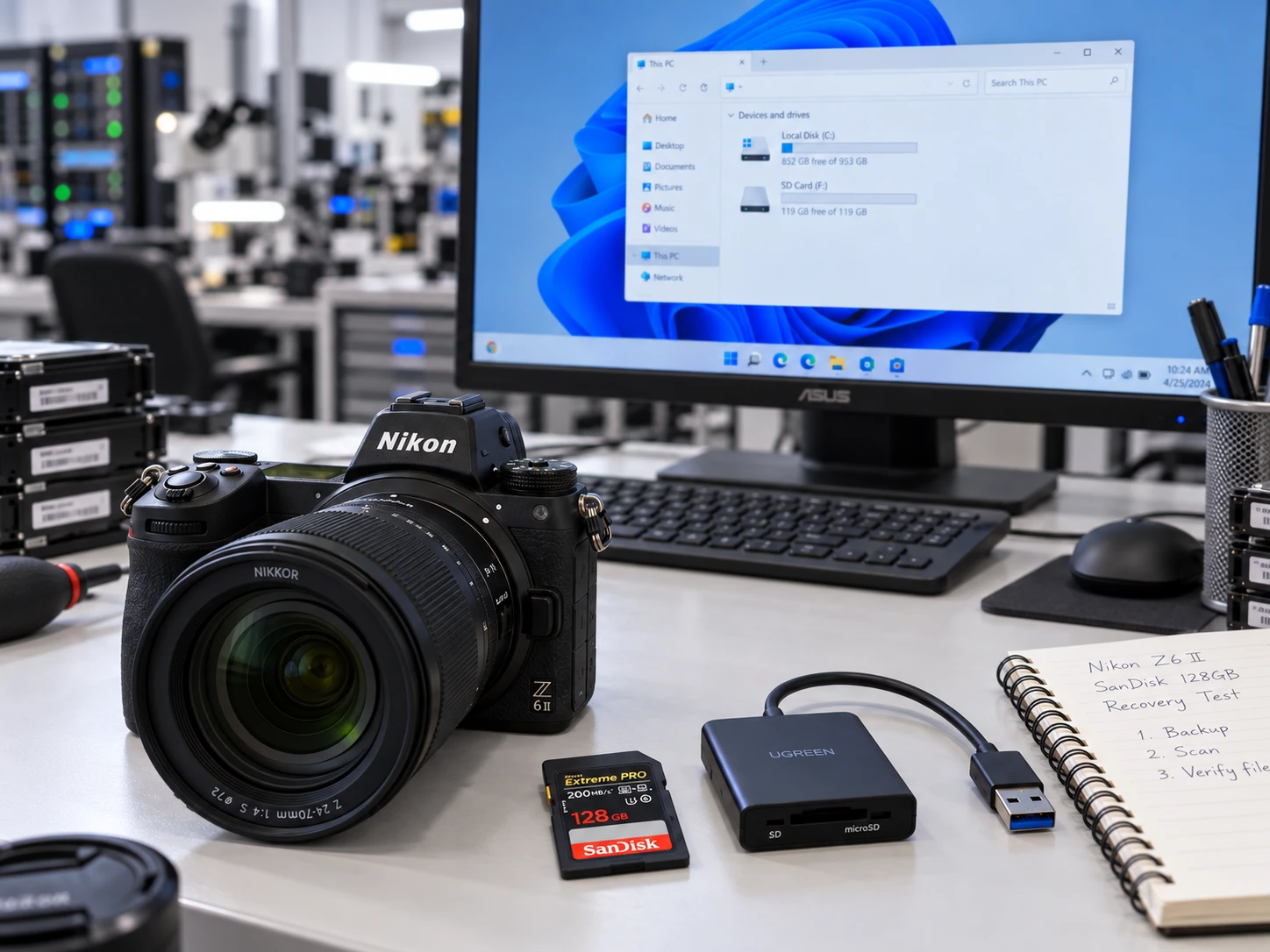
Representative Nikon Recovery Test
Test Item | Setup |
Camera | Nikon Z6 II |
Memory card | SanDisk Extreme PRO 128 GB SDXC |
File system | exFAT |
Recording mode | RAW (NEF) + JPEG Fine |
Test shots | 15 |
Files created | 30 files: 15 JPEG + 15 NEF |
Loss scenario | All 30 files deleted through the Nikon camera playback menu |
Post-deletion activity | No new photos, videos, or files written to the card |
Test PC | Windows 11 24H2, 64-bit |
Recovery software | Magic Data Recovery 3.12.6 |
Recovery destination | Separate internal SSD |
Before deletion, we verified that all 30 files opened normally. We then deleted them through the Nikon Z6 II playback menu, stopped using the camera immediately, removed the SD card, and scanned it on the Windows test PC. The card was not formatted, repaired, initialized, or written to before recovery.
Nikon Photo Recovery Test Results
Test Metric | Result |
Deleted files | 30 |
JPEG files deleted | 15 |
NEF files deleted | 15 |
Files detected during scan | 30 of 30 |
Files recovered to another drive | 30 of 30 |
JPEG files opened normally | 15 of 15 |
NEF files opened in Nikon NX Studio | 15 of 15 |
Corrupted or incomplete files | 0 |

In this controlled test, all 30 deleted Nikon photo files were recovered successfully. We counted a file as recovered only after it had been saved to another drive and opened correctly—not simply because its filename appeared in the scan results.
The JPEG files were checked at full resolution, while the recovered NEF files were opened in Nikon NX Studio to confirm that the RAW data remained readable.
What This Nikon Recovery Test Shows
This test supports a simple but important rule: stop using the memory card immediately after accidental deletion.
Because no new photos or videos were recorded after deletion, the card had a lower risk of overwriting the storage areas previously occupied by the deleted JPEG and NEF files.
The result also shows that both JPEG and Nikon NEF RAW files may remain recoverable after ordinary in-camera deletion when their underlying data has not been overwritten.
Test Limitations
The 30-of-30 result applies only to this controlled test and is not a guaranteed recovery rate for other Nikon cameras or memory cards.
Results may differ if the card was reused, formatted, corrupted, physically damaged, or if deleted storage areas were overwritten. Recovery software cannot reconstruct data that has already been overwritten or repair serious physical damage.
For this reason, recover first, save the restored files to another storage device, verify important photos, and only then reuse or reformat the original memory card.
How to Recover Deleted Nikon Photos with Magic Data Recovery
Step 1: Install Magic Data Recovery
Install Magic Data Recovery on your Windows computer, not on the affected Nikon memory card. If another computer drive contains the lost data, do not install the program to that partition either.
Supports Windows 7/8/10/11 and Windows Server
Step 2: Connect the Nikon Memory Card
Insert the Nikon SD card or other supported memory card into a compatible card reader.
Launch Magic Data Recovery, identify the correct card by its capacity and drive information, select it, and start the scan.

Step 3: Scan for Deleted Nikon Photos
Allow the scan to search the card. Relevant image files may appear progressively as the scan continues.
When attempting how to recover deleted photos from Nikon camera, look for image formats such as JPG and NEF and let the scan complete when possible.

Step 4: Preview Photos Before Recovery
Use Preview on important results when available. This helps verify that the selected item is actually the Nikon photo you want rather than relying on its filename alone.
A successful preview is useful evidence, although it should not be treated as a guarantee that every part of every file is intact.

Step 5: Recover Nikon Photos to Another Drive
Select the required photos and recover them to your computer, another drive, or other safe storage.
Do not recover them back onto the Nikon memory card. New writes could overwrite additional photos that have not yet been restored.

How to Verify That Nikon Photos Were Actually Recovered
Finding a photo during a scan is not the same as successfully recovering a usable image.
After completing how to recover deleted photos from Nikon camera, verify important files before reformatting or reusing the original card.
Check | Why it matters |
Preview displays the expected image | Confirms readable image content exists |
File size looks reasonable | Helps identify obvious 0 KB or incomplete results |
JPEG opens at full resolution | Confirms more than a thumbnail survived |
NEF opens in compatible RAW software | Helps verify the RAW file structure |
Complete image renders correctly | Helps detect partial corruption |
Multiple critical files open successfully | Provides confidence before modifying the original card |
Amagicsoft’s formatted-photo recovery guidance follows the same principle: preview files, recover them to another drive, and then open a sample of the restored images before reusing the source card.
Keep the Nikon card unchanged until you have verified the photographs that actually matter.
Deleted, Quick-Formatted, and Full-Formatted Nikon Cards Are Different
The phrase how to recover deleted photos from Nikon camera covers several technically different situations.
Simple deletion usually creates a better DIY scenario than continued card use after deletion. Formatting is more complicated.
For compatible CFexpress cards in cameras such as the Nikon Z8, Nikon explicitly distinguishes Quick Format from Full Format. Its documentation says quick format overwrites file-system information while leaving actual file data intact, whereas full format deletes data from all areas of the compatible CFexpress card.
Do not generalize that exact CFexpress behavior to every SD card or Nikon model. Instead, identify what operation was actually performed and avoid formatting the media again before recovery.
When to Stop DIY Nikon Photo Recovery
Sometimes the correct answer to how to recover deleted photos from Nikon camera is to stop scanning rather than try another utility.
Stop repeated DIY attempts when:
- Multiple known-good card readers cannot detect the card.
- The card repeatedly disconnects during reading.
- The card becomes unusually hot.
- Contacts or the card body show visible physical damage.
- The storage came into contact with water or experienced electrical damage.
- The card contains the only copy of exceptionally valuable professional work.
- Every additional read attempt makes the device less stable.
Recovery software requires stable access to storage. It cannot fix broken flash memory, damaged controllers, cracked circuitry, or serious electrical problems.
For a physically unstable device, preserving its present condition may be more important than completing another scan.
How to Reduce Nikon Photo Loss in the Future
Once the important photos are safe, prevention becomes much simpler.
Practice | Why it helps |
Use Backup mode on supported dual-slot Nikon cameras | Creates a second card copy while shooting |
Verify imported photos before formatting cards | Prevents premature deletion of the only copy |
Keep at least one independent backup | Protects against card loss or failure |
Do not treat phone sync as a complete backup | SnapBridge settings may not transfer every file type |
Rotate multiple memory cards | Limits the amount of work exposed to one card failure |
For important shoots, backup verification matters as much as backup creation. A copy that cannot be opened is not yet a dependable backup.
Conclusion
The safest approach to how to recover deleted photos from Nikon camera is to protect the original memory card first. Stop shooting, avoid formatting or repair utilities, and then check imported photos, phone transfers, backups, and a second Nikon card before scanning the source.
If the photos were actually deleted and the card remains readable, Magic Data Recovery can provide the next recovery path by scanning for JPEG, NEF, and other supported data. Preview important results, recover them to another storage location, and verify that the restored photos actually open before reusing the card.
For the complete decision framework covering deletion, permanent deletion, overwriting, and other file-loss situations, return to Amagicsoft’s deleted file recovery guide. The key rule remains the same: protect the source first, choose the lowest-risk recovery path, verify the result, and only then repair or reuse the storage device.
Supports Windows 7/8/10/11 and Windows Server
FAQs
Can Nikon photos be recovered after taking new pictures?
Can I recover Nikon photos after formatting the memory card?
Can deleted Nikon NEF RAW files be recovered?
.NEF filename alone is not enough evidence that the complete RAW image survived, especially if new photos were written to the card afterward.Does a Nikon camera have a Recently Deleted or Recycle Bin folder?
Can I recover Nikon photos if the SD card is not detected?
Is it safe to scan the original Nikon memory card?
Where should I save recovered Nikon photos?

Vasilii is a data recovery specialist with around 10 years of hands-on experience in the field. Throughout his career, he has successfully solved thousands of complex cases involving deleted files, formatted drives, lost partitions, and RAW file systems. His expertise covers both manual recovery methods using professional tools like hex editors and advanced automated solutions with recovery software. Vasilii's mission is to make reliable data recovery knowledge accessible to both IT professionals and everyday users, helping them safeguard their valuable digital assets.