
Documents Folder Missing Windows 11? 8 Fixes
A Documents folder missing in Windows 11 is a fairly common issue. Similar questions regularly appear on Microsoft Community and Windows forums, often from users who suddenly cannot find Documents in File Explorer. But do not assume that your files have been deleted—the folder may simply be hidden from view, unpinned, or redirected to another location.
In fact, Windows treats Documents as a “known folder.” Its normal local path is %USERPROFILE%\Documents, but that location can change when OneDrive folder backup or another redirection method is enabled. Starting with Windows 11 version 22H2, Microsoft also stopped showing known folders such as Documents under This PC by default; instead, they normally appear in Home and Quick Access.
So, if my Documents folder is missing, first determine whether the folder is merely hidden or redirected, or whether the files themselves are actually gone. If you confirm real deletion, avoid adding new files to the affected drive because new writes can overwrite recoverable data. You can also refer to our deleted file recovery guide for the broader recovery logic.
Table of Contents
Where Did the Documents Folder Go?
Before trying any fix, first identify what “missing” means in your case. The Documents folder may simply be absent from Quick Access, redirected to OneDrive, moved to another location, or actually deleted. Use the table below to match what you see in File Explorer with the most likely cause and the safest next step.
What You See | What It Usually Means | What to Try First |
Documents is gone from Quick Access, but files still exist | Folder was probably unpinned | Pin Documents back to Quick Access |
Documents is missing from This PC | This can be normal in newer Windows 11 builds | Check Home or Quick Access |
| Files may have moved or been redirected | Check OneDrive and the current known-folder path |
Documents opens inside OneDrive | OneDrive Known Folder Move is active | Verify OneDrive backup settings |
Documents points to an old D: drive or network path | Folder location was redirected | Correct the Location setting |
The entire folder is in Recycle Bin | It was deleted normally | Restore it from Recycle Bin |
Files are gone from every known location | Actual deletion may have occurred | Try backup recovery, Windows File Recovery, then recovery software |
The drive disconnects or makes abnormal noises | Possible hardware failure | Stop DIY recovery |
The key point is simple: documents missing from File Explorer does not automatically mean documents were deleted.
Why Is My Documents Folder Missing?
A documents folder missing problem usually falls into one of four categories.
The Folder Is Still There but No Longer Shown
This is especially common when documents are missing from Quick Access. An accidental Unpin from Quick access action only removes the shortcut. It does not delete the folder or its files.
Windows 11 also changed File Explorer behavior. Microsoft states that Desktop, Documents, Downloads, Pictures, Music, and Videos are normally pinned under Quick Access, while these folders are no longer shown under This PC by default in Windows 11 22H2 and later.
OneDrive Changed the Documents Location
OneDrive can move Windows known folders, including Documents, into the OneDrive directory. Microsoft calls this feature Known Folder Move.
Depending on your configuration, Documents may therefore resolve to a location similar to:
C:\Users\YourName\OneDrive\Documents
rather than:
C:\Users\YourName\Documents
Organizations can even configure this redirection silently through policy.
The Folder Was Moved or Redirected
You or another program may have changed the Documents location to another disk, partition, network share, or old user profile.
In this case, creating a new empty Documents folder at the default path does not bring the original files back. You first need to locate the real folder.
The Folder or Its Files Were Actually Deleted
If you cannot find Documents in its current known-folder location, OneDrive, another Windows profile, Recycle Bin, or a backup, actual data loss becomes more likely.
At that point, recovery methods make sense.
Important: Do This Before Recovering Deleted Documents
If you believe your Documents files were truly deleted, minimize use of the drive where they were stored.
Do not install recovery software onto the affected partition, download large files to it, or restore recovered files back to the same location. Microsoft gives the same general warning for Windows File Recovery: deleted-file space can be reused by Windows, so continued computer activity can overwrite recoverable data.
For an SSD, recovery can become more difficult because TRIM may remove data that is no longer referenced by the file system.
Now work through the following methods in order.
Method 1: Find the Real Documents Folder with shell:Personal
Best for: A folder that disappeared from File Explorer after an update, OneDrive change, or folder move.
Limitation: This method only locates the registered Documents folder; it cannot restore deleted files. If you are unfamiliar with Windows commands, avoid trying additional commands on your own, since an incorrect command could affect system settings or files. You can continue with the solutions below to find a safer method that better matches your situation.
Windows keeps track of Documents as a special known folder. A quick way to ask Windows where it currently points is:
- Press Windows + R.
- Type:
shell:Personal
- Press Enter.
If Windows opens a Documents folder containing your files, the data is still there. Your problem is probably a missing File Explorer shortcut rather than data loss.
Next, click the File Explorer address bar and check the path.
For example:
C:\Users\YourName\Documents
means Documents is using its standard local location.
A path containing:
OneDrive\Documents
indicates that OneDrive currently manages the folder.
If shell:Personal opens an unexpected drive or network location, continue to Method 4.
You should also look under:
C:\Users\
If Windows recently created or switched profiles, your original documents may still be under an older username folder.
If other files are missing as well, see how to find a file that disappeared in Windows by checking alternate user profiles and other possible locations.
Method 2: Restore Documents to Quick Access
Best for: Documents missing from Quick Access, while the underlying folder still exists.
Limitation: Pinning a folder does not recover deleted files.
If Documents opens normally but its shortcut disappeared, restoring the File Explorer entry is simple.
Microsoft’s current procedure is:
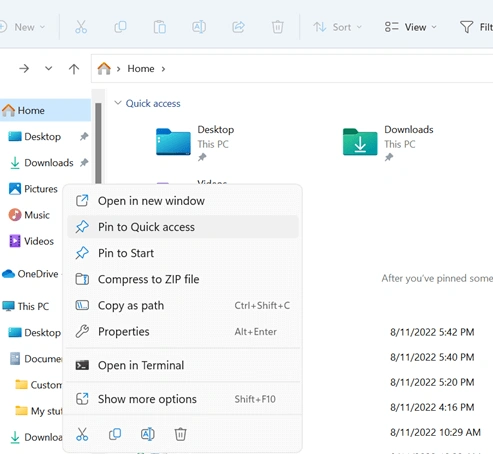
- Open File Explorer.
- Select Home.
- Click the Up arrow beside the address bar.
- Windows should display the standard known folders.
- Right-click Documents.
- Select Pin to Quick access.
Documents should return to both File Explorer Home and the left navigation pane.
This is particularly important for users who report documents missing from File Explorer after a Windows update. If Documents is only absent under This PC, there may be nothing to fix because newer Windows 11 versions intentionally changed that view.
Method 3: Check OneDrive Before Moving Anything
Best for: A my Documents folder missing Windows 11 issue that appeared after signing into Microsoft, enabling OneDrive backup, reinstalling Windows, or changing OneDrive settings.
Limitation: OneDrive cannot restore local files that were never synchronized.
Open File Explorer and check:
C:\Users\YourName\OneDrive\Documents
If your missing files are there, do not move or delete them immediately.
Next:
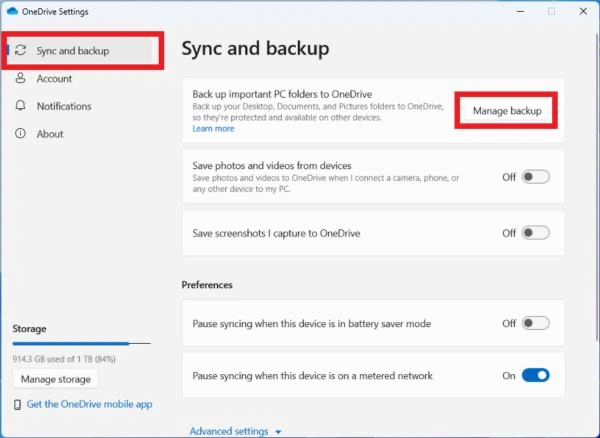
- Select the OneDrive cloud icon in the taskbar.
- Open Settings.
- Choose Sync and backup.
- Select Manage backup.
- Check whether Documents is being backed up.
Microsoft confirms that OneDrive folder backup can manage Documents, Desktop, and Pictures from this interface.
Also sign in to OneDrive online and inspect the Documents folder and OneDrive Recycle Bin.
For personal Microsoft accounts, deleted OneDrive items are normally removed from the Recycle Bin after 30 days. Work or school accounts normally use a 93-day retention period unless the administrator changes it.
Important: Do not start deleting duplicate-looking folders while troubleshooting. A deletion inside a synchronized OneDrive folder may also synchronize to the cloud.
Method 4: Restore the Correct Documents Folder Location
Best for: Documents pointing to an old drive, unavailable network share, or incorrect custom location.
Limitation: Correcting the path will not recreate deleted files.
If Documents exists but opens the wrong location:
1. Locate the current Documents known folder.
2. Right-click it and choose Properties.
3. Open the Location tab.
4. Review the current path.
5. If you want to return to the standard location, choose Restore Default.
Important: Before clicking Restore Default, confirm where your current Documents files are stored. This option changes the folder location; it does not recover deleted files, and using it while OneDrive or another redirection is active can create additional folder-location confusion.
6. The normal path should resolve to:
C:\Users\YourName\Documents
7. Select Apply.
8. If Windows asks whether to move existing files to the new location, review the source and destination carefully before confirming.
Do not do this blindly when OneDrive Documents backup is active. Verify your OneDrive configuration first.
Microsoft identifies %USERPROFILE%\Documents as the normal default path for the Windows Documents known folder.
For most users, changing registry values should not be the first fix. A mistaken registry edit can create a second folder-location problem instead of solving the original one.
Method 5: Restore a Deleted Documents Folder from Recycle Bin
Best for: The Documents folder or individual files were deleted normally.
Limitation: This will not help after Shift + Delete, an emptied Recycle Bin, or some cloud-only deletion scenarios.
Open Recycle Bin and search for the folder or the missing document names.
If you find them:
- Select the required items.
- Right-click.
- Choose Restore.
Windows returns them to their previous location.
If the folder itself is not present, search for individual DOCX, XLSX, PDF, TXT, or other files. It is possible that only some contents were deleted.
If you confirmed that the entire folder was deleted, see the detailed methods to recover a deleted folder in Windows.
When neither the folder nor its files exist in Recycle Bin, move to backup-based recovery before scanning the drive.
Method 6: Recover Documents with File History or Previous Versions
Best for: Users who enabled File History before the loss occurred.
Limitation: File History cannot restore a version that was never backed up.
File History is preferable to disk scanning when a usable backup exists because it retrieves an existing copy rather than reconstructing deleted data.
Microsoft states that File History can back up libraries such as Documents and restore previous versions after accidental deletion or modification.
To check Previous Versions:
- Open File Explorer.
- Navigate to the folder that previously contained your files.
- Right-click the folder.
- Select Restore previous versions.
- Choose a version from before the files disappeared.
- Use Open first to verify its contents.
- Restore the needed version or copy files to another location.
Opening the backup before replacing the current folder is safer because restoring over the current version can overwrite newer content.
Method 7: Try Microsoft's Windows File Recovery
Best for: Actual local deletion when Recycle Bin and backups cannot help.
Limitation: It is command-line based, offers no normal graphical preview workflow, and cannot recover from cloud storage or network shares.
Windows File Recovery is Microsoft’s own recovery utility for Windows 10 and Windows 11.
For example, if Documents disappeared from C: and you have an external E: drive, Microsoft provides this type of command:
winfr C: E: /regular /n \Users\<username>\Documents\
The source and recovery destination must be different drives.
Microsoft recommends Regular mode for recently deleted files on a healthy NTFS volume and Extensive mode for older deletion, formatting, corruption, FAT, or exFAT scenarios.
This is a useful free option, especially if you are comfortable with Command Prompt.
Method 8: Recover Truly Lost Documents with Magic Data Recovery
Best for: The folder and files are genuinely gone, no usable backup exists, and the storage device is still recognized and stable.
Limitation: Recovery software cannot restore overwritten data or repair physical hardware damage. SSD TRIM can also substantially reduce recovery possibilities.
If all location, OneDrive, Recycle Bin, and backup checks fail, the documents folder missing Windows 11 problem may represent real data loss.
At this stage, Magic Data Recovery becomes relevant. It can scan Windows storage for files lost through deletion, formatting, and file-system problems. The software supports quick and deeper scanning, file preview, and more than 5,000 file types, including common Word, Excel, PDF, image, archive, and media formats.
Supports Windows 7/8/10/11 and Windows Server
The process is deliberately short:
1. Install Magic Data Recovery on a drive other than the one containing the lost documents.
2. Select the original disk or partition.

3. Start the scan.
4. Filter the results and preview important documents where preview is available.
5. Recover selected files to another drive.

Preview matters because finding a filename is not the same as successfully recovering a usable file. Open recovered documents afterward and verify their content.
Magic Data Recovery is more appropriate here than repeatedly creating folders, changing registry entries, or running repair commands because the objective has changed: you are no longer fixing a shortcut or folder path—you are trying to retrieve missing data.
However, when a valid OneDrive or File History copy exists, use that copy first.
How to Verify That Your Documents Are Really Back
Do not stop at “I can see the file.”
After any recovery method, check:
- Can the Word, Excel, PDF, or other document open normally?
- Does the file have a reasonable size rather than 0 KB?
- Does the content match the version you expected?
- Are important subfolders present?
- Are recovered files stored somewhere other than the affected source drive?
For critical documents, open several representative files before deleting old backups or reusing the affected storage space.
This distinction is especially important after a scan. A recovery program may detect an old directory entry or filename even when parts of the actual file content have already been overwritten.
When You Should Stop DIY Recovery
Stop scanning or repeatedly troubleshooting if:
- A hard drive clicks, grinds, or repeatedly spins up and down.
- The disk frequently disconnects.
- Windows cannot consistently detect the device.
- The missing documents are the only copy of extremely valuable business or legal data.
- Every attempt makes the drive less stable.
- The device suffered water, fire, impact, or electrical damage.
Recovery software is designed for logical data loss on readable storage. It cannot repair mechanical damage.
What About Documents Folder Missing Windows 10 or Windows 7?
A documents folder missing Windows 10 problem can generally be diagnosed using the same path, OneDrive, Recycle Bin, backup, and recovery principles.
Windows 7 uses older File Explorer terminology. Users may see My Documents rather than only Documents, and Libraries play a larger role in the navigation interface.
If you encounter a Windows 7 My Documents folder missing problem, first check the current user profile and Documents Library before assuming deletion. Microsoft still identifies “My Documents” as the legacy display name for the Documents known folder.
Therefore, my documents missing on Windows 7 may also be a shortcut, library, location, or profile issue rather than actual file loss.
How to Prevent the Documents Folder from Disappearing Again
Once your files are safe, a few habits can reduce the chance of another confusing documents folder missing incident.
- Keep at least one independent backup of important Documents data.
- If you use OneDrive, understand whether Documents backup is enabled before manually moving folders.
- Avoid redirecting Documents between drives without verifying the destination.
- Enable File History or another versioned backup for important work.
- Do not treat synchronization as your only backup.
- Before reinstalling Windows or changing user profiles, verify that essential files exist in a separate location.
Most importantly, remember the difference between a missing shortcut and missing data. That distinction determines which recovery method you actually need.
Conclusion
When the Documents folder is missing Windows 11, begin with the lowest-risk explanation. If the files still exist but Documents disappeared from File Explorer, restore the Quick Access entry or locate the current folder with shell:Personal. If OneDrive redirected Documents, verify the cloud and local locations before moving anything. When a backup exists, restore from OneDrive, File History, or Previous Versions first.
Only move into disk recovery after confirming that the files are genuinely absent. Microsoft’s Windows File Recovery provides a free command-line option, while Magic Data Recovery offers a graphical scanning and preview workflow when no usable copy remains.
Supports Windows 7/8/10/11 and Windows Server
If actual deletion has occurred, minimize new writes and recover files to another drive. For more background on deletion scenarios and safe recovery priorities, see the deleted file recovery guide.
The correct rule is: find first, restore existing copies second, scan only when real data loss is confirmed.
FAQs
Why is my Documents folder missing from Quick Access in Windows 11?
Why did OneDrive make my Documents folder disappear?
OneDrive\Documents rather than the traditional local Documents path. Check OneDrive Settings > Sync and backup > Manage backup before changing folder locations.Where is the Documents folder stored in Windows 11?
%USERPROFILE%\Documents, typically C:\Users\YourName\Documents. However, OneDrive, network redirection, or a manually changed Location setting can point Documents somewhere else.Can I recover a Documents folder that was permanently deleted?
Does the same solution work when the Documents folder is missing in Windows 10?
How do I fix Windows 7 My Documents folder missing?
Should I create a new Documents folder if the original one disappeared?
shell:Personal, check OneDrive, inspect other user profiles, and confirm the folder's registered location. Creating another empty Documents directory can make troubleshooting more confusing and does not restore the missing content.Can an SSD recover a deleted Documents folder?

Jason is a data recovery and technical support specialist with over 15 years of hands-on experience. He has worked extensively with frontline users, troubleshooting difficult data loss cases and providing practical recovery solutions for accidental deletion, formatted drives, damaged file systems, lost partitions, system failures, and other recovery emergencies. His expertise also includes backup and restoration, file repair, and disaster recovery, with a strong emphasis on safe, reliable, and technically accurate guidance.