
Free SD Card Data Recovery: Recover Lost Data from SD Card Safely
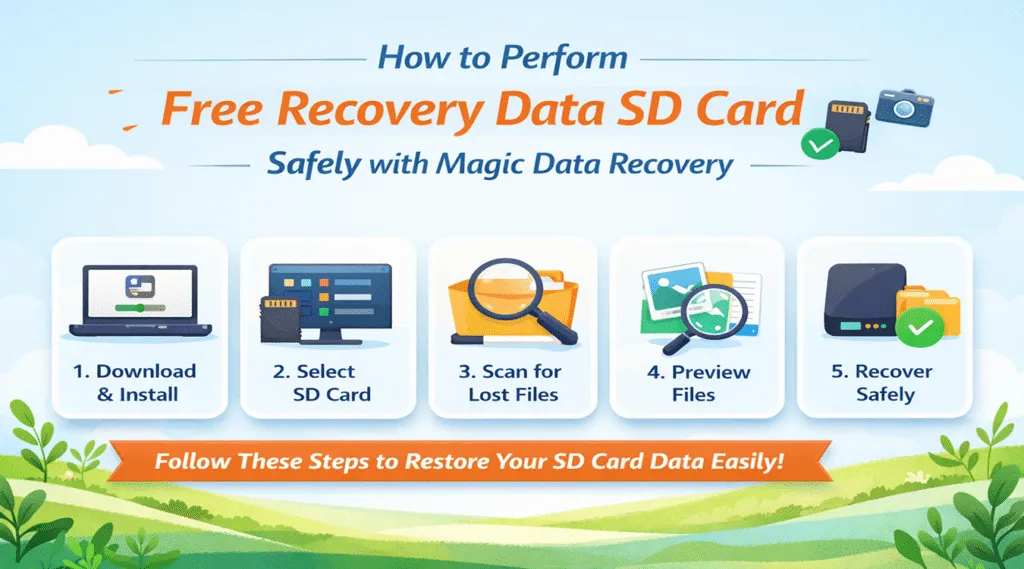
If you are looking for free recovery data SD card solutions, the first step is to stop using the SD card immediately. Deleted or formatted files are often still recoverable if they have not been overwritten by new photos, videos, or documents.
For most users, free SD card data recovery means scanning the card, previewing recoverable files, and confirming whether lost data can still be restored before saving files to another safe location.
This guide explains how SD card recovery works, what mistakes to avoid, and why Magic Data Recovery is a practical solution in real-world scenarios.
Supports Windows 7/8/10/11 and Windows Server
Wondering if your files can be recovered? Find out in seconds with our quick check below.
Data Recovery Assessment
Answer 3 quick questions to estimate your recovery chances
Table of Contents
What Does Free SD Card Data Recovery Really Mean?
At first glance, the phrase free SD card data recovery sounds simple. However, in practice, it usually refers to one of several situations.
For instance, users may want to:
- Recover deleted photos or videos
- Restore files after formatting
- Access data from a corrupted SD card
- Preview lost files before recovery
In most cases, “free” means free scanning and preview, not unlimited file recovery. That said, this approach still provides real value. Because users can see recoverable files in advance, they can decide whether recovery is worth continuing.
How SD Card Data Recovery Works
To understand free SD card data recovery solutions better, it helps to know what happens behind the scenes.
Deleted Files Are Usually Still There
When a file is deleted, the SD card does not erase it immediately. Instead, the system marks that space as available. Meanwhile, the actual file data remains until it is overwritten.
Because of this, recovery software can still locate deleted files.
Formatting Does Not Always Destroy Data
Similarly, quick formatting only rebuilds the file system structure. As long as new data has not replaced the old files, recovery remains possible.
Corruption Requires a Different Approach
However, if the SD card becomes RAW or unreadable, simple recovery tools may fail. In that case, deeper scanning methods are required. This is where advanced recovery software for SD card becomes necessary.
Common Scenarios That Require free SD card data recovery
Most free SD card data recovery cases fall into predictable patterns. For example:
- Photos deleted from a camera by mistake
- SD card formatted after a camera warning
- File system corruption caused by unsafe removal
- SD card showing “needs formatting” on a computer
Although these situations look different, the recovery principles remain similar. In each case, acting quickly and carefully makes a significant difference.
What to Do Immediately After SD Card Data Loss
Before using any recovery software for SD card, take the following steps. Otherwise, recovery chances may drop sharply.
First, stop using the SD card immediately.
Next, avoid taking new photos or recording videos.
Then, remove the card from the device and use a card reader.
Finally, ignore system repair prompts until recovery is complete.
By following these steps, you protect the remaining data and improve free SD card data recovery success rates.
How to Perform free SD card data recovery Safely with Magic Data Recovery
To achieve consistent free SD card data recovery results, a clear recovery process is essential. Even powerful tools can fail if used incorrectly. Therefore, follow the steps below carefully.
Step 1: Download and Install Magic Data Recovery Correctly
First of all, download Magic Data Recovery from the official website. During installation, choose a drive that is different from the affected SD card.
Supports Windows 7/8/10/11 and Windows Server
Step 2: Insert the SD Card and Select It for Scanning
Next, insert the SD card into a card reader and connect it to your computer. After that, launch Magic Data Recovery. On the main interface, select the SD card in the drive list, and start searching for lost files.

Step 3: Scan the SD Card
Once the scan begins, Magic Data Recovery automatically performs an advanced scan. Meanwhile, recoverable files appear gradually as the scan progresses.
Because of this real-time display, you can monitor results without waiting for the entire scan to finish. This approach is particularly useful in complex free SD card data recovery scenarios.

Step 4: Preview Files Before Recovery
After scanning, preview the listed files carefully. For example, open photos, review documents, or check video details. Thanks to this preview function, you avoid restoring corrupted or incomplete files. Consequently, the recovery process becomes more accurate and efficient.

Step 5: Recover Files to a Safe Location
Finally, select the files you need and choose a safe destination. Always recover data to a different drive, such as your computer’s internal disk or an external storage device.
Never save files back to the same SD card. Otherwise, remaining data may be overwritten, which risks reducing free SD card data recovery success.

Why Magic Data Recovery Works Better Than Basic Free Tools
Many free tools claim to support SD card recovery. However, they often fail in real situations.
Magic Data Recovery performs better because:
- It uses deeper scanning methods
- It supports large video and photo files
- It allows file preview before recovery
As a result, it offers a more reliable recovery software for sd card experience without unnecessary complexity.
Best Practices to Improve free SD card data recovery Results
Even with the right tool, good habits matter. Therefore, keep these tips in mind:
- Stop using the SD card immediately
- Use a card reader for stable detection
- Recover files to a separate device
- Back up recovered data right away
By following these practices, you significantly improve long-term free SD card data recovery outcomes.
Conclusion
In summary, free SD card data recovery success depends on careful action and the right SD card recovery approach. While basic tools may help in simple cases, they often fall short with formatted or corrupted cards.
Magic Data Recovery provides a balanced solution. It focuses on safe scanning, clear previews, and practical recovery steps. For users who want a dependable recovery software for sd card without unnecessary risk, it is a solid choice.
Supports Windows 7/8/10/11 and Windows Server
FAQ
Can I recover files from an SD card after formatting?
Why does my SD card suddenly become unreadable?
Can deleted photos and videos still be restored?
Should I keep using the SD card after data loss?
Is it better to recover files before repairing the SD card?
Where should recovered files be saved?
What tool works well for SD card recovery in common cases?

Vasilii is a data recovery specialist with around 10 years of hands-on experience in the field. Throughout his career, he has successfully solved thousands of complex cases involving deleted files, formatted drives, lost partitions, and RAW file systems. His expertise covers both manual recovery methods using professional tools like hex editors and advanced automated solutions with recovery software. Vasilii's mission is to make reliable data recovery knowledge accessible to both IT professionals and everyday users, helping them safeguard their valuable digital assets.