
How to Recover 0KB Files: 7 Safe Ways
If you need to recover 0KB files, do not begin by renaming extensions or running repair commands. A file that truly reports 0 bytes has no readable payload inside that file entry. The missing content may still exist in an earlier version, backup, autosave copy, deleted original, or unallocated disk space. This guide shows how to recover 0KB files safely and when Magic Data Recovery makes sense after built-in options fail.
For broader cases where the original file has disappeared rather than simply showing zero bytes, Amagicsoft’s deleted file recovery guide explains how deleted data recovery works.
Supports Windows 7/8/10/11 and Windows Server
Table of Contents
Quick Answer: How to Recover 0KB Files Safely
Use this order: source copy → version history → backup → autosave or temporary files → deleted-file recovery → disk repair.
If the file came from a download, email, USB transfer, or shared drive, get the original again first. If it was edited locally, check cloud history, File History, Previous Versions, and the application’s recovery folders. If the original was deleted or lost through file-system damage, stop using the affected drive before scanning it.
What Does a 0KB File Actually Mean?
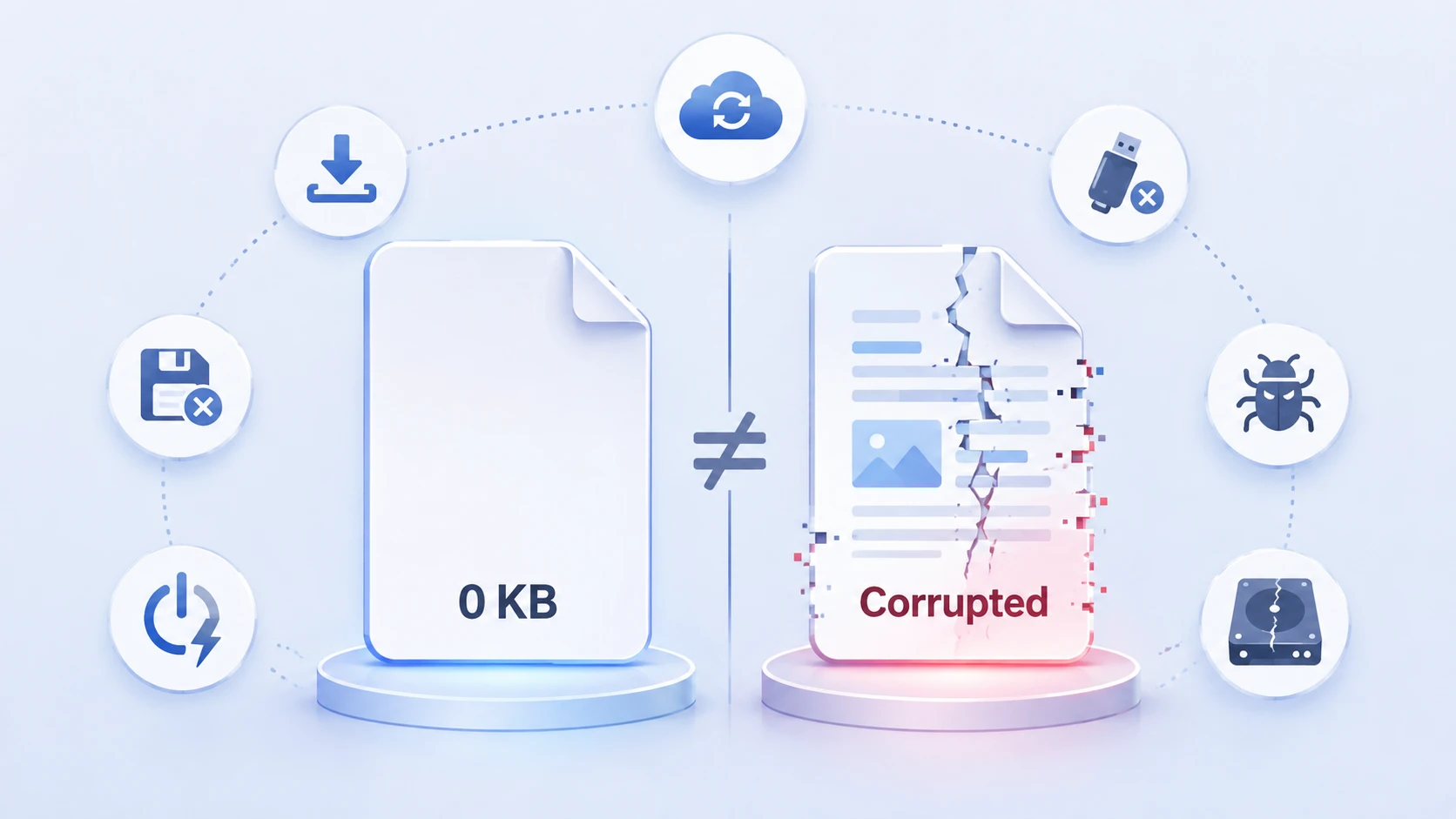
A 0 KB or 0-byte file has a recorded length of zero. That differs from a corrupted file that still has a nonzero size but damaged internal data.
This distinction matters when you recover 0KB files. Changing .docx to .zip or .jpg to .png cannot recreate content that is absent from a true zero-byte file. Instead, you need another copy of the data.
Common causes include interrupted downloads, failed saves, sudden power loss, unsafe USB removal, sync conflicts, malware, and file-system metadata damage.
Before You Try to Recover 0KB Files
Stop writing new data to the affected drive if deletion or file-system damage may be involved. New files can overwrite recoverable data.
Do not install recovery software on that same partition, and save recovered files elsewhere. If an HDD clicks, disconnects repeatedly, overheats, or reports the wrong capacity, stop using it and consider professional recovery. For logical disk problems, Amagicsoft’s corrupted hard drive recovery guide provides additional guidance on recovering data before repair.
Method 1: Recover 0KB Files from the Original File Again
If a downloaded or transferred file shows 0 KB, the simplest way to recover 0KB files is to retrieve the source copy again.
- Re-download it from the original website.
- Ask the sender to resend the attachment.
- Copy it again from the original USB drive, SD card, NAS, or computer.
- Re-export it from the application that created it.
Method 2: Restore 0KB Files from Cloud Version History
If the file was stored in OneDrive, check Version History before touching the local disk. Microsoft states that OneDrive can display and restore earlier versions of stored files.
To recover 0KB files from OneDrive, right-click the affected file, choose Version history, open an earlier version, verify its content, and restore it.
This approach can be particularly useful when a sync conflict, overwrite, or failed save leaves the current file empty.
Method 3: Use File History or Previous Versions
If File History was enabled beforehand, Windows may have an older copy. Microsoft describes File History as a backup feature that saves copies of personal files and lets users restore earlier versions.
- Open File Explorer and locate the file or its folder.
- Right-click it, find Properties and choose Restore Previous Versions.
- Open a dated version to verify it.
- Restore it, preferably to another location first.
A backup provides a known earlier copy, so this method should come before disk repair when you need to recover 0KB files.

Method 4: Check Autosave and Temporary Files
Applications may store recovery data separately from the main file, including AutoRecover, autosave, backup, and temporary copies.
To recover 0KB files, reopen the application and check Document Recovery, Recover Unsaved Documents, autosave locations, backup copies, or temporary files created near the failure time.
However, autosave is not a permanent backup. Temporary recovery data can disappear after a normal close, cleanup, or later save. Therefore, do not assume that an autosave copy will always remain available.
Method 5: Find the Deleted or Replaced Original
Sometimes the visible 0 KB item is a new empty file, while the previous good copy was deleted or replaced.
Check the Recycle Bin, then search for duplicate names, backup suffixes, or older exports. If the original was permanently deleted, Windows File Recovery can attempt deleted-file recovery from local storage. Microsoft recommends minimizing computer use because deleted-file space can be reused by new data.
In this situation, you recover 0KB files by recovering the older file that still contained data, not by modifying the empty one. Amagicsoft also has a dedicated guide to recover recently deleted files in Windows 11.
Method 6: Recover 0KB Files by Finding the Lost Original with Magic Data Recovery
If Recycle Bin, backups, cloud versions, autosave, and Windows recovery options do not contain a usable copy, Magic Data Recovery can be a reasonable next step when the original was deleted, lost after formatting, or became inaccessible because of logical file-system damage.
Magic Data Recovery does not add bytes to a genuinely empty file. Instead, it scans for recoverable records and data that may belong to an earlier or deleted original. Therefore, it differs from backup, autosave, or Recycle Bin restoration.
This distinction is important. Data recovery software is useful when the previous data still exists on the storage medium; it cannot manufacture content that was never written or that has already been overwritten.
If the built-in recovery options no longer work, you can try Magic Data Recovery before new data overwrites the deleted files.
How to Use Magic Data Recovery for 0KB File Recovery
Step 1: Download and Install Magic Data Recovery
Install Magic Data Recovery on a different drive or partition from the one that contained the original file. This reduces the risk of overwriting recoverable data.
Supports Windows 7/8/10/11 and Windows Server
Step 2: Select the Drive Where the Original File Was Stored
Launch Magic Data Recovery, choose the drive or partition where the working file existed before it became 0 KB, and start the scan.

Step 3: Scan for the Lost or Deleted Original
Let the software scan the selected storage device. Look for matching filenames, file types, folder paths, or older copies as results appear.

Step 4: Preview Files Before Recovery
Use Preview where available to check whether a found file contains the expected content. Not every file type or damaged file can necessarily be previewed.

Step 5: Recover Files to a Safe Location
Recover the usable files to another healthy drive. Do not write them back to the original loss location until you have verified the recovered copies.

Method 7: Repair the File System Only After Recovery
CHKDSK checks file-system metadata and, with parameters such as /f, fixes logical errors. Microsoft confirms that CHKDSK with repair parameters modifies the volume to correct errors. On FAT-based file systems, repairs can also change allocation information and may create .chk files from lost chains.
However, CHKDSK is a disk-repair tool, not a guaranteed way to recreate a 0-byte personal file.
Therefore, if important files are missing or many entries show 0 KB, recover 0KB files first and repair the drive afterward. You can also review Amagicsoft’s guide on how to scan a hard disk for errors safely before performing repairs.
What About SFC /scannow?
SFC is not a general personal-file recovery tool. Microsoft describes System File Checker as a utility for checking protected Windows system files and replacing corrupted system components.
It does not restore the missing contents of an ordinary 0-byte DOCX, JPG, PDF, ZIP, or video.
Can Renaming the Extension Fix a 0 KB File?
Usually not. Renaming can help inspect a damaged nonzero-size file, but a true zero-byte file has no internal content to decode. Recover a nonzero-size copy first.
For example, renaming an intact but corrupted .docx file to .zip may sometimes help inspect its internal structure. In contrast, doing the same to a file whose real length is zero provides nothing for the archive tool to open.
How to Prevent 0 KB Files
To reduce the risk:
- Keep an independent backup of important files.
- Enable File History or another scheduled backup.
- Use cloud version history for active documents.
- Eject removable drives safely.
- Keep enough free disk space.
- Investigate repeated disconnects or file-system errors.
- Save important projects incrementally.
Autosave helps with crashes, but autosave is not the same as a permanent backup.
Conclusion
The right way to recover 0KB files is to find another copy of the missing content. Start with the original source, OneDrive Version History, File History, Previous Versions, autosave, temporary files, and Recycle Bin.
If those methods fail and the earlier working file was deleted, formatted, or lost through logical file-system damage, Magic Data Recovery can scan for recoverable data. No recovery software can guarantee results after overwriting, and SSD TRIM can reduce recovery chances.
For the safest recover 0KB files workflow, protect the source drive, recover to another location, and repair the disk only after the data is secure. For related deletion scenarios, you can also start from Amagicsoft’s Deleted File Recovery Guide.
Supports Windows 7/8/10/11 and Windows Server
FAQs
Can I recover 0KB files if the file size is really zero?
A true 0-byte file contains no payload that software can rebuild from that file alone. To recover 0KB files, look for another source: an earlier cloud version, File History backup, autosave copy, temporary file, Recycle Bin item, or deleted original. Recovery software may help only if older file data still exists elsewhere on the storage device.
Why did my Word, Excel, photo, or video suddenly become 0 KB?
A file can become 0 KB after an interrupted save, power loss, incomplete transfer, unsafe drive removal, sync conflict, malware activity, or file-system damage. The visible empty file may have replaced a previously valid copy. Therefore, check version history, backups, autosave, and temporary files before using disk repair commands or creating new data on the affected drive.
Can CHKDSK recover 0KB files?
CHKDSK can repair file-system errors, but it cannot guarantee restoration of the missing contents of a true 0-byte file. Because repair operations change file-system metadata, recover important files first when possible. After your data is safe, CHKDSK can help diagnose or repair logical disk errors that may have contributed to files becoming inaccessible or incorrectly represented.
Does SFC /scannow fix personal 0 KB files?
Usually not. SFC checks protected Windows system files and replaces damaged system components with known copies. It is useful when Windows itself is malfunctioning, but it is not a personal file-recovery tool. A 0 KB DOCX, JPG, PDF, ZIP, or video needs another valid copy, backup, version, autosave, or recoverable deleted original.
Can Magic Data Recovery repair a 0 KB file directly?
Magic Data Recovery is data recovery software, not a tool that inserts missing content into an empty file. It may help when the earlier working file was deleted, lost after formatting, or became inaccessible because of logical storage damage. Scan the original drive and recover any usable found copy to a different location to avoid overwriting remaining data.
Are 0 KB files recoverable from an SSD?
Sometimes, but SSD recovery can be more difficult when the original file was deleted. TRIM allows an SSD to mark deleted blocks for cleanup, which can reduce the amount of recoverable data. Stop using the SSD, check backups and cloud versions first, and avoid installing recovery software onto the same partition that contained the lost original.
How can I stop files from becoming 0 KB again?
Use multiple layers of protection instead of relying on one autosave file. Keep scheduled backups, enable version history where available, eject removable drives safely, maintain enough free disk space, and investigate repeated disconnects or file-system errors. For important projects, save incremental versions so one interrupted write or damaged file does not become your only copy.

Vasilii is a data recovery specialist with around 10 years of hands-on experience in the field. Throughout his career, he has successfully solved thousands of complex cases involving deleted files, formatted drives, lost partitions, and RAW file systems. His expertise covers both manual recovery methods using professional tools like hex editors and advanced automated solutions with recovery software. Vasilii's mission is to make reliable data recovery knowledge accessible to both IT professionals and everyday users, helping them safeguard their valuable digital assets.