
How to Scan Hard Disk for Errors and Recover Files Safely
When a computer starts freezing, files suddenly disappear, or Windows shows disk warnings, the first reaction for most users is to scan hard disk for errors. This is usually a sensible first step and is often recommended by Windows itself. Hard disk errors are often early signs of file system corruption, bad sectors, or improper shutdowns. However, many users overlook a critical issue: scanning and repairing a disk does not always protect existing data. In some cases, files may go missing after the scan, even when the process completes successfully.
This guide explains not only how to scan hard disk for errors correctly, but also what those errors mean, what risks are involved, and how to recover files if something goes wrong. For situations where disk scans result in missing or deleted data, we will also introduce a reliable recovery solution.
Table of Contents
Why You Should Scan Hard Disk for Errors
Regular disk checks help identify problems before they become serious. When you scan hard disk for errors, Windows examines the file system structure and physical sectors to detect inconsistencies.
Common reasons to run a disk scan include:
- Sudden system crashes or blue screens
- partitions or drives becoming inaccessible
- Unusual noises from the hard drive
- Slow read/write performance
- Errors after forced shutdowns or power outages
Disk errors usually fall into two categories:
- Logical errors: Problems in the file system, such as corrupted file tables or broken directory links
- Physical errors: Bad sectors caused by aging hardware or physical damage
Scanning helps identify these issues early. However, it is important to understand that error scanning focuses on disk integrity rather than file preservation.
How to Scan Hard Disk for Errors in Windows
Windows offers built-in tools that allow users to scan hard disk for errors without installing third-party software. Below are the two most common methods.
Scan Hard Disk for Errors Using CHKDSK (Command Prompt)
CHKDSK is a command-line utility designed to detect and repair disk-related problems.
Steps:
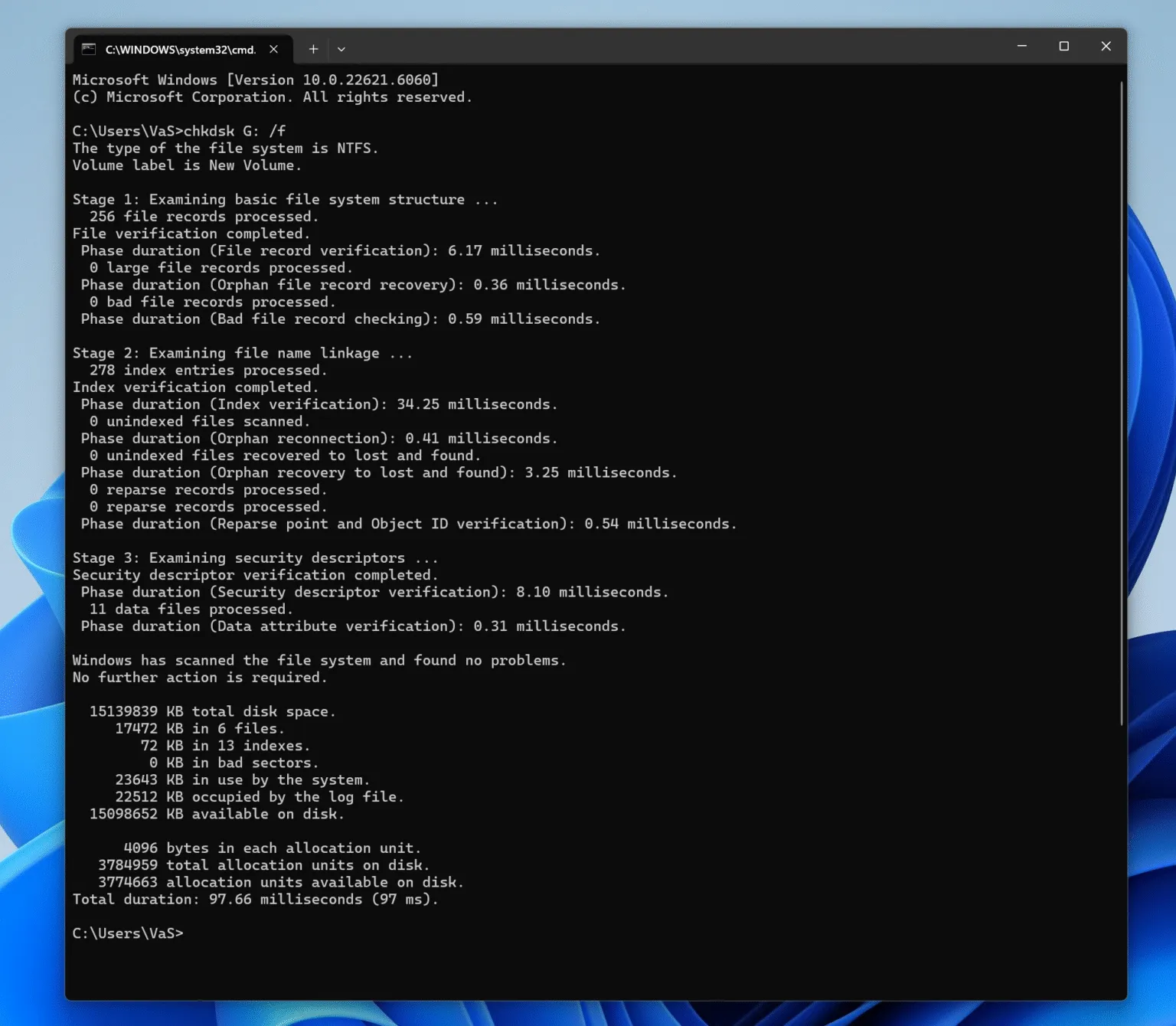
1. Press Windows + S, type cmd, and choose Run as administrator
2. Enter the following command:
chkdsk C: /f
3. If prompted, type Y to schedule the scan and restart your computer
The /f parameter fixes detected errors, while /r locates bad sectors and attempts data recovery. Although effective, CHKDSK may modify file system structures. As a result, some files can become hidden or temporarily inaccessible.
Scan Hard Disk for Errors Using Windows Error Checking Tool
For users who prefer a graphical interface, Windows provides a built-in disk checking option.
Steps:
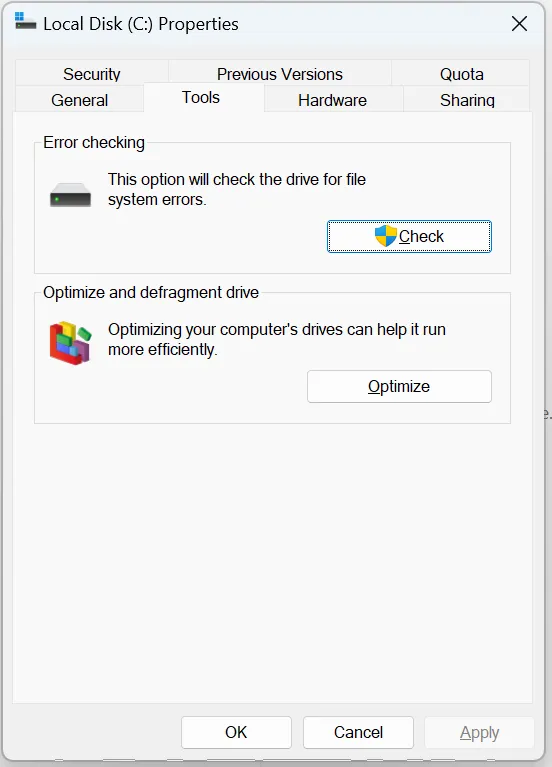
- Open This PC
- Right-click the target drive and select Properties
- Go to the Tools tab
- Click Check under Error checking
This method is easier for beginners, but it still carries similar risks when repairs are applied automatically.
What Happens If Files Go Missing After Scanning Disk Errors?
After users scan hard disk for errors, some notice that files are no longer visible. In real-world usage, this situation is more common than many users expect.
Possible reasons include:
- Files moved to hidden system folders (such as FOUND.000)
- File indexes removed during repair
- Corrupted directory entries discarded to stabilize the disk
In these cases, files may not appear in their original locations or in the Recycle Bin. This leads many users to ask how to recover files that seem permanently deleted.
How to Recover Files After You Scan Hard Disk for Errors
When files disappear after a disk scan, standard Windows tools usually cannot restore them. At this point, data recovery software becomes necessary.
Why Built-in Tools Are Not Enough
Disk scanning utilities can stabilize the storage device. They are not intended to protect or preserve individual files. Once files are removed from the file system index, Windows treats them as deleted, even if the actual data still exists on the disk.
To recover such files, a tool must:
- Scan the disk sector by sector
- Rebuild lost file structures
- Allow preview before recovery
Recover Lost Files Using Magic Data Recovery
Magic Data Recovery is designed to help users retrieve lost or deleted files after disk errors, accidental deletion, or system issues.
How Magic Data Recovery Solves the Problem
If you scan hard disk for errors and notice missing files, Magic Data Recovery can:
- Detect files removed during disk repair
- Recover data deleted from the Recycle Bin
- Restore files lost due to file system corruption
Key Advantages of Magic Data Recovery
- Advanced Scan Technology: Analyzes the disk beyond standard file tables
- Preview Function: Verify files before recovery
- Wide File Support: Documents, photos, videos, archives, and more
- Read-Only Operation: Prevents further disk damage during recovery
Typical Usage Scenario
Imagine running CHKDSK to fix disk errors after a sudden shutdown. The scan completes, but several folders are missing. Instead of repeatedly running repair tools, which may worsen the situation, Magic Data Recovery allows you to scan the affected drive and recover files safely.

Best Practices Before and After Disk Error Scanning
To minimize risks when you scan hard disk for errors, consider these recommendations:
- Back up important files before running repair scans
- Avoid interrupting disk checks once they start
- Stop using the drive immediately if files go missing
- Do not repeatedly run CHKDSK on a failing disk
Following these practices improves both disk stability and data recovery success.
Conclusion
Knowing how to scan hard disk for errors is essential for maintaining overall system stability. However, scanning alone does not guarantee data safety. When files disappear after CHKDSK or appear permanently deleted, a reliable recovery solution is needed.
Magic Data Recovery stands out because it focuses on file recovery rather than disk repair. Its advanced scanning capability, safe operation, and practical design make it a dependable choice when standard tools fall short. If you need an efficient and trustworthy way to recover lost data after disk scanning, it is a solution worth considering.
Supports Windows 7/8/10/11 and Windows Server
FAQ
How do I scan my hard drive for errors?
How to scan and fix a hard disk?
Is CHKDSK /f or /r better?
How do I run SFC and CHKDSK?
How to check if a hard disk is corrupted or not?
Does CHKDSK fix corrupt files?

Vasilii is a data recovery specialist with around 10 years of hands-on experience in the field. Throughout his career, he has successfully solved thousands of complex cases involving deleted files, formatted drives, lost partitions, and RAW file systems. His expertise covers both manual recovery methods using professional tools like hex editors and advanced automated solutions with recovery software. Vasilii's mission is to make reliable data recovery knowledge accessible to both IT professionals and everyday users, helping them safeguard their valuable digital assets.