
How to Recover Data from a Not Initialized Hard Drive
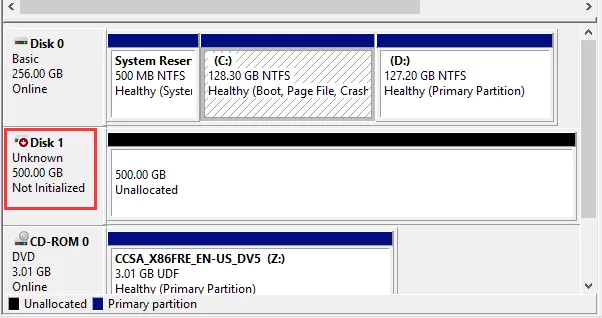
You connect an HDD or external drive that worked yesterday, but Windows suddenly reports Disk Unknown, Not Initialized. The files disappear from File Explorer, and Disk Management asks you to initialize the disk as MBR or GPT. If that drive already contains important files, do not initialize or format it yet.
In many cases, you can still recover data from not initialized hard drive because the error affects the partition information that Windows uses to locate your volumes rather than every file stored on the disk. The safest approach is to recover your files first and repair the drive afterward. For a broader explanation of recovery after disk structure or formatting problems, see Amagicsoft’s formatted drive recovery guide.
When Windows still detects the physical disk, Magic Data Recovery can also provide a practical way to scan the inaccessible storage and extract recoverable files before you make changes to its partition structure.
Supports Windows 7/8/10/11 and Windows Server
Quick answer: If a previously used drive suddenly becomes Not Initialized, stop using it. Check whether Windows reports the correct disk capacity. If it does, recover important files to another drive first. Only initialize, repartition, or format the affected disk after you have secured the data.
Table of Contents
What Does “Disk Not Initialized” Mean?
Windows needs partition information to understand how a physical disk is organized. On most modern computers, that information follows either the GPT (GUID Partition Table) or MBR (Master Boot Record) partitioning scheme.
When Disk Management labels a drive Unknown, Not Initialized, Windows can usually detect the physical device but cannot use valid partition information to access its volumes.
However, the meaning depends heavily on whether the drive is new or previously used.
Situation | What It Usually Means | Recommended Action |
Brand-new HDD or SSD | The disk has never had a partition table | Initialize it normally |
Previously used drive, correct capacity shown | Partition table or disk metadata may be damaged | Recover data first |
Drive shows Unallocated | Partition information may have disappeared | Avoid creating a new volume before recovery |
Drive shows 0 Bytes or no capacity | Connection, controller, firmware, or hardware failure may exist | Troubleshoot hardware carefully |
HDD clicks, spins down, or repeatedly disconnects | Possible physical failure | Stop DIY recovery and consider professional help |
This distinction matters. Initializing a completely new disk is normal. Initializing a used drive simply because Windows cannot read its previous layout can overwrite important disk metadata and make subsequent uninitialized hard drive recovery more difficult.
Why Does a Hard Drive Suddenly Become Not Initialized?
A disk can lose its usable partition information for several reasons. The error does not automatically mean that every file has disappeared.
Corrupted MBR or GPT
The MBR or GPT tells Windows where partitions start and end. A system crash, interrupted partition operation, malware, software bug, or unexpected shutdown can damage this information.
Windows may then detect the disk hardware but fail to find a usable partition map.
File System or Partition Corruption
Severe file system corruption can make a partition inaccessible or RAW. In some cases, Windows may eventually show the physical device as unknown or uninitialized.
Unstable USB or SATA Connection
A failing USB cable, SATA cable, USB enclosure, adapter, or port can interrupt communication between Windows and the disk.
This situation appears frequently with external HDDs. Therefore, a disk that becomes Not Initialized after being moved between computers does not always have damaged data.
Bad Sectors
If an HDD develops unreadable sectors where important disk metadata resides, Windows may fail to identify its partition layout.
This situation requires more caution because repeated full-drive scans can put additional stress on an already deteriorating disk.
Drive Hardware Failure
A damaged controller board, failing read/write heads, motor problems, or firmware issues can also cause the disk to appear incorrectly.
If Windows reports 0 bytes, the disk disappears repeatedly, or an HDD produces unusual clicking sounds, software alone may not solve the problem.
Can You Recover Data from a Not Initialized Hard Drive?
Yes, in many logical data-loss situations you can recover data from not initialized hard drive, particularly when Windows still detects the physical disk and reports its correct capacity.
Recovery prospects are generally better when:
- The disk still shows its correct size in Disk Management.
- The problem appeared suddenly after a crash or unsafe removal.
- You have not initialized, repartitioned, or formatted the drive.
- No new data has been written to the affected device.
- The HDD does not show signs of mechanical failure.
For example, imagine a 2 TB external HDD that previously stored photos and project files. File Explorer no longer shows it, but Disk Management still reports a 1.86 TB physical disk as “Unknown, Not Initialized.” That pattern often points toward damaged partition metadata rather than a completely unreadable device.
By contrast, if the same 2 TB drive appears as 0 bytes and disconnects every few seconds, you should treat it as a possible hardware problem instead of immediately starting a deep scan.
Before Recovery: What You Should Not Do
Your actions immediately after the error can affect the final recovery result.
Do Not Initialize the Drive Yet
Windows may automatically display the Initialize Disk dialog and ask you to choose MBR or GPT.
Cancel it if the disk previously contained files.
Initialization prepares disk structures for partitioning. It is appropriate for a new blank drive, but it is not the first step for an existing drive whose data you still need.
Do Not Create a New Simple Volume
If Disk Management shows the disk as Unallocated, Windows may let you create a new partition.
Avoid doing this before recovery because creating partitions writes new structural information to the disk.
Do Not Format the Drive
Formatting does not repair your missing files. It creates a new file system so Windows can use the volume again.
If your priority is recovering data from an uninitialized disk, formatting belongs after recovery, not before it.
Avoid DiskPart Clean
Commands such as clean, convert gpt, and convert mbr can modify or remove partition information. They are useful for disk administration but inappropriate while you are still trying to preserve existing data.
Avoid CHKDSK Before Recovery
CHKDSK focuses on repairing an existing file system. A Not Initialized disk may not even expose a usable volume or drive letter.
More importantly, repair utilities can change file system metadata. Recover valuable files first, then troubleshoot the storage device.
How to Recover Data from Not Initialized Hard Drive
The safest method depends on the drive’s condition. Start with the least invasive checks and avoid changing the disk structure.
Method 1: Recover Data with Magic Data Recovery
When Windows detects the physical disk with a realistic capacity but cannot open its partitions, recovery software is usually the most practical first option.
Magic Data Recovery is designed for logical data-loss situations involving inaccessible, corrupted, deleted, formatted, and missing data. It supports HDDs, SSDs, external drives, USB storage, and common Windows file systems such as NTFS, FAT/exFAT, ReFS, and EXT2/3/4 drives connected to Windows.
It can also identify more than 5,000 file formats, including documents, photos, videos, archives, audio files, databases, and many less common formats.
Step 1: Connect the Affected Disk to a Stable Windows PC
For an external drive, use a reliable USB cable and preferably connect it directly to the computer rather than through an unpowered USB hub.
For a secondary internal HDD, you can connect it through SATA or a suitable SATA-to-USB adapter.
If the damaged drive contains your Windows installation, connecting it as a secondary drive to another computer reduces unnecessary writes to the affected disk.

Step 2: Install Magic Data Recovery on Another Drive
Never install recovery software onto the storage device you want to recover.
For example, if Disk 1 contains your lost files, install the program on Disk 0 or another healthy external device.
Launch Magic Data Recovery and check whether the physical disk or lost partition appears in the drive list.
You can refer to the Magic Data Recovery user guide if you need additional instructions for disk detection and scanning.
Supports Windows 7/8/10/11 and Windows Server
Step 3: Scan the Not Initialized Disk
Choose the affected disk and start the scan.
If the partition table has disappeared, the software may need to search the physical disk instead of relying on the drive letter that Windows previously assigned.
Allow the scan to inspect the available storage space. Avoid disconnecting the disk while the scan runs.

Step 4: Preview Important Files
Do not judge recovery only by the number of filenames found.
Preview several important photos, documents, videos, or other files whenever possible. A valid preview provides a much stronger indication that the underlying file content remains readable.

Use file type, size, filename, or date filters to locate important data more efficiently.
Step 5: Recover Files to a Different Disk
Select the files you need and save them to another healthy storage device.
Never restore recovered files back to the not initialized hard drive during the same recovery attempt. Doing so could overwrite sectors that still contain unrecovered information.

This recovery-first workflow is one reason dedicated software offers an advantage over Windows repair utilities. The goal is to extract your files before changing the damaged disk structure.
Method 2: Check the Connection Before Running a Full Scan
A connection problem can make a healthy external HDD look defective.
If the drive behaves normally and makes no unusual noises, try these simple checks:
- Disconnect and reconnect the external drive.
- Try another USB port.
- Replace the USB cable.
- Avoid USB hubs.
- Test the drive on another Windows computer.
- If possible, test another compatible enclosure or SATA-to-USB adapter.
Then reopen Disk Management.
If Windows suddenly recognizes the original partition correctly, copy important files immediately rather than continuing to troubleshoot.
However, do not repeatedly reconnect an HDD that clicks, stops spinning, or disappears during access. Those symptoms may indicate physical failure.
Method 3: Recover from a Backup
Before performing a lengthy scan, check whether another usable copy already exists.
Look at external backup disks, NAS backups, Windows backup locations, cloud synchronization services, or copies on another computer.
A verified backup provides the safest recovery method because you do not need to manipulate the problematic drive at all.
Still, verify that the backup actually contains the latest versions of the files before you initialize the original disk.
Method 4: Create a Disk Image for an Unstable Drive
A drive that develops bad sectors may become less reliable every time you read it.
Advanced users and technicians often create a sector-by-sector image of a deteriorating disk and perform recovery against that image rather than repeatedly scanning the original hardware.
This approach can reduce additional stress on the source drive.
However, imaging only makes sense when the disk remains readable enough to copy. If it disconnects continuously, reports the wrong capacity, or has obvious mechanical problems, stop DIY attempts.
Method 5: Use a Professional Data Recovery Service
Software cannot repair physical HDD damage.
Consider a professional recovery service when:
- The HDD clicks, grinds, or beeps.
- Windows reports 0 bytes or an obviously incorrect capacity.
- The disk disappears after a few seconds.
- The drive does not spin normally.
- The data is irreplaceable and no backup exists.
- Multiple computers fail to detect the physical device correctly.
In these situations, repeated scanning can reduce the chance of a successful laboratory recovery.
What If You Already Initialized the Hard Drive?
Accidentally clicking Initialize does not necessarily mean every file has disappeared permanently.
However, you should stop making further changes.
Do not create a new partition, format the disk, copy files to it, or repeatedly run repair commands. Instead, scan the entire physical disk with recovery software and save anything recoverable elsewhere.
If you initialized the disk and then performed a quick format, recovery may still remain possible because some previous file content can survive until new data overwrites it. See the guide on recovering data from a quick formatted drive for that specific situation.
A full format, substantial subsequent use, or SSD-specific data management features can make recovery more difficult. Therefore, do not assume that every initialized or formatted drive will produce the same result.
How to Fix a Not Initialized Disk After Data Recovery
Only start repairing the disk after you have recovered and verified important files.
Step 1: Check the Hardware Connection
Replace questionable cables or enclosures first. There is little value in rebuilding a disk structure while using an unreliable connection.
Step 2: Open Disk Management
Press Win + X and select Disk Management.
Locate the correct physical disk carefully. Double-check its capacity so you do not modify another drive by mistake.
Step 3: Initialize the Disk
Right-click the disk label and select Initialize Disk.
Windows normally offers:
GPT: The preferred partition style for most modern Windows systems. It supports disks larger than 2 TB and modern UEFI configurations.
MBR: An older partition style mainly useful when compatibility with legacy systems matters.
For most modern Windows 10 and Windows 11 computers, GPT is the usual choice.
Step 4: Create and Format a New Volume
After initialization, the disk may show Unallocated space.
Right-click that space, choose New Simple Volume, assign a drive letter, and select the appropriate file system, such as NTFS or exFAT.
Once Windows finishes formatting the new volume, test the disk before trusting it with important data again.
If the drive previously became Not Initialized without an obvious explanation, consider checking its health or replacing it rather than using it as your only storage location.
Why Use Magic Data Recovery for an Uninitialized Hard Drive?
Windows Disk Management primarily manages disks and partitions. It does not exist to recover inaccessible personal files.
That distinction becomes important when you need to recover data from not initialized hard drive.
Magic Data Recovery focuses on extracting files before you repair the drive. It offers several useful advantages for this situation:
- Support for internal and external HDDs and SSDs detected by Windows.
- Recovery from deletion, formatting, file system errors, corrupted storage, and lost partitions.
- Support for NTFS, FAT/exFAT, ReFS, and EXT2/3/4 file systems.
- Recognition of more than 5,000 file formats.
- File preview and filtering before recovery.
- A straightforward scan, preview, and recover workflow for users who do not want to work with command-line disk tools.
More importantly, it fits the correct recovery sequence: preserve the source disk, locate the files, recover them elsewhere, and repair the disk afterward.
That does not mean software can recover every damaged hard drive. If Windows cannot communicate reliably with the hardware, physical repair or professional recovery may be necessary.
Tips to Prevent Another Not Initialized Disk Problem
No storage device lasts forever, so prevention matters even after a successful recovery.
Keep at least two copies of important files on separate storage devices. For irreplaceable work, combine a local backup with an off-site or cloud copy.
Always eject external HDDs properly before disconnecting them. Avoid unstable USB hubs and replace damaged cables early.
In addition, investigate unusual disk behavior instead of waiting for complete failure. Slow reads, frequent disconnections, I/O errors, and strange mechanical noises deserve attention.
Finally, remember that a successful recovery does not automatically make the old disk trustworthy again.
Conclusion
When a previously used disk suddenly shows Disk Unknown, Not Initialized, the first goal should be protecting your files—not making the drive usable again as quickly as possible.
To recover data from not initialized hard drive, avoid initialization, formatting, new partitions, and destructive DiskPart commands until your important files are safe. If Windows can still detect the physical disk with the correct capacity and the device shows no signs of physical failure, recovery software is often a sensible first step.
For users who want a broader recovery workflow, Amagicsoft’s formatted drive recovery guide explains how inaccessible, RAW, reformatted, and structurally damaged storage can still contain recoverable information.
When no usable backup exists, Magic Data Recovery is particularly useful because it can scan HDDs, SSDs, and other storage devices for files lost through formatting, corruption, deletion, and file system problems. Recover the data to another drive first. Then you can safely initialize and rebuild the problematic disk.
Supports Windows 7/8/10/11 and Windows Server
FAQs
Can I recover data from a hard drive that is not initialized?
Yes, recover data from not initialized hard drive is often possible when Windows still detects the physical device and reports its correct capacity. Avoid initializing or formatting it first. Scan the disk with recovery software and save recovered files to another healthy storage device.
Does initializing a hard drive delete the data?
Initialization writes new disk structure information and can make previous partitions inaccessible or harder to recover. If the drive already contains important files, recover them before initializing it. Initializing is appropriate immediately only when you know the disk is new and contains no needed data.
How can I initialize a disk without losing data?
For a previously used disk, the safest approach is not to initialize it immediately. First recover or back up the existing files. Once you have verified those files on another storage device, initialize the original disk, create a new volume, and format it normally.
Why does my external hard drive suddenly say Not Initialized?
Common causes include damaged GPT or MBR information, unsafe removal, corrupted disk metadata, bad sectors, faulty USB cables or enclosures, controller problems, and physical drive failure. Checking the reported capacity and hardware behavior helps determine whether the problem is logical or physical.
Can CHKDSK fix a disk that is Not Initialized?
CHKDSK repairs recognized file systems and normally expects an accessible volume. A Not Initialized disk may not expose one. Running repair tools before recovering important files can also change metadata, so data recovery should generally come first when files still matter.
Can Magic Data Recovery recover files from an uninitialized disk?
If Windows can detect the physical disk reliably, Magic Data Recovery can scan supported HDDs, SSDs, external drives, and other storage for recoverable files. However, software cannot solve severe mechanical or electronic failures where the computer cannot communicate properly with the device.
Can data still be recovered after I accidentally initialized the disk?
Potentially, yes. Stop using the disk immediately and avoid creating or formatting new volumes. Scan the entire physical drive instead. Recovery depends on how much disk metadata changed and whether later operations overwrote the previous file content.
What should I do if the uninitialized hard drive shows 0 bytes?
Do not immediately initialize or repeatedly scan a drive that reports 0 bytes. First check the cable, USB enclosure, power supply, and connection. If the capacity remains incorrect or the HDD makes unusual noises, physical or firmware failure may exist, making professional recovery the safer option.

Jason is a data recovery and technical support specialist with over 15 years of hands-on experience. He has worked extensively with frontline users, troubleshooting difficult data loss cases and providing practical recovery solutions for accidental deletion, formatted drives, damaged file systems, lost partitions, system failures, and other recovery emergencies. His expertise also includes backup and restoration, file repair, and disaster recovery, with a strong emphasis on safe, reliable, and technically accurate guidance.