
How to Recover Deleted Excel File Safely and Effectively

Accidentally deleting an important Excel file can be stressful, especially when it contains work reports, financial records, or critical business data. Many users assume that once an Excel file is deleted, or even permanently deleted, it is gone forever. In reality, that is not always true. It is still possible to recover deleted Excel file if you take correct document recovery methods.
This guide focuses on deleted Excel file recovery scenarios in Windows, including accidental deletion, emptying the Recycle Bin, and system-related data loss. You will first learn practical, built-in recovery methods that actually work. When those options fail, we explain when and why professional recovery software becomes necessary, and how tools like Magic Data Recovery can help recover Excel files safely and efficiently.
Supports Windows 7/8/10/11 and Windows Server
Wondering if your files can be recovered? Find out in seconds with our quick check below.
Data Recovery Assessment
Answer 3 quick questions to estimate your recovery chances
Table of Contents
Can You Recover a Deleted Excel File?
In most cases, yes. When you delete an Excel file, Windows usually removes the file reference instead of erasing the data immediately. Until new data overwrites that space, deleted data recovery remains possible.
However, success depends on several factors:
- How the Excel file was deleted
- Whether the storage location has been reused
- How quickly recovery is attempted
Understanding these basics helps you choose the right recovery method instead of wasting time on ineffective solutions.
Common Scenarios of Excel File Deletion
Different deletion scenarios require different recovery approaches. Below are the most common situations users face.
Accidentally Deleted Excel File
This often happens when selecting multiple files or using the Delete key by mistake. In this case, recovery is usually straightforward.
Permanently Deleted Excel File
Files deleted using Shift + Delete or after emptying the Recycle Bin are considered permanently deleted from the user interface, but they may still exist on the disk.
Excel File Deleted After System Crash or Update
Unexpected shutdowns or Windows updates can remove or corrupt Excel files, especially if they were open or unsaved.
Excel File Deleted from External Storage
Excel files stored on USB drives, SD cards, or external hard drives face a higher risk of permanent loss if overwritten.
How to Recover Deleted Excel File Without Software
Before using any recovery software, you should always try the built-in Windows and Excel recovery options. These methods are free and effective in many cases.
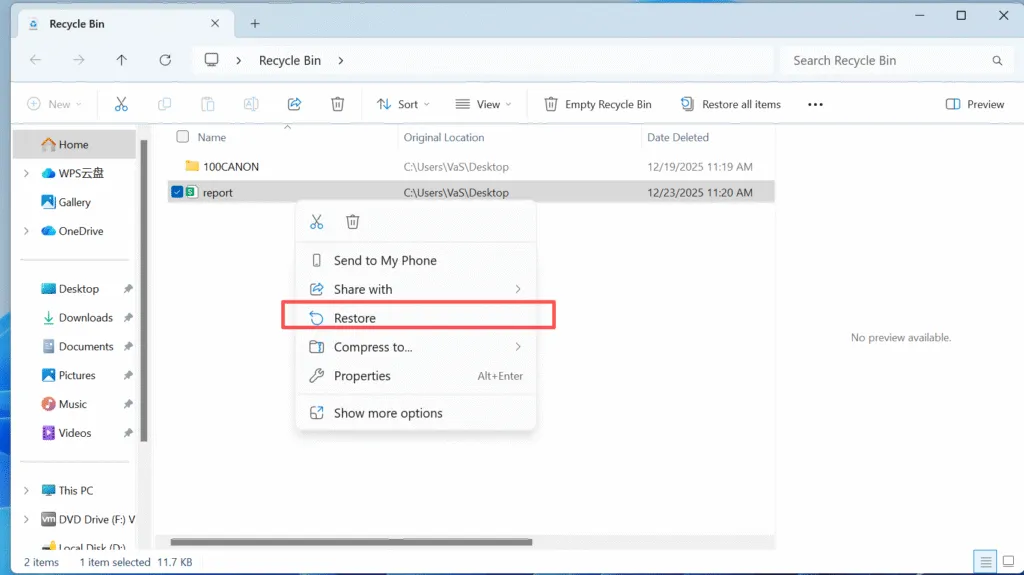
Restore Excel File from Recycle Bin
If you deleted the Excel file normally:
1. Open the Recycle Bin
2. Locate the deleted Excel file
3. Right-click and choose Restore
The file will return to its original location.
Recover Excel File from Previous Versions
Windows File History or system restore points may contain earlier versions of your Excel file.
1. Navigate to the original folder
2. Right-click and select Restore previous versions
3. Choose a version created before deletion
This method works well if File History was enabled.

Use Excel AutoRecover and Temporary Files
Microsoft Excel automatically creates temporary backups:
- Open Excel
- Go to File > Info > Manage Workbook
- Check Recover Unsaved Workbooks
You can also manually search for .tmp or .asd files in the system temp folder.
Why Built-In Methods Sometimes Fail
Free recovery options fail when:
- The Excel file was permanently deleted long ago
- Storage space has been overwritten
- File History was not enabled
- Excel temporary files were cleared
- The drive is an SSD enabled TRIM
In these cases, specialized recovery software becomes the most reliable solution.
How to Recover Deleted Excel File Using Magic Data Recovery
When standard recovery methods fail, Magic Data Recovery provides a practical way to recover deleted Excel file data without complex technical steps.
Why Magic Data Recovery Is Effective
Magic Data Recovery focuses on locating file structures instead of file names. This allows it to recover Excel files even after permanent deletion or formatting.
Key advantages include:
- Supports XLS, XLSX, XLSM, and CSV formats
- Deep scan technology for permanently deleted files
- Preview Excel files before recovery
- Read-only scanning to prevent further data damage
Step-by-Step: Recover Deleted Excel File Safely
1. Download and install Magic Data Recovery on a different drive. DO NOT install it to the same drive where you delete the file.
Supports Windows 7/8/10/11 and Windows Server




When Magic Data Recovery Is the Best Choice
Tips to Increase Excel File Recovery Success
To improve your chances of successful recovery:
- Stop using the affected drive immediately
- Avoid installing recovery software on the same drive
- Do not save recovered Excel files back to the original location
- Perform recovery as soon as possible
These best practices significantly reduce the risk of permanent data loss.
Conclusion
Recovering a deleted Excel file is often possible if you act quickly and choose the right method. Built-in Windows and document recovery options should always be your first step, as they are free and easy to use. However, when those methods fail—especially in permanent deletion scenarios—a professional tool becomes necessary.
Magic Data Recovery stands out because it focuses on safe scanning, broad file format support, and practical recovery workflows. If you are facing a difficult Excel file loss situation and need a dependable solution, Magic Data Recovery is a reasonable and effective choice.
Supports Windows 7/8/10/11 and Windows Server
FAQ: Recover Deleted Excel File
How can I recover an Excel file permanently deleted?
How do I recover a file I accidentally deleted?
How to recover deleted Excel files online?
How do you undo in Excel after delete?
Can permanently deleted files be recovered?
Can an Excel file be recovered?
Can deleted files really be recovered?
How to recover deleted Excel files in Windows 11?

Vasilii is a data recovery specialist with around 10 years of hands-on experience in the field. Throughout his career, he has successfully solved thousands of complex cases involving deleted files, formatted drives, lost partitions, and RAW file systems. His expertise covers both manual recovery methods using professional tools like hex editors and advanced automated solutions with recovery software. Vasilii's mission is to make reliable data recovery knowledge accessible to both IT professionals and everyday users, helping them safeguard their valuable digital assets.