
How to Fix USB Flash Memory Without Data Loss
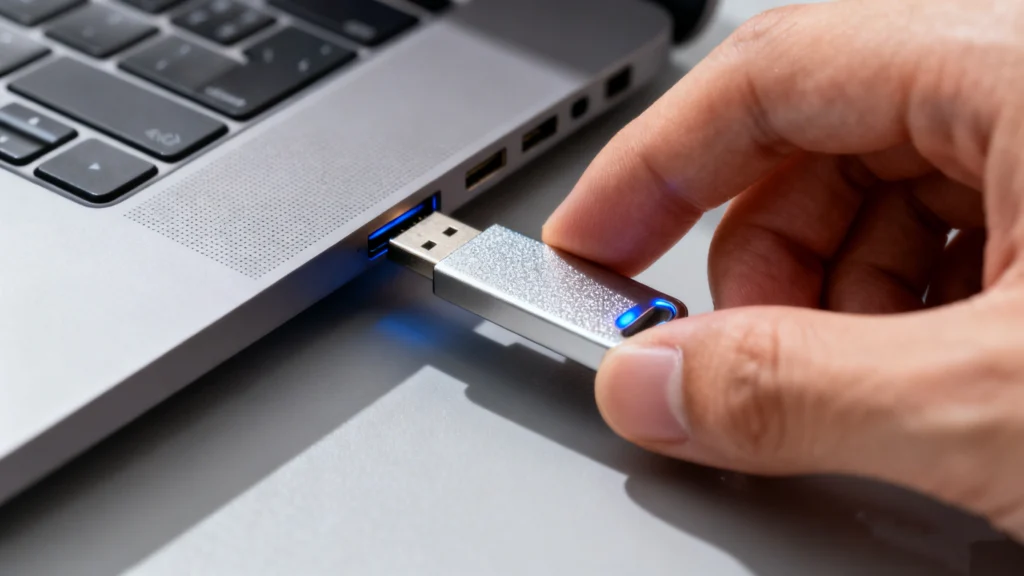
Imagine this: you plug your drive into the computer to access an important presentation, but instead of your files, you see a “Drive not formatted” error or a blank screen. For many creators and professionals, the need to fix usb flash memory is a high-stress emergency. Whether your drive is showing a “RAW” file system, is write-protected, or simply won’t show up in File Explorer, these issues are common in the lifecycle of any flash-based storage.
In this comprehensive guide, we will explore professional-grade USB flash drive solutions to repair corrupted USB devices. From simple hardware checks to advanced command-line fixes, you will learn the most effective ways to restore your device’s functionality. Furthermore, if your files have already disappeared, we will introduce how Magic Data Recovery serves as the ultimate safety net for your digital life.
Table of Contents
Why Does USB Flash Memory Fail?
Before we dive into the solutions, it is essential to understand why you might need to fix usb flash memory in the first place. USB drives are prone to both physical and logical corruption. Logical errors often occur due to “unsafe removal” (unplugging the drive while it’s writing data), sudden power surges, or file system crashes.
On the other hand, physical wear and tear on the NAND flash chips can lead to “bad sectors.” Recognizing these signs early—such as slow transfer speeds or intermittent connection issues—can help you save your data before the drive fails completely.
Method 1: Perform a Physical and Connection Check
Sometimes, the simplest solution is the most effective. Before moving to complex software fixes, ensure the problem isn’t mechanical.
- Switch Ports: Plug the device into a different port. If you are using a desktop, use the ports on the rear I/O panel (connected directly to the motherboard) rather than front-panel hubs.
- Inspect the Connector: Debris or lint inside the USB plug can prevent a solid connection. Use compressed air to clean it.
- Test on Another OS: Try to fix usb flash memory by plugging it into a Mac if you are on Windows, or vice versa. This determines if the issue is with the drive or your computer’s drivers.
Method 2: Use CHKDSK to Repair File System Errors
If your computer detects the drive but cannot open it, the file system is likely corrupted. Windows provides a powerful built-in tool called CHKDSK (Check Disk) that can effectively repair corrupted USB structures.
Step-by-step instructions:
- Plug in the USB drive and identify its drive letter (e.g., G:).
- Press
Win + S, type “cmd”, right-click it, and select Run as Administrator. - In the black window, type:
chkdsk G: /f /r /x(Replace ‘G’ with your drive letter). - Press Enter.
The /f parameter tells the utility to fix errors, while /r locates bad sectors. This is often the quickest way to fix usb flash memory without needing to format the device and lose everything.
Method 3: Reinstalling USB Drivers via Device Manager
If your USB not recognized error persists, the problem might lie within the Windows driver stack. Over time, drivers can become unstable or conflict with other peripherals.
To resolve this, right-click the Start button and open Device Manager. Expand the “Disk drives” section and locate your specific flash drive. Right-click the device and select “Uninstall device.” Once finished, unplug the drive and restart your computer. When you plug the drive back in, Windows will automatically reinstall a clean version of the driver, which often resolves connectivity glitches.
Method 4: Assign a New Drive Letter
A common but overlooked conflict occurs when Windows assigns a drive letter to your USB that is already in use by a network drive or another peripheral. This makes the USB flash memory appear invisible in File Explorer.
To fix this, open Disk Management. Locate your removable drive in the list. Right-click the partition and select “Change Drive Letter and Paths.” Choose a letter further down the alphabet, like “M” or “Z.” Frequently, the drive will immediately pop up in your folder view after this change.
Method 5: Fix “Write Protected” USB Errors
If you can see your files but cannot modify them, your drive is in a “Read-Only” state. To fix usb flash memory with write protection, you may need to use the Registry Editor.
- Press
Win + R, typeregedit, and press Enter. - Navigate to:
HKEY_LOCAL_MACHINE\SYSTEM\CurrentControlSet\Control\StorageDevicePolicies. - If this key exists, find the WriteProtect DWORD and change its value to
0. - Restart your PC and try using the drive again.
Method 6: Dealing with RAW Drives and Severe Corruption
When the file system is displayed as “RAW,” the operating system can no longer read the internal data structure. This is a critical stage where most users assume their data is gone forever. While you could format the drive to fix usb flash memory hardware-wise, doing so will wipe your data.
Instead of formatting immediately, you should prioritize data extraction. Even a broken flash drive that won’t open can often be scanned by professional tools to retrieve the underlying binary data.
The Ultimate Solution: Recover Your Data with Magic Data Recovery

Why Magic Data Recovery is the Reliable Choice
Many users feel overwhelmed when they realize their backup hasn’t updated. Magic Data Recovery is engineered to bridge the gap between a failed drive and your valuable files. Unlike standard repair commands that might accidentally overwrite data, this software uses a non-destructive scanning algorithm.
Key Advantages of Using Magic Data Recovery:
- Deep Partition Analysis: It can reconstruct files from “RAW” or unallocated partitions that Windows refuses to read.
- Universal File Support: Whether you lost high-resolution images, complex spreadsheets, or 4K videos, it supports over 1000+ file formats.
- User-Friendly Interface: You don’t need to be a technical expert. The wizard-driven process guides you from “Scan” to “Recover” in three simple clicks.
- Scenario Versatility: It is perfect for cases of accidental deletion, virus attacks, or the “disk must be formatted” error.
How to Use It in Real Scenarios
Suppose your entire folder of “in-progress” articles is on a drive that suddenly requires formatting. Instead of clicking “Format,” you simply run Magic Data Recovery. The software bypasses the corrupted file system, finds your Word documents, and allows you to save them to your local hard drive.
If you are looking for a more efficient and stress-free solution to protect your digital assets, you should definitely try Magic Data Recovery. It provides a level of precision and success that manual “CMD” tricks simply cannot match.
Conclusion
Learning how to fix usb flash memory is a vital skill in our digital age. By starting with hardware checks, moving through CHKDSK, and managing your drivers, you can solve 90% of common errors. However, always remember that hardware is temporary, but data recovery from the USB drive should always be the first step.
We recommend Magic Data Recovery as your first line of defense whenever a drive starts acting up. It ensures that even if the hardware fails, your work remains safe. For the best results, always eject your drives safely and keep a secondary cloud backup of your most critical projects.
Supports Windows 7/8/10/11 and Windows Server
FAQs
How to fix USB flash memory?
Can a corrupted flash drive be fixed?
How to restore original capacity of USB flash drive?
How to recover USB flash drive data?
How to fix a USB that won't read?
What is the lifespan of a USB flash drive?
How to know if a USB flash drive is corrupted?
What is the best tool to repair a USB drive?

Jason is a data recovery and technical support specialist with over 15 years of hands-on experience. He has worked extensively with frontline users, troubleshooting difficult data loss cases and providing practical recovery solutions for accidental deletion, formatted drives, damaged file systems, lost partitions, system failures, and other recovery emergencies. His expertise also includes backup and restoration, file repair, and disaster recovery, with a strong emphasis on safe, reliable, and technically accurate guidance.