
Excel File Data Recovery: Best Software Guide
Losing an Excel spreadsheet can interrupt work immediately. For example, you may delete a budget file by mistake, lose a workbook after a system crash, or find that a USB drive suddenly turns RAW. In each case, fast action matters. Fortunately, excel file data recovery is often possible when the original data has not been overwritten.
However, not every loss scenario works the same way. Some files disappear after deletion, while others become unreadable because of corruption or formatting. Therefore, choosing the right Excel recovery method is more important than trying random fixes. In more complex cases, built-in restore options are not enough, so reliable excel file data recovery software becomes the better choice.
This guide explains what causes spreadsheet loss, when recovery is realistic, how recovery tools work, and why Magic Data Recovery is a practical solution for difficult cases.
Supports Windows 7/8/10/11 and Windows Server
Table of Contents
Common Reasons Excel Files Get Lost
Before you start recovery, you need to understand what happened. That is important because each cause affects the recovery outcome differently.
Accidental deletion
First, many Excel files get removed by mistake. Sometimes users empty the Recycle Bin right away. Even so, the actual file data may still remain on the drive for a while.
File corruption
In other cases, the workbook still exists, but Excel cannot open it correctly. This often happens after a crash, sudden shutdown, or interrupted save process.
Formatted or RAW storage
Sometimes the issue is not the file itself but the storage device. For instance, a partition may become RAW, or a memory card may get formatted accidentally. In that situation, the file system disappears, yet the underlying data may still be recoverable.
Overwritten spreadsheets
This is one of the hardest cases. Once a new file saves over the original sectors, full recovery becomes much less likely.
Malware or system issues
Finally, system instability or malware can damage both Excel files and the surrounding file structure. As a result, deeper scanning is often necessary.
Can You Recover Lost Excel Data Successfully
The answer depends on what happened after the file was lost. In many situations, recovery works well. In others, only partial recovery is possible.
Cases with a good recovery chance
You usually have a strong chance when:
- the file was deleted but not overwritten
- the partition was formatted recently
- the drive became RAW or inaccessible
- the workbook is corrupted but still partially intact
In these situations, excel file data recovery software can scan for file records or raw signatures and rebuild recoverable content.
Cases with a lower success rate
Recovery becomes harder when:
- the file has been overwritten
- the storage device has severe logical damage
- the drive has physical hardware failure
Even then, partial results may still be possible. However, it is better to set realistic expectations from the start.
How Recovery Tools Find Excel File Data
To understand why some tools work better than others, it helps to know the basics of recovery.
Deleted does not always mean erased
When you delete a file, Windows usually removes the reference to it instead of wiping the content immediately. Therefore, the data may stay on the disk until something else uses that space.
Deep scan and signature analysis
This is where excel file data recovery software becomes useful. Advanced tools do more than check the Recycle Bin. They scan disk sectors directly, search for XLS and XLSX signatures, and rebuild files based on what they find.
Timing affects the result
Most importantly, the longer you keep using the affected drive, the more likely new data will replace the old sectors. As a result, recovery chances drop over time.
Best Excel File Data Recovery Software Comparison
If the file is important, tool choice matters. Some programs only handle simple deletion, while others can work with formatted or damaged storage.
| Tool | Raw Scan | Works on RAW Drive | Ease of Use | Best For |
| Magic Data Recovery | Yes | Yes | Very Easy | Deleted, formatted, RAW, corrupted storage |
| EaseUS | Yes | Yes | Easy | General recovery |
| Disk Drill | Yes | Yes | Easy | Mixed personal use |
| Recuva | Basic | Weak | Very Easy | Simple recent deletion |
| Stellar | Yes | Partial | Moderate | Recovery plus repair workflows |
Clearly, the best excel file data recovery software should do more than basic undelete. It should also support deep scan, preview, and recovery from damaged file systems.
Why Magic Data Recovery Is a Strong Choice
When standard restore options fail, Magic Data Recovery becomes much more relevant. It is especially useful when the spreadsheet was not merely deleted, but lost because of partition issues, corruption, or RAW storage.
What problems it helps solve
Magic Data Recovery can help when:
- Excel files were deleted permanently
- a drive was formatted by mistake
- a partition no longer opens normally
- the storage device appears RAW
- standard restore methods find nothing
Why it stands out
Compared with lightweight tools, this solution offers several practical advantages. It scans raw sectors, works even when the file system is damaged, detects spreadsheet signatures, and lets you preview files before recovery. Therefore, it suits both simple and complex recovery scenarios.
Example use case
For example, imagine an external drive that stores monthly reports. One day, Windows asks you to format it before use. At that point, opening the files normally is no longer possible. However, Magic Data Recovery can scan the device directly and locate recoverable Excel files before you attempt repairs.
How to Recover a Lost Excel File Step by Step
If you need a structured recovery process, follow these steps carefully.
Step 1: Install the tool on a different drive
Download Magic Data Recovery and install it somewhere other than the affected partition. This reduces the risk of overwriting lost data.
Supports Windows 7/8/10/11 and Windows Server
Step 2: Choose the problem disk or partition
Open the program and select the location where the spreadsheet was lost.

Step 3: Run the scan
Start the scan and wait while the tool checks available records and raw sectors. Meanwhile, recoverable files will appear as the scan continues.

Step 4: Preview and save the recovered file
Preview the spreadsheet first to confirm that the content is correct. Then save it to a safe location, not to the original drive.

What to Do If the Excel File Data Was Overwritten
Overwriting is fundamentally different from deletion. Once new data replaces the original disk sectors, traditional excel file data recovery methods become far less effective. However, this does not mean all options are gone. In fact, several practical recovery paths still exist—especially if you act quickly and check the right locations.
Check Excel AutoRecover and Previous Versions
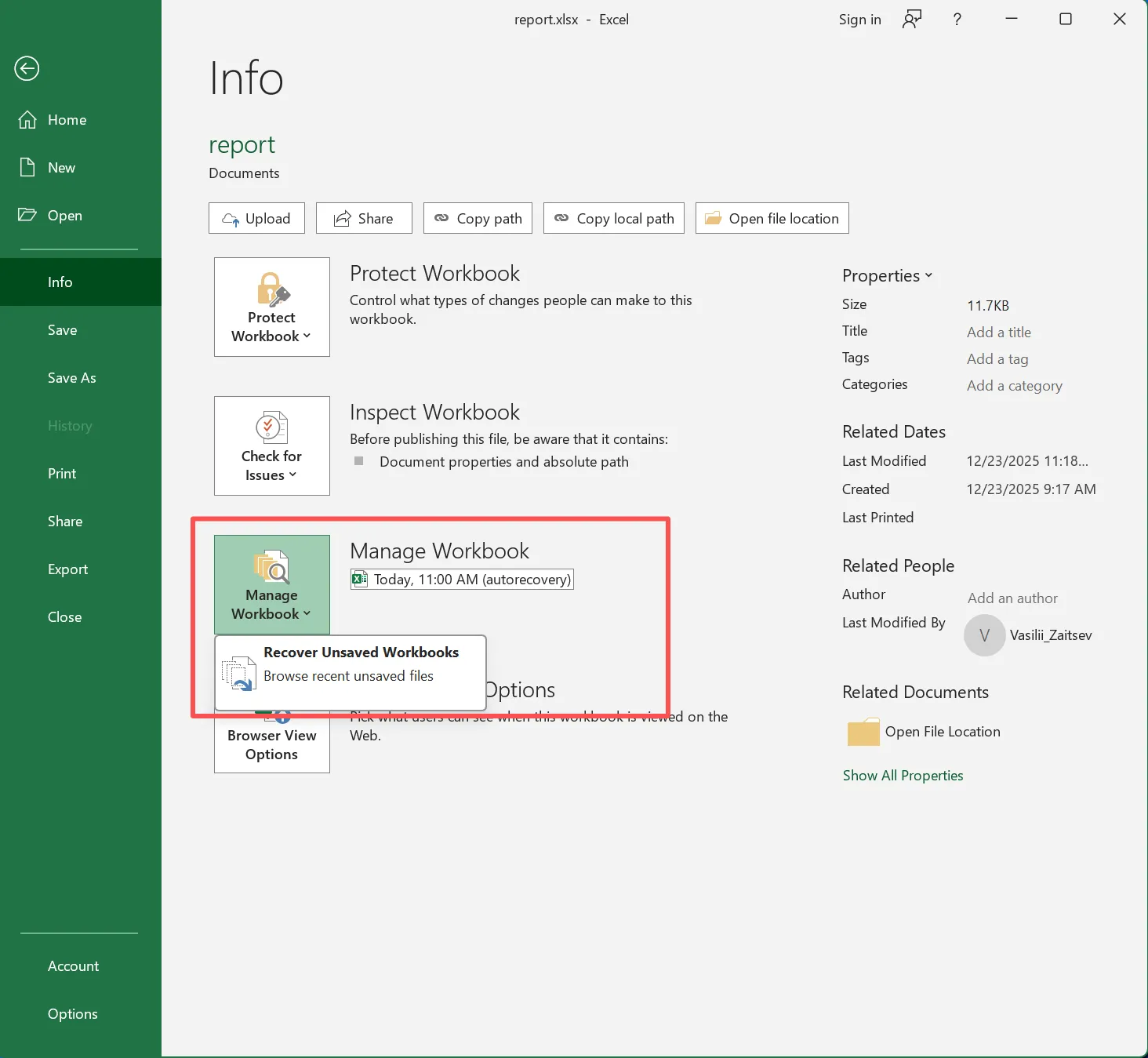
First, open Excel and navigate to:
- File → Info → Manage Workbook → Recover Unsaved Workbooks
In many real-world cases, Excel automatically saves temporary versions every few minutes. Therefore, even if the file was overwritten, an earlier version may still exist.
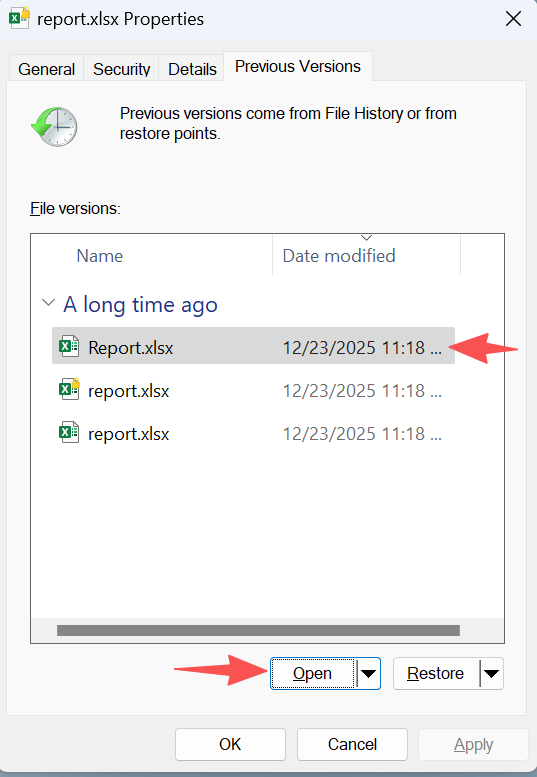
In addition, right-click the file (or its folder) and select:
- Properties → Previous Versions
This feature works when Windows File History or System Protection is enabled. If available, it allows you to restore a version created before the overwrite occurred.
Practical insight:
Many users overlook this step, yet it often provides the fastest recovery without requiring any excel file data recovery software.
Search for Temporary and Auto-Saved Files
Next, check Excel temporary storage locations. These files often remain even after overwrite events.
Common paths include:
C:\Users\YourUsername\AppData\Local\Microsoft\Office\UnsavedFiles\
or
%temp%
Look for files with extensions such as:
.asd(AutoRecover files).tmp(temporary files)
Then try opening them directly in Excel.
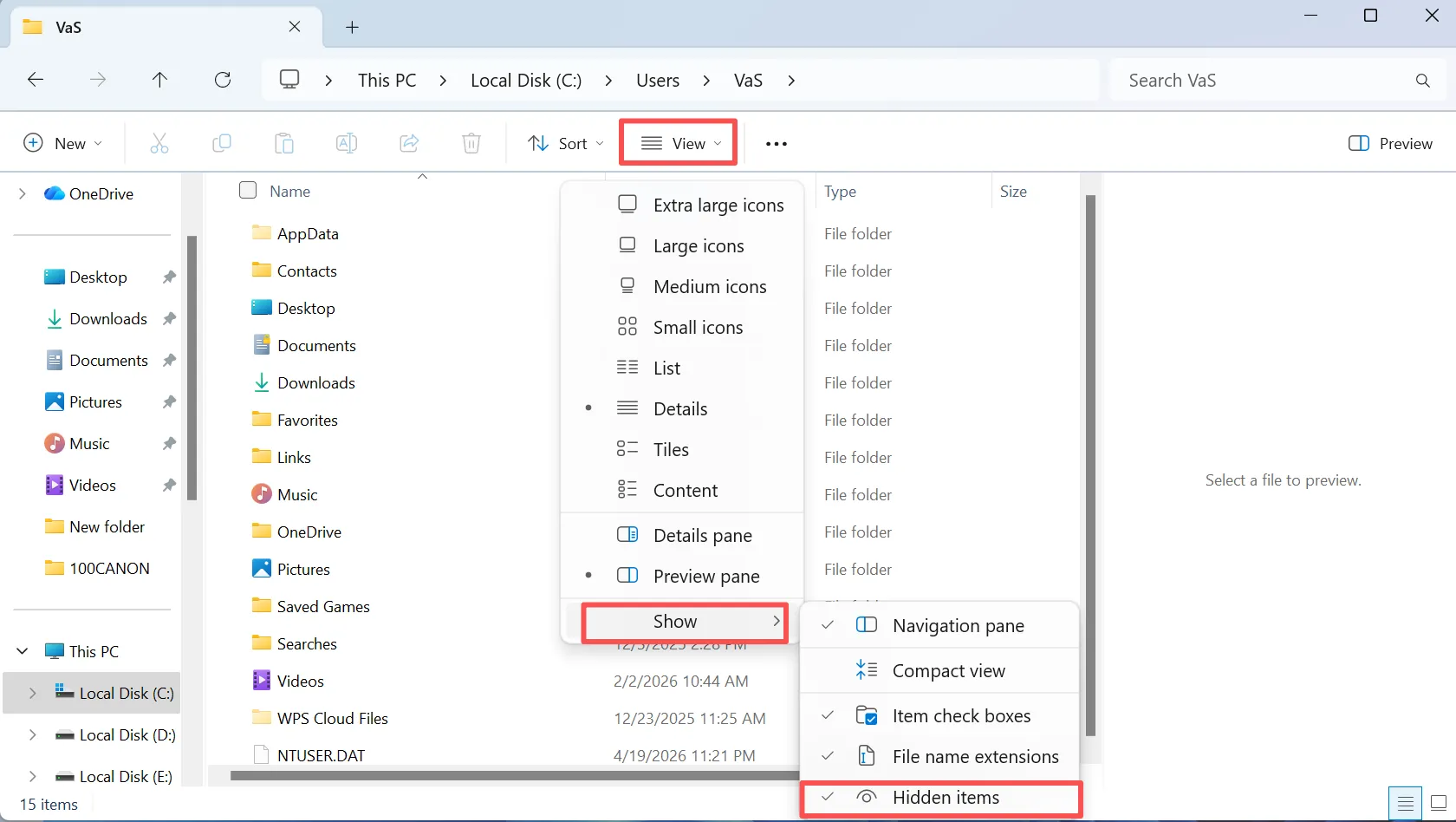
Important tip:
Enable “Show hidden files” in Windows Explorer. Otherwise, you may not see these folders.
Tips to Improve Recovery Results
Good habits can raise your success rate noticeably. Therefore, keep these points in mind:
- stop using the affected drive immediately
- do not install recovery tools on that same drive
- scan as early as possible
- preview files before saving them
- save recovered files to another disk
These steps are simple, yet they often make the difference between partial recovery and permanent loss.
Conclusion
Excel file data recovery is realistic in many common situations, especially after deletion, formatting, corruption, or RAW partition errors. However, success depends on acting quickly, choosing the correct method, and avoiding unnecessary writes to the affected drive.
For simple loss, basic restore options may help. However, more difficult cases require capable excel file data recovery software that can scan beyond normal file system records. That is why Magic Data Recovery stands out. It supports deep scanning, works with damaged or RAW storage, and helps recover spreadsheets before repair attempts make the situation worse.
Supports Windows 7/8/10/11 and Windows Server
FAQs About Excel File Data Recovery
Can Excel file data recovery still work after permanent deletion?
Yes, it often can. Permanent deletion usually removes the file entry, not the actual content right away. Therefore, if you stop using the drive quickly, recovery software may still find the spreadsheet before new data overwrites those sectors.
What is the best excel file data recovery software for difficult cases?
The best option should support deep scanning, preview, and recovery from formatted or RAW storage. In difficult cases, lightweight undelete tools are often not enough. That is why users usually get better results from software designed for deeper disk-level analysis.
Can corrupted Excel files be recovered with software?
Yes, in many cases they can. Some recovery tools extract the file itself, while others help recover the underlying data even if the workbook does not open normally in Excel. However, the final result depends on how serious the corruption is.
Can overwritten spreadsheets be restored completely?
Usually not. Once new data replaces the original sectors, full restoration becomes very unlikely. However, you should still check temporary files, AutoRecover versions, cloud history, and backups, because those sources may contain an earlier version of the spreadsheet.
Is free recovery software enough for Excel files?
It depends on the situation. Free tools can work for simple deletion, especially if the file was lost recently. However, if the drive is formatted, corrupted, or RAW, advanced excel file data recovery software is usually a better option.
How long does recovery usually take?
The time depends on the drive size, its condition, and the scan mode. A quick scan may finish in minutes, while a full deep scan can take much longer. Even so, a slower scan often finds more recoverable spreadsheet data.

Vasilii is a data recovery specialist with around 10 years of hands-on experience in the field. Throughout his career, he has successfully solved thousands of complex cases involving deleted files, formatted drives, lost partitions, and RAW file systems. His expertise covers both manual recovery methods using professional tools like hex editors and advanced automated solutions with recovery software. Vasilii's mission is to make reliable data recovery knowledge accessible to both IT professionals and everyday users, helping them safeguard their valuable digital assets.