
Lost Excel File Recovery Guide

Losing an Excel workbook can ruin an entire day. Sometimes you close a file without saving. In other cases, you delete the wrong spreadsheet, overwrite an important version, or discover that the drive itself has a file system problem. That is why lost excel file recovery is such a common search intent.
This guide explains the safest and most practical ways to handle lost excel file recovery, including built-in Microsoft options, Windows-level recovery methods, and a more reliable documents recovery solution for harder cases. If the file is gone because of deletion, formatting, or file system errors, a dedicated recovery tool like Magic Data Recovery can become the most realistic path forward.
Supports Windows 7/8/10/11 and Windows Server
Table of Contents
Why Excel Files Get Lost
Most Excel loss scenarios fall into a few patterns:
- You closed the workbook without saving
- Excel or Windows crashed before the latest changes were saved
- You deleted the wrong file
- You overwrote a newer or older version
- The workbook became corrupted
- The partition was formatted
- The storage device developed file system errors
Microsoft documents several built-in recovery paths. For unsaved workbooks, Excel offers Recover Unsaved Workbooks. For unexpected crashes, Microsoft 365 apps can open the Document Recovery pane. For corrupted files, Excel supports Open and Repair. If the workbook lives in OneDrive or SharePoint, Version History can help restore an earlier version.
First Rule of Lost Excel File Recovery
Before you try anything advanced, stop using the affected drive as much as possible.
Microsoft notes that when a file is deleted from local storage, its space may remain recoverable until new data overwrites it. That means every download, copy, install, or save operation on the same drive can reduce recovery chances.
So, if your case involves permanent deletion, formatting, or a storage issue, avoid writing new data to that drive before recovery.
Method 1: Recover an Unsaved Workbook in Excel
If your problem is “I closed Excel without saving,” start here. Microsoft says you can go to File > Info > Manage Document > Recover Unsaved Workbooks in Excel, open the available file, and then use Save As to store it properly.
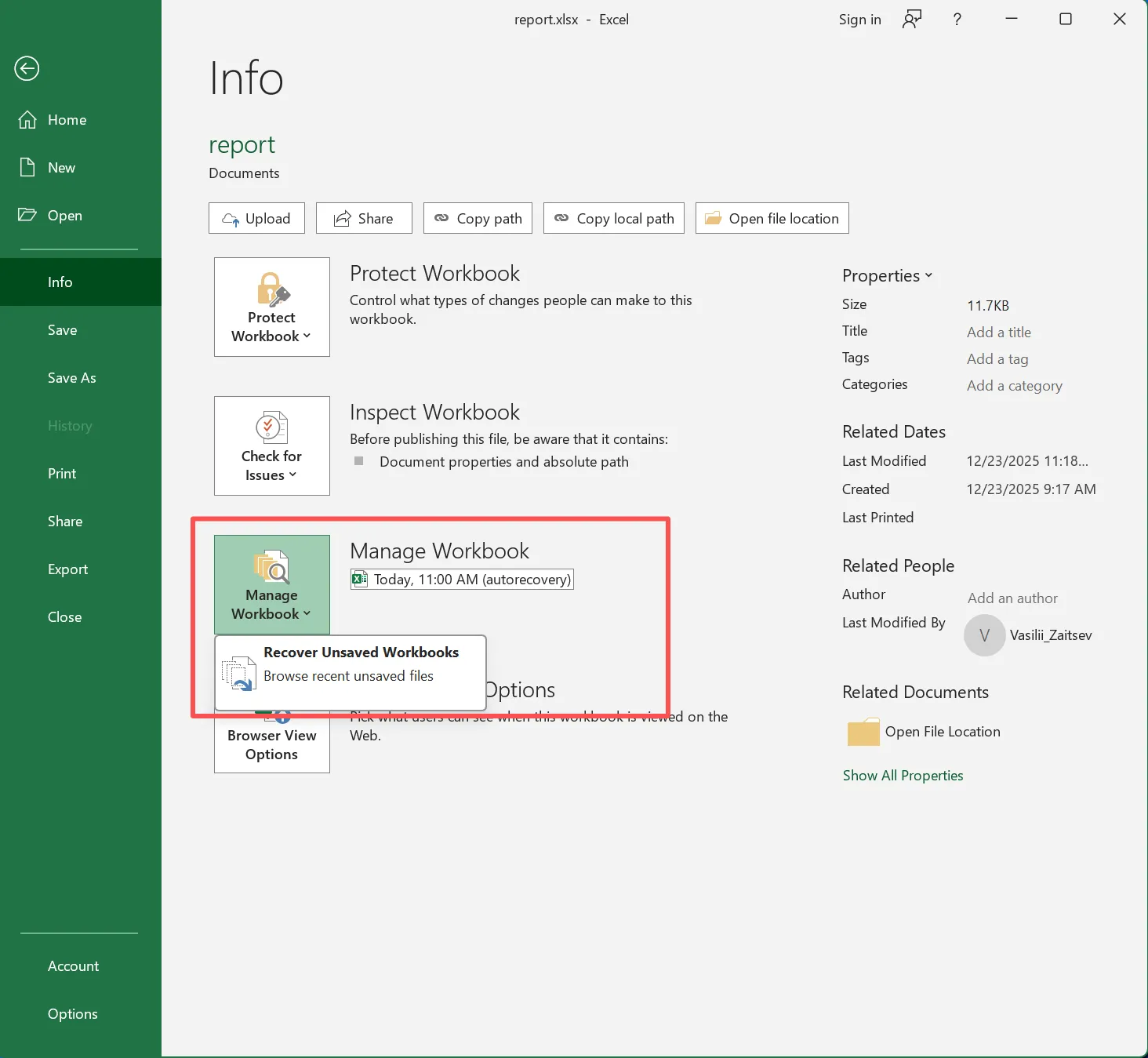
Steps
- Open Excel
- Click File
- Go to Info
- Select Manage Document
- Click Recover Unsaved Workbooks
- Open the correct file
- Save it immediately with a new name
This is often the fastest path for excel lost file recovery when the workbook was never fully saved to disk.
Method 2: Use Document Recovery After a Crash
If Excel or Windows crashed unexpectedly, Microsoft says Excel may show a Document Recovery pane the next time the app opens. That pane can list the last saved version, the last AutoSaved version for eligible OneDrive or SharePoint files, or the last AutoRecovered version.
When this works best
- Sudden shutdown
- Power failure
- Excel freeze
- System restart during editing
Microsoft also notes that AutoRecover is on by default in Microsoft 365 apps and saves work every 10 minutes.
For users searching excel lost files recovery, this is one of the most important built-in protections to check before moving to third-party recovery.
Method 3: Restore an Earlier Version from OneDrive or SharePoint
If your workbook was stored in OneDrive or SharePoint, version history can save you from accidental overwrites or unwanted edits. Microsoft states that you can view and restore older versions of files stored there through Version History.
Best use cases
- You saved bad changes over a good file
- Someone edited the shared workbook incorrectly
- You need yesterday’s or last week’s version
- The current workbook opens, but the content is wrong
This method is especially helpful when lost excel file recovery really means “the file exists, but the correct version is gone.”
Method 4: Recover a Deleted Excel File
If you deleted the workbook, check the easiest paths first:
Check the Recycle Bin
If the file was deleted normally and not removed permanently, you may be able to restore it at once.
Use Windows File Recovery for local storage
Microsoft says Windows File Recovery can help recover files deleted from internal drives, external drives, and USB devices when they are no longer in the Recycle Bin. Microsoft also warns that cloud storage and network shares are not supported by that tool.
This is relevant for excel lost files recovery when the file was actually deleted from a local device, not just closed unsaved.
Method 5: Repair a Corrupted Workbook
Sometimes the file is still there, but Excel cannot open it correctly. In that case, Microsoft recommends Open and Repair. You can select the workbook through File > Open, click the arrow next to Open, then choose Open and Repair. If repair fails, Excel may still let you extract values and formulas.

Use this method when
- Excel says the workbook is corrupted
- The file opens blank
- Formulas are broken after a crash
- The workbook opens with major errors
This is another important part of excel lost file recovery, especially for users dealing with damaged spreadsheets rather than deleted ones.
When Built-In Methods Are Not Enough
Built-in recovery options are useful, but they have limits.
They work best when:
- Excel had time to create an AutoRecover copy
- The file still exists in some form
- Version history was available
- The storage device is readable
They become less reliable when:
- File was permanently deleted
- Drive or partition was formatted
- File system is damaged
- Workbook disappeared after a partition problem
- Temporary Excel files were never created
- New data may have overwritten the original location
This is where a dedicated recovery application makes sense.
Why Magic Data Recovery Is a Stronger Solution
If you need more than a built-in Excel trick, Magic Data Recovery is easier to justify from a problem-solving perspective.
It is especially useful when lost excel file recovery involves deeper storage-level issues rather than a simple unsaved session. According to your product positioning, Magic Data Recovery supports recovery of lost data in cases such as:
- Deleted files
- Formatted drives or partitions
- File system errors
- Other common data loss scenarios
The core pain point it solves
A lost Excel file is not always “unsaved.” In many real-world cases, the workbook was already saved but then disappeared because of accidental deletion, formatting, or storage damage. Excel itself cannot fully solve those cases because the problem is no longer just inside the app. It is at the storage layer.
Product advantages
- Covers multiple Excel loss scenarios in one workflow
- It is suitable when built-in Office methods fail
- Helps with local storage recovery, not just in-app recovery
- It is more practical for ordinary users than command-line tools
Example scenarios
- You deleted a monthly finance workbook and emptied the Recycle Bin
- USB drive with client spreadsheets was formatted by mistake
- A partition error made several .xls or .xlsx files disappear
- An Excel file vanished after a file system issue on an external drive
Why it can be more reliable than manual-only options
Manual methods depend on the exact loss type. Recover Unsaved Workbooks helps only if Excel actually kept a recoverable copy. Version History helps only if the file lived in OneDrive or SharePoint. Open and Repair helps only if the workbook still exists and is readable as a file. Magic Data Recovery is broader because it addresses deleted, formatted, and file-system-error scenarios directly.
If you are looking for a more efficient solution, Magic Data Recovery is worth trying.
Supports Windows 7/8/10/11 and Windows Server
How to Use Magic Data Recovery for Lost Excel File Recovery
A simple recovery workflow usually looks like this:
1. Stop saving new files to the affected drive: This protects whatever recoverable data remains.
2. Launch Magic Data Recovery: Choose the drive, partition, or device where the Excel file was stored.

3. Scan for lost files: Run a scan and look for Excel formats such as .xls, .xlsx, .xlsm, or .csv.

4. Preview the results if available: Check names, paths, or file details to identify the correct workbook.
5. Recover to a different location: Do not restore the file back to the same damaged or source location immediately.

This process makes excel lost files recovery much more practical for non-technical users who want a clear workflow instead of scattered manual methods.
Best Practices to Prevent Another Excel Loss
A good lost excel file recovery article should not stop at recovery. Prevention matters too.
Turn on AutoRecover and shorten the interval
Microsoft says AutoRecover is enabled by default in Microsoft 365 and saves work every 10 minutes. Many users choose a shorter interval for active projects.
Store important files in OneDrive or SharePoint
Microsoft recommends OneDrive or SharePoint with AutoSave for safer ongoing work, and Version History adds another layer of protection.
Save copies before major edits
For financial models, reporting templates, and shared dashboards, create a separate version before large changes.
Keep backups for critical workbooks
Local and cloud backups reduce the pressure of emergency excel lost file recovery.
Conclusion
If your workbook was only closed without saving, start with Excel’s built-in recovery options. If the file was overwritten in cloud storage, use version history. If the workbook is damaged, try Open and Repair. But when the loss comes from deletion, formatting, or file system errors, those methods often stop being enough. Microsoft’s own recovery guidance covers several of these official routes, but it does not replace storage-level recovery for every case.
That is why I recommend Magic Data Recovery as the more complete solution. It addresses the real pain points behind lost excel file recovery, especially when users need to recover deleted files, formatted-drive data, or files lost because of file system errors. It feels more practical, more complete, and more reliable than depending on app-level recovery alone.
Supports Windows 7/8/10/11 and Windows Server
FAQs
Can I recover an Excel file that I closed without saving?
Yes, in many cases you can. Excel provides a Recover Unsaved Workbooks option, and Microsoft says you can access it through File, Info, and Manage Document. If Excel created an AutoRecover copy before the workbook was closed, you may be able to reopen it and save it normally.
What is the difference between AutoSave and AutoRecover in Excel?
AutoSave is mainly tied to Microsoft 365 files stored in OneDrive or SharePoint, while AutoRecover keeps periodic recovery information for unsaved work. Microsoft states that AutoRecover is on by default and saves every 10 minutes, whereas AutoSave is designed for ongoing cloud-based saving.
How do I recover a permanently deleted Excel file?
If the file is no longer in the Recycle Bin, your options depend on where it was stored. Microsoft says Windows File Recovery can help recover deleted files from local drives, external drives, and USB devices. For easier handling of deletion, formatting, or file system issues, a tool like Magic Data Recovery is often more practical.
Can I restore an older version of an Excel file?
Yes. If the workbook was stored in OneDrive or SharePoint, Microsoft says you can use Version History to view and restore earlier versions. This is especially useful when the file still exists but the content was overwritten, changed by mistake, or saved incorrectly by another user.
What should I do if my Excel file is corrupted?
Start with Excel’s built-in Open and Repair function. Microsoft recommends selecting the file through File and Open, then choosing Open and Repair from the menu next to the Open button. If repair fails, Excel may still extract formulas or values from the damaged workbook.
Is file recovery still possible after formatting a drive?
It can be, but you should stop using the drive immediately. Formatting does not always destroy all recoverable data at once, especially before new data overwrites the original sectors. This is one of the strongest use cases for Magic Data Recovery, particularly when standard Excel features cannot detect the missing workbook.
Why didn’t Excel recover my file automatically?
Automatic recovery does not work in every situation. The workbook may have been closed before Excel created an AutoRecover copy, the temporary data may have been removed, or the issue may involve deletion or storage damage instead of an app crash. In those cases, built-in Excel recovery may not be enough.
What is the safest way to improve future Excel recovery chances?
Use several layers of protection. Keep AutoRecover enabled, shorten the save interval for important work, store active files in OneDrive or SharePoint for Version History, and maintain backups for critical spreadsheets. For local storage risks like deletion or file system errors, keep a reliable recovery tool available before an emergency happens.

Jason is a data recovery and technical support specialist with over 15 years of hands-on experience. He has worked extensively with frontline users, troubleshooting difficult data loss cases and providing practical recovery solutions for accidental deletion, formatted drives, damaged file systems, lost partitions, system failures, and other recovery emergencies. His expertise also includes backup and restoration, file repair, and disaster recovery, with a strong emphasis on safe, reliable, and technically accurate guidance.