
Microsoft Word Recovery File: Find & Restore Guide

Losing a document can be stressful, especially when a Word document does not appear as expected. Many users search for microsoft word recovery file, yet they still cannot locate them or find them incomplete.
However, recovery is often still possible. Therefore, this guide explains where the microsoft word recovery file location is, how these files work, and how to restore documents step by step. More importantly, it also shows what to do when built-in recovery fails and how to recover files safely using advanced solutions like Magic Data Recovery.
Supports Windows 7/8/10/11 and Windows Server
Table of Contents
What Is a Microsoft Word Recovery File
A recovery file is a temporary backup that Word creates while you edit a document. It helps restore unsaved changes after crashes or unexpected shutdowns.
Key File Types in MS Word Recovery Files
- .asd files – AutoRecover snapshots
- .tmp files – Temporary files
- .wbk files – Backup copies
These ms word recovery files update frequently. As a result, they often contain recent changes. However, Word removes them after a normal close, which is why they sometimes disappear.
Where Is the Microsoft Word Recovery File Location
Finding the correct recovery file location is essential. Otherwise, recovery attempts may fail even when files still exist.
Default Recovery Paths
AutoRecover Folder
C:\Users\YourName\AppData\Roaming\Microsoft\Word
Unsaved Files Folder
C:\Users\YourName\AppData\Local\Microsoft\Office\UnsavedFiles
Why There Are Multiple Locations
The Roaming folder stores AutoRecover data. Meanwhile, the UnsavedFiles folder stores unsaved drafts. Therefore, checking both locations significantly increases your chances of finding the recovery files.
How Microsoft Word Recovery Files Work
Understanding how the recovery files work helps you recover documents more effectively.
Core Recovery Logic
- Word saves snapshots at intervals
- Then, it triggers recovery after a crash
- Finally, it deletes temporary data after normal closure
Why Recovery Files Disappear
Sometimes, a recovery file is not available. This issue often occurs because:
- AutoRecover is disabled
- Files were overwritten
- Temporary data was cleared
- Disk errors occurred
Therefore, relying only on built-in recovery methods may not be enough.
How to Recover Microsoft Word Recovery Files
Instead of trying random solutions, follow a structured recovery process. This approach improves success rates significantly.
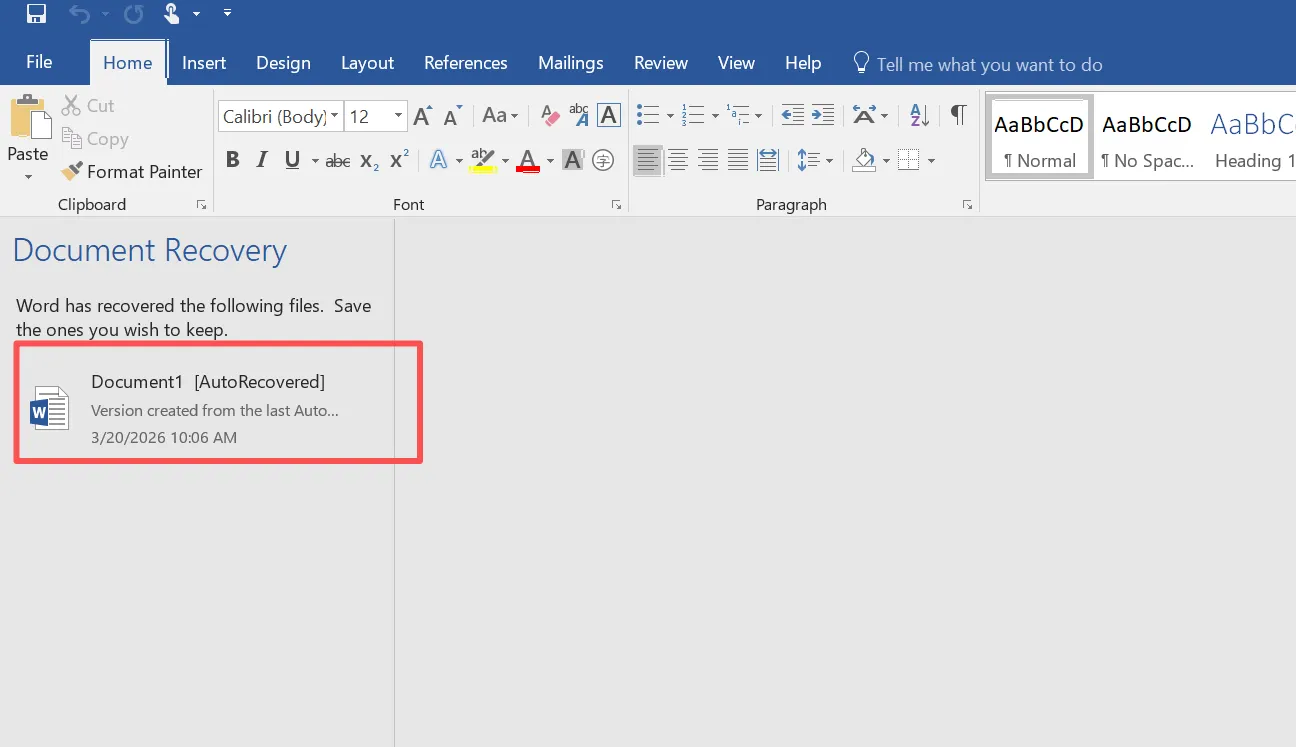
Method 1: Use Document Recovery Pane
First, reopen Word after a crash. Then, check the Document Recovery panel. Next, select the latest version and save it immediately.
👉 This method works best when Word crashes unexpectedly.
Method 2: Recover Unsaved Documents
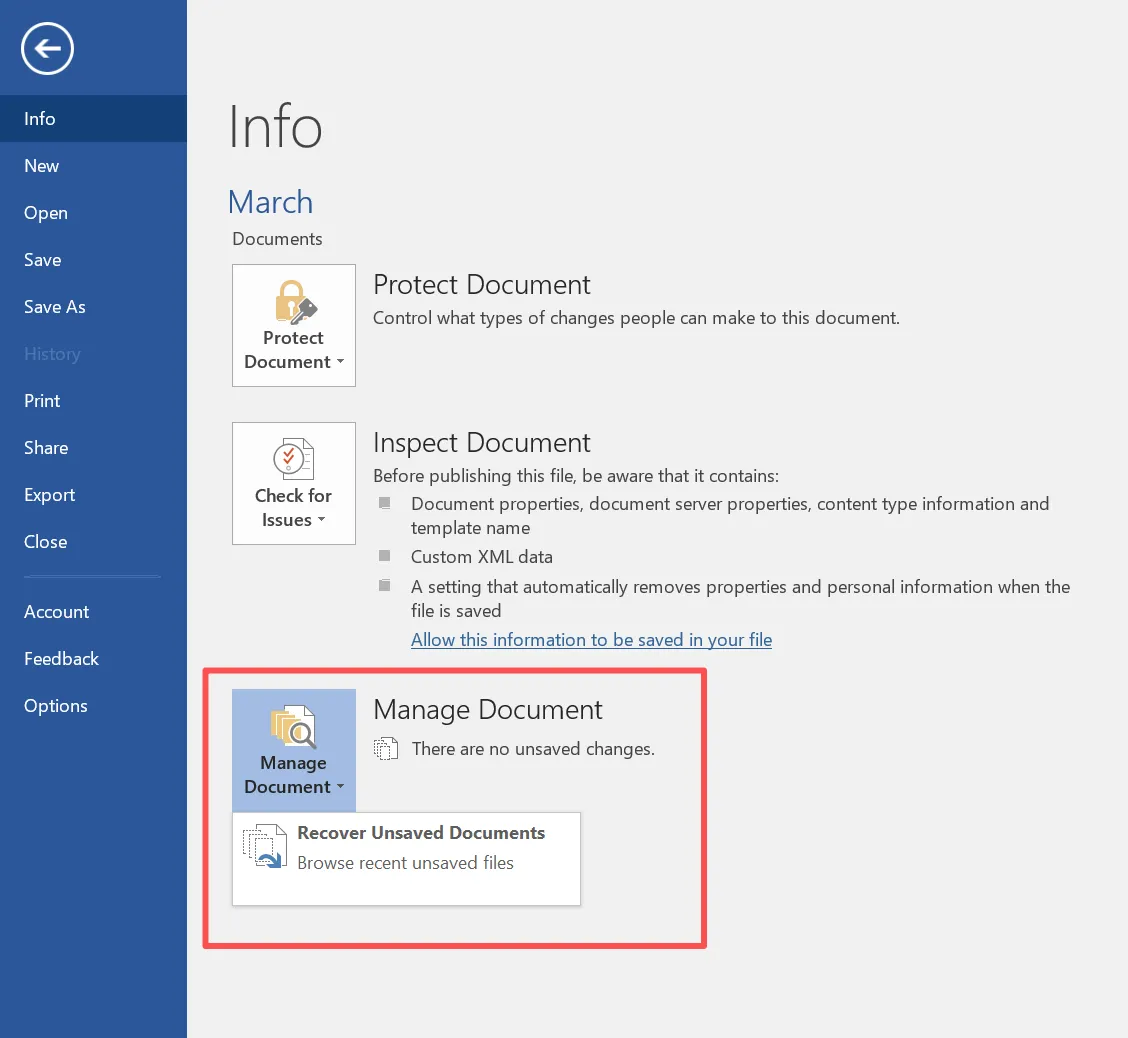
Next, try the built-in recovery feature:
- Open Word
- Go to File → Info
- Click “Manage Document”
- Select “Recover Unsaved Documents”
This method directly accesses stored recovery files.
Method 3: Search the Microsoft Word Recovery File Location
If the previous method fails, manually check the recovery file location:
- Navigate to the AutoRecover folder
- Then locate
.asdfiles - After that, open them in Word
As a result, you may find hidden recovery versions.
Method 4: Check Temporary Files
Additionally, temporary files can help:
- Press Win + R
- Type
%temp% - Search for Word-related files
Although this method is less reliable, it can still recover partial data.
Why Microsoft Word Recovery Files Are Missing
Even after trying all methods, you may not find the recovery files.
Common Reasons
- AutoRecover was disabled
- Files were permanently deleted
- Data was overwritten
- Disk structure became corrupted
Therefore, Word cannot access recovery data in these cases.
Recover Data When Microsoft Word Recovery Files Are Gone
When a recovery file no longer exists, deeper recovery becomes necessary. At this stage, the file may still remain on disk but is no longer indexed.
Therefore, using a professional tool becomes the most practical solution.
How to Use Magic Data Recovery
When recovery files are missing or incomplete, Magic Data Recovery can retrieve documents directly from disk sectors instead of relying on temporary records.
Step 1: Download and Install Magic Data Recovery
First, download and install Magic Data Recovery on a different partition than the one where your Word files were lost. This setup prevents overwriting and protects recoverable data.
Supports Windows 7/8/10/11 and Windows Server
Step 2: Select the Drive Containing Lost Files
Next, open the software and choose the drive where the document was originally saved. Then, start the scan.

Step 3: Perform a Scan
After you click the search button, it runs Advanced Scan automatically. Meanwhile, it identifies deleted documents and even fragmented ms word recovery files.

Step 4: Preview Recoverable Files
Then, preview the detected files to confirm their content. This step ensures accurate recovery.

Step 5: Recover Files Safely
Finally, select the files and save them to a different location. Otherwise, restoring to the same drive may overwrite other microsoft word recovery files.

Why Magic Data Recovery Is More Reliable
Unlike built-in methods, Magic Data Recovery:
- Scans raw disk sectors directly
- Recovers deleted and overwritten files
- Works even when recovery files are missing
- Supports damaged file systems
For example, if temporary files were deleted, Word cannot help. However, this tool can still locate previous versions.
👉 Therefore, if you need a more reliable solution, this approach offers clear advantages.
Best Solutions for Microsoft Word Recovery File Problems
Tool | Recovery Capability | Best Use Case |
Deep scan | Missing or deleted files | |
Basic recovery | Recently deleted files | |
Raw recovery | Advanced users |
Among these options, Magic Data Recovery provides the best balance between usability and recovery depth.
Tips to Protect Microsoft Word Recovery Files
To reduce future risks, follow these best practices:
- Enable AutoRecover
- Save documents frequently
- Use cloud backup solutions
- Avoid sudden shutdowns
- Monitor disk health
Additionally, preparing a recovery tool in advance can save valuable time.
Conclusion
A microsoft word recovery file offers a quick way to restore unsaved documents. However, it only works when recovery data still exists. When files are missing or overwritten, built-in tools often fail.
In contrast, Magic Data Recovery provides a more dependable solution. It scans disk data directly and retrieves files beyond Word’s limitations. Therefore, if standard document recovery methods do not work, using this tool becomes the most effective choice.
Supports Windows 7/8/10/11 and Windows Server
FAQs
Where is the microsoft word recovery file location?
The microsoft word recovery file location is usually in the Roaming folder and the UnsavedFiles directory. Therefore, checking both locations increases your chances of recovery, especially after a crash or unexpected shutdown.
What are MS Word recovery files used for?
The recovery files store temporary document versions. As a result, they allow users to restore unsaved work after crashes. However, these files may disappear if Word closes normally.
Why can’t I find my MS word recovery file?
You may not find a recovery file because AutoRecover was disabled or temporary files were deleted. Additionally, overwritten data may remove recovery traces.
How do I open ms word recovery files?
To open ms word recovery files, locate the .asd file and open it in Word. Alternatively, use the built-in recovery option in Word for easier access.
Can overwritten Word documents be recovered?
Recovering overwritten files is difficult using built-in tools. However, recovery software can scan disk sectors and locate earlier versions. Therefore, success depends on disk activity.
Are temporary files useful for recovery?
Temporary files may contain fragments of documents. Therefore, searching the Temp folder can sometimes recover unsaved work. However, success varies depending on system cleanup.
What is the best solution when recovery files are missing?
When the recovery files are missing, a data recovery tool provides the best solution. It scans storage directly and retrieves files that Word cannot detect.

Vasilii is a data recovery specialist with around 10 years of hands-on experience in the field. Throughout his career, he has successfully solved thousands of complex cases involving deleted files, formatted drives, lost partitions, and RAW file systems. His expertise covers both manual recovery methods using professional tools like hex editors and advanced automated solutions with recovery software. Vasilii's mission is to make reliable data recovery knowledge accessible to both IT professionals and everyday users, helping them safeguard their valuable digital assets.