
Replaced Word Document Recovery: Restore Overwritten Files
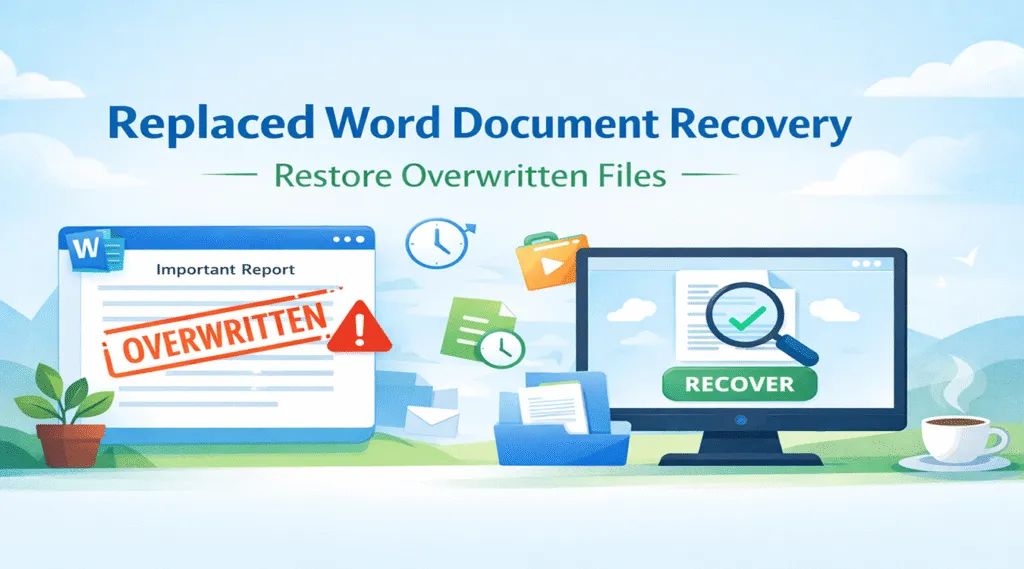
Accidentally saving over an important document happens more often than most people expect. For example, someone may edit a file, click Save, and only later realize the previous version disappeared. As a result, many users begin searching for a reliable replaced word document recovery solution.
Fortunately, overwritten files do not always disappear permanently. In many situations, Windows or Microsoft Word may still store earlier versions of the document. In addition, recovery software can sometimes locate hidden data on the storage device before the system overwrites it.
Therefore, understanding the available recovery options becomes extremely important. In this guide, we explain the causes of overwritten files, explore several replaced word document recovery methods, and demonstrate how recovery software such as Magic Data Recovery can help retrieve lost documents when other solutions fail.
Supports Windows 7/8/10/11 and Windows Server
Table of Contents
Why Word Documents Get Replaced or Overwritten
Before attempting replaced word document recovery, it helps to understand why this issue occurs in the first place. Several everyday situations can lead to overwritten documents.
Saving Over the Same File
Many users edit a document and click Save instead of Save As. Consequently, Word replaces the existing file with the updated content.
Replacing Files During Copying
Sometimes users copy files into a folder that already contains a document with the same name. In that case, Windows offers the Replace option. Once selected, the original file disappears immediately.
Cloud Synchronization Conflicts
Meanwhile, cloud storage services such as OneDrive may overwrite files during synchronization. For instance, edits from another device may replace the current version.
Continuous AutoSave Editing
Additionally, Word AutoSave constantly updates the document while users work. Therefore, earlier content may disappear if no backup or version history exists.
Because these situations occur frequently, many people eventually need a reliable replaced word document recovery approach.
Can Replaced Word Document Recovery Actually Work?
At first glance, overwritten files appear permanently lost. However, storage systems behave differently than most users expect.
When a file gets replaced, the operating system updates the file index. Meanwhile, the original data blocks may remain on the disk temporarily. As long as the system has not reused those sectors, recovery may still succeed. Several factors influence the success rate:
- Whether new files overwrote the original disk sectors
- Whether Windows File History was enabled
- Whether Word AutoRecover created temporary files
- Whether recovery software scans the drive quickly
Therefore, users should stop saving new data to the same drive immediately after noticing the overwrite. Acting quickly greatly improves replaced word document recovery success.
Replaced Word Document Recovery Using Windows Previous Versions
First, Windows offers a built-in feature that may restore earlier document versions.
Steps
- Open the folder where the document originally existed.
- Right-click the folder or the file name.
- Select Restore previous versions.
- Choose a version created before the overwrite occurred.
- Click Restore.
If File History or system restore points were enabled earlier, this method often restores the document quickly. However, many systems disable this feature by default. Consequently, users may need additional solutions.
Replaced Word Document Recovery Through Word Version History
Next, Microsoft Word may store earlier document revisions, especially when files are saved in cloud storage.
Steps
- Open Microsoft Word.
- Click File → Info.
- Select Version History.
- Browse available document versions.
- Restore the version you want.
Because Word saves multiple revisions in OneDrive environments, this method often helps users recover overwritten content quickly.
Replaced Word Document Recovery Using AutoRecover Files
Another useful option involves Word’s AutoRecover feature. Word automatically creates temporary backup files during editing sessions.
Steps
- Open Microsoft Word.
- Navigate to File → Options → Save.
- Locate the AutoRecover file location path.
- Open that folder in File Explorer.
AutoRecover files usually use the .asd extension. Therefore, opening these files may reveal earlier document content.
Replaced Word Document Recovery by Searching Temporary Files
In some cases, temporary files remain on the system after editing sessions or application crashes.
Steps
- Open File Explorer.
- Search for files starting with
~or ending with.tmp. - Look for files created near the time the document was replaced.
- Try opening them in Word.
Although this method does not always succeed, it occasionally reveals older document versions. Nevertheless, if these solutions fail, recovery software becomes the next logical step.
Replaced Word Document Recovery With Magic Data Recovery
When built-in methods cannot restore the document, recovery software often provides the most reliable solution. Magic Data Recovery helps users perform replaced word document recovery by scanning the storage device directly.
Unlike standard system tools, the software analyzes disk sectors instead of relying only on the file system index. As a result, it can locate Word documents that no longer appear in the operating system.
Why Magic Data Recovery Helps
Many users encounter situations where:
- Windows shows no previous file versions
- Word AutoRecover files are missing
- Temporary files no longer exist
In these cases, Magic Data Recovery searches deeper within the drive and reconstructs recoverable documents.
Key Advantages
Deep scanning technology
The software analyzes disk sectors and detects hidden files.
Preview before recovery
Users can verify document content before restoring files.
Broad storage compatibility
The program supports internal drives, USB drives, and memory cards.
Beginner-friendly interface
Even non-technical users can complete replaced word document recovery easily.
For example, imagine someone accidentally replacing an important report while organizing folders. Windows cannot restore the file. However, Magic Data Recovery scans the drive and detects an earlier copy of the document.
How to Perform Replaced Word Document Recovery With Magic Data Recovery
If system tools cannot restore the document, Magic Data Recovery can scan the storage device and detect recoverable files.
Step 1: Download and Install Magic Data Recovery
First, download Magic Data Recovery and install it on your computer. Installing the program in a different location than the folder where the lost document existed helps reduce the risk of overwriting recoverable data.
Supports Windows 7/8/10/11 and Windows Server
Step 2: Select the Drive to Scan
Next, launch the program. The main interface displays all available drives.
Choose the drive where the document was originally stored and start the scan.

Step 3: Scan the Drive for Lost Files
After selecting the drive, Magic Data Recovery automatically performs a deep scan. Meanwhile, the software analyzes the disk structure and lists recoverable files during the process.

Step 4: Preview Files Before Recovery
Once scanning finishes, browse the detected files and preview documents to confirm the correct content.

Step 5: Recover Files to a Safe Location
Finally, select the files you want to restore and save them to a secure location. Choosing a different destination helps avoid overwriting other recoverable files.

Using these steps, many users successfully complete replaced word document recovery, even when Windows cannot locate previous versions.
When Replaced Word Document Recovery May Not Work
Although recovery often succeeds, certain situations reduce the chances.
For example:
- New files overwrite the original disk sectors
- SSD TRIM removes unused blocks quickly
- Large amounts of new data appear on the drive
- Cloud synchronization permanently replaces versions
Therefore, acting quickly remains the most important factor in successful replaced word document recovery.
Tips to Prevent Replaced Word Document Problems
Prevention remains the safest strategy. Therefore, users should adopt several habits.
Recommended practices include:
- Enable Word AutoSave
- Use Save As to create new versions
- Activate Windows File History
- Store documents in cloud services with version history
- Maintain regular backups
These practices greatly reduce the risk of accidental overwriting.
Conclusion
Accidentally replacing an important document can cause significant stress. However, several solutions can help with replaced word document recovery. Windows Previous Versions, Word Version History, and AutoRecover files may restore earlier document copies.
Nevertheless, when these methods fail, recovery software becomes the most reliable option. Magic Data Recovery scans storage devices directly, detects hidden files, and allows users to preview documents before restoring them.
Therefore, if you cannot locate previous versions using system tools, trying Magic Data Recovery may help recover your document before the original data disappears permanently.
Supports Windows 7/8/10/11 and Windows Server
FAQ
Can replaced Word document recovery succeed?
Yes. Replaced word document recovery may succeed if the storage sectors still contain the original data.
How can I recover an overwritten Word document?
Users can restore previous versions, check Word Version History, search AutoRecover files, or use recovery software.
Does Word automatically save previous versions?
Yes. Word may store revisions through Version History or AutoRecover.
Where are Word AutoRecover files located?
AutoRecover files appear in the folder specified in Word Options → Save → AutoRecover file location.
Can recovery software restore overwritten files?
Yes. Recovery tools scan storage devices directly and reconstruct recoverable files.
What should I do after overwriting a document?
Stop saving new files immediately because new data may overwrite recoverable sectors.
Why do Word documents get replaced?
Documents usually get replaced when users save over the same file name, replace files during copying, or experience cloud synchronization conflicts.

Vasilii is a data recovery specialist with around 10 years of hands-on experience in the field. Throughout his career, he has successfully solved thousands of complex cases involving deleted files, formatted drives, lost partitions, and RAW file systems. His expertise covers both manual recovery methods using professional tools like hex editors and advanced automated solutions with recovery software. Vasilii's mission is to make reliable data recovery knowledge accessible to both IT professionals and everyday users, helping them safeguard their valuable digital assets.