
Toshiba HDD Recovery: Complete Guide & Solution
Losing files on a Toshiba HDD is frustrating, but with effective Toshiba HDD Recovery solutions and professional hard drive recovery techniques, you can recover your important documents, photos, and videos quickly and safely. Recognizing common issues like accidental deletion, formatting errors, system crashes, or malware attacks helps prevent further data loss.
This guide explains effective Toshiba HDD Recovery techniques, highlights common causes, and introduces Magic Data Recovery, a professional-grade yet user-friendly tool. By following these steps, users can maximize recovery success and protect valuable data.
Supports Windows 7/8/10/11 and Windows Server
Table of Contents
Common Causes of Toshiba HDD Data Loss
Understanding the cause of data loss is critical for choosing the right recovery method:
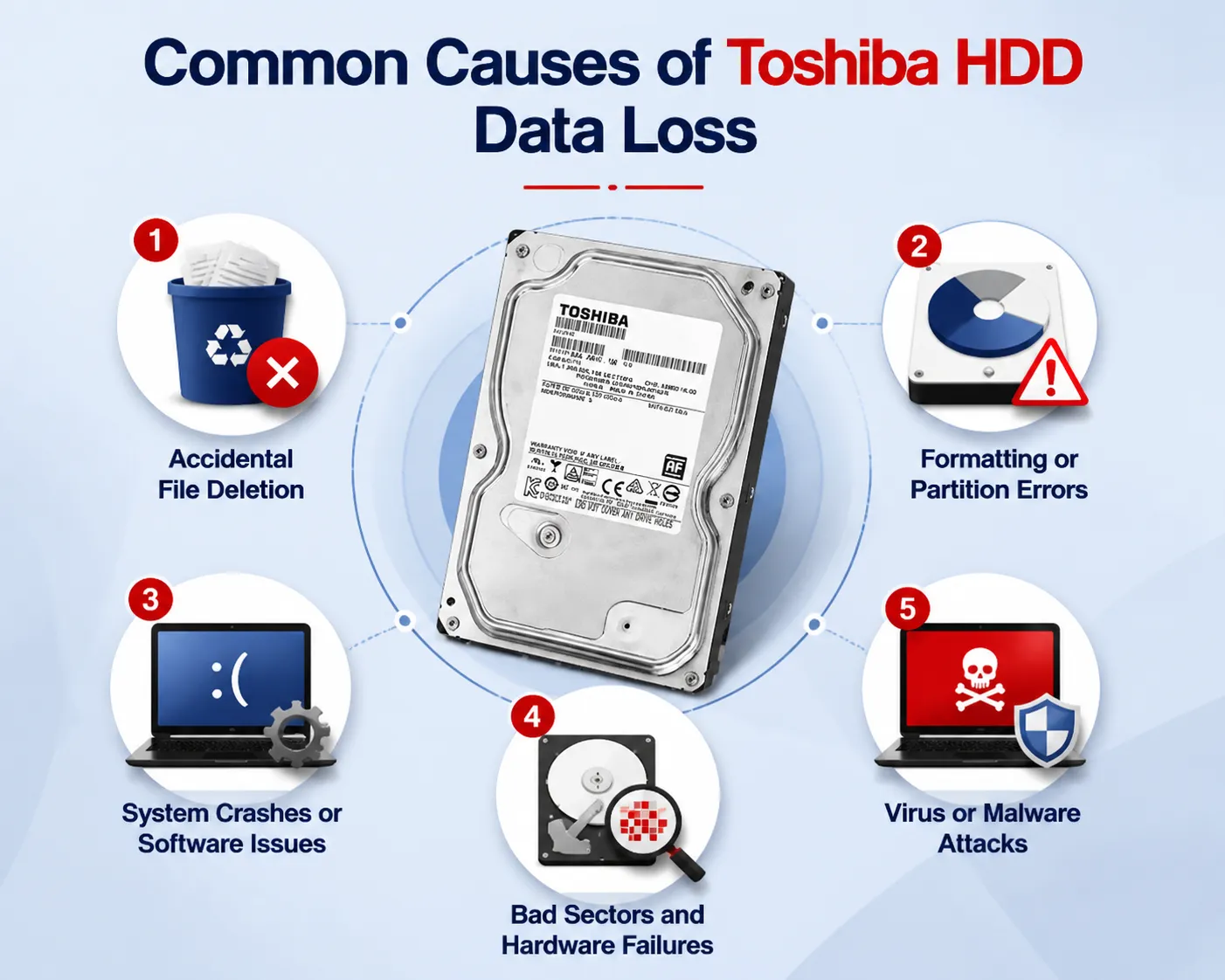
Accidental File Deletion
Files may be removed unintentionally. Even after emptying the Recycle Bin, data remains on the drive until overwritten. Prompt action increases recovery chances.
Formatting or Partition Errors
Reformatting drives or modifying partitions without a backup can turn the drive RAW. This prevents access to files and requires advanced scanning to recover data.
System Crashes or Software Issues
Operating system failures, malware infections, or sudden power interruptions can corrupt the Toshiba HDD, making files inaccessible. Distinguishing between logical and physical issues is key.
Bad Sectors and Hardware Failures
Physical damage, such as bad sectors or mechanical issues, can prevent the drive from functioning. Software may help with logical corruption, but severe hardware failures require professional service.
Virus or Malware Attacks
Malicious software may delete, encrypt, or corrupt files. Immediate recovery actions are necessary to prevent further damage.
Toshiba HDD Recovery Options
Recovery approaches depend on the damage type and severity:
Professional Data Recovery Services
Companies like Ontrack specialize in physically damaged drives. Advantages include high success rates even with mechanical failures. Limitations include high cost, shipping requirements, and delayed turnaround.
DIY Software Solutions
Tools such as Magic Data Recovery, Disk Drill, and EaseUS provide practical solutions for logical failures, accidental deletions, or formatting issues. Advantages include speed, lower cost, and the ability to recover files at home. Limitations include inability to repair severe physical damage.
Why Magic Data Recovery Excels for Toshiba Recovery
Magic Data Recovery addresses common user pain points effectively:
Core Problems Solved
- Accidental deletion: Quickly recovers lost documents, photos, and videos.
- Formatted or RAW drives: Restores files even when the file system is damaged.
- Logical corruption: Resolves data loss from crashes, malware, or software errors.
Key Advantages
- Deep Scan Technology: Detects lost files even if directory structures are damaged.
- Preview Before Recovery: Confirms file integrity before restoring.
- Wide Compatibility: Supports documents, images, videos, audio, and archives.
- User-Friendly Interface: Suitable for beginners and advanced users alike.
Scenario-Based Use Cases
- Recovering accidentally deleted client reports on a Toshiba laptop.
- Restoring photos after reformatting an external Toshiba HDD.
- Retrieving important files from a corrupted drive without professional intervention.
Step-by-Step Guide to Toshiba HDD Recovery with Magic Data Recovery
Step 1: Download and Install Magic Data Recovery
Download Magic Data Recovery and install it on a drive different from the affected Toshiba HDD. Installing on a separate drive prevents accidental overwriting and ensures lost data remains safe.
Supports Windows 7/8/10/11 and Windows Server
Step 2: Select the Toshiba Drive to Scan
Launch the program. From the main interface, choose the Toshiba HDD where files were lost and prepare for scanning.

Step 3: Perform an Advanced Scan
Start the advanced scan. The software will automatically scan the entire drive, listing recoverable files as the process progresses. This deep scan helps locate files even when directory structures are damaged.

Step 4: Preview Files Before Recovery
Use the preview function to inspect files before recovery. This ensures only the necessary files are restored and helps avoid unnecessary data clutter.

Step 5: Recover Files to a Safe Location
Select the files you want to recover and save them to a different drive or storage location. Avoid restoring to the same Toshiba HDD to prevent potential overwriting or corruption.
Best Practices for Toshiba HDD Recovery
- Stop using the affected drive immediately to prevent overwriting.
- Avoid formatting or running CHKDSK before recovery.
- Create a full disk image for safer operations.
- Recover files to a different drive.
- Maintain regular backups to prevent future loss.
Conclusion
Recovering lost data from a Toshiba HDD is feasible when using the right tools and methods. While professional services are effective, they are costly and slower. Magic Data Recovery offers a practical, reliable, and user-friendly solution for Toshiba Recovery, addressing accidental deletion, formatting issues, and logical corruption.
With deep scan capabilities, broad file type support, and scenario-based HDD recovery guidance, Magic Data Recovery is ideal for individuals and businesses seeking a safe, efficient way to recover Toshiba HDD data.
Supports Windows 7/8/10/11 and Windows Server
FAQs About Toshiba HDD Recovery
Can I recover files from a Toshiba HDD without software?
While professional services can recover physically damaged drives, logical file loss caused by deletion, formatting, or corruption requires software like Magic Data Recovery. It provides a user-friendly interface and step-by-step guidance, making recovery safe and effective for most common scenarios.
What if my Toshiba HDD is not recognized by Windows?
First, try reconnecting the drive or using a different USB port. If it shows up in Disk Management, Magic Data Recovery can perform a deep scan to detect hidden or inaccessible partitions, helping you recover lost files without risking further damage. If Disk Management is unable to recognize it, a local professional service is essencial.
Is data recoverable after formatting?
Yes. Even after a quick format, data may remain on the drive until overwritten. A professional data recovery software scan the entire drive, preview recoverable files, and safely restore documents, photos, and videos safely.
Which file types are supported?
Documents, spreadsheets, images, videos, audio, and archive files can all be recovered, as long as they haven't been overwritten.
Can RAW partitions be restored?
Yes. When a Toshiba HDD becomes RAW due to system errors or partition corruption, Magic Data Recovery scans raw disk sectors to locate lost files. This advanced scanning helps retrieve data even when file system structures are missing or severely damaged.
How long does recovery take?
Recovery time depends on the drive capacity, damage type, and scan depth. Quick scans take minutes for recently deleted files, while deep scans may require hours for large drives. Using Magic Data Recovery ensures a balance between thorough scanning and efficient recovery.
Is it safe to recover critical files?
Yes. Installing the software on a separate drive prevents overwriting lost data. The preview feature ensures you recover only the files you need. Following recovery best practices minimizes risks and allows safe restoration of essential documents, photos, and multimedia files.

Vasilii is a data recovery specialist with around 10 years of hands-on experience in the field. Throughout his career, he has successfully solved thousands of complex cases involving deleted files, formatted drives, lost partitions, and RAW file systems. His expertise covers both manual recovery methods using professional tools like hex editors and advanced automated solutions with recovery software. Vasilii's mission is to make reliable data recovery knowledge accessible to both IT professionals and everyday users, helping them safeguard their valuable digital assets.