
データを失うことなくExcelのファイルを復元する方法
Excelのワークブックを失うと、ほんの数秒で作業が中断してしまう可能性があります。クラッシュや削除、あるいは誤って上書きしてしまったことで、レポートが消えてしまうこともあります。したがって、, Excelでファイルを復元する方法 ファイルが消失する前の状況次第です。.
このガイドでは Excelでファイルを復元する方法 保存されていない、削除された、上書きされた、破損した、および紛失したワークブックの場合。Excelの自動回復機能、Excelの一時ファイル、ごみ箱、バージョン履歴、クラウドバックアップなどを利用します。 Magic Data Recovery. また、その時はわかるでしょう Excelファイル復元ソフト 次のステップをより明確に示してくれます。.
Windows 7/8/10/11およびWindows Serverをサポート
目次
Excelファイルを復元するための適切な方法を選ぶ
まず、問題に適した解法を選びましょう。.
問題 | 最適な方法 |
保存する前にExcelがクラッシュしました | ドキュメントの復元、またはExcelの自動復元 |
保存せずにエクセルを閉じた | 保存されていないワークブックを復元する |
ワークブックを削除しました | ごみ箱またはゴミ箱 |
ごみ箱は空です | Magic Data Recovery |
間違ったバージョンを保存してしまいました | バージョン履歴または以前のバージョン |
USBメモリ、SDカード、HDD、またはSSDからファイルが消えてしまった | Magic Data Recovery |
ワークブックが開くと、空白の状態だったり、破損していたりします | オープンと修理 |
そのファイルはオンラインで同期されました | クラウドのバージョン履歴 |
このチェックリストは Excelでファイルを復元する方法 より簡単で、より安全です。.
方法 1:Excel のクラッシュや保存せずに終了した場合のファイルの復元
停電中にExcelがクラッシュしたり、応答しなくなったり、または終了してしまった場合は、まず「ドキュメントの復元」ペインから操作を開始してください。Excelを再起動し、復元された最新のファイルを開いて、新しい名前で保存してください。.
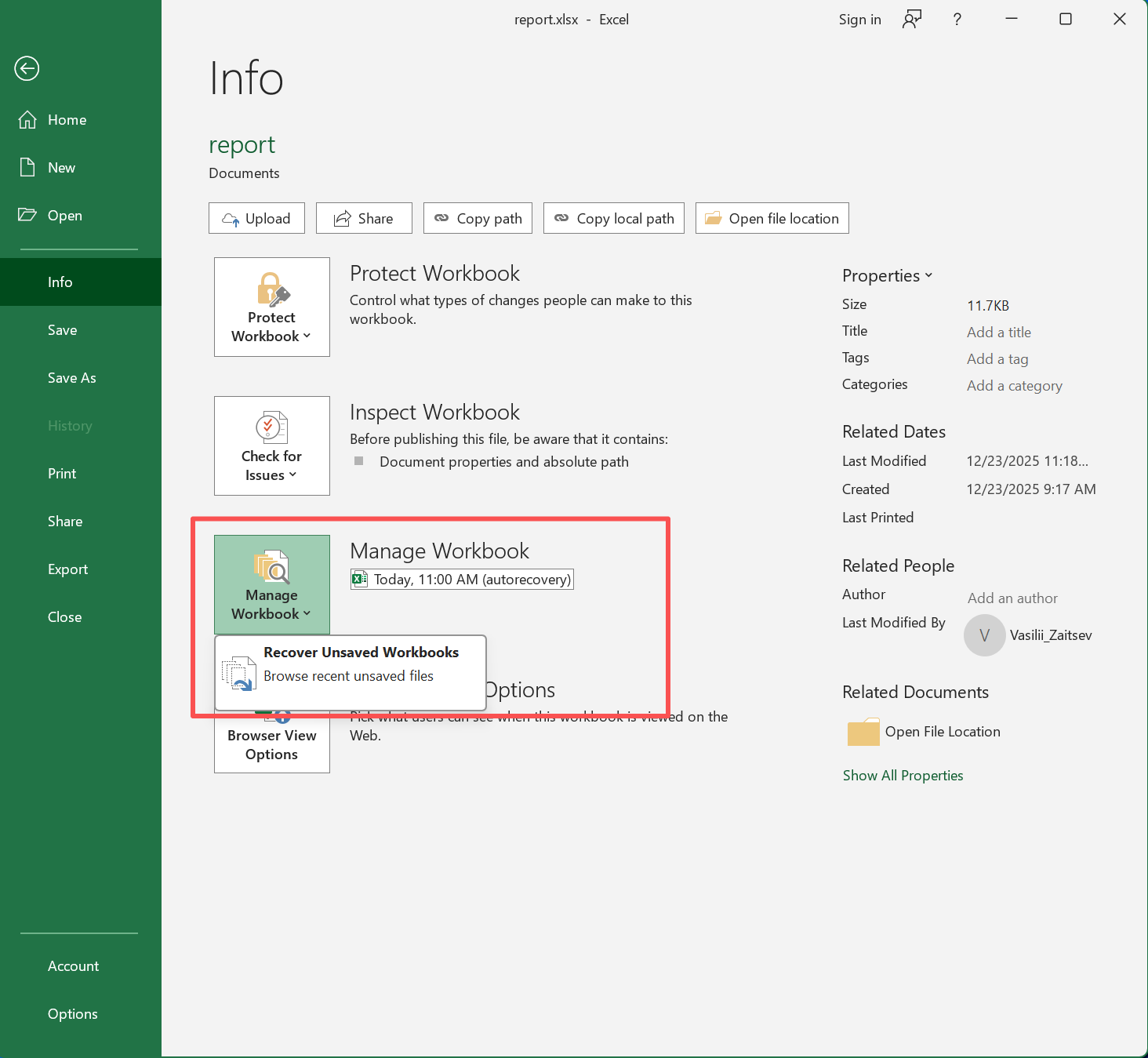
ペインが表示されない場合は、「未保存のワークブックを復元」を試してみてください:
- エクセルを開く。.
- ファイル>情報をクリックする。.
- ワークブックの管理」を選択します。.
- [保存されていないワークブックを復元] をクリックします。.
- 必要なファイルを選択してください。.
- 開いてすぐに保存する。.
この方法は、次のような場合に役立ちます 保存されていないExcelファイルを復元する Excelが最近の一時コピーを保持していた場合の内容です。ただし、Excelがそのコピーを削除していた場合は、復元できない場合があります。次に、「自動回復」と一時ファイルの保存場所を確認してください。.
方法 2: 「自動回復」機能と一時ファイルを使用して Excel ファイルを復元する
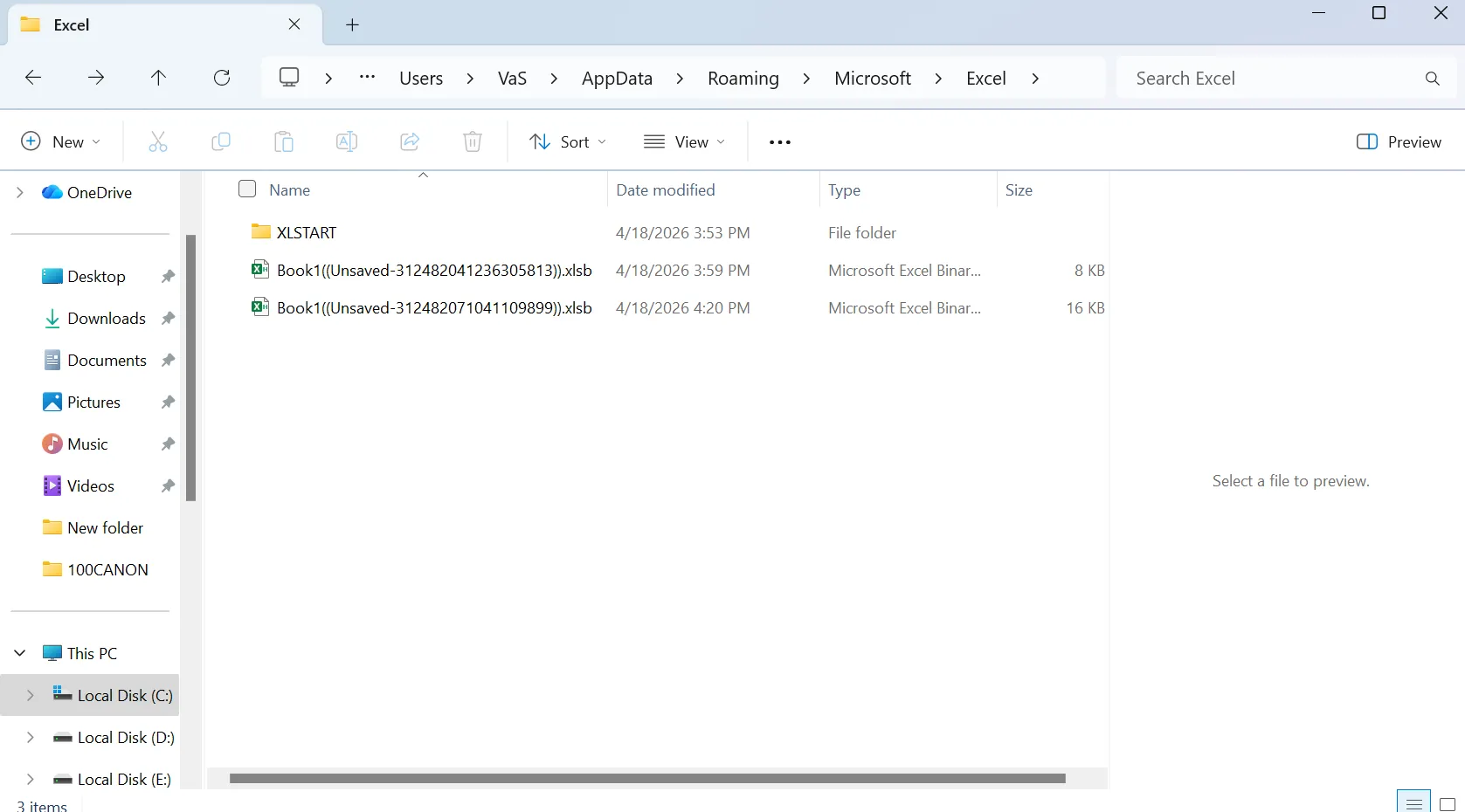
Excelの自動回復機能 一定間隔で復元情報を保存します。手動での保存に代わるものではありませんが、クラッシュやシステムエラーが発生した際に役立ちます。これを確認するには、「ファイル」>「オプション」>「保存」を開き、「自動回復」がオンになっていることを確認し、ファイルの保存場所を確認してください。.
次に、以下の Windows フォルダを検索してください:
%AppData%\Microsoft\Excel\UnsavedFiles%emp%
こちらも検索 .xlsx, .xls, .xlsm, .tmp, そして ~$. 確認する際は Excelの一時ファイル, 、変更日順に結果を並べ替えます。一時ファイルは、しばしば変わった名前が付けられているため、日付、サイズ、拡張子を確認すると見つけやすくなります。候補となるファイルが見つかったら、それを開いて新しいコピーを保存してください。.
方法 3:削除または上書きされた Excel ファイルを復元する
もしそうなら Excelファイルを削除しました 通常は、まずごみ箱を確認してください。ファイル名で検索するか、 .xlsx, 、ワークブックを右クリックし、「復元」を選択します。これにより、 削除されたExcelファイルの復元 データを素早く。.
ただし、Shift + Delete を実行した後は、ごみ箱ではどうにもなりません。, ごみ箱を空にする, 、フォーマット、またはストレージデバイスのエラー。そのような場合は、問題のあるドライブの使用を中止し、復旧ソフトウェアを使用してスキャンを行ってください。.
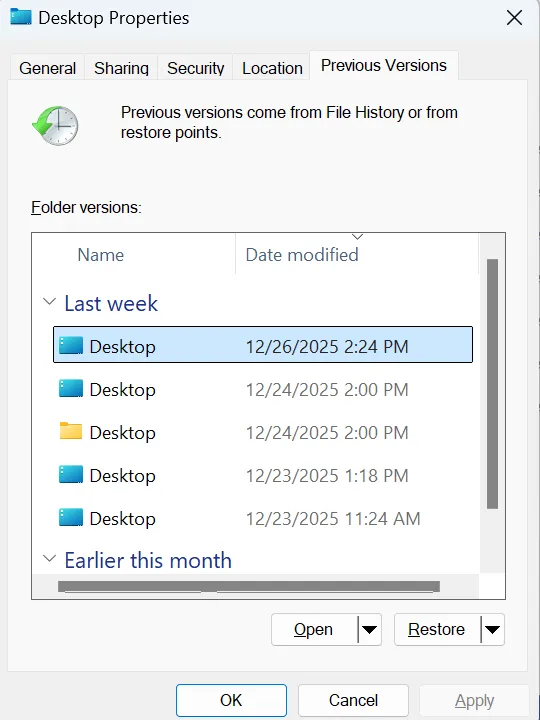
誤ってExcelワークブックを上書き保存してしまった場合は、Windowsの「以前のバージョン」から復元してみてください。この機能には、「ファイル履歴」や復元ポイント、バックアップ設定によって作成された、ファイルの以前のコピーが含まれている場合があります。.
以下の手順に従ってください:
- オープン ファイルエクスプローラー そして、上書きされたExcelファイルがもともと保存されていたフォルダに移動します。.
- Excel ワークブックが入っているフォルダを右クリックし、次に以下を選択します。 プロパティ.
- [プロパティ] ウィンドウで、[ 旧バージョン タブ.
- Windows には、このフォルダの利用可能な以前のバージョンの一覧が表示されます。Excel ファイルが上書きされる前に作成されたバージョンを選択してください。.
- クリック オープン まず、そのフォルダ内に古いバージョンのExcelファイルがあるかどうかを確認します。.
- 正しいワークブックが見つかったら、デスクトップや外付けドライブなど、別の安全な場所にコピーしてください。.
- これが必要なバージョンであると確信している場合は、以下をクリックすることもできます。 リストア そのフォルダを以前の状態に復元します。フォルダ全体を復元すると、そのフォルダ内の新しいファイルが上書きされる可能性があるため、ご注意ください。.
- 復元したExcelワークブックを開き、データが完全かどうかを確認してください。.
以前のバージョンが一覧に表示されない場合、通常は、ファイルが上書きされる前に「ファイル履歴」、「システム保護」、またはバックアップ設定が有効になっていなかったことを意味します。その場合は、ファイルがオンラインで同期されていたのであれば、OneDrive または SharePoint のバージョン履歴を確認してみてください。あるいは、専門のファイル復元ソフトウェアを使用してドライブをスキャンしてみてください。.
方法 4:ワークブックが破損した場合の Excel ファイルの復元
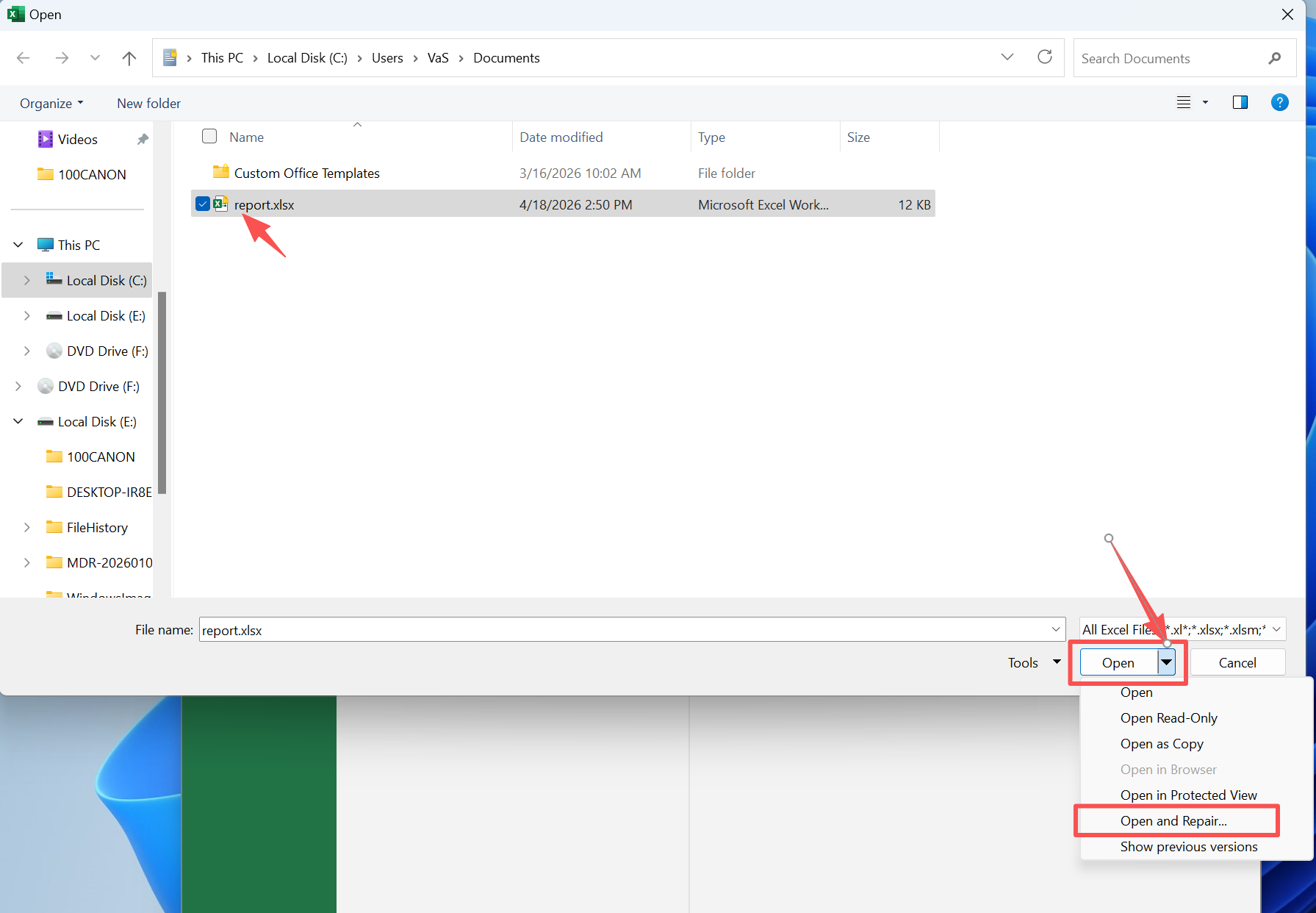
ワークブック自体は残っているにもかかわらず、開くと空白になったり、エラーが表示されたり、形式が無効であるとのメッセージが表示されることがあります。その場合は、Excelの「開いて修復」ツールを試してみてください。.
- エクセルを開く。.
- 「ファイル」>「開く」>「参照」の順に選択します。.
- 破損したワークブックを選択します。.
- [開く]の横にある矢印をクリックしてください。.
- 開くと修復を選択します。.
- まずは「修復」を試してみて、その後「データの抽出」を行ってください。.
この方法では、数値や数式を復元できる場合があります。ただし、すべてのグラフ、マクロ、書式が復元されるとは限りません。そのため、修復したワークブックは新しいコピーとして保存し、元のファイルは変更せずに残しておくことをお勧めします。.
方法 5:クラウドストレージからファイルを復元する
多くのExcelワークブックは、OneDrive、SharePoint、Google Drive、Dropbox、またはiCloudに保存されています。同期や共同作業の後にファイルが消えてしまった場合は、クラウドのごみ箱、バージョン履歴、共有フォルダ、最近使ったファイル、オフライン同期フォルダ、およびメールの添付ファイルを確認してください。.
クラウド復元は、共有ワークブックの場合に有効です。ただし、ワークブックがローカルドライブ、USBメモリ、SDカード、HDD、またはSSDにのみ保存されていた場合は、この機能では復元できません。そのような場合は、Magic Data Recoveryの方が適しているかもしれません。.
方法 6:Magic Data Recovery を使って Excel ファイルを復元する方法
Excelの標準機能ではワークブックが見つからない場合、, Magic Data Recovery 問題のあるドライブをスキャンできます。この方法は、ワークブックが 永久削除, 、ごみ箱から削除されたもの、フォーマット後に失われたもの、またはストレージデバイスから消えてしまったもの。.
Magic Data Recoveryは次のように機能します。 Excelファイル復元ソフト より深刻な データ損失. 保存場所を直接スキャンし、スキャン中に復元可能なファイルを一覧表示し、復元前にファイルをプレビューすることができます。そのため、必要なワークブックに集中することができます。.
Excelファイルがごみ箱に入っていない場合、完全に削除してしまった場合、USBメモリやSDカードから消えてしまった場合、誤ってドライブをフォーマットしてしまった場合などは、Magic Data Recoveryをご利用ください。, Excelの自動回復機能 何も表示されないか、Windowsの検索機能でそのファイルが見つかりません。.
手動の方法と比較して、Magic Data Recoveryはより複雑なケースにも対応しています。ごみ箱は通常の削除処理に対応しています。バージョン履歴機能を利用するには、バックアップまたはクラウド同期が必要です。自動復元機能は主に、クラッシュ時の復旧に役立ち、 未保存ファイル. これに対し、Magic Data Recoveryは保存場所そのものをスキャンします。.
Magic Data Recoveryの使い方
以下の手順に従ってください。 エクセルファイルの復元 Magic Data Recoveryで。.
ステップ1: Magic Data Recoveryのダウンロードとインストール
まず、Magic Data Recoveryをダウンロードし、Excelファイルが消失したドライブとは別のドライブにインストールしてください。この手順は重要です。なぜなら、影響を受けたドライブに新しいソフトウェアをインストールすると、復元可能なExcelデータが上書きされてしまう可能性があるからです。.
Windows 7/8/10/11およびWindows Serverをサポート
ステップ2:スキャンするドライブを選択する
Magic Data Recoveryを起動します。次に、メイン画面から、Excelワークブックが削除された、紛失した、または以前に保存されていたドライブまたはパーティションを選択します。その後、スキャンを開始します。.

ステップ 3:ドライブをスキャンして、紛失した Excel ファイルを探す
ソフトウェアは、選択したドライブのスキャンを開始します。その間、復元可能なファイルが見つかり次第、一覧表示されるため、失われたファイルが .xlsx, .xls, あるいは .xlsm ワークブックが検索結果に表示されます。.

ステップ4:リカバリ前にExcelファイルをプレビューする
次に、プレビュー機能を使用して、復元前にファイルの内容を確認してください。この手順により、不要なファイルや古いファイル、重複したファイルを復元してしまうことなく、正しいワークブックを選択できたことを確認できます。.

ステップ5:Excelファイルを安全な場所に復元する
最後に、復元したいExcelファイルを選択し、別のドライブまたは安全なフォルダに保存してください。復元したファイルを、失われたのと同じ場所に復元しないでください。そうすると、復元可能な他のデータが上書きされたり、ファイルが破損したりする恐れがあります。.

紛失したExcelファイルを復元した後のベストな対処法
一度理解すれば Excelでファイルを復元する方法, 、将来のリスクを軽減します。「自動保存」をオンにして、 Excelの自動回復機能 有効にし、自動回復の間隔を短縮し、重要なワークブックをクラウドストレージと別のローカルドライブの両方にバックアップします。.
また、不安定なUSBドライブから重要なファイルを直接編集することは避け、大規模な更新は別バージョンとして保存し、バックアップは復元できて初めて意味があるものなので、時折テストを行うようにしましょう。.
まとめ
に対する最良の答え Excelでファイルを復元する方法 問題によって異なります。クラッシュの場合は、まず「ドキュメントの復元」と「自動復元」を試してください。保存されていないワークブックの場合は、「保存されていないワークブックの復元」を試してください。削除されたファイルの場合は、ごみ箱を確認してください。上書きされたワークブックの場合は、「バージョン履歴」または「以前のバージョン」を使用してください。.
しかし、組み込みのツールではすべてのケースに対応できるわけではありません。ワークブックが完全に削除されたり、ごみ箱から消えたり、フォーマット後に失われたり、クラウドバックアップから復元できなかったりする場合、, Magic Data Recovery より確実な復元手段を提供します。影響を受けたドライブをスキャンし、復元可能なExcelファイルの特定を支援し、復元前のプレビュー機能を備え、ユーザーを簡単な手順でガイドします。.
そのため、標準的な場合、Magic Data Recoveryは実用的な選択肢となります。 エクセルの回復 方法はうまくいきません。それでもまだ疑問がある場合は Excelでファイルを復元する方法 手動での修正を試みた後、このツールを使えば、当て推量を減らして作業を進めることができます。.
Windows 7/8/10/11およびWindows Serverをサポート
よくある質問
保存していないExcelファイルは復元できますか?
はい。Excelを開き、「ファイル」>「情報」>「ワークブックの管理」>「保存されていないワークブックの復元」の順に選択してください。また、Excelの「自動回復」機能や「UnsavedFiles」フォルダも確認してください。ただし、これはExcelが一時的なコピーを保持していた場合にのみ有効ですので、復元されたワークブックはすぐに安全なフォルダに保存してください。.
削除してしまったExcelファイルを復元するにはどうすればよいですか?
まず、ごみ箱を開き、ファイル名または「.xlsx」で検索してください。見つかった場合は、復元してください。ただし、ごみ箱が空の場合は、バックアップツール、クラウドの履歴、またはMagic Data Recoveryを使用して、影響を受けたドライブから削除されたExcelファイルのデータを復元してください。.
上書きされてしまったExcelファイルは復元できますか?
はい、以前のバージョンが存在する場合です。まず、OneDrive または SharePoint の「バージョン履歴」を確認してください。次に、「ファイル履歴」や復元ポイントが利用可能な場合は、「Windows の以前のバージョン」を試してみてください。どちらの方法でも解決しない場合は、ファイルの編集を中止し、保存場所をスキャンしてください。.
Excelの一時ファイルはどこに保存されますか?
Excel は、%AppData%\Microsoft\Excel\、%LocalAppData%\Microsoft\Office\UnsavedFiles、または %temp% に一時ファイルを保存する場合があります。 Excelの一時ファイルは通常とは異なるファイル名が付いている場合があるため、.xlsx、.xls、.xlsm、.tmp、および ~$ を検索し、変更日時順に並べ替えて、最近のワークブックのコピーを探してください。.
Magic Data Recoveryは、USBドライブからExcelファイルを復元できますか?
はい。Magic Data RecoveryはUSBドライブをスキャンし、削除、フォーマット、またはデバイスのエラーによって消失してしまったExcelファイルの復元を支援します。より良い結果を得るためには、まずUSBドライブの使用を中止してください。その後、スキャンを行い、復元されたワークブックを別の安全な場所に保存してください。.
復元したExcelファイルが開くと、なぜ空白になってしまうのですか?
復元されたワークブックは、ファイルの破損や部分的な上書きによってファイルが損傷しているため、空白の状態になって開くことがあります。まず、Excelの「開いて修復」を試してみてください。次に、以前のバージョンを確認するか、再度スキャンを行ってください。また、別の復元方法を試せるよう、復元された元のファイルは変更せずにそのままにしておいてください。.

バシリイは、この分野で約10年の実務経験を持つデータ復元のスペシャリストです。そのキャリアを通じて、彼は削除されたファイル、フォーマットされたドライブ、失われたパーティション、RAWファイルシステムを含む何千もの複雑なケースの解決に成功してきました。彼の専門知識は、16進エディタなどの専門ツールを使用した手動復元方法と、復元ソフトウェアを使用した高度な自動化ソリューションの両方をカバーしています。バシリの使命は、信頼できるデータ復元知識をITプロフェッショナルと一般ユーザーの双方が利用できるようにし、貴重なデジタル資産を保護できるようにすることです。.