
How to Recover Deleted GoPro Videos from an SD Card
Footage from a ride, trip, or family day can suddenly disappear from Quik or the camera’s SD card. That does not always mean the recording is gone for good. It may still be possible to recover deleted GoPro videos from another copy or from data that remains on the card.
The safest first step is to stop recording and set the microSD card aside. Next, check the phone gallery, Quik library, and completed cloud uploads. An intact copy offers the clearest route back. If none exists, recovery depends on the card’s condition and whether newer recordings have overwritten the missing footage.
This guide walks through those checks, the available recovery methods, and how to confirm that a recovered clip plays properly. Our deleted file recovery guide provides broader guidance. For a card that Windows can read reliably, Magic Data Recovery offers a guided way to scan for recoverable videos after deletion, formatting, or a file system error.
Supports Windows 7/8/10/11 and Windows Server
Table of Contents
Before You Try to Recover Deleted GoPro Videos
Protect the card before doing anything else:
- Turn off the camera and remove its microSD card.
- Do not record, format, or copy new files onto it.
- Cancel any computer prompt to format or repair the card.
- Install recovery tools on your computer, away from the source card.
- Save recovered footage to a different physical drive.
For example, deleting a morning ride and then filming the afternoon ride may overwrite parts of the earlier recording. Time alone does not determine recovery chances; what happens to the card afterward matters.
For irreplaceable footage, consider professional advice before scanning. A full sector-by-sector image can preserve a readable card for later work; copying only its visible files does not preserve deleted data. Do not attempt repeated imaging if the card disconnects or produces read errors.
Quick Answer: Which GoPro Recovery Method Fits Your Situation?
To recover deleted GoPro videos, start with the location that held the missing copy.
What happened? | What to check first | Next step |
You removed a clip from Quik app storage | Camera card, phone gallery, and cloud library | Export an existing original |
You deleted footage while browsing the connected camera | Phone imports and completed cloud uploads | Scan the microSD card if no copy remains |
You deleted a cloud copy | GoPro web library and any Recently Deleted area available | Restore an available item or use another copy |
You formatted the card | Backups and whether you recorded afterward | Scan a stable card; results depend on the format and subsequent writes |
Quik cannot show footage, but the computer sees MP4 files | Copy the files elsewhere and test playback | Check app or codec compatibility before assuming deletion |
The card disconnects, shows the wrong capacity, or has physical damage | Card reader and hardware condition | Stop DIY if the problem persists |
Quik’s current media management instructions distinguish removing media from app storage and cloud storage. Read the deletion confirmation carefully: those actions affect different copies.
Confirm That the GoPro Videos Are Really Missing
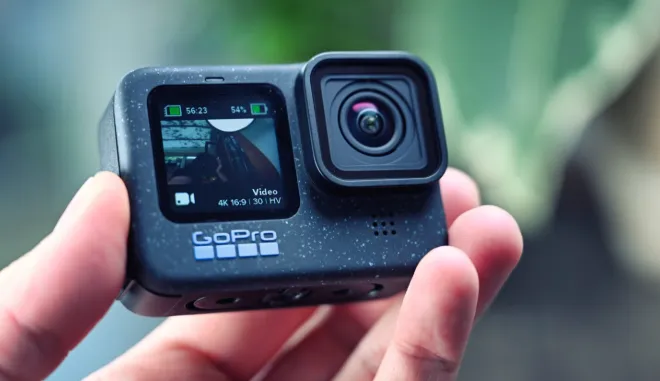
A missing thumbnail does not prove that the original video has disappeared. Before you recover deleted GoPro videos with software, make these checks on a stable card:
- Connect the microSD card through a card reader.
- Open its DCIM folder and any subfolders.
- Look for the original MP4 files rather than relying on Quik’s gallery.
- Copy visible footage to another drive and test those copies.
GoPro cameras may create .LRV low-resolution video files and .THM thumbnails alongside recordings. These helper files do not replace the full-resolution original. Finding a thumbnail alone does not mean you have recovered the video. See GoPro’s file type explanation.
Also check neighboring clips. GoPro can divide a long recording into chapters, with naming and size limits that vary by model. One short MP4 may represent only part of the session. GoPro documents this behavior in its HERO13 chaptering guide.
If the original files exist, focus on copying and playback. When the files are genuinely absent, move to backups or recovery software.
Recover Deleted GoPro Videos from Quik and Existing Backups
Best for: Footage that you imported, exported, or uploaded before deletion.
Why start here: An intact copy preserves the original video without reconstructing data from the card.
Check Quik, Your Phone, and GoPro Cloud
To recover deleted GoPro videos from Quik, identify where the missing media lived. A clip visible through a connected camera is not proof that Quik downloaded it to your phone.
- Open Quik and check its media library for an imported copy.
- Check your phone’s Photos or Gallery app for a saved export.
- Sign in to the correct GoPro account and open the cloud media library.
- Look for the recording by capture date and confirm it plays.
- Download an available original to a safe location.
GoPro explains how to access cloud footage in its cloud media guide. A subscription or enabled upload setting does not prove that a particular recording finished uploading before you deleted it.
If you deleted the cloud copy, also check the web library for a Recently Deleted or trash area. Restore the item if the interface offers that option, then download it. GoPro support has directed users to this area, but availability depends on the account and the item’s deletion status. Do not assume every deleted clip remains there.
Avoid clearing Quik’s app data or uninstalling it while you are still checking for local copies. Reinstalling an app does not reconstruct deleted footage on a camera card.
Check Computer Imports and Backup Drives
Search folders you use for imports, editing projects, and video exports. Include external drives and cloud folders you previously used for backups.
A computer’s Recycle Bin or Trash may contain a deleted computer copy. Deleting a recording directly on the camera does not send it to your PC’s Recycle Bin.
Expected result: You find a playable original or export. An edited export may preserve important scenes when recovering deleted GoPro videos, even when it lacks the entire recording.
If no copy remains: Use the card recovery methods below. An SD card scan cannot recover deleted GoPro footage that existed only in phone app storage or GoPro Cloud.
How to Recover Deleted GoPro Videos with Magic Data Recovery
Best for: A microSD card that Windows can read reliably, with footage lost through deletion, formatting, or a logical file system error.
Magic Data Recovery supports memory cards and MP4 recovery. Its scan, filter, and preview workflow helps ordinary users inspect results before saving files. Those features make it a practical option when you need to recover deleted GoPro videos without command-line work.
The relevant advantages are straightforward:
- Deep scanning: Search beyond the files currently visible in the card’s folders.
- Result filters: Narrow a mixed collection of recovered files to likely video candidates.
- Preview where supported: Inspect available content before choosing what to save.
- Recovery trial: Test an eligible recovery before committing to a larger job.
For example, this workflow suits a readable card whose clips disappeared after accidental deletion. It offers more useful checks than repeatedly reconnecting the camera or reinstalling Quik. However, no comparative test here establishes a higher GoPro recovery rate than another tool.
Step 1: Connect the Card to a Windows PC
Use a microSD card reader. Confirm the card’s approximate capacity so you can distinguish it from your computer’s drive.
If Windows asks to format the card, cancel. A damaged file system may prevent folder access even when recovery software can still read the device.
Step 2: Install and Open Magic Data Recovery
Download the program from its official product page and install it on your computer’s drive.
Keep the source card separate from both the installation location and the recovery destination.
Supports Windows 7/8/10/11 and Windows Server
Step 3: Select the Card and Start Scanning
Choose the microSD card in the device list. Start the scan and let the deeper search finish if the initial results do not include your clips.

Follow the official recovery workflow rather than guessing at unfamiliar controls. Menu labels may vary by software version.
Step 4: Review Video Results
Use available filters to find MP4 candidates. Compare file sizes and dates where available, then preview supported files.
Original names and folders may not survive. A promising filename or thumbnail is only a lead, not proof of successful GoPro video recovery.
Step 5: Save to Another Drive
Select the needed files and recover them to your computer or a separate external drive. Check that the destination has enough space for large recordings.

Then test the recovered GoPro footage using the verification checklist below. Do not return recovered files to the source card during recovery.
Limits: Software cannot reverse overwriting or repair physical card damage. Fragmented recordings may also need specialist reconstruction; MP4 support alone does not prove that every GoPro clip will come back intact.
Can You Recover Deleted GoPro Videos for Free?
You can sometimes recover a deleted GoPro video for free through an existing backup, an available cloud restore, or open-source recovery software. A free download is not necessarily unlimited free recovery.
Option | Free recovery boundary | Main limitation |
Existing phone or computer copy | No recovery software purchase | The copy must already exist |
GoPro Cloud copy or available restore | No separate recovery tool purchase | Requires an existing uploaded copy and appropriate account access |
PhotoRec | Free, open-source recovery | Less convenient sorting; fragmented videos may remain incomplete |
Magic Data Recovery trial | Official page advertises a 500 MB recovery trial | Large recordings may exceed the trial allowance |
Check the current allowance before saving files. The Magic Data Recovery product FAQ describes its trial; it should not be treated as unlimited free recovery for multi-gigabyte footage.
Try PhotoRec as a Free Alternative
Best for: Users comfortable selecting a physical device and sorting recovered files manually.
To recover deleted GoPro videos for free with PhotoRec:
- Download PhotoRec from CGSecurity onto your computer.
- Run it with permission to access storage devices.
- Select the microSD card by its capacity.
- Select the relevant partition and the video file types you need.
- Choose Other for a FAT32 or exFAT card.
- Choose the search scope. Use the whole partition after formatting or file system damage; an unallocated-space option is not available for every file system.
- Select a destination on another drive and begin recovery.
Follow CGSecurity’s step-by-step instructions for the exact prompts. PhotoRec can also scan a compatible card image, which allows you to work from a preserved copy.
Expected result: Recovered candidates appear in output folders. You may need to identify them without their original names.
If videos remain incomplete: Do not assume another generic scan will fix them. PhotoRec’s documentation explains that fragmentation can affect whole-file recovery. Preserve the source and consider specialist help for valuable footage.
Check Whether the Recovered GoPro Videos Actually Work
Successful GoPro video recovery means usable footage, not simply a completed scan.
For each important clip:
- Check that the file has a plausible size rather than 0 KB.
- Play the beginning, middle, and end.
- Listen for missing or out-of-sync audio.
- Compare the duration with the session you remember.
- Look for related chapters before calling a recording incomplete.
- Confirm the resolution meets your needs.
If a recovered MP4 will not play, test a known-good clip from the same camera with the same player. Some GoPro settings use HEVC, which needs compatible playback support. GoPro’s HEVC explanation describes this requirement.
When good clips play but recovered ones fail, corruption or missing data becomes a stronger possibility. Make a duplicate before attempting video repair. Changing a filename extension cannot replace missing video data.
When to Stop DIY GoPro Recovery
Stop trying to recover deleted GoPro videos yourself if the card repeatedly disconnects, reports an implausible capacity, overheats, or has visible physical damage. For an otherwise undamaged card, one check with a known-good reader can help rule out a reader problem.
If instability continues, ask a recovery service that handles flash memory and action-camera footage to assess it. Professionals may help with hardware faults or difficult reconstruction, but no service can promise to recover overwritten data.
Avoid formatting, CHKDSK, and other repair operations while the footage remains at risk. These actions can change file system information; their purpose is to repair storage access, which differs from preserving recoverable video. Consider repair or reuse only after saving and verifying the important files.
Protect Your Next GoPro Recording
After you recover deleted GoPro videos, change the transfer routine that led to the loss:
- Verify uploads before clearing the card. Open the cloud library and play several clips, including the latest recording. An enabled upload setting is not a completed backup.
- Keep an independent original. Save camera files to a computer or external drive before editing. A short exported montage may leave out moments you later need.
- Use at least two separate storage locations. For valuable projects, keep an additional copy away from your main equipment. Review what cloud deletion or synchronization does to other copies.
- Check the deletion target in Quik. Confirm whether the action affects camera media, app storage, cloud storage, or multiple locations.
- Check long sessions as a group. Preserve all related chapters and verify the total duration before formatting a card for the next shoot.
Keep a spare card available when traveling. If footage disappears, swapping cards lets you continue filming while leaving the affected card untouched. Replace a card that repeatedly shows errors rather than trusting it with the next irreplaceable recording.
Conclusion
To recover deleted GoPro videos, first protect the card and check for an intact copy in Quik, your phone, GoPro Cloud, or a computer backup. Restore that copy when available; it avoids the uncertainty of reconstructing deleted files.
When no backup remains and Windows reads the card reliably, we recommend Magic Data Recovery for its guided scan, filtering, and preview workflow. It addresses deletion, formatting, and logical file system problems while helping you review candidates before saving them. PhotoRec provides a free alternative if you are comfortable with a more manual process.
Whatever tool you choose, save to another drive and verify the complete recording. An unstable or physically damaged card needs professional assessment. For guidance beyond this camera-specific workflow, visit our deleted file recovery.
Supports Windows 7/8/10/11 and Windows Server
FAQs
Does GoPro Have a Recycle Bin for Camera Videos?
Can I Recover a Deleted GoPro Video for Free Without a Backup?
Can GoPro Quik Recover Deleted Videos from the SD Card?
Can I Recover GoPro Videos After Formatting the Card?
What If I Recorded More Videos After Deleting the Originals?
Why Are Recovered GoPro Videos Shorter Than Expected?
Can I Recover Deleted GoPro Videos on a Mac?
Will Saving Recovered Files Back to the Card Cause Problems?

Jason is a data recovery and technical support specialist with over 15 years of hands-on experience. He has worked extensively with frontline users, troubleshooting difficult data loss cases and providing practical recovery solutions for accidental deletion, formatted drives, damaged file systems, lost partitions, system failures, and other recovery emergencies. His expertise also includes backup and restoration, file repair, and disaster recovery, with a strong emphasis on safe, reliable, and technically accurate guidance.