
Samsung Data Recovery: How to Recover Files
Samsung devices are popular for their reliability, but data loss can still happen due to various factors such as accidental deletion, system crashes, or physical damage. When you lose important files like photos, documents, or contacts, it can be frustrating—especially when you don’t have a backup available. Fortunately, Samsung data recovery is possible, and with the right tools, such as Magic Data Recovery, you can retrieve lost data from Samsung SD cards effectively.
Supports Windows 7/8/10/11 and Windows Server
Table of Contents
Common Scenarios of Samsung Data Recovery
Data loss on Samsung devices like SD cards, HDDs, SSDs or phones can happen for several reasons. Below are the most common causes:
Accidental Deletion
Accidental deletion is one of the most frequent scenarios of Samsung data recovery. Whether it’s photos, videos, or important documents, a simple mistake can result in lost data.
Factory Reset or Software Malfunctions
Performing a factory reset or experiencing a software malfunction can cause data loss, especially if no recent backup is available.
Dead or Unresponsive Phone
A Samsung phone that won’t turn on, or has an unresponsive screen, may seem like it’s beyond help. However, you can still recover data from the internal storage if the device is still functional.
Corrupted Samsung SD Cards or Samsung Hard Drives
Samsung devices often use SD cards and internal hard drives to store files. If these storage devices become corrupted, data may become inaccessible. Fortunately, recovery is still possible with the right tools.
Official Samsung Data Recovery Methods
Samsung provides several options for recovering lost data. These methods are useful but have limitations.
Samsung Cloud Backup
Samsung Cloud is a great tool for backing up data like photos, contacts, and messages. However, it won’t help recover data that wasn’t backed up prior to deletion.
Google Drive Backup
Google Drive can be used to back up and restore your contacts, messages, and other data. However, similar to Samsung Cloud, it cannot recover files deleted before the backup.
Smart Switch
Smart Switch enables data transfer and backup from one Samsung device to another. It is useful for restoring data, but it also requires a prior backup to work effectively.
These methods can be helpful for certain data loss situations, but they won’t work when you need to recover files that were deleted or lost due to other issues.
Effective Solutions for Samsung Data Recovery
If you cannot find any backups for the lost files, a professional Samsung data recovery software is necessary. Although Magic Data Recovery cannot recover data directly from your Samsung phone, there are several practical steps you can take to recover lost data from Samsung SD cards and Samsung drives.
Recover Files from Samsung SD Card or Drives
Magic Data Recovery is an excellent tool for recovering data from a Samsung SD card or drives. Here’s how to use it:
Step 1: Download and Install Magic Data Recovery
First, download Magic Data Recovery and install it on a drive other than the one you’re recovering files from. This ensures that the lost data isn’t overwritten.
Supports Windows 7/8/10/11 and Windows Server
Step 2: Select the Samsung SD Card to Scan
Launch the program and select your Samsung SD card from the main interface. Click Scan to begin the recovery process.

Step 3: Scan the SD Card for Lost Files
The software automatically performs an Advanced Scan, searching for deleted or lost files.

Step 4: Preview Deleted Files Before Recovery
Once the scan is complete, use the Preview function to ensure that you’re recovering the right files. This step prevents unnecessary files from being recovered.

Step 5: Recover Files to a Safe Location
Select the files you want to recover and save them to a different storage device. Never save recovered data to the same SD card to prevent further data corruption.

Samsung Data Recovery from a Dead Samsung Phone
It would be hard to recover or fix a dead Samsung phone. Here are a few effective solutions:
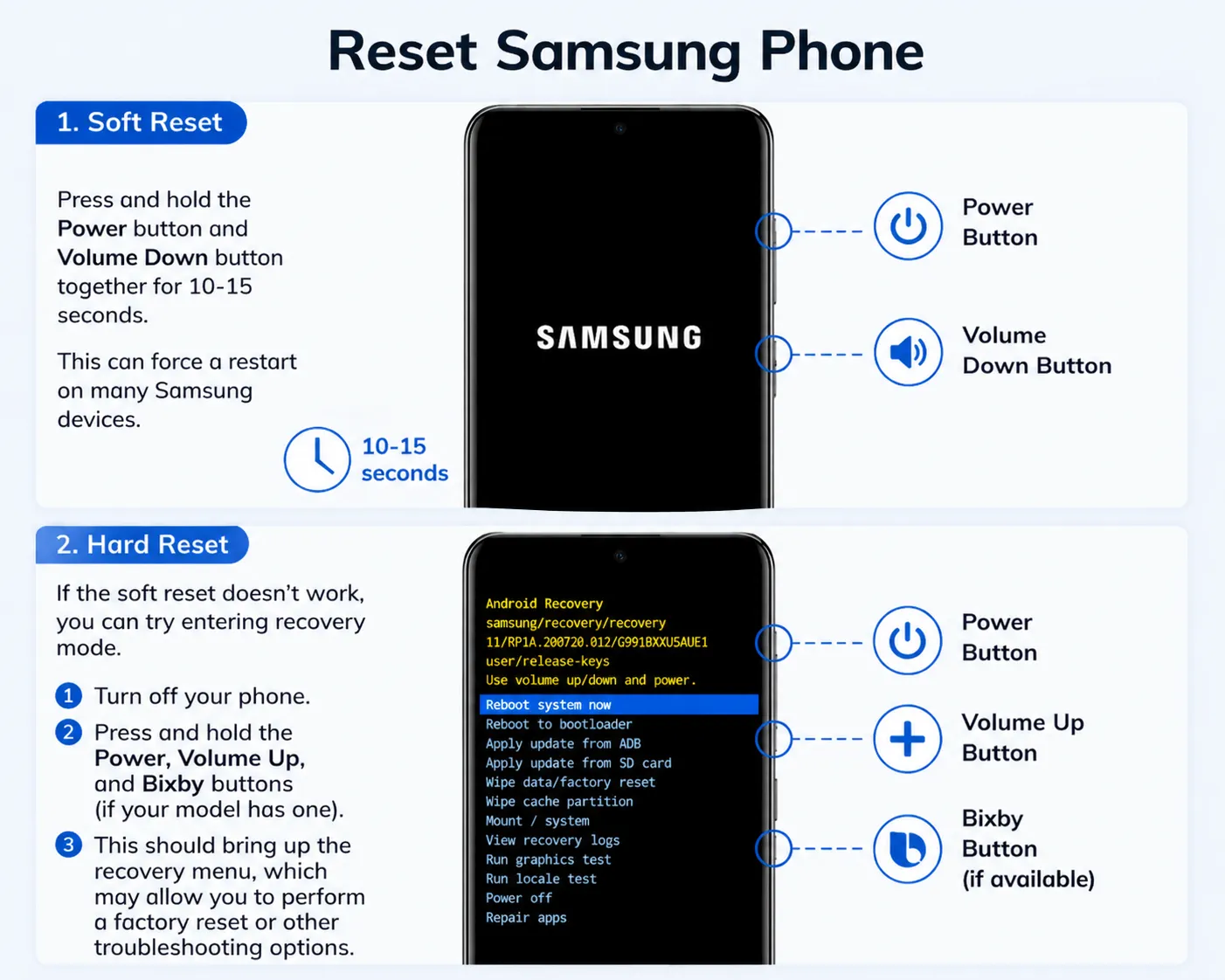
1. Try Soft or Hard Resets
In many cases, a simple soft reset or hard reset can bring your device back to life, but it wipes the data on the device. Here’s how you can try it:
- Soft Reset: Press and hold the Power button and Volume Down button together for 10-15 seconds. This can force a restart on many Samsung devices.
- Hard Reset: If the soft reset doesn’t work, you can try entering recovery mode. Turn off your phone, then press and hold the Power, Volume Up, and Bixby buttons (if your model has one). This should bring up the recovery menu, which may allow you to perform a factory reset or other troubleshooting options.
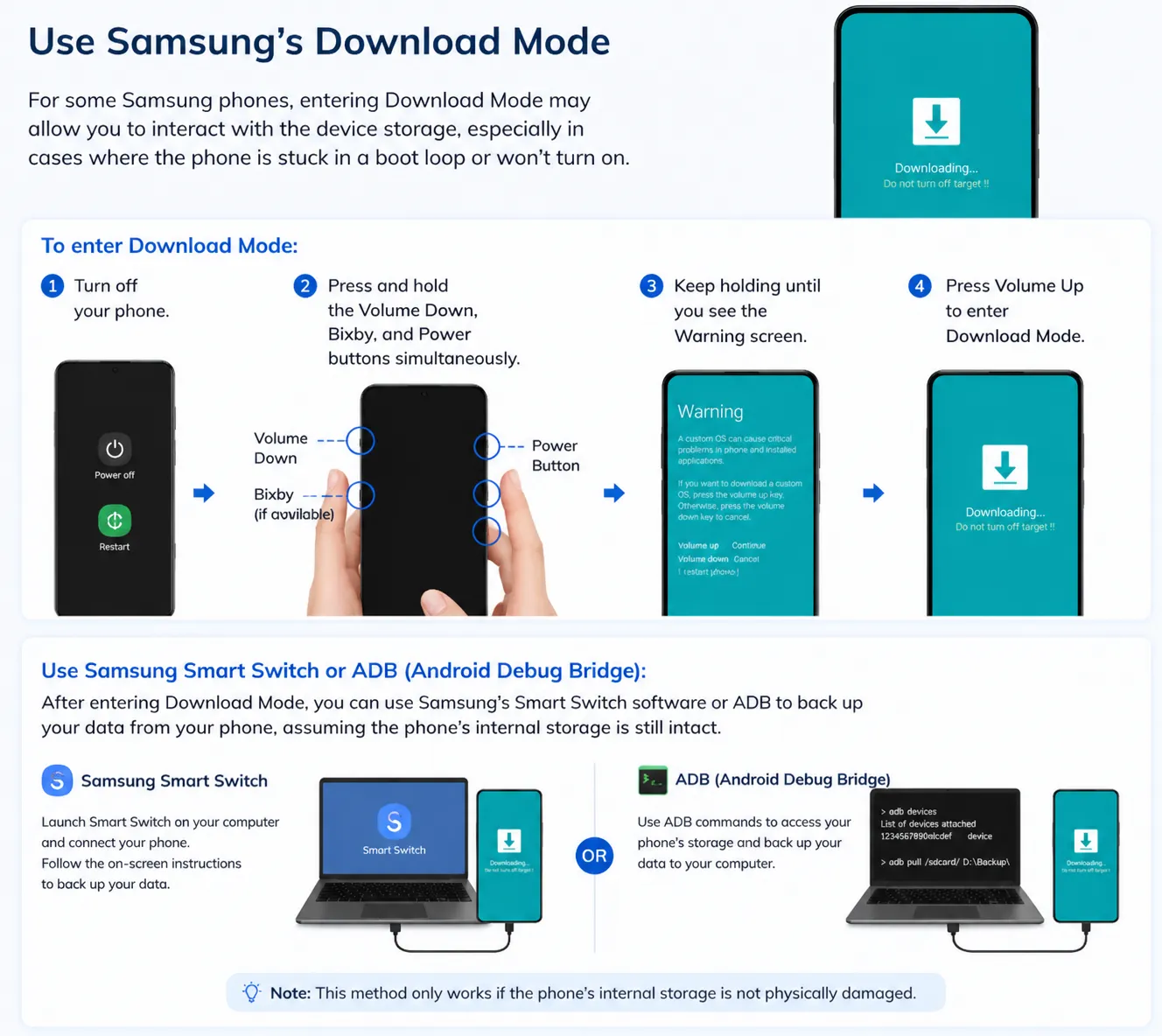
2. Use Samsung’s Download Mode for Samsung Data Recovery
For some Samsung phones, entering Download Mode may allow you to interact with the device storage, especially in cases where the phone is stuck in a boot loop or won’t turn on.
- To enter Download Mode: Turn off your phone, then press and hold the Volume Down, Bixby, and Power buttons simultaneously.
- Use Samsung Smart Switch or ADB (Android Debug Bridge): After entering Download Mode, you can use Samsung’s Smart Switch software or ADB to back up your data from your phone, assuming the phone’s internal storage is still intact.
3. Remove the SD Card and Use It on Another Device
If your Samsung phone has an SD card, and you can remove it, this is one of the easiest ways for Samsung data recovery. Insert the SD card into a card reader and connect it to your computer. From there, you can manually copy the files (photos, videos, documents, etc.) to your computer.
If the SD card is not detected, you can use Magic Data Recovery or other Samsung data recovery software to scan the card for lost or deleted files.
4. Consult Professional Samsung Data Recovery Services
If the phone has physical damage or is completely unresponsive, local professional Samsung data recovery services may be necessary. These services specialize in recovering data from physically damaged devices, including damaged motherboards or water-damaged phones.
Conclusion: The Importance of Samsung Data Recovery
Losing data on your Samsung device doesn’t have to be permanent. Whether you’re dealing with accidental deletion, system malfunctions, or corrupted SD cards, Samsung data recovery solutions are available to help you retrieve your lost files. Tools like Magic Data Recovery are designed to assist you in recovering data from your SD cards or Samsung drives, ensuring that important files are not lost for good.
Supports Windows 7/8/10/11 and Windows Server
FAQs About Samsung Data Recovery
How do I recover data from my Samsung phone if it is dead?
To recover data from a dead Samsung phone, you can remove the SD card and access it through a computer. If the phone is still somewhat responsive, use Samsung’s Download Mode or ADB for recovery.
Can I recover photos from my Samsung SD card?
Yes, you can recover photos from your Samsung SD card using recovery tools like Magic Data Recovery. Simply insert the card into a reader, scan it with the tool, and preview the recoverable files.
What is the best way to recover data from a corrupted Samsung SD card?
To recover data from a corrupted Samsung SD card, use Magic Data Recovery. It performs deep scans to locate lost or corrupted files and allows you to preview and recover them before saving them to a safe location.
How can I prevent data loss on my Samsung phone?
Regularly back up your data using Samsung Cloud or Google Drive to prevent data loss. Avoid using the device once data loss occurs, as this could overwrite the files you're trying to recover.
Can I recover data from a Samsung phone with a broken screen?
Yes, if the phone is still responsive, you can use Samsung Smart Switch or connect it to a computer to back up your data. Alternatively, use ADB commands to access files directly from the phone.
How do I recover lost files after a factory reset?
After a factory reset, it would be hard to recover files from the internal storage. You can recover lost files if you have a backup through Samsung Cloud or Google Drive. If no backup exists, use Magic Data Recovery for SD card recovery.

Vasilii is a data recovery specialist with around 10 years of hands-on experience in the field. Throughout his career, he has successfully solved thousands of complex cases involving deleted files, formatted drives, lost partitions, and RAW file systems. His expertise covers both manual recovery methods using professional tools like hex editors and advanced automated solutions with recovery software. Vasilii's mission is to make reliable data recovery knowledge accessible to both IT professionals and everyday users, helping them safeguard their valuable digital assets.