
Master File Table Size Explained: NTFS Master File Table Size in Windows
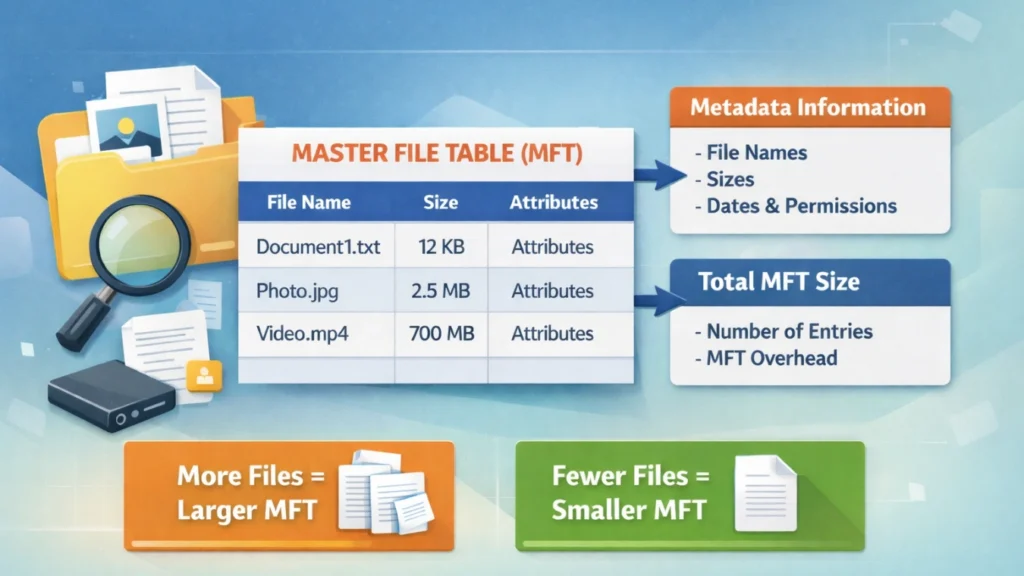
The master file table size is a crucial concept in the NTFS file system used by Windows. Many users encounter the term when analyzing disk performance, checking file system information, or troubleshooting storage problems.
Understanding the NTFS master file table size helps administrators and advanced users diagnose disk issues, manage large volumes of files, and prevent data loss. In this guide, we will explain what the Master File Table is, how the Windows master file table size works, and how to check and manage it.
Table of Contents
What Is the Master File Table (MFT)?
The Master File Table (MFT) is the core metadata database of the NTFS file system. Every file and folder stored on an NTFS partition has at least one entry in the MFT. These entries contain important information such as file name, timestamps, permissions, and the location of the file data.
You can think of the MFT as a catalog of everything stored on a disk. When Windows accesses a file, it first checks the MFT to locate the file’s data blocks.
Each MFT record typically occupies 1024 bytes, and new records are added as files are created on the system.
What Does Master File Table Size Mean?
The master file table size refers to the amount of disk space currently used by the MFT to store metadata records for files and directories.
As files are added to an NTFS volume:
- New entries are created in the MFT
- The MFT grows in size
- The system reserves additional space to reduce fragmentation
When files are deleted, their MFT entries are marked as reusable, but the MFT size does not shrink automatically.
This means the NTFS master file table size can grow over time, especially on systems that frequently create and delete files.
Default NTFS Master File Table Size Allocation
To maintain performance, NTFS reserves a portion of the disk for future MFT expansion.
Typically:
- About 12.5% of the disk volume is reserved as the MFT zone
- This reserved space helps keep the MFT contiguous and reduces fragmentation
If the disk contains many small files, the Windows master file table size may grow faster because each file requires its own metadata entry.
Why Master File Table Size Matters
The size and health of the MFT directly affect system performance and file accessibility.
File System Performance
Every file operation requires access to the MFT. If the MFT becomes fragmented or extremely large, disk access may slow down.
Handling Millions of Files
Servers, databases, and development environments often contain millions of files. In such cases, the NTFS master file table size can grow significantly.
Disk Fragmentation
If the reserved MFT zone fills up, the MFT may become fragmented across the disk, which can reduce performance.
How to Check NTFS Master File Table Size in Windows
Windows provides built-in tools to view information about the MFT.
Method 1: Using Command Prompt
Open Command Prompt as administrator and run:
fsutil fsinfo ntfsinfo C:
This command displays detailed NTFS information, including the current master file table size and MFT zone statistics.
Method 2: Disk Defragmentation Report
You can also analyze the disk using the Windows Defragmentation tool.
Steps:
- Open Defragment and Optimize Drives
- Analyze the disk
- View the report for file system statistics
The report includes details such as MFT size and fragmentation level.
Common Problems Related to Master File Table Size
Although the MFT usually works automatically, problems can occur in certain situations.
MFT Fragmentation
When the reserved MFT zone runs out of space, additional MFT entries may be stored in different disk areas.
This can cause:
- Slower file access
- Increased disk latency
- Reduced system performance
MFT Corruption
If the MFT becomes damaged due to:
- sudden power failure
- disk errors
- malware
- improper shutdown
the system may no longer be able to locate files.
Symptoms include:
- “Drive is not accessible”
- RAW file system errors
- missing files
- inaccessible partitions
Can Master File Table Issues Cause Data Loss?
Yes. Since the Master File Table stores metadata for every file, corruption in the MFT can prevent Windows from identifying where files are stored.
Even though the actual file data may still exist on the disk, the operating system may treat the partition as empty or inaccessible.
In such cases, professional data recovery software is often required to rebuild file records and recover lost files.
Recover Data When MFT Is Corrupted
If a partition becomes inaccessible due to Master File Table damage, avoid formatting the drive immediately.
Instead, you can use specialized recovery software such as Magic Data Recovery. This tool can scan the disk, locate lost files, and rebuild file structures even when the MFT is damaged or missing.

Magic Data Recovery is particularly useful for recovering data from:
- corrupted NTFS partitions
- RAW drives
- deleted or lost files
- partitions affected by MFT errors
Running a recovery scan as soon as possible increases the chances of restoring your important files.
Conclusion
The master file table size is a key component of the NTFS file system that determines how file metadata is stored and managed. As files are created and deleted, the NTFS master file table size naturally grows and plays a critical role in disk performance.
Understanding the Windows master file table size helps users diagnose disk issues, manage storage efficiently, and avoid file system problems. If the MFT becomes corrupted and causes partitions to become inaccessible, tools like Magic Data Recovery can help retrieve lost data safely with professional data recovery methods.
Supports Windows 7/8/10/11 and Windows Server
FAQs
What is the master file table size in NTFS?
The master file table size represents the disk space used by the MFT to store metadata for files and folders on an NTFS volume. Each file has a corresponding record in the MFT. As the number of files grows, the MFT expands to accommodate additional entries and maintain file system organization.
Why does the NTFS master file table size increase over time?
The NTFS master file table size increases because new files and directories require new MFT records. Even when files are deleted, the space allocated for MFT entries is not reduced. Instead, those entries are marked as reusable, which allows the MFT to grow gradually over the lifespan of the disk.
How can I check the Windows master file table size?
You can check the Windows master file table size by running the command fsutil fsinfo ntfsinfo C: in an elevated Command Prompt. This command displays detailed NTFS information, including MFT size, cluster size, and reserved MFT zone statistics for the selected drive.
What is the MFT zone in NTFS?
The MFT zone is a reserved portion of the disk set aside by NTFS to allow the master file table to grow without becoming fragmented. Typically, around 12.5% of the disk space is reserved to ensure efficient expansion of the MFT as more files are created.
Can the master file table become fragmented?
Yes, the master file table can become fragmented if the reserved MFT zone fills up. When this happens, additional MFT records may be stored in different disk locations. Fragmentation can slow down file access and slightly reduce overall disk performance.
What happens if the master file table is corrupted?
If the master file table becomes corrupted, Windows may not be able to locate files stored on the disk. The partition may appear empty, inaccessible, or converted to RAW format. However, the actual file data may still exist on the drive and could potentially be recovered.
Can a large master file table affect disk performance?
A large master file table usually does not cause problems by itself. However, if the MFT becomes fragmented or extremely large due to millions of small files, it may slightly impact disk access times and overall file system efficiency.
How can I recover files lost due to MFT corruption?
If files are lost due to MFT corruption, you should avoid writing new data to the affected drive. Using professional recovery software like Magic Data Recovery allows you to scan the disk, rebuild file records, and recover files from corrupted NTFS partitions or inaccessible drives.

Jason is a data recovery and technical support specialist with over 15 years of hands-on experience. He has worked extensively with frontline users, troubleshooting difficult data loss cases and providing practical recovery solutions for accidental deletion, formatted drives, damaged file systems, lost partitions, system failures, and other recovery emergencies. His expertise also includes backup and restoration, file repair, and disaster recovery, with a strong emphasis on safe, reliable, and technically accurate guidance.