
Things You Should Know Before Requesting Data Recovery Services from Docomo

Docomo’s “Data Recovery Service” mainly deals with physical failures (such as circuit board damage, water damage, or power supply issues). In these cases, it is optimal to request Docomo’s data recovery service, as specialized cleanroom environments and component replacements or chip-level analysis are required.
However, for logical issues such as accidental deletion, formatted drives, or unrecognized disks, recovery might be possible through data structure reanalysis rather than physical repair. These logical failures can be fixed by individuals with the right knowledge and tools.
Supports Windows 7/8/10/11 and Windows Server
Table of Contents
What is a Logical Error? Cases Not Supported by Docomo Data Recovery Service
A “logical error” refers to a situation where, even though the hardware itself is functioning normally, issues with the file system or partition information prevent data from being visible.
Typical examples include:
Accidentally deleting files or folders
Formatting the drive
Displaying “Cannot access” or “RAW format”
These issues can be recoverable by Docomo, but the recovery process may take several days to weeks and can be costly. Additionally, there may be concerns about privacy since personal data could be handed over to an external service. Next, we will introduce ways you can attempt recovery on your own.
Manual Data Recovery Using WinHex (For Advanced Users)
For analyzing logical data failures, a binary editor like WinHex (by X-Ways) is used.
This tool allows you to directly view and edit raw data on a disk and reconstruct damaged partitions or deleted files.
Basic recovery steps using WinHex (example: NTFS):
1. Open Disk Management (press Win + R, type “diskmgmt.msc”) and check the status of the disk.

2. If the drive shows as RAW, file system analysis is generally required.

3. Open the drive with WinHex. Analyze the NTFS file system (refer to the official Microsoft NTFS Structure Documentation). In this case, the file system was corrupted.

4. Search for the backup DBR signature (EB5290) from the end of the partition.

5. Overwrite the sector containing the DBR with the backup DBR.

6. Check Disk Management again to confirm that the drive can be accessed normally.

👉 However, this method requires advanced knowledge and experience, and improper operations could lead to further data damage.
Alternative Solution for Data Recovery Docomo Without Expert Knowledge
If you want to safely recover data from a logical error, using an automated tool like Magic Data Recovery is recommended.
Features of Magic Data Recovery:
Supports accidental deletion, formatted drives, and unrecognized disks
Fully supports major file systems including NTFS, FAT, exFAT, and ReFS
Preview detected files after scanning → One-click recovery
No need for technical knowledge like WinHex. Safe for beginners
Compatible with Windows 11 / 10 / 8 / 7
Magic Data Recovery automates the advanced techniques used in WinHex, making professional-level recovery accessible to everyone. Before opting for Docomo’s data recovery service, it’s recommended to first try this safe method on your own.
Comparison of Docomo Data Recovery Service vs. Self-Managed Recovery
| Feature | Docomo Data Recovery Service | Magic Data Recovery |
|---|---|---|
| Coverage | Physical damage focus | Logical errors (deletion, formatting, RAW, etc.) |
| Cost | Expensive (several thousand yen) | Free scan → Recover only the data needed |
| Knowledge Required | None | None (automated process) |
| Time | Several days to weeks | Immediate (can be done at home) |
How to Use Magic Data Recovery
1. Download and install Magic Data Recovery from the official website.
Supports Windows 7/8/10/11 and Windows Server
2. After launching, select the disk or drive you want to recover.

3. Click “Start Scan,” and it will automatically search for lost files or folders.

4. Once the scan is complete, preview the detected data and select the files you want to recover.

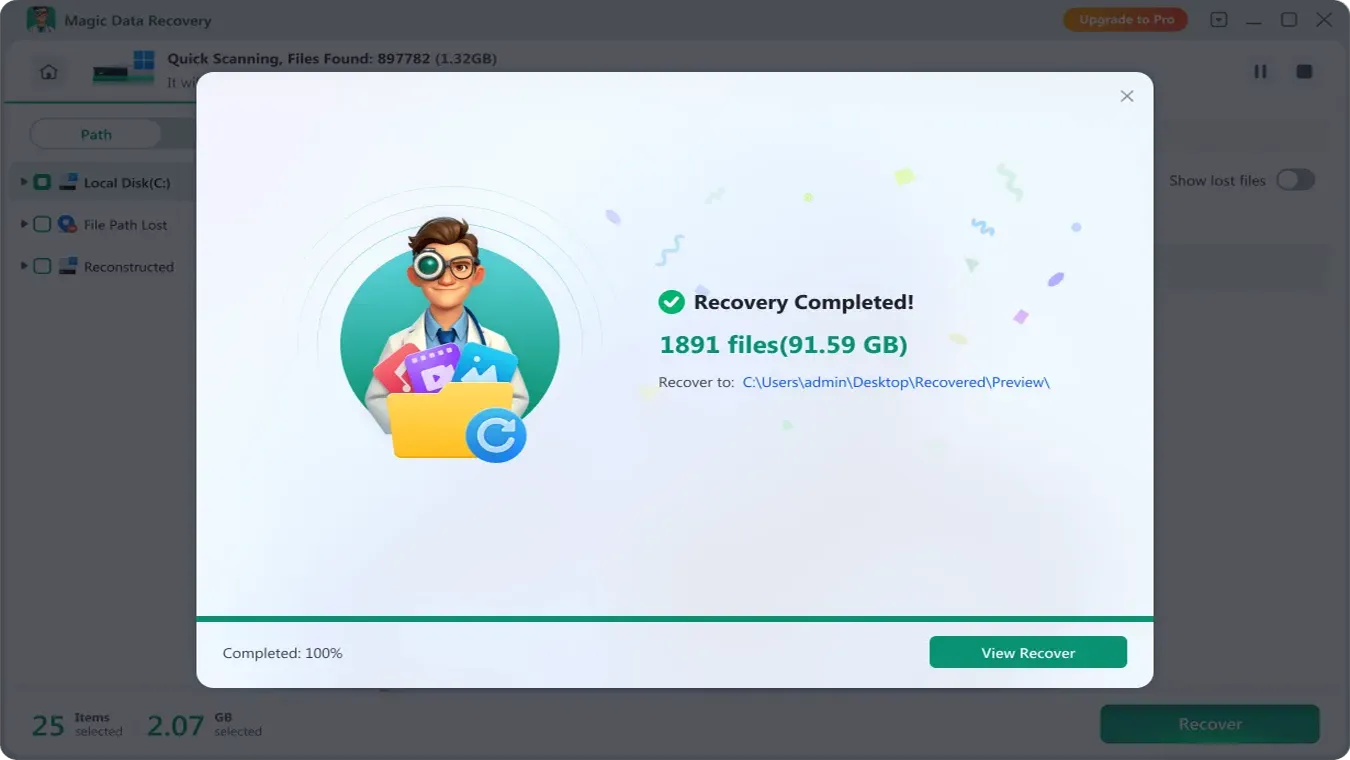
5. Press the “Recover” button and specify the destination folder to complete the process.
Conclusion
For physical failures, it is best to use Docomo’s recovery service. However, for logical errors (deletion, formatting, inaccessible files), it’s smart to first try Magic Data Recovery at home. It offers technician-level recovery precision with just a click—making it the most practical HDD solution for Docomo data recovery users today.
Supports Windows 7/8/10/11 and Windows Server
FAQ
When should I use Docomo's Data Recovery Service?
Can I recover deleted or formatted data through Docomo?
Is there a cheaper and safer data recovery method than Docomo?

Vasilii is a data recovery specialist with around 10 years of hands-on experience in the field. Throughout his career, he has successfully solved thousands of complex cases involving deleted files, formatted drives, lost partitions, and RAW file systems. His expertise covers both manual recovery methods using professional tools like hex editors and advanced automated solutions with recovery software. Vasilii's mission is to make reliable data recovery knowledge accessible to both IT professionals and everyday users, helping them safeguard their valuable digital assets.