
A Complete Guide to Partition Data Recovery
Losing access to an entire disk partition can be far more stressful than deleting a few files. When a partition suddenly disappears, users often assume that all data is permanently gone. In reality, partition data recovery is frequently possible if the right steps are taken early.
This guide explains how partition loss happens, whether free partition data recovery is realistic, and which recovery methods are safest. More importantly, it shows how tools like Magic Data Recovery can help restore data from lost partitions without risking further data damage.
Supports Windows 7/8/10/11 and Windows Server
Wondering if your files can be recovered? Find out in seconds with our quick check below.
Data Recovery Assessment
Answer 3 quick questions to estimate your recovery chances
Table of Contents
What Is Partition Data Recovery?
Partition data recovery refers to the process of restoring files from a partition that has been deleted, formatted, or become inaccessible due to system or disk errors.
Unlike simple file deletion, partition loss usually involves damage to:
- The partition table (MBR or GPT)
- File system metadata
- Logical disk structure
Although the partition may no longer appear in File Explorer, the underlying data often remains intact until it is overwritten.
Common Causes of Partition Loss
Understanding the cause of partition loss helps determine the most effective recovery approach.
Accidental Partition Deletion
Users may delete a partition during disk management operations or system installation.
Disk Formatting
Quick formatting removes file system references but does not immediately erase data.
Operating System Reinstallation
OS upgrades or reinstalls may overwrite partition tables.
Power Failures and System Crashes
Unexpected shutdowns can corrupt partition metadata.
Malware or Disk Errors
Malicious software or bad sectors may cause partitions to become unreadable.
Is Free Partition Data Recovery Really Possible?
Many users search for free partition data recovery, hoping to restore lost data without cost. While free solutions exist, they come with important limitations.
When Free Partition Recovery May Work
- You deleted the partition recently
- Data size is small
- No new data has been written to the disk
Limitations of Free Recovery Tools
- Recovery size caps
- No deep partition scanning
- Limited file preview support
In real-world scenarios, free tools often detect lost partitions but cannot fully restore the data. This is where professional software becomes necessary.
Risks of Using Incorrect Recovery Methods
Improper recovery attempts can permanently reduce recovery success.
Common Mistakes to Avoid
- Recreating the partition before recovery
- Formatting the disk again
- Installing recovery software on the affected drive
- Repeatedly using multiple recovery tools
These actions may overwrite recoverable partition data.
Best Methods for Partition Data Recovery
Method 1: Check Disk Management
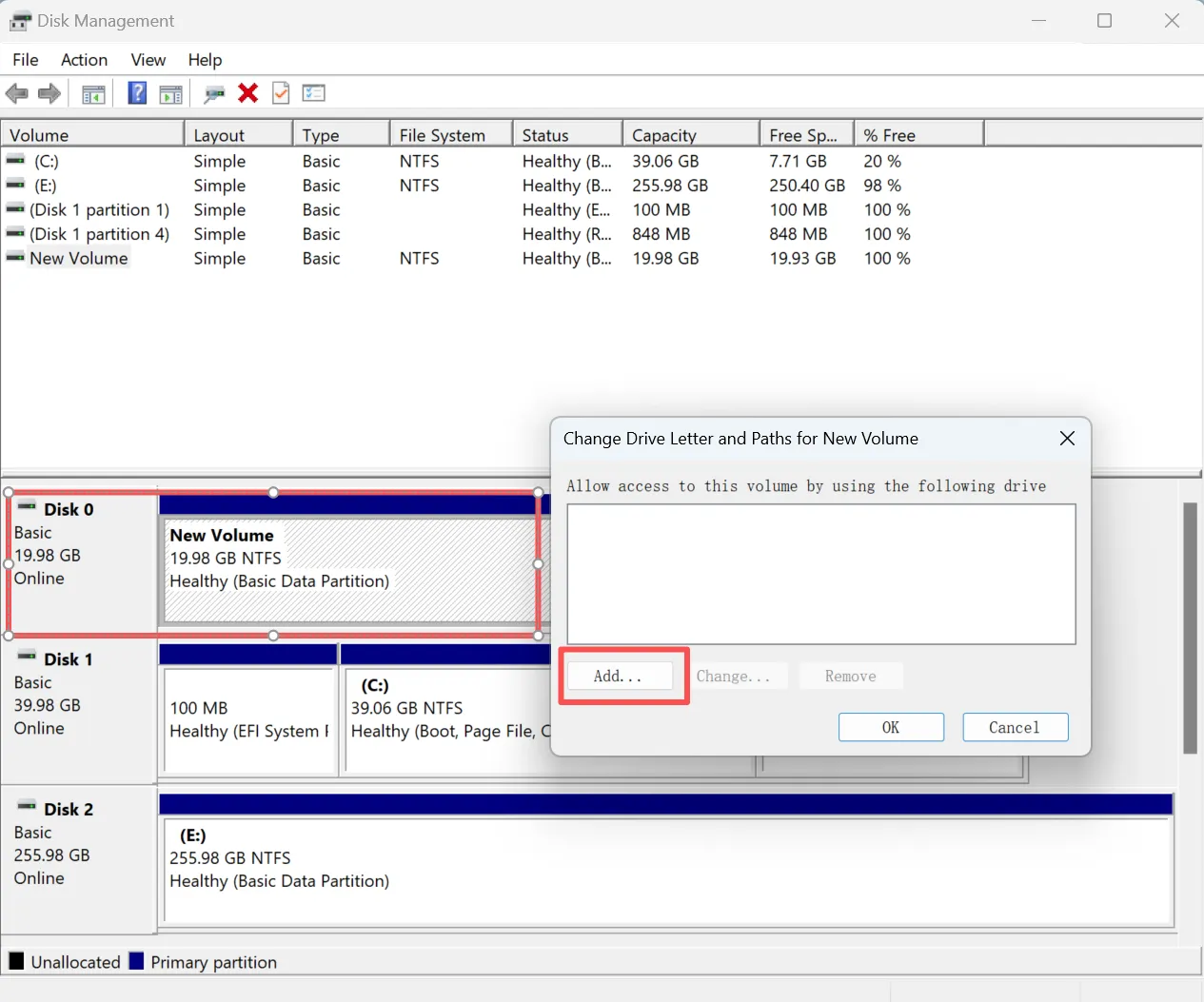
Sometimes a partition only loses its drive letter. Adding a drive letter may solve this issue if you find the volume doesn’t have a drive letter in Disk Management. This method has a low success rate but is worth checking.
Method 2: Try Windows Built-in Tool
If you see the drive shows RAW in Disk Management, the file system might have been damaged. You can use Windows built-in tool like CHKDSK to fix the drive. Although it sometimes can repair a drive issue, it risks data loss.

Method 3: Use Professional Partition Recovery Software (Recommended)
Professional solutions like Magic Data Recovery can perform deep scans and rebuild partition structures safely without modifying the drive. This approach minimizes the risk of data loss and save the files safely.
How to Use Magic Data Recovery for Partition Data Recovery
Using Magic Data Recovery does not require advanced technical knowledge. The recovery process follows a clear and controlled workflow, from scanning the disk to restoring files to a secure location.
Step 1: Download and Install Magic Data Recovery on a Safe Drive
Download Magic Data Recovery and install it on a disk other than the affected partition. Installing the software on a separate drive helps avoid overwriting lost partition data and improves recovery success.
Supports Windows 7/8/10/11 and Windows Server
Step 2: Choose the Disk or Lost Partition to Scan
Open Magic Data Recovery. From the main interface, select the disk that contains the lost or deleted partition. If the partition is not visible, choose the entire disk to allow the software to locate missing partition information.

Step 3: Run an Advanced Scan for Partition Data
Once the scan starts, Magic Data Recovery automatically performs an in-depth analysis. During this process, recoverable files from the lost partition are displayed in real time, allowing you to monitor progress without waiting for the scan to finish.

Step 4: Preview Files to Verify Recoverability
After the scan, use the built-in preview feature to open files and confirm their integrity. This step helps you accurately identify which data belongs to the lost partition and avoid restoring unnecessary or corrupted files.

Step 5: Recover Partition Data to a Different Location
Select the files you want to restore and save them to a different storage device. Writing recovered data back to the original disk is not recommended, as it may overwrite remaining recoverable partition data.

Why Magic Data Recovery Is Recommended for Partition Data Recovery
Magic Data Recovery can handle complex partition data recovery scenarios while minimizing risks.
Core Problems It Solves
Key Advantages
- Advanced partition-level scanning
- File preview before recovery
- Supports large disks and multiple file systems
- Allows users to test recovery results before purchasing
Practical Use Case
If a partition disappears after formatting or OS reinstallation, Magic Data Recovery can scan the entire disk, locate the lost partition structure, and restore files safely.
Compared with basic or free tools, it offers more reliable recovery without requiring manual disk operations.
If you are looking for a safer and more efficient solution, Magic Data Recovery is worth considering.
Tips to Improve Partition Recovery Success Rate
- Stop using the affected disk immediately
- Avoid writing new data to the drive
- Do not recreate partitions manually
- Use preview features to verify files before recovery
These best practices significantly increase the success rate of partition data recovery.
Conclusion
Partition loss does not always mean permanent data loss. With the correct approach, partition data recovery is often achievable, even after formatting or accidental deletion.
While free partition data recovery tools may work in limited cases, professional solutions provide greater reliability and control. Magic Data Recovery stands out by combining deep scanning technology with a user-friendly recovery process, making it a practical lost partition data recovery solution for both beginners and experienced users.
If recovering data from a lost partition is critical, using a trusted tool like Magic Data Recovery can significantly reduce risk and improve results.
Supports Windows 7/8/10/11 and Windows Server
FAQs About Partition Data Recovery
Can a deleted partition be recovered?
Is free partition data recovery safe?
How long does partition recovery take?
Does formatting permanently erase partitions?
What improves recovery success?

Vasilii is a data recovery specialist with around 10 years of hands-on experience in the field. Throughout his career, he has successfully solved thousands of complex cases involving deleted files, formatted drives, lost partitions, and RAW file systems. His expertise covers both manual recovery methods using professional tools like hex editors and advanced automated solutions with recovery software. Vasilii's mission is to make reliable data recovery knowledge accessible to both IT professionals and everyday users, helping them safeguard their valuable digital assets.