
Guide to Data Recovery from Formatted Hard Drive

Accidentally formatting a hard drive can feel irreversible. Important work files, personal photos, or archived documents may vanish instantly, leaving users unsure whether recovery is still possible. In reality, data recovery from formatted hard drive is often more successful than expected—provided the drive is handled correctly from the start.
This guide explains what actually happens when a hard disk is formatted, outlines how to recover data from formatted hard disk without software, and clarifies when professional recovery tools become the safer option. Based on common real-world formatted recovery situations, it also explains why many users ultimately choose Magic Data Recovery when basic methods no longer work.
Supports Windows 7/8/10/11 and Windows Server
Wondering if your files can be recovered? Find out in seconds with our quick check below.
Data Recovery Assessment
Answer 3 quick questions to estimate your recovery chances
Table of Contents
What Happens to Data After a Hard Drive Is Formatted?
To understand formatted disk recovery, it helps to know what formatting really does. When you format a hard drive, the operating system typically rebuilds the file system structure rather than erasing every data block. In a quick format, file references such as the Master File Table (MFT) are removed, but the underlying data remains physically present on the disk. A full format performs additional checks and may overwrite some areas, which reduces recovery potential but does not always eliminate all recoverable data.
From a practical recovery standpoint, this distinction explains why recovering files from a formatted drive is often possible—especially when no new data has been written afterward.
Is It Possible to Recover Data from a Formatted Hard Drive?
Yes, data recovery after formatting is often achievable. The outcome depends on several realistic factors rather than guarantees.
Key variables include:
- Whether the format was quick or full
- The amount of new data written after formatting
- The original file system type
- The physical condition of the drive
For traditional HDDs, recovery data from formatted hard drive cases frequently succeed if recovery begins early. Solid-state drives present more challenges due to TRIM commands, which can permanently clear data blocks shortly after formatting.
How to Recover Data from Formatted Hard Disk Without Software
Many users initially search for how to recover data from formatted hard disk without software, hoping to avoid additional tools. While the options are limited, a few practical checks are worth trying.
Restore Files from Windows Backup or File History
If you have enabled Windows File History or Backup before formatting, recovery may be straightforward:
1. Open Control Panel – System and Security – File History
2. Check whether you have enabled File History
3. Click Restore personal files and restore files to a different storage device
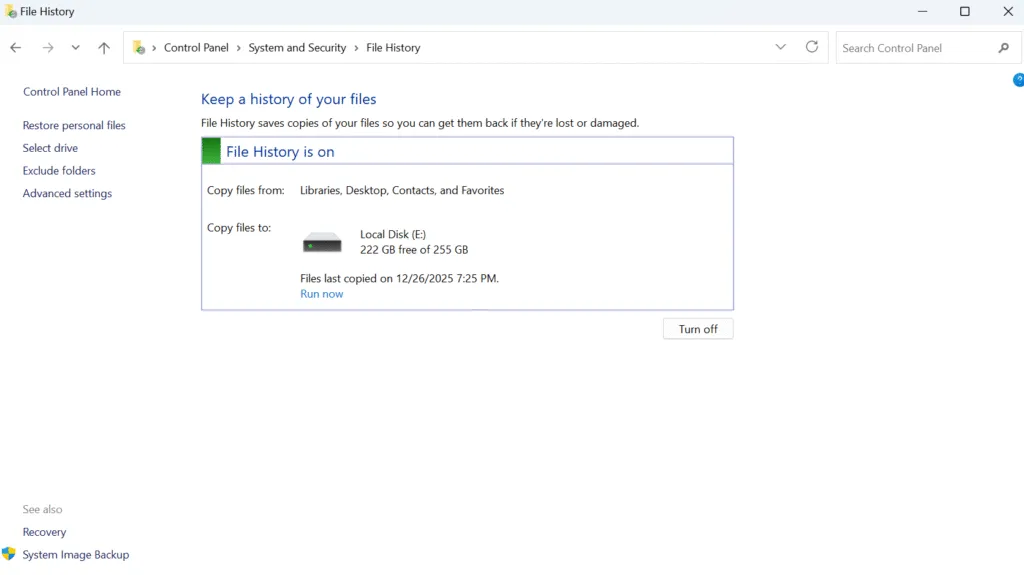
This method only works when backups were created in advance, which is not always the case.
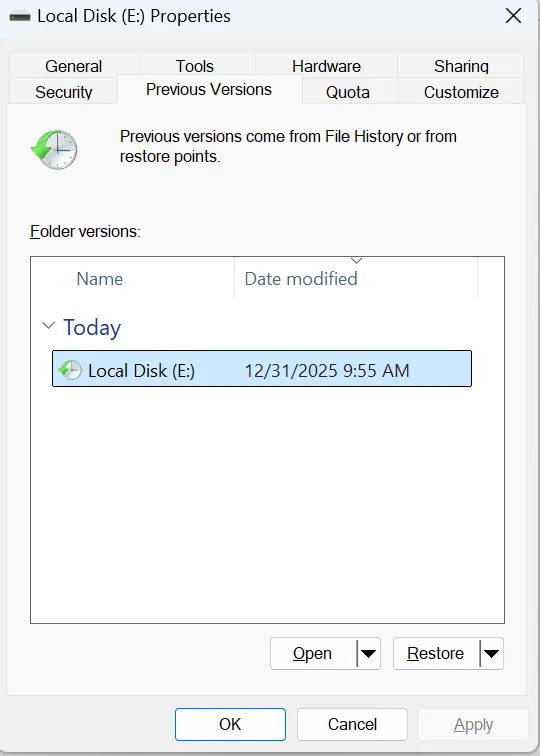
Check Previous Versions
In some environments, Windows may store shadow copies:
- Right-click the formatted drive
- Select “Restore previous versions”
- Review available snapshots
However, formatting often clears these restore points, making this option unreliable.
When Manual Methods Are No Longer Enough
Once backups and system restore options are ruled out, professional recovery solutions become necessary. These tools analyze raw disk sectors, identify file signatures, and reconstruct recoverable data without relying on the original file index.
Choosing the right solution matters. Inadequate software can overwrite data or misinterpret disk structures, further reducing recovery chances.
Recovering Data from a Formatted Hard Drive with Magic Data Recovery
Magic Data Recovery can help you handle complex scenarios involving formatted drives, accidental deletions, and corrupted file systems. Here are the steps to use Magic Data Recovery:
Step 1: Download and Install Magic Data Recovery
Download Magic Data Recovery and install it on a drive different from the formatted hard drive. This approach prevents accidental overwriting and protects lost data.
Supports Windows 7/8/10/11 and Windows Server
Step 2: Select the Formatted Hard Drive to Scan
After you launch the program, you will see all the drives connected to the computer. Choose the formatted hard drive and start searching.

Step 3: Wait till the Scan Completes
The software automatically performs an Advanced Scan. Meanwhile, it lists all recoverable files as the scan progresses. You will see all the files on the drive when the scan completes.

Step 4: Preview Files Before Recovery
Next, you can preview the file content, which ensures you recover only the files you actually need.

Step 5: Recover Files to a Safe Location
Finally, select the data you need and save them to a different drive or storage device. Do Not save the files back to the original drive, because it risks data corruption.

Practical Advantages
- Deep scan capability for formatted partitions
- File preview before recovery
- Support for multiple file systems and storage devices
- User-friendly workflow for non-technical users
Common Use Scenarios
In many real-world cases, users rely on Magic Data Recovery after formatting the wrong partition during system setup, accidentally reformatting an external hard drive, or losing data due to system errors.
Compared with manual recovery attempts, this approach offers greater reliability and significantly higher recovery potential. If you are looking for a safer and more efficient option, Magic Data Recovery provides a balanced solution focused on data protection rather than aggressive modification.
Best Practices to Improve Recovery Success After Formatting
To maximize the chance of successful data recovery from formatted hard drive, consider these proven practices:
- Stop using the formatted drive immediately
- Avoid installing recovery software on the same disk
- Recover files to an external storage device
- Do not repeat formatting attempts
These steps help preserve remaining data and reduce the risk of overwriting recoverable files.
Conclusion
Recovering files after formatting depends on understanding the limitations of manual methods and acting quickly. While recovering data from formatted hard disk without software may work in rare cases, most real-world scenarios require a more capable approach.
Magic Data Recovery stands out as a practical solution because it focuses on safe scanning, accurate detection, and user-friendly recovery. By addressing the real challenges of formatted disk recovery without unnecessary complexity, it offers a reliable option for users who want to restore their data responsibly.
If you are seeking an efficient and trustworthy way to recover lost files, Magic Data Recovery is well worth considering.
Supports Windows 7/8/10/11 and Windows Server
Data Recovery from Formatted Hard Drive – FAQ
Can data be recovered from a formatted hard drive?
Is it possible to recover data from a wiped hard drive?
How do professionals recover data from a hard drive?
How to recover formatted data from hard disk using cmd?
How much data can be recovered from a formatted hard drive?
Can you undo formatting a hard drive?
Is data permanently stored in hard disk?
Can data from a dead hard drive be recovered?

Vasilii is a data recovery specialist with around 10 years of hands-on experience in the field. Throughout his career, he has successfully solved thousands of complex cases involving deleted files, formatted drives, lost partitions, and RAW file systems. His expertise covers both manual recovery methods using professional tools like hex editors and advanced automated solutions with recovery software. Vasilii's mission is to make reliable data recovery knowledge accessible to both IT professionals and everyday users, helping them safeguard their valuable digital assets.