
How to Use an EXT3 File System Driver for Windows
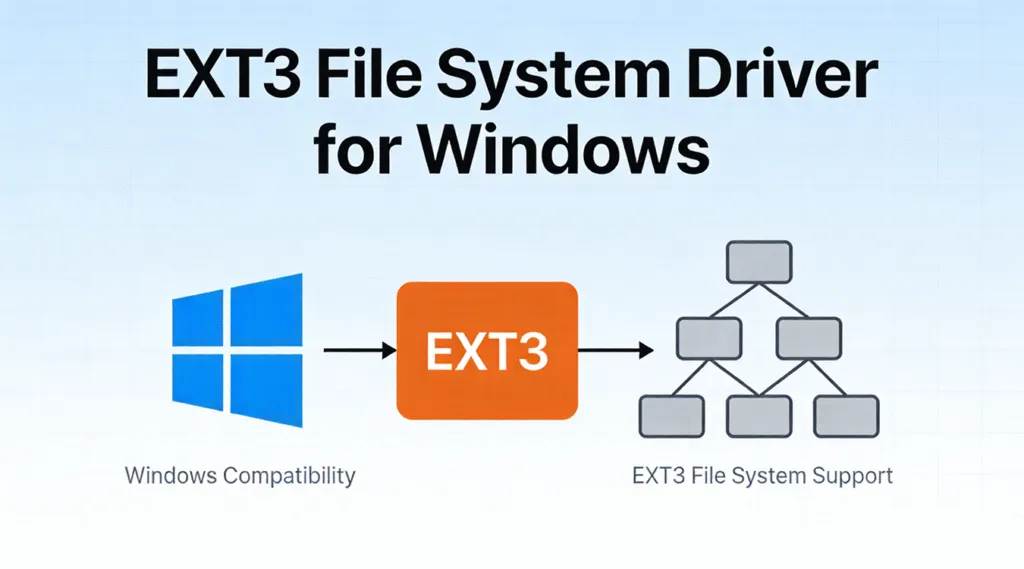
If you have ever connected a Linux hard drive or USB device to a Windows PC, you may have encountered a frustrating problem: Windows cannot recognize the partition. This usually happens because Linux systems commonly use the EXT3 file system, which is not natively supported by Windows. For IT professionals, dual‑boot users, system administrators, and everyday users who migrate from Linux to Windows, finding a reliable EXT3 file system driver for Windows becomes essential. Without the right solution, valuable data may appear inaccessible or even lost.
This guide explains how the EXT3 file system Windows users encounter actually works, how to access it safely, and what to do when the drive becomes unreadable or accidentally deleted. You will also learn when data recovery software becomes the most reliable option.
Table of Contents
What Is the EXT3 File System on Windows?
The EXT3 file system (Third Extended File System) is a journaling file system widely used in Linux environments. It was designed as an improvement over EXT2, adding journaling to reduce the risk of data corruption after unexpected shutdowns or system crashes.
Key characteristics of EXT3 include:
- Journaling support for better data integrity
- Backward compatibility with EXT2
- Stable performance on Linux systems
- Common usage on older Linux distributions and servers
Although EXT3 is considered mature and stable, Windows systems cannot read it without additional tools. This limitation makes an EXT3 file system driver for Windows necessary.
Why Windows Cannot Read EXT3 File System by Default
Windows operating systems are built to support file systems such as NTFS, FAT32, and exFAT. Linux file systems, including EXT3, follow a different structure and metadata design.
As a result:
- Windows Disk Management may show the partition as “Unknown” or “Unallocated”
- File Explorer cannot open EXT3 volumes
- Formatting prompts may appear, risking data loss
To safely access EXT3 on Windows, you must rely on third‑party solutions designed specifically for Linux file systems.
Best Ways to Use an EXT3 file system driver for Windows Safely
If you want to mount an EXT3 partition in Windows so it appears as a normal drive letter, you need a proper driver-based solution. However, if your goal is only to copy files, a read-only approach is usually safer. The following options cover the most common EXT3 file system Windows use cases and help you choose the right method.
Option 1: Mount EXT3 Using Paragon Linux File Systems for Windows
Paragon Linux File Systems for Windows provides a stable way to mount EXT3 volumes directly in Windows. After installation, EXT3 partitions appear in File Explorer and behave like standard drives. This makes it one of the most practical choices when frequent access is required.
Best for: daily access, browsing folders, copying large amounts of data.
How it works (overview):
- Install Paragon Linux File Systems for Windows.
- Connect the EXT3-formatted drive.
- Access the mounted partition directly from File Explorer.
Important note: If you do not need to modify files, enabling read-only behavior helps reduce the risk of file system corruption.
Option 2: Access EXT3 with DiskInternals Linux Reader (Read-only)
DiskInternals Linux Reader does not mount EXT3 as a Windows drive letter. Instead, it lets you open EXT3 partitions in a separate interface and extract files safely. Because it avoids write operations, it is often the safest choice for one-time access.
Best for: copying files from EXT3 to Windows without altering the disk.
Option 3: Mount EXT3 with Ext3Fsd (Advanced users only)
Ext3Fsd is an open-source EXT3 file system driver for Windows that can mount Linux partitions. While it can work in some environments, compatibility issues and write-related risks make it suitable mainly for experienced users who understand the limitations.
Best for: advanced scenarios where a free driver is required and data risk is acceptable.
When mounting is not the right choice
If the EXT3 partition is corrupted, deleted, or inaccessible, or if files are missing after mounting attempts, continuing to test drivers can make the problem worse. In these situations, switching to a read-only data recovery software is usually the safer decision.
Common EXT3 File System Windows Problems
Even with an EXT3 file system driver for Windows, users often face challenges:
- Partition mounts but files cannot be opened
- File names appear corrupted
- Accidental formatting prompts
- Deleted or missing files
- Disk shows as RAW or unallocated
These scenarios are common after improper shutdowns, disk errors, or incorrect driver usage. At this stage, continuing to experiment with drivers may worsen the situation.
Recovering EXT3 Data Safely on Windows
When data loss happens on an EXT3 drive, recovery should be performed carefully. Writing new data to the same disk can permanently overwrite lost files. This is where Magic Data Recovery offers a safer alternative.
Why Magic Data Recovery Is a Reliable EXT3 Solution
Magic Data Recovery is not an EXT3 file system driver for Windows, but it plays a critical role when drivers fail or data is lost. Instead of mounting the partition, it scans the disk at a read-only method, and deeper level to locate recoverable files.
Core Problems It Solves
- Cannot open EXT3 partitions on Windows
- Files deleted from Linux EXT3 volumes
- EXT3 partitions shown as unallocated or RAW
- Disk corruption after system crashes
Key Advantages
- Supports EXT file systems like EXT3 and EXT2
- Read‑only scanning to prevent data overwriting
- Recovers over 5000 file types
- Preview files before recovery
- User‑friendly interface for non‑technical users
Practical Usage Scenarios
- Migrating from Linux to Windows and accessing old EXT3 disks
- Recovering files from a Linux server disk connected to Windows
- Restoring data after accidental formatting
- Extracting files from damaged external drives
Compared to traditional drivers, Magic Data Recovery focuses on data safety rather than direct file system modification. This makes it more reliable in critical recovery situations.

Conclusion
Accessing Linux partitions on Windows can be challenging due to file system incompatibility. A proper EXT3 file system driver for Windows helps in basic access scenarios, but it is not always the safest option.
When you deleted files, or the EXT3 partition is corrupted, data recovery becomes the priority. Magic Data Recovery stands out by offering a secure, read‑only approach that minimizes risk while maximizing recovery success.
If you need a dependable way to recover EXT3 data on Windows without risking further damage, Magic Data Recovery provides a practical and trustworthy solution.
Supports Windows 7/8/10/11 and Windows Server
FAQ: EXT3 File System Driver for Windows
Can Windows 10 read EXT3?
Is EXT3 still used?
Can I use EXT4 on Windows?
How to open an EXT3 file?
How to format a USB drive to EXT3 on Windows?
Should I use EXT3 or EXT4?
How old is EXT3?
How do I access my Linux files from Windows?

Vasilii is a data recovery specialist with around 10 years of hands-on experience in the field. Throughout his career, he has successfully solved thousands of complex cases involving deleted files, formatted drives, lost partitions, and RAW file systems. His expertise covers both manual recovery methods using professional tools like hex editors and advanced automated solutions with recovery software. Vasilii's mission is to make reliable data recovery knowledge accessible to both IT professionals and everyday users, helping them safeguard their valuable digital assets.