
Recovery Word Document: Restore Lost Files
Losing an important Word file can disrupt work and cause unnecessary stress. For example, a system crash may close Word suddenly, or a user may delete a file accidentally. As a result, many people begin searching for ways to perform recovery word document and restore their files quickly.
Fortunately, several solutions exist. First, Microsoft Word provides built-in document recovery in Word features such as AutoRecover and version history. However, these features only work in certain situations. For instance, they cannot always restore permanently deleted documents or files lost after disk errors. Therefore, a professional document recovery tool sometimes becomes necessary.
In this guide, you will learn practical methods used to recover lost Word documents. Moreover, you will see how recovery tools work and why solutions such as Magic Data Recovery can help when standard recovery options fail.
Supports Windows 7/8/10/11 and Windows Server
Table of Contents
Common Causes of Word Document Loss
Before attempting recovery word document, it helps to understand why documents disappear. Once you identify the cause, you can select the most effective recovery method.
Accidental Deletion
First, accidental deletion remains one of the most common causes of document loss. Sometimes the file stays in the Recycle Bin. However, if the user presses Shift + Delete, the system removes the file immediately.
Word or System Crash
Second, Word may crash while a document is open. Consequently, unsaved changes disappear unless AutoRecover saved a temporary version.
Overwritten Files
In addition, users occasionally save a new document over an existing one. When this happens, document recovery in Word becomes more difficult because the previous version may no longer exist.
File Corruption
Furthermore, power outages, disk errors, and software conflicts may corrupt Word files. As a result, the document may fail to open or display an error message.
Storage Device Problems
Finally, USB drives, external disks, and memory cards sometimes develop file system issues. Therefore, documents may appear missing even though the data still exists.
Understanding these scenarios improves the chances of successful recovery word document.
Built-in Document Recovery in Word
Before installing any recovery software, users should try the built-in document recovery in Word features. In many cases, these tools restore recently lost files.
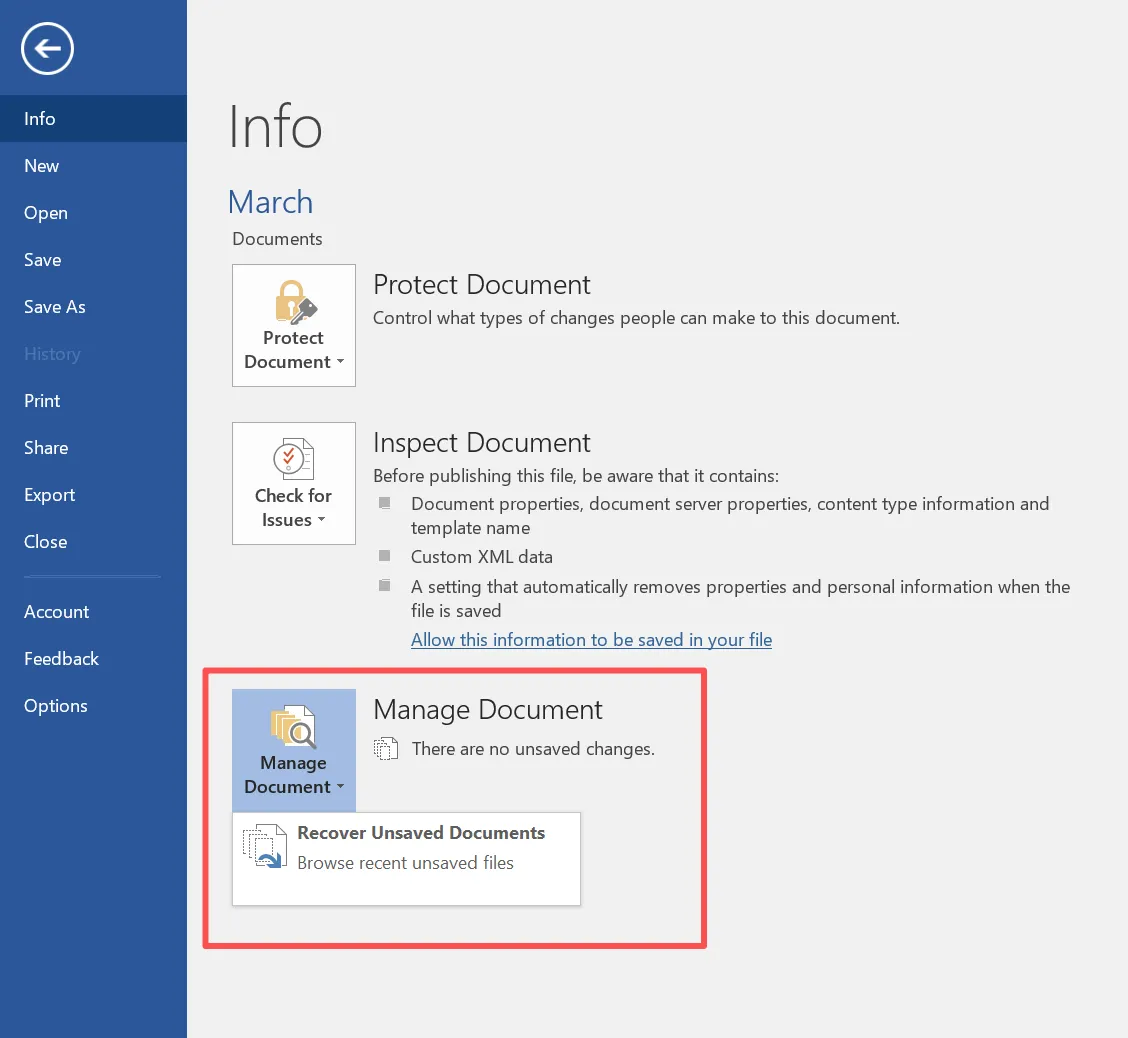
Recover Unsaved Word Documents
First, Word automatically saves temporary versions of unsaved documents.
Steps:
- Open Microsoft Word
- Click File → Info
- Select Manage Document
- Choose Recover Unsaved Documents
Word then displays available temporary files. After opening the correct document, save it immediately.
As a result, this method often resolves recovery word document issues caused by application crashes.
Restore Files from AutoRecover
Next, Word periodically creates AutoRecover snapshots during editing.
Common AutoRecover file formats include:
.asd.wbk.tmp
Typical storage location:
C:\Users\Username\AppData\Roaming\Microsoft\Word
After locating the file, open it and save it as a normal Word document.
Therefore, AutoRecover represents one of the most useful document recovery in Word features.
Recover Word Documents from Temporary Files
Additionally, Word sometimes leaves temporary files on the system.
To search for them:
- Open File Explorer
- Search for
.tmpor.asdfiles - Sort results by modification date
If a file matches the missing document, rename it with the .docx extension and open it.
Recover Deleted Word Documents in Windows
If built-in Word features fail, Windows still offers additional recovery options.
Restore from Recycle Bin
First, check the Recycle Bin.
Steps:
- Open the Recycle Bin
- Locate the deleted Word document
- Right-click the file
- Click Restore
Consequently, the system returns the document to its original folder.
Restore Previous Versions
Next, Windows File History may store earlier versions of files.
Steps:
- Right-click the folder where the document was stored
- Select Restore previous versions
- Choose the desired version
If backups exist, users can complete word document recovery quickly.
Restore Documents from Cloud Version History
Moreover, cloud services such as OneDrive often maintain multiple document versions.
Steps:
- Open the document in OneDrive
- Select Version history
- Restore the preferred version
Thus, cloud storage provides another reliable form of document recovery in Word.
Best Document Recovery Tool Comparison
| Tool | Key Features | Ease of Use | Best Scenario |
| Magic Data Recovery | Deep scanning, preview, partition recovery | Very Easy | Lost documents |
| Disk Drill | Multiple scanning algorithms | Easy | General file recovery |
| Recoverit | Supports many file formats | Easy | Multimedia recovery |
| EaseUS Data Recovery | Wide device support | Medium | Large drives |
Word Document Recovery with Magic Data Recovery
When standard methods fail, using a reliable document recovery tool becomes the most effective solution. Magic Data Recovery provides a practical approach for restoring lost Word files.
Unlike basic recovery utilities, Magic Data Recovery scans storage devices at the sector level. Consequently, it can locate documents even when the file system structure is damaged.
Problems the Tool Can Solve
Magic Data Recovery helps when:
- Word documents were permanently deleted
- disk partitions become inaccessible
- drives display RAW file systems
- files disappear after formatting
Therefore, it often succeeds in complex recovery word document situations.
Advantages of Magic Data Recovery
Several features make Magic Data Recovery particularly useful.
Deep Scan Technology
First, the program analyzes storage sectors to locate lost document structures.
File Preview
Next, users can preview detected Word documents before restoring them.
Broad Device Compatibility
In addition, the tool supports:
- internal hard drives
- SSD storage
- USB drives
- memory cards
Simple Workflow
Finally, the interface allows users to complete recovery word document in just a few steps.
How to Recover a Word Document Using Magic Data Recovery
The recovery process remains straightforward.
Step 1: Download and Install Magic Data Recovery
Download Magic Data Recovery and install it on your computer. Installing the program on another drive helps prevent data overwriting.
Supports Windows 7/8/10/11 and Windows Server
Step 2: Select the Disk to Scan
Next, open the program and select the drive where the document was stored.

Step 3: Scan the Storage Device
After that, start the scan. The program searches the disk for recoverable files.

Step 4: Preview the Word Files
Then preview the detected documents to confirm their contents.

Step 5: Recover the File
Finally, select the file and click Recover. Save the restored document to a safe location.

As a result, many users successfully complete recovery word document using this process.
When Word Document Recovery May Fail
Tips to Prevent Future Word Document Loss
Although recovery word document methods are helpful, prevention remains the best strategy.
Consider the following practices:
- Enable Word AutoSave
- Maintain regular backups
- Use cloud synchronization
- Avoid editing files directly from unstable USB drives
By combining backup strategies with a reliable document recovery tool, users can greatly reduce the risk of permanent data loss.
Conclusion: Choosing the Right Document Recovery Tool
Word document loss can occur because of deletion, crashes, or storage errors. Initially, users should try built-in document recovery in Word features such as AutoRecover or version history. In many cases, these tools restore recently lost files.
However, these solutions cannot solve every problem. When documents disappear permanently or disks become inaccessible, a professional document recovery tool becomes necessary.
Magic Data Recovery offers deep scanning, file preview, and support for multiple storage devices. Consequently, it often restores documents that other methods cannot detect. For users seeking a reliable solution, Magic Data Recovery provides an efficient way to perform document recovery safely.
Supports Windows 7/8/10/11 and Windows Server
FAQ
Can I recover a permanently deleted Word document?
Yes. In many cases, the data remains on the disk until new information overwrites it. Therefore, a document recovery tool may restore the file.
Where are AutoRecover files stored?
AutoRecover files usually appear here:
C:\Users\Username\AppData\Roaming\Microsoft\Word
What is the best document recovery tool for Word files?
Several recovery tools exist. However, solutions such as Magic Data Recovery often provide reliable results for recovery word document tasks.
Can overwritten Word documents be restored?
Sometimes cloud version history allows restoration. However, if disk sectors are overwritten, recovery becomes difficult.
Why can deleted files still be recovered?
Deleting a file usually removes the file reference rather than the actual data. Until the system overwrites the storage space, recovery remains possible.
Can I recover files from a formatted drive?
Yes. Formatting usually removes file system records but not the underlying data. Therefore, deep scanning tools may still locate documents.
What should I do after losing a Word document?
Stop using the storage device immediately. Otherwise, new data may overwrite the lost file and reduce the chances of successful recovery word document.

Vasilii is a data recovery specialist with around 10 years of hands-on experience in the field. Throughout his career, he has successfully solved thousands of complex cases involving deleted files, formatted drives, lost partitions, and RAW file systems. His expertise covers both manual recovery methods using professional tools like hex editors and advanced automated solutions with recovery software. Vasilii's mission is to make reliable data recovery knowledge accessible to both IT professionals and everyday users, helping them safeguard their valuable digital assets.