
How to Fix a USB Drive That Is Unreadable: Complete Guide
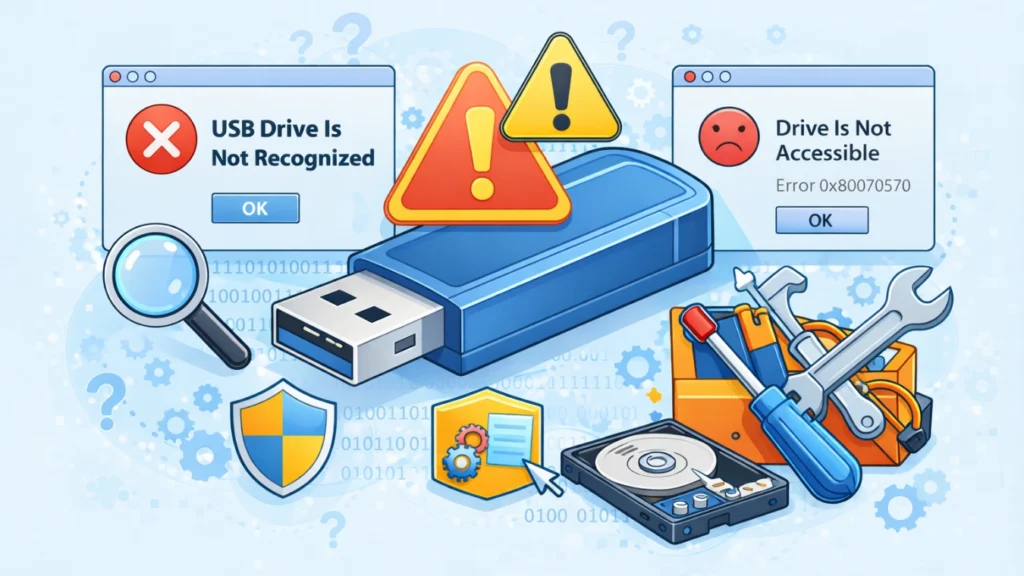
When your USB drive suddenly becomes inaccessible, it can be frustrating—especially if it contains important files. Many users search for how to fix a usb drive that is unreadable after encountering errors like “USB not recognized,” “You need to format the disk,” or a missing partition.
In most cases, the root causes include partition loss, file system corruption, or hardware connection issues. Worse, these problems often lead to data loss. This guide explains how to fix unreadable usb flash drive issues step by step and shows how to recover your data safely using reliable solutions like Magic Data Recovery.
Supports Windows 7/8/10/11 and Windows Server
Table of Contents
Common Causes of an Unreadable USB Drive
Understanding the cause helps you choose the right fix. Below are the most frequent reasons:
1. Partition Loss
If the USB partition disappears, your system may show the drive as “unallocated.” This usually happens due to improper ejection or partition table damage.
2. File System Errors
A corrupted file system (RAW format) prevents your operating system from reading the drive.
3. Virus or Malware Attacks
Malicious software can damage file structures or hide files.
4. Physical Connection Issues
Loose ports, faulty cables, or power issues can make the USB unreadable.
5. Bad Sectors
Over time, storage cells degrade, causing read/write errors.
Signs Your USB Drive Is Unreadable
You may notice the following symptoms:
- “USB device not recognized” error
- Drive shows as RAW or unallocated
- Files suddenly disappear
- System asks to format the drive
- USB appears but cannot be opened
If you see these signs, stop using the drive immediately to avoid overwriting data.
How to Fix a USB Drive That Is Unreadable
Below are proven methods to fix the issue safely.
Method 1: Check Physical Connections
Before diving into software fixes:
- Try another USB port
- Use a different computer
- Clean the USB connector
Sometimes the issue is purely hardware-related.
Method 2: Update or Reinstall USB Drivers
Outdated drivers can cause recognition problems.
Steps:
- Open Device Manager
- Locate “Universal Serial Bus controllers”
- Right-click your USB device
- Select “Update driver” or “Uninstall device”
- Restart your computer
This often resolves detection issues quickly.
Method 3: Use Disk Management to Repair Partition
If the partition is missing:
- Press Win + X → Disk Management
- Locate your USB drive
- If it shows “Unallocated,” create a new volume
⚠️ Warning: This may overwrite data. Use recovery software first if data matters.
Method 4: Fix File System Errors with CHKDSK
If your USB shows as RAW or corrupted:
chkdsk X: /f /r
Replace “X” with your USB drive letter.
This command repairs logical file system errors and recovers readable data.
Method 5: Format the USB Drive (Last Resort)
Formatting restores usability but erases data.
- Right-click the USB drive
- Select “Format”
- Choose file system (FAT32/exFAT/NTFS)
- Click “Start”
Use this only after recovering your files.
How to Recover Data from an Unreadable USB Drive
When facing data loss, the priority is recovery—not repair.
Why Data Recovery Comes First
Repair methods like formatting or partition creation can overwrite lost files. Therefore, always recover data before fixing the drive.
Recommended Solution: Magic Data Recovery
If you’re searching for a reliable way to handle how to fix unreadable usb flash drive issues while preserving data, Magic Data Recovery offers a practical solution.

What Problems It Solves
- Lost partitions
- RAW file systems
- Deleted or hidden files
- Unreadable USB drives
Key Advantages (Unique Selling Points)
- Deep scan technology for damaged drives
- Supports multiple file types (documents, photos, videos)
- User-friendly interface for beginners
- Works even when the USB is not accessible normally
Real-World Use Case
For example, if your USB suddenly shows as RAW after improper ejection, Magic Data Recovery can scan the drive and recover files before you attempt repair.
Why It’s More Reliable
Unlike manual fixes, this tool avoids further data damage. It reads sectors directly and reconstructs file structures safely.
👉 If you are dealing with critical data loss, this approach reduces risk significantly.
If you are looking for a safer and more efficient solution, consider trying Magic Data Recovery before attempting any destructive fixes.
Supports Windows 7/8/10/11 and Windows Server
Best Practices to Prevent USB Drive Issues
Prevention is always better than recovery.
- Always eject USB drives safely
- Avoid using the same USB across infected systems
- Regularly back up important data
- Use antivirus protection
- Do not interrupt file transfers
These habits reduce the risk of encountering unreadable USB problems.
Conclusion
Learning how to fix a usb drive that is unreadable is essential when facing sudden data loss. While methods like CHKDSK, driver updates, and formatting can restore functionality, they often risk overwriting valuable data.
That’s why using a dedicated recovery tool like Magic Data Recovery is a smarter first step. It helps retrieve your files safely before any repair attempt, making it a reliable solution for both beginners and advanced users.
Supports Windows 7/8/10/11 and Windows Server
FAQs
What causes a USB drive to become unreadable?
A USB drive becomes unreadable due to file system corruption, partition loss, malware attacks, or hardware issues. Improper ejection and sudden power loss are also common triggers. Identifying the root cause helps determine whether you should repair the drive or recover data first.
Can I fix an unreadable USB without losing data?
Yes, you can fix it without losing data if you recover files first. Using data recovery tools allows you to extract files before applying fixes like formatting or partition repair. Skipping this step increases the risk of permanent data loss.
Is CHKDSK safe for fixing USB drives?
CHKDSK can repair file system errors, but it may modify file structures. In some cases, it can cause partial data loss. It is safer to recover important files first before running CHKDSK on an unreadable USB drive.
Why does my USB show as RAW?
A USB shows as RAW when its file system becomes corrupted or unreadable. This can happen due to improper removal, virus infections, or interrupted data transfers. The system cannot recognize the file structure, making the drive inaccessible.
How do I recover data from a corrupted USB drive?
You can recover data using specialized recovery software that scans the USB at a sector level. These tools rebuild file structures and allow you to preview and restore files before fixing the drive itself.
Should I format my unreadable USB drive?
Formatting should be your last option. While it restores usability, it deletes all data. Always attempt data recovery first, especially if the files are important or irreplaceable.
Can a physically damaged USB be repaired?
Physical damage is harder to fix. In some cases, professional repair services are required. However, if the damage is minor, recovery software may still access readable sectors and retrieve data.
How can I prevent USB drive corruption in the future?
To prevent corruption, always eject drives safely, avoid using infected systems, and back up data regularly. Keeping your system updated and using antivirus software also reduces the risk of file system damage.

Jason is a data recovery and technical support specialist with over 15 years of hands-on experience. He has worked extensively with frontline users, troubleshooting difficult data loss cases and providing practical recovery solutions for accidental deletion, formatted drives, damaged file systems, lost partitions, system failures, and other recovery emergencies. His expertise also includes backup and restoration, file repair, and disaster recovery, with a strong emphasis on safe, reliable, and technically accurate guidance.