
BlueHammer Vulnerability: Fix, Prevent & Recover
The BlueHammer vulnerability is currently one of the most concerning Windows security risks. It allows attackers to escalate privileges and gain SYSTEM-level access. As a result, sensitive data becomes exposed, and files may be deleted or corrupted.
However, most guides only describe the issue. In contrast, this article focuses on solutions. Specifically, it explains how to fix the BlueHammer vulnerability, how to prevent future attacks, and how to recover data from hard drives with Magic Data Recovery if damage already occurs.
Supports Windows 7/8/10/11 and Windows Server
Table of Contents
What Is the BlueHammer Vulnerability
The BlueHammer vulnerability is a local privilege escalation flaw in Windows. In simple terms, it allows a low-level user or malicious program to gain full control of the system.
Key characteristics:
- Targets system-level processes
- Exploits timing issues (race conditions)
- Grants access to sensitive files and credentials
Therefore, even limited access can quickly become a serious threat.
How the BlueHammer Vulnerability Works
Understanding the mechanism helps you apply the right protection.
Attack process:
- A malicious file executes locally
- A race condition occurs during system operations
- Security validation is bypassed
- SYSTEM privileges are obtained
Consequently, attackers can access protected areas and extract critical data.
How to Fix the BlueHammer Risk on a Windows PC
Although there is no permanent one-click fix for BlueHammer, you can still reduce the attack surface right away. The key is to remove easy privilege escalation paths, harden Windows settings, and protect your files before anything goes wrong.
Method 1: Remove Unnecessary Administrator Accounts
The first step is to reduce the number of accounts that can make system-level changes. If too many accounts have administrator rights, an attacker has a much easier path to full control.
Steps:
1. Press Windows + I to open Settings.
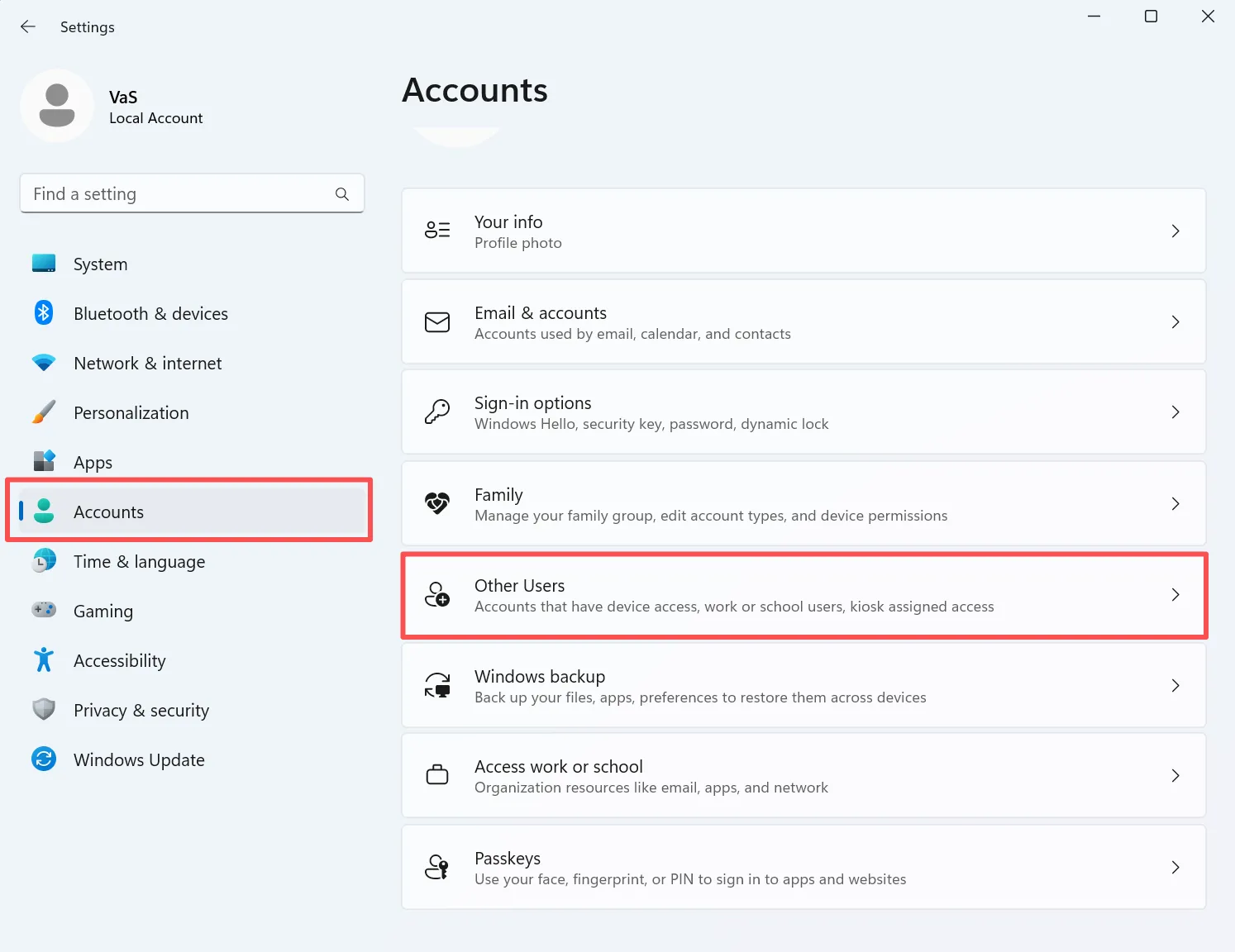
2. Go to Accounts > Other users.
3. Review every local account listed on the device.
4. Check which accounts have Administrator rights.
5. Change unnecessary admin accounts to Standard User.
6. Keep only the account that truly needs admin access.
Why this helps:
BlueHammer is a local privilege escalation issue. Therefore, reducing privileged accounts makes it harder for an attacker to move from limited access to full SYSTEM-level control.
Common mistake to avoid:
Do not remove the only administrator account on the PC. Always make sure at least one trusted admin account remains available.
Method 2: Stop Using an Admin Account for Daily Work
Many users stay signed in with an administrator account all day. That habit increases risk because any malicious file they open can run with more power than it should.
Steps:
1. Open Settings > Accounts > Your info.
2. Confirm whether your current account is an administrator.
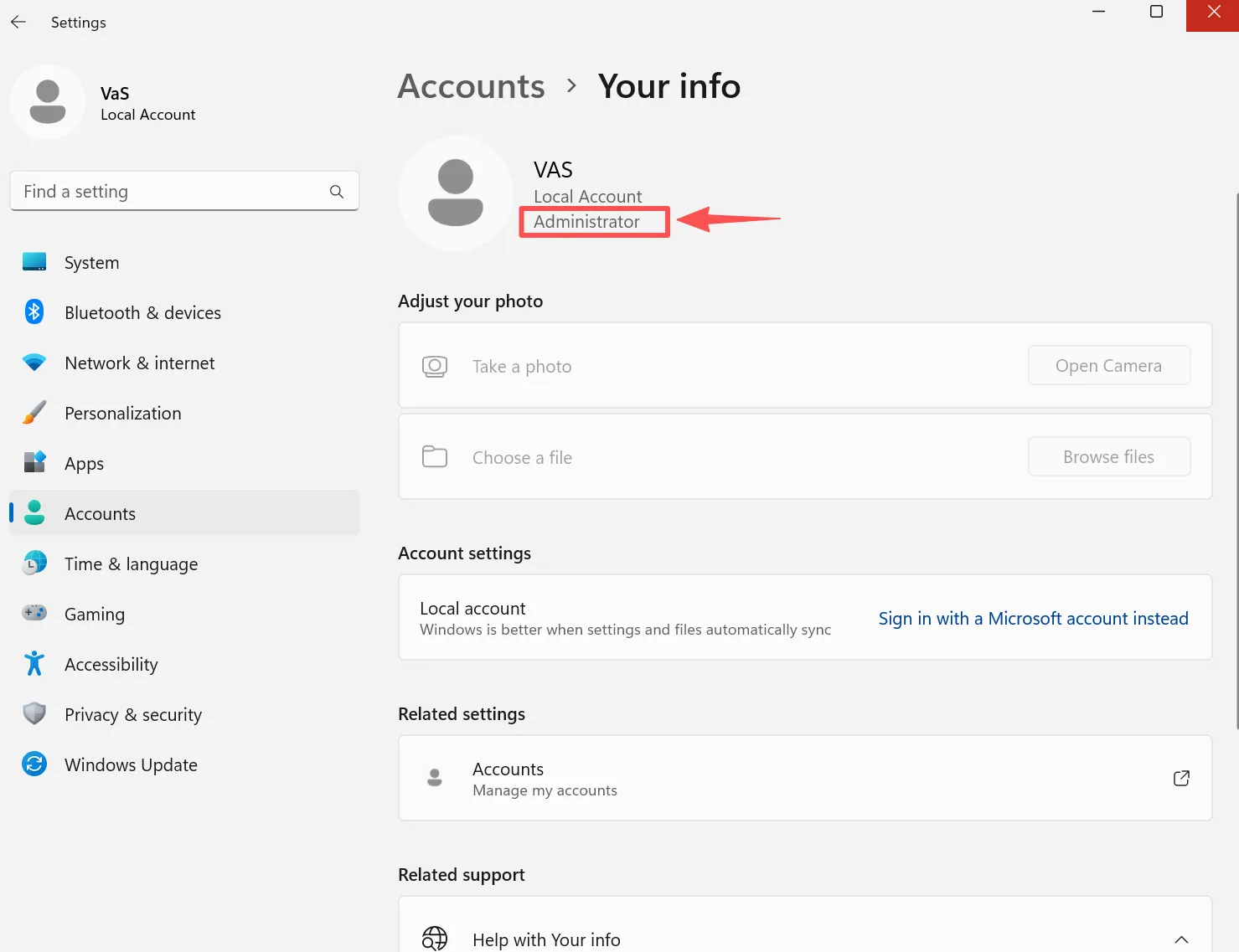
3. If it is, create a separate standard account for daily use.
4. Go to Accounts > Other users > Add account.
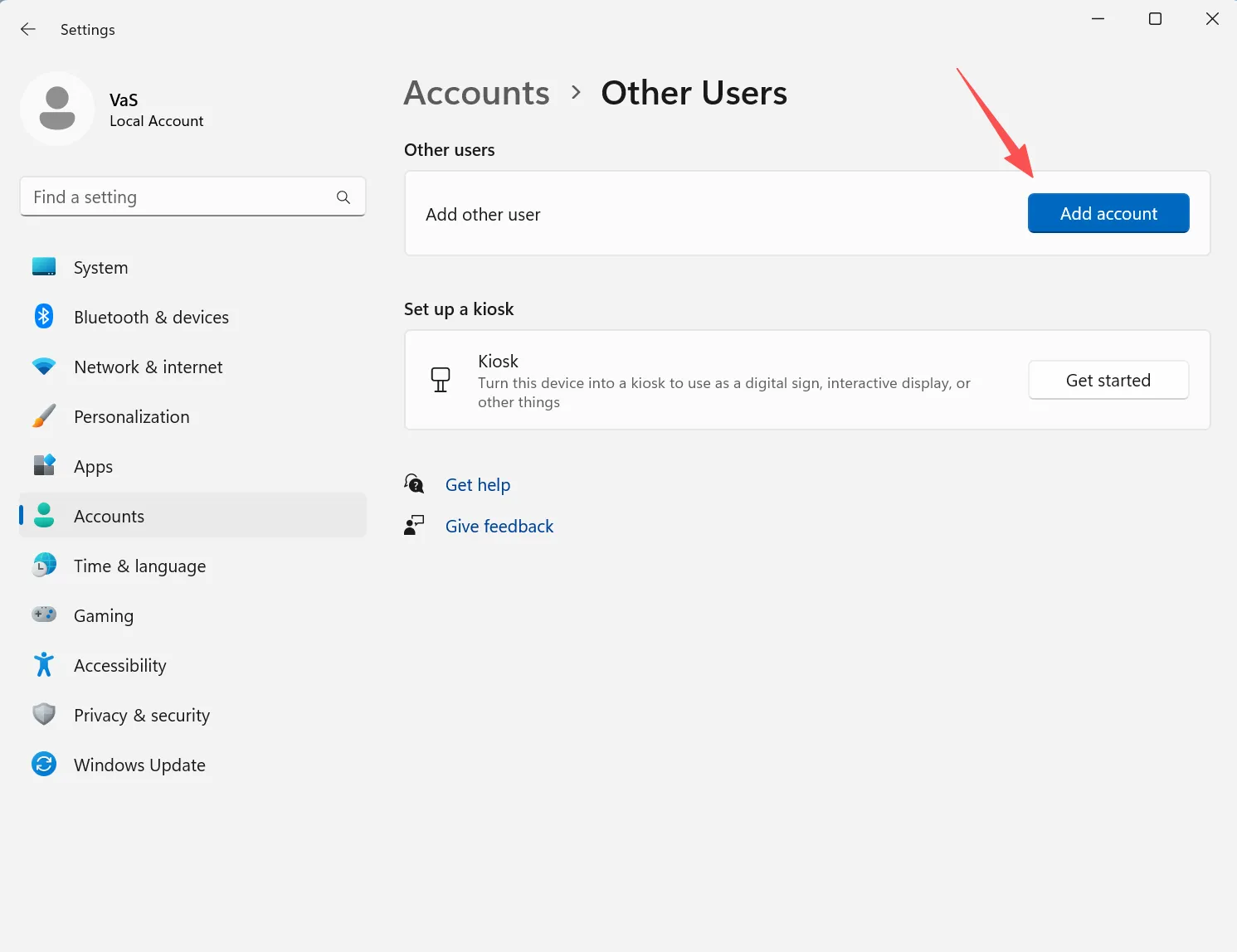
5. Create a new local or Microsoft user account.
6. Set that account as Standard User.
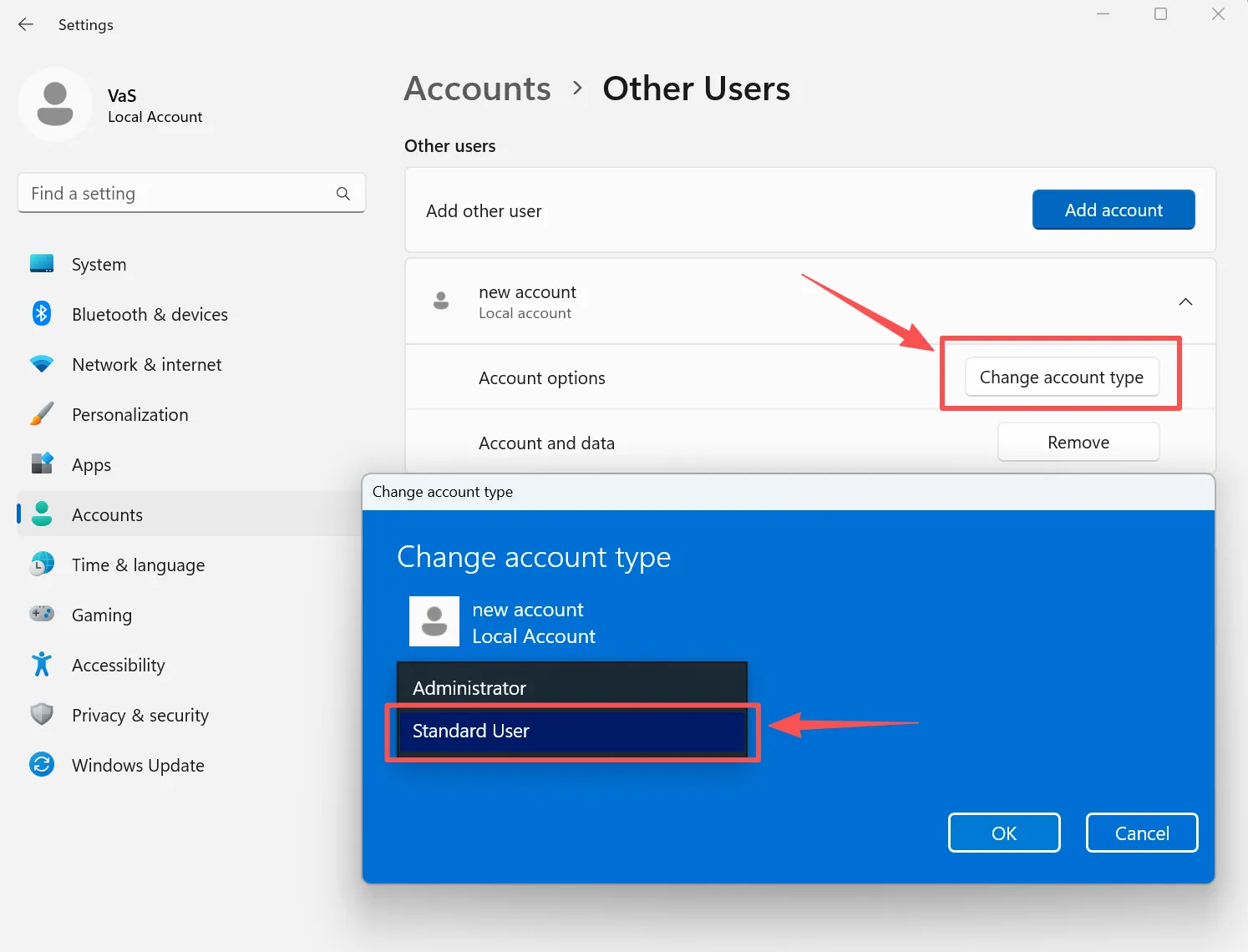
7. Use the standard account for browsing, email, and downloads.
8. Only switch to the admin account when Windows asks for elevated permission.
Why this helps:
This method limits the damage if a suspicious file or script runs on the machine.
Method 3: Install Windows Security Updates and Defender Updates
Even if Microsoft has not released a full patch yet, partial mitigations, detection improvements, or related hardening changes may already exist. That is why updating the system is essential.
Steps:
1. Press Windows + I and open Settings.
2. Click Windows Update.
3. Select Check for updates.
4. Install all available security and quality updates.
5. Restart the computer if Windows requests it.
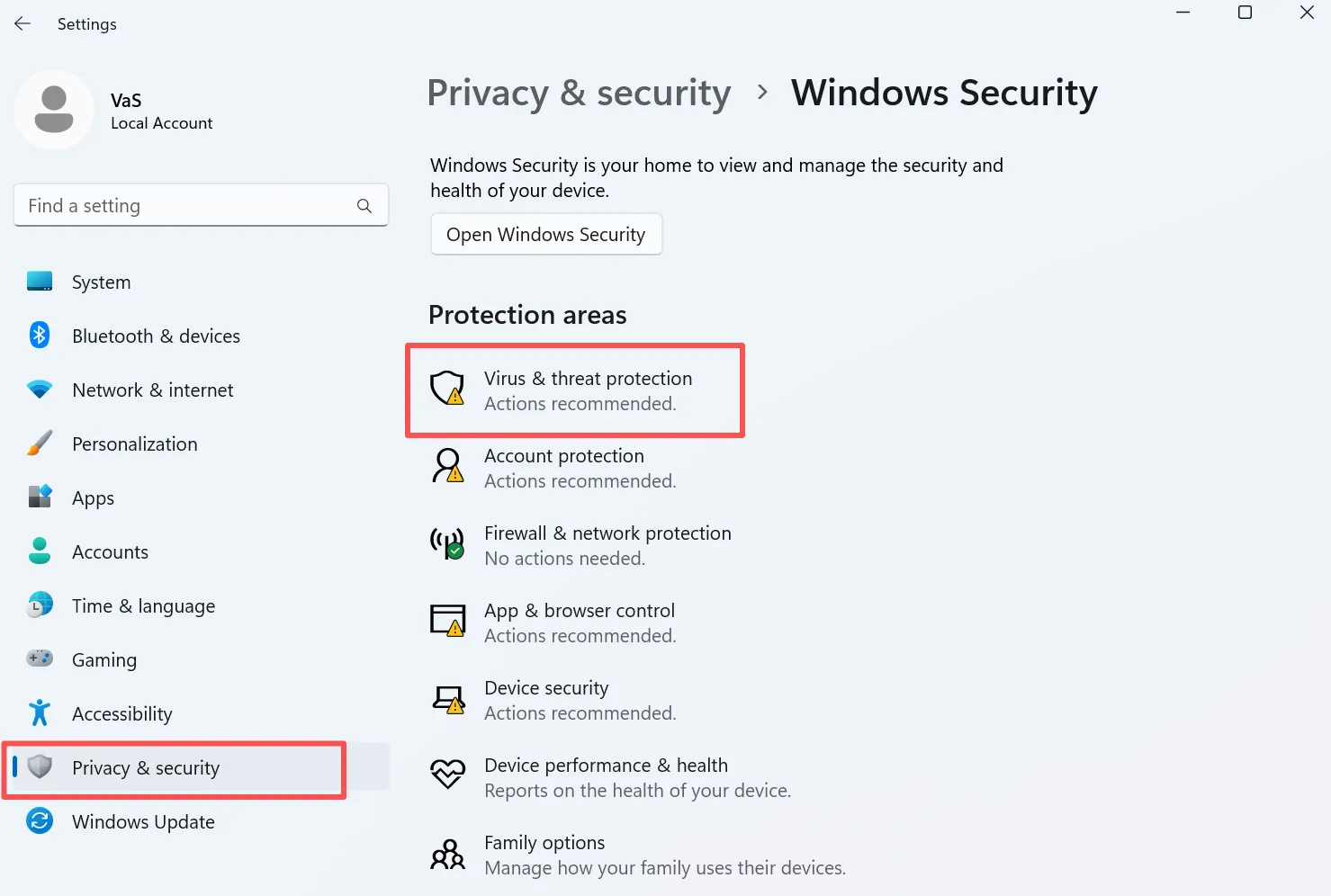
6. Then open Privacy & security — Windows Security.
7. Go to Virus & threat protection.
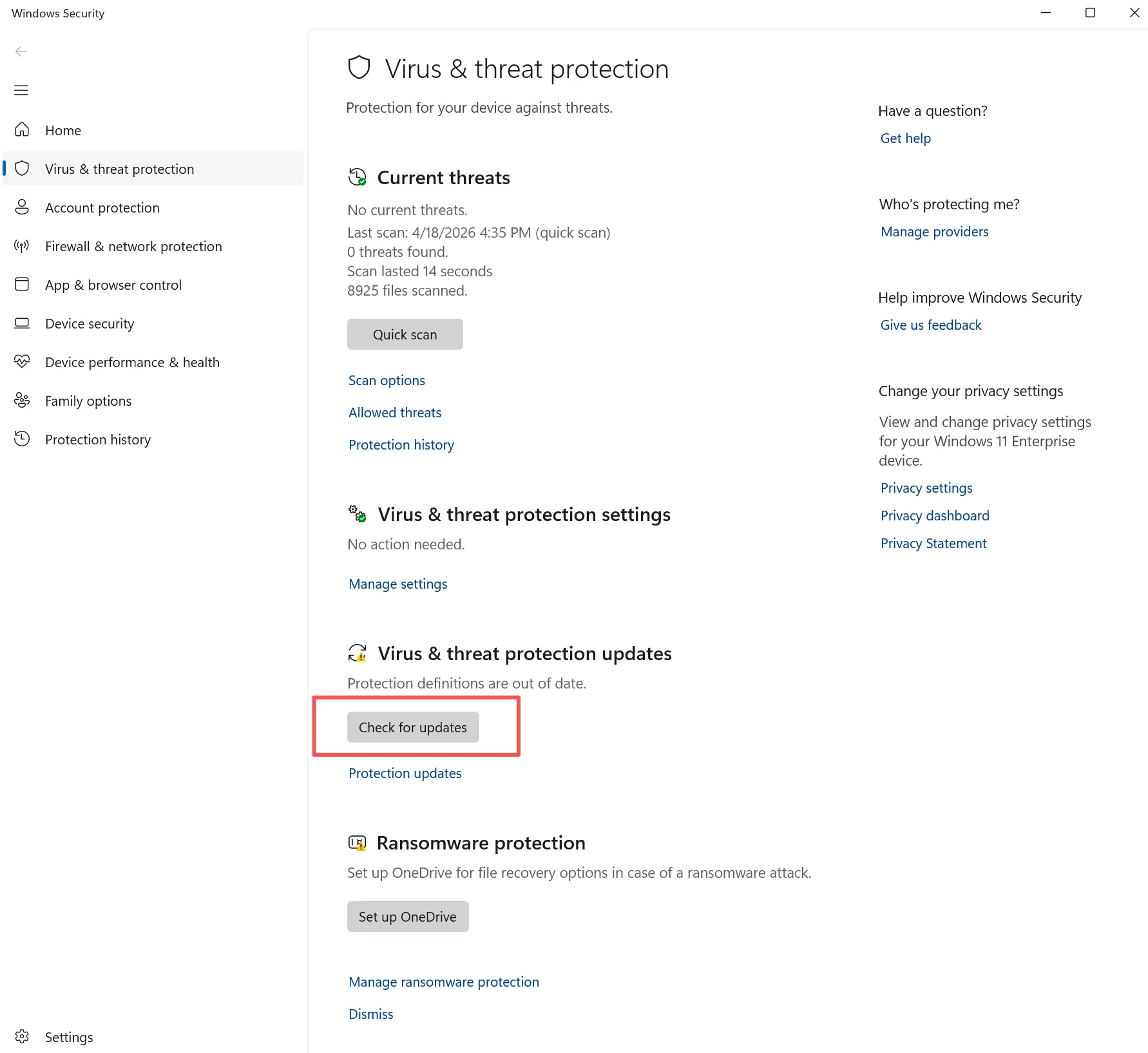
8. Under protection updates, click Check for updates.
9. Install the latest Microsoft Defender intelligence updates.
Why this helps:
Attackers often move faster than users. Therefore, delayed updates increase exposure.
Common mistake to avoid:
Do not install updates and then postpone the restart for days. Many security changes only apply after reboot.
Method 4: Check for Suspicious Startup Programs
If an attacker already placed a malicious helper process on the system, it may start automatically whenever Windows boots. Removing unknown startup items reduces persistence.
Steps:
1. Press Ctrl + Shift + Esc to open Task Manager.
2. Click the Startup apps tab.
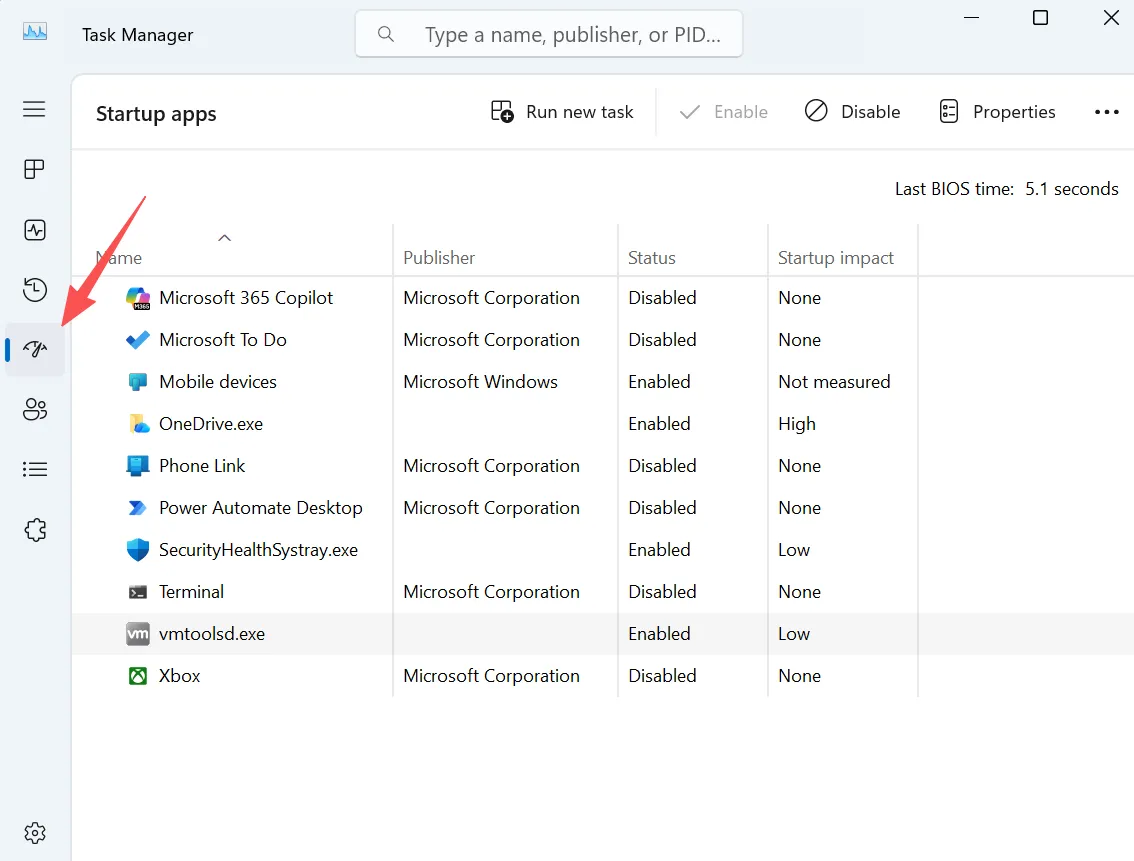
3. Review the full list carefully.
4. Look for programs with:
- unfamiliar names
- no publisher information
- unusually high startup impact
5. Right-click suspicious entries and choose Disable.
6. If you are unsure, search the exact program name before removing it completely.
Why this helps:
Privilege escalation attacks often rely on persistence tools or secondary payloads.
Method 5: Disable Unneeded Services and Scheduled Tasks
Unused services and scheduled tasks can expand the attack surface. Cleaning them up makes the system easier to monitor and harder to abuse.
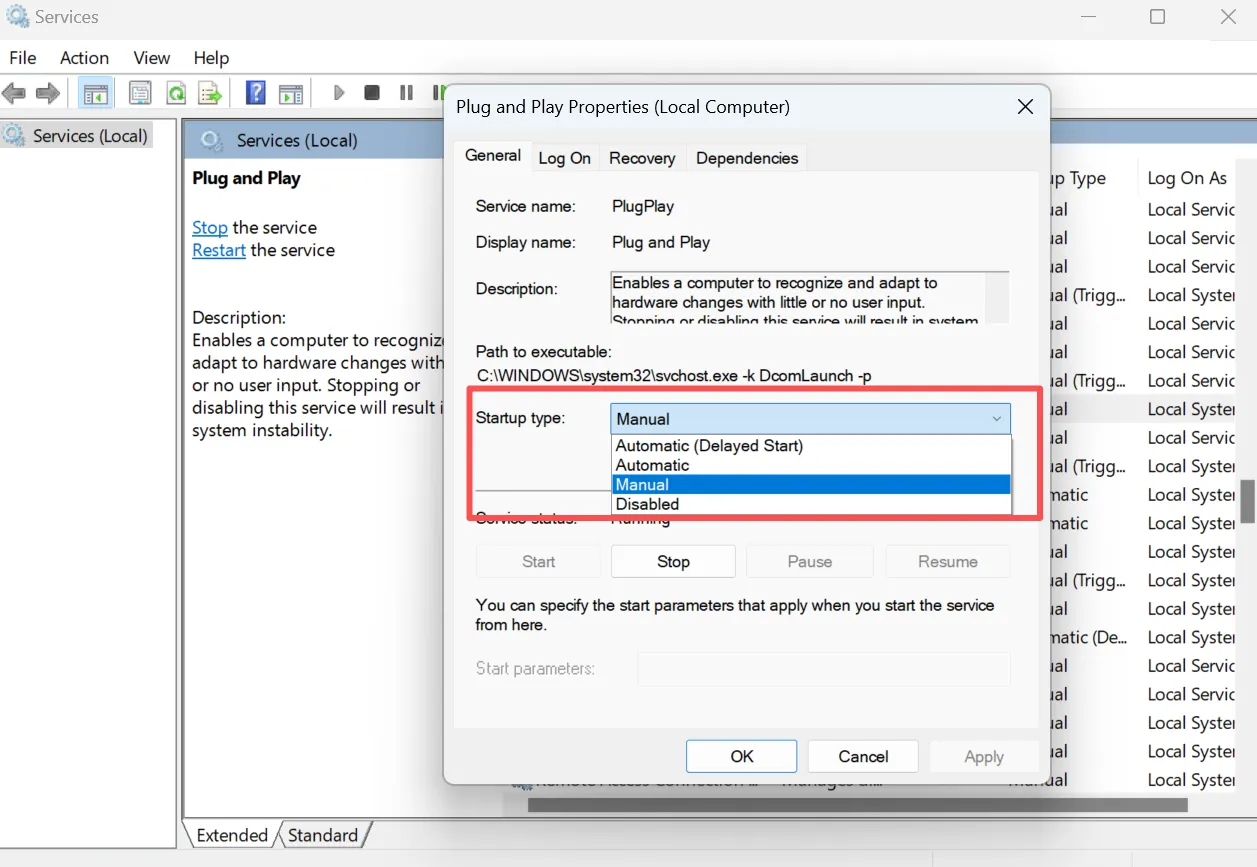
Steps for services:
1. Press Windows + R.
2. Type services.msc and press Enter.
3. Review the list of services.
4. Identify services you do not use or do not recognize.
5. Double-click a service to open its properties.
6. If you confirm it is unnecessary, change Startup type to Manual or Disabled.
7. Click Apply and OK.
Steps for scheduled tasks:
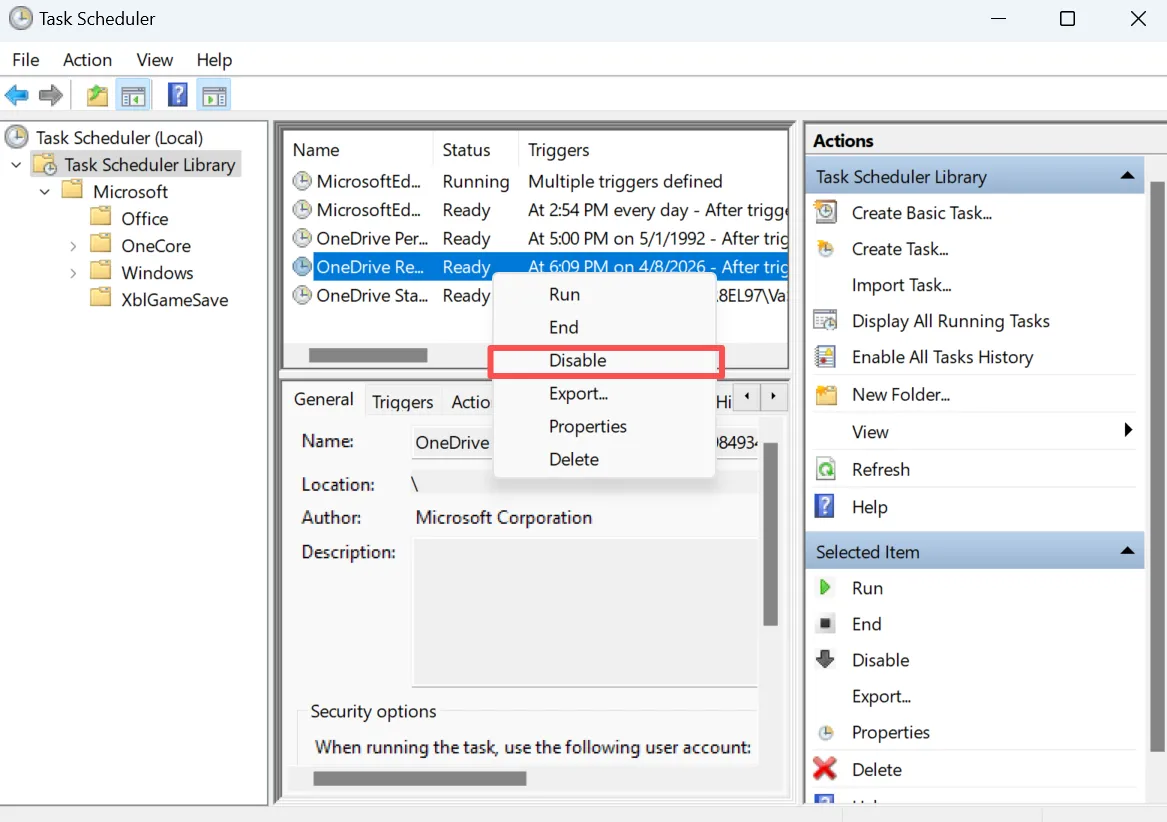
1. Press Windows + S and search for Task Scheduler.
2. Open it and review Task Scheduler Library.
3. Look for tasks with strange names, unknown publishers, or odd trigger times.
4. Click a task and review:
- Triggers
- Actions
- Author
5. Disable suspicious or unnecessary tasks only after checking what they do.
Why this helps:
Attackers may use tasks or background services to relaunch tools after login or reboot.
How to Prevent BlueHammer Attacks Before They Start
Preventing the BlueHammer vulnerability requires both user awareness and system-level protection. Fixing risk is only one part of the job. You also need to prevent future abuse. The methods below are practical for ordinary users and small businesses.
Method 1: Block Unknown Downloads and Email Attachments
Many attacks start when a user opens the wrong file. Therefore, prevention begins with file handling habits.
Steps:
1. Do not open attachments from unknown senders.
2. Be careful with files ending in:
- .exe
- .bat
- .cmd
- .scr
- .js
3. If an email asks you to “enable content” or “run this file,” stop and verify the sender first.
4. Download software only from official vendor sites.
5. Avoid cracked tools, repacks, and unofficial installers.
Why this helps:
A local privilege escalation exploit still needs an entry point. Unsafe downloads often provide that entry point.
Method 2: Turn On Core Windows Security Features
Many users leave built-in protections at default settings without checking whether they are actually enabled.
Steps:
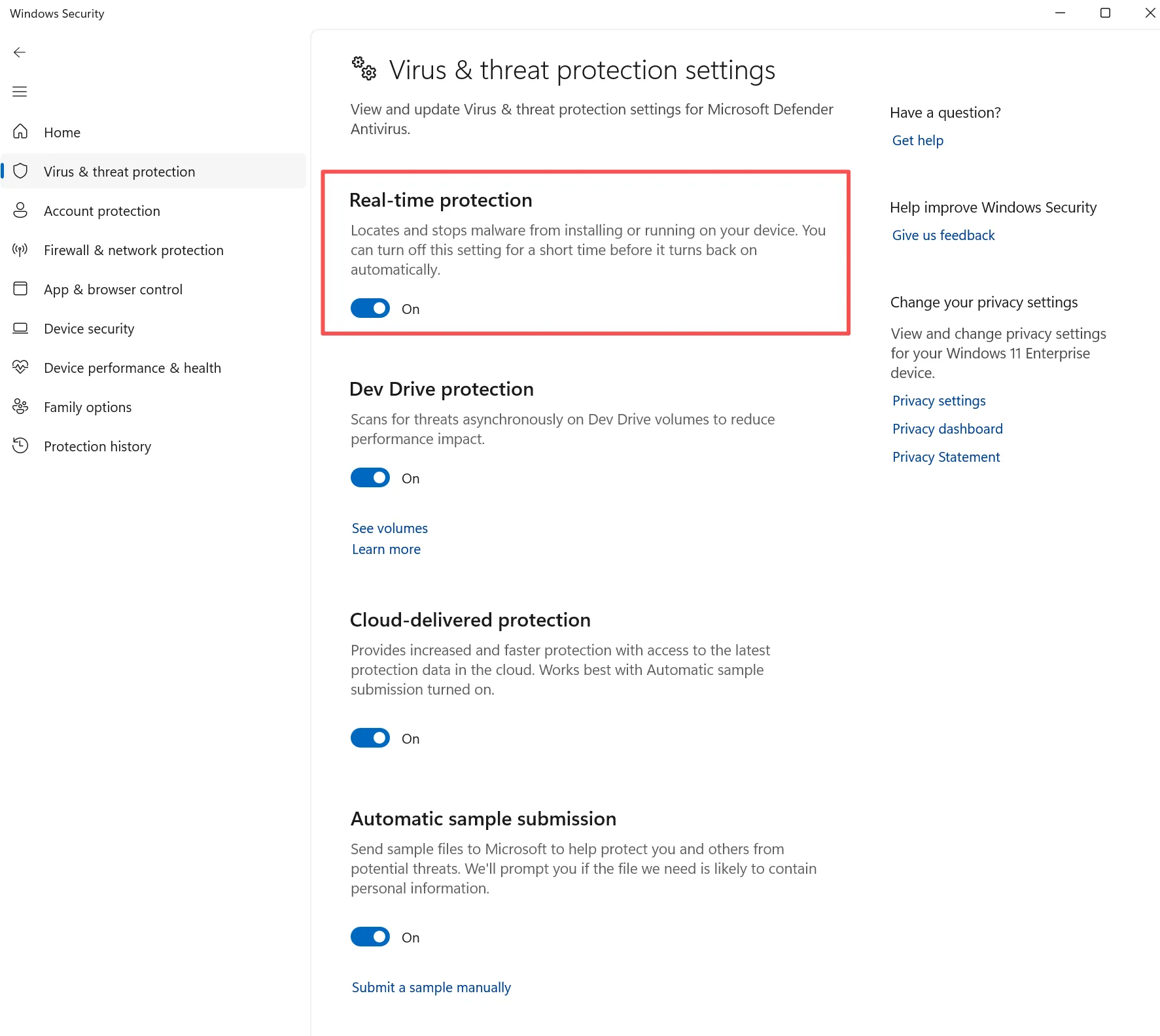
1. Open Windows Security.
2. Click Virus & threat protection.
3. Check Virus & threat protection settings, and Confirm that Real-time protection is turned on.
4. Go to App & browser control.
5. Turn on reputation-based protection options if they are available.
6. Open Device security.
7. Confirm that core isolation and related protections are active where supported.
Why this helps:
These settings help block suspicious behavior before an exploit chain fully develops.
Method 3: Review Windows Defender Logs for Unusual Activity
Since BlueHammer discussions often mention abuse around Defender-related behavior, log review becomes a useful preventive check.
Steps:
1. Press Windows + S and search for Event Viewer.
2. Open Event Viewer.
3. Expand Applications and Services Logs.
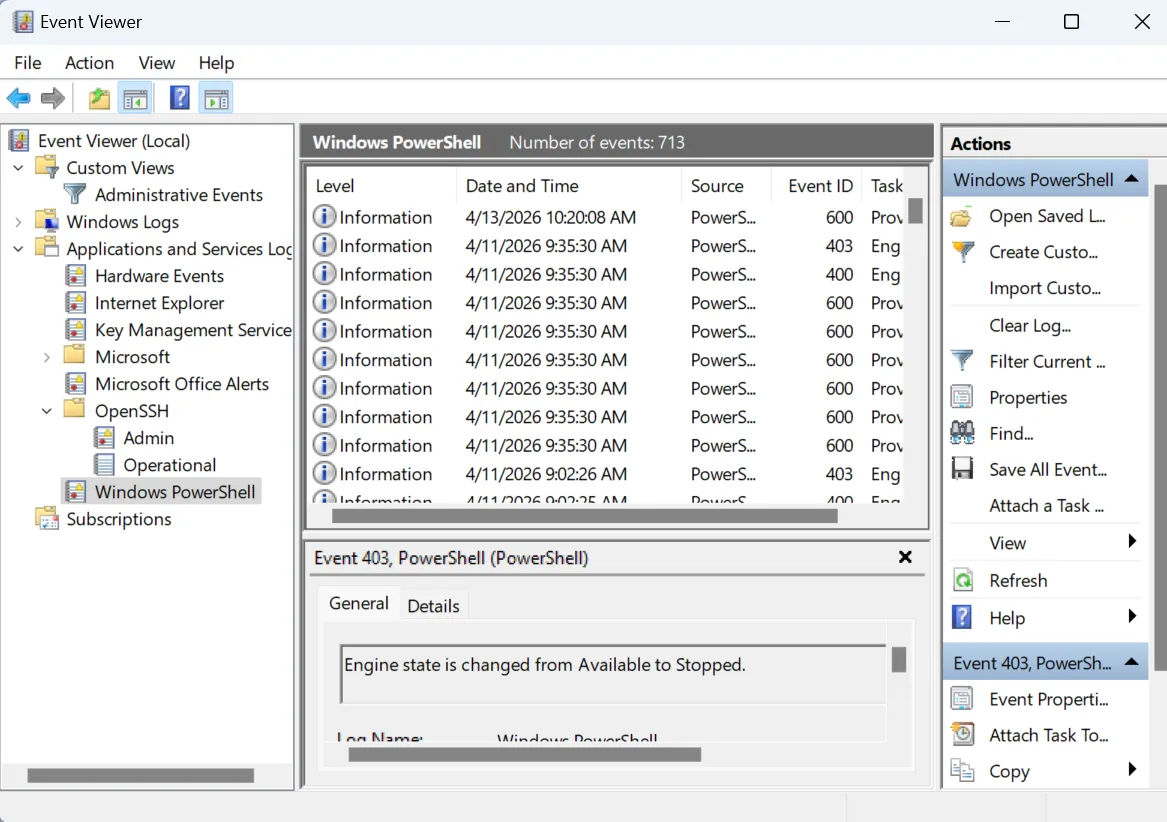
4. Navigate to Microsoft-related security and Defender event categories.
5. Review recent warnings, errors, or unusual repeated events.
6. Look for activity that appears at strange times or repeats abnormally.
7. If you notice unknown file paths or repeated failures, investigate them immediately.
What to look for:
- repeated security events in a short period
- unknown executable paths
- unusual scans or triggered actions you did not start
Why this helps:
Even if you cannot manually stop the exploit itself, early detection can prevent further damage.
Method 4: Create an Offline Backup Before Trouble Happens
A backup is not the same as a recovery plan, but it is your strongest safety net.
Steps:
1. Connect an external drive that is clean and trusted.
2. Copy your most important folders first:
- Desktop
- Documents
- Pictures
- project files
- business records
3. Disconnect the backup drive after the backup finishes.
4. Optionally upload another copy to a cloud storage account.
5. Do not leave the backup drive connected all the time if you are worried about malware.
Why this helps:
If an exploit leads to file deletion, encryption, or corruption, a clean backup saves time and reduces panic.
What to Do If You Think BlueHammer Already Caused Data Loss
Sometimes prevention fails. If the BlueHammer vulnerability has already caused damage, recovery becomes the next critical step. Many users make the mistake of installing tools, copying new files, or repeatedly restarting the computer. Unfortunately, those actions can overwrite recoverable data.
Method 1: Stop Using the Affected Drive Immediately
Steps:
- Stop saving new files to the affected partition.
- Do not install recovery software on the same drive where files were lost.
- Do not copy large files onto that drive.
- If possible, close unnecessary programs that write temp data.
Why this helps:
Deleted files often remain recoverable until new data overwrites their original sectors.
Method 2: Scan the Drive with Magic Data Recovery
If files disappeared after suspicious system activity, malware behavior, or a failed fix attempt, a dedicated recovery tool is usually more reliable than built-in repair options.
Magic Data Recovery is a practical solution because it can scan lost partitions, deleted files, and damaged file system structures without requiring advanced technical knowledge.
Steps:
1. Download and install Magic Data Recovery on a different drive.
Supports Windows 7/8/10/11 and Windows Server
2. Launch the software and select the partition where the files were lost.

3. Start the scan and wait for the program to build the recoverable file list. It runs Advanced Scan automatically and will list all the files after the scan.

4. Preview the files to confirm they are the correct ones. You can just select the files you need.

5. Recover the files to another safe location, not the original partition.

Why this method is more reliable:
Windows repair tools focus on making the system usable again. However, they do not specialize in restoring deleted data. Magic Data Recovery works from the recovery side first, which is often the safer approach when important files are missing.
BlueHammer Vulnerability vs Other Windows Exploits
Threat | Type | Impact |
BlueHammer | Privilege escalation | SYSTEM access |
PrintNightmare | Remote execution | Network spread |
Zerologon | Authentication bypass | Domain takeover |
Clearly, the BlueHammer vulnerability remains highly accessible and dangerous.
Conclusion
The BlueHammer highlights how quickly modern threats can escalate from minor access to full system control. Although no complete fix is available yet, users can still reduce risk significantly by applying practical mitigation steps and strengthening daily security habits. Therefore, focusing on a proper bluehammer vulnerability fix strategy is essential, especially when combined with consistent monitoring and controlled user permissions.
At the same time, prevention alone is not enough. Even well-protected systems can experience unexpected issues, particularly when new exploits emerge. As a result, preparing for data loss becomes just as important as preventing attacks. In real-world scenarios, users often face missing or corrupted files after a security incident, which means HDD recovery tools play a critical role.
For this reason, solutions like Magic Data Recovery provide additional security beyond prevention. Instead of attempting risky repairs first, users can safely recover important files and avoid permanent loss. Ultimately, combining prevention, mitigation, and recovery ensures a more resilient response to the BlueHammer vulnerability and similar threats in the future.
Supports Windows 7/8/10/11 and Windows Server
FAQs About BlueHammer Vulnerability
Is the BlueHammer vulnerability fixed?
Currently, no full patch exists. However, updates and mitigation steps can reduce risk. Therefore, users should apply security updates and limit privileges immediately.
Can antivirus stop BlueHammer attacks?
Antivirus tools may detect related threats. However, they cannot fully block the exploit. Therefore, combining multiple security measures provides better protection.
What files are most at risk?
Sensitive files such as credentials and documents are most vulnerable. Attackers often target these to gain further access or deploy additional malware.
How do I detect an attack?
Look for unusual system behavior, missing files, or unexpected privilege changes. Additionally, checking system logs helps identify suspicious activity early.
Can I recover missing files?
Yes, recovery is possible if data is not overwritten. Using a dedicated recovery tool like Magic Data Recovery increases the chances of successful file restoration.
What is the best prevention strategy?
Use layered protection. Combine updates, limited privileges, monitoring, and backups. This approach significantly reduces both risk and damage.

Vasilii is a data recovery specialist with around 10 years of hands-on experience in the field. Throughout his career, he has successfully solved thousands of complex cases involving deleted files, formatted drives, lost partitions, and RAW file systems. His expertise covers both manual recovery methods using professional tools like hex editors and advanced automated solutions with recovery software. Vasilii's mission is to make reliable data recovery knowledge accessible to both IT professionals and everyday users, helping them safeguard their valuable digital assets.