
Overwritten Excel File Recovery: What Actually Works
Accidentally saving over an important Excel file is one of the most frustrating data loss scenarios. Unlike deleted files, overwritten data often seems permanently gone. Therefore, many users search for overwritten excel file recovery solutions hoping to reverse the mistake.
However, not all Excel recovery methods actually work in this situation. Some guides list generic solutions without explaining when recovery is possible. As a result, users waste time trying ineffective methods.
In this guide, you will learn what truly works for overwritten files, when recovery is possible, and how to choose the most reliable approach. Additionally, we will introduce a practical tool—Magic Data Recovery—that helps recover earlier file versions when standard methods fail.
Supports Windows 7/8/10/11 and Windows Server
Table of Contents
Can Overwritten Excel File Recovery Really Work?
Before trying any method, you should understand the reality. In most cases, excel file recovery depends on how the overwrite occurred. Therefore, not every situation leads to the same outcome.
For example, replacing a file differs from editing and saving it again. Consequently, recovery chances vary.
Scenario | Recovery Chance |
Version history exists | High |
AutoRecover available | Medium |
File replaced | Limited |
Full overwrite | Very low |
Thus, overwritten files recovery only works when the system has not completely replaced the original data.
Overwritten Excel File Recovery Scenarios You Must Identify
To improve results, you must first identify your situation. Different scenarios require different solutions. Therefore, skipping this step often leads to failure.
File Replaced – Easier Excel Overwritten File Recovery Case
Sometimes users save a new file using the same name. In this case, the system may keep older versions. Therefore, checking version history becomes the first step.
Ctrl + S Overwrite – Typical Overwritten Excel File Recovery Scenario
This situation occurs frequently. You edit a file and press save. As a result, Excel replaces the original content immediately.
Therefore, overwritten file recovery becomes harder because no automatic backup exists.
Cloud Version Overwrite – Higher Success Rate
If you use cloud storage, recovery becomes easier. For example, OneDrive and Google Drive store version history automatically. Therefore, restoring earlier versions often takes only a few clicks.
Disk Overwrite – Lowest Recovery Probability
In contrast, overwriting disk replaces disk sectors directly. Consequently, overwritten file recovery becomes extremely difficult. However, partial recovery may still work if some sectors remain untouched.
How to Perform Overwritten Excel File Recovery Step by Step
Now that you understand the scenarios, you can apply the correct method. Additionally, combining methods often improves results.
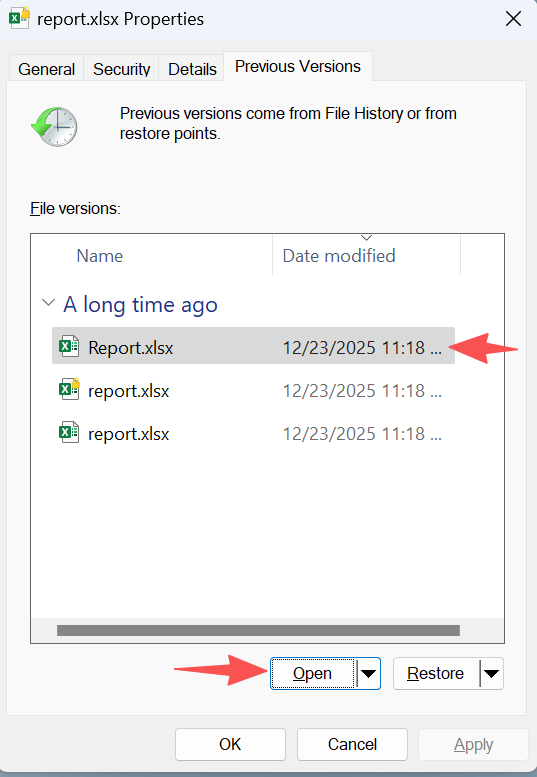
Method 1 – Restore Previous Versions for Overwritten Excel File Recovery
This method works best when version history exists.
Steps:
- Right-click the Excel file
- Select “Properties”
- Open “Previous Versions”
- Choose a version
- Click “Restore”
Method 2 – Use AutoRecover for Excel Overwritten File Recovery
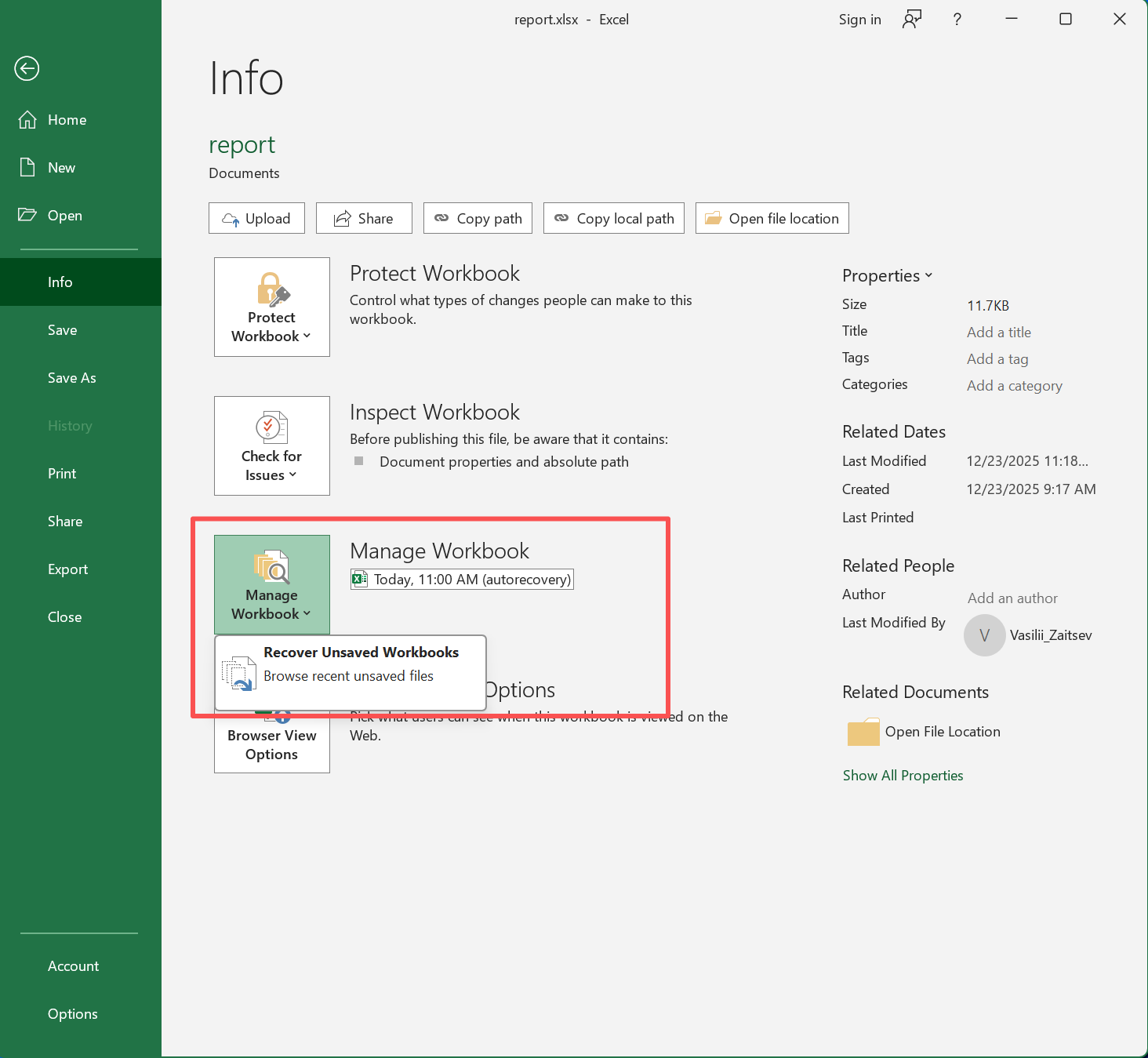
Excel automatically saves temporary versions. Therefore, checking AutoRecover should be your next step.
Steps:
- Open Excel
- Go to “File” → “Info”
- Click “Manage Workbook”
- Select “Recover Unsaved Workbooks”
Additionally, these files usually appear as .xlsb.
Method 3 – Check Temporary Files
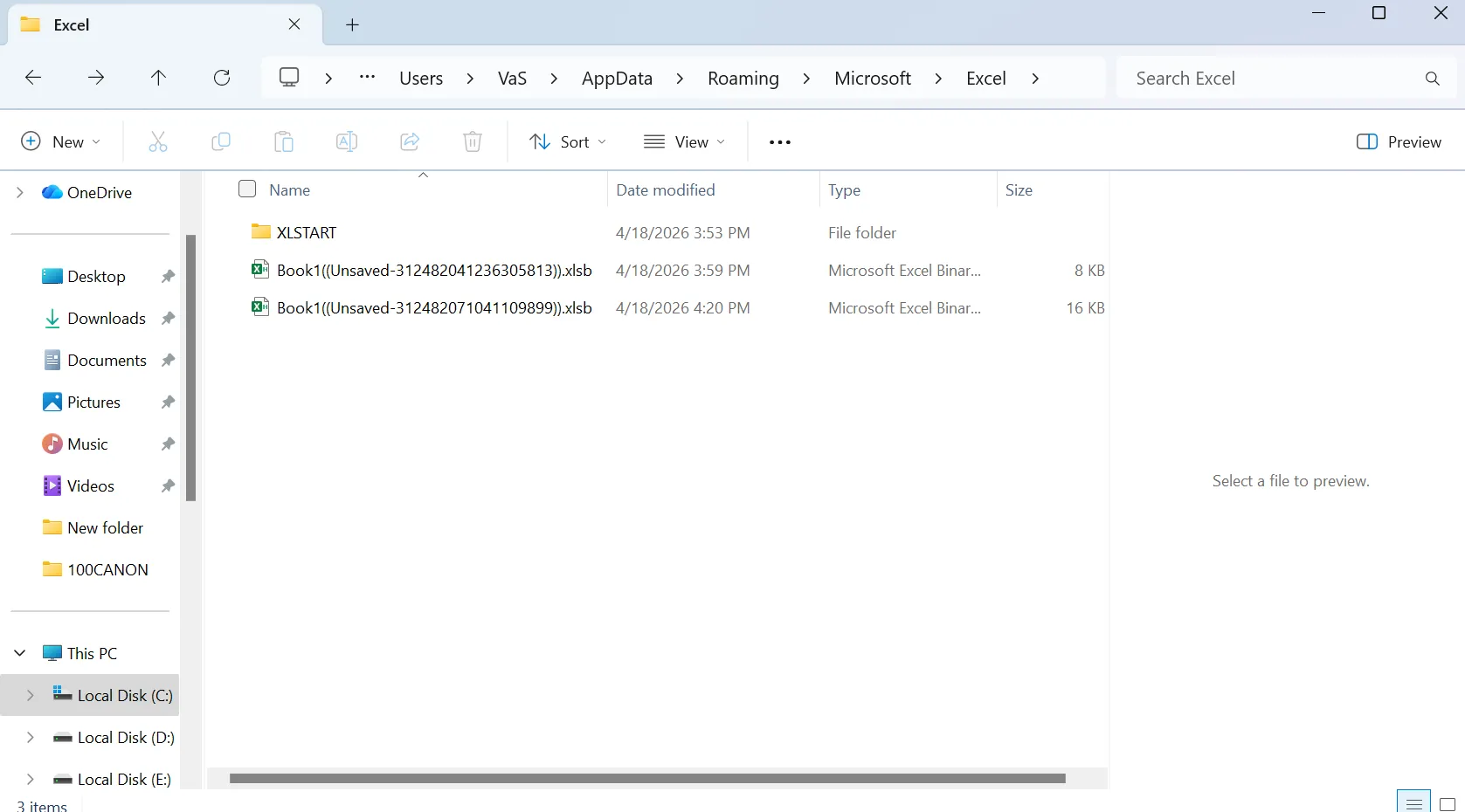
Sometimes Excel stores backup data in hidden folders. Therefore, manual searching may help.
Steps:
- Press Win + R
- Enter
%appdata%\Microsoft\Excel\ - Search for temporary files
However, this method only works if Excel created a temporary copy before the overwrite.
Method 4 – Use Magic Data Recovery for Excel File Overwritten Recovery
When built-in solutions fail, you need a deeper approach. At this point, Magic Data Recovery becomes essential for excel file recovery.
Why Magic Data Recovery Improves Overwritten Excel File Recovery
Traditional methods depend on backups. In contrast, Magic Data Recovery scans disk data directly and find previous version. Therefore, it works even when no version history exists.
How to Use Magic Data Recovery for Overwritten Excel File Recovery
When built-in methods no longer work, using a professional tool becomes the most practical step. Therefore, Magic Data Recovery provides a clear and structured process to recover previous verseions for overwritten data, even in complex scenarios.
Step 1 – Download and Install Magic Data Recovery
First, download and install the software on a different drive. This step is important because installing it on the same drive may overwrite recoverable data.
Supports Windows 7/8/10/11 and Windows Server
Step 2 – Select the Location to Scan
After launching the program, you will see all available drives and partitions. Then, select the location where the Excel file was overwritten. Next, start the scan to begin searching for recoverable data.

Step 3 – Perform Advanced Scan
The software automatically performs an Advanced Scan. Meanwhile, it analyzes raw disk sectors to locate file fragments. Therefore, this step is essential to find a previous version for overwritten data.

Step 4 – Preview and Recover the Excel File
Once the scan finishes, you can browse all recoverable files. Then, use the preview function to verify the Excel file content before recovery. Finally, select the correct version and restore it to a safe location.

Key Advantages for Excel Overwritten File Recovery
- Advanced Scan Technology
It scans raw disk sectors instead of relying on file records.
- Earlier Version Detection
It identifies recoverable fragments created before overwrite.
- Works on Damaged Drives
It supports RAW and corrupted partitions.
- Preview Before Recovery
It allows file verification before restoring data.
Practical Example
For instance, a user overwrote a budget spreadsheet. No backup existed. However, Magic Data Recovery scanned the disk and detected an earlier version stored in unallocated space.
Why It Outperforms Standard Methods
Unlike built-in tools, this solution does not rely on system settings. Instead, it analyzes raw storage data. Consequently, it improves success rates in difficult overwritten file recovery cases.
When Overwritten Excel File Recovery Will Fail
Although many methods exist, recovery has limits. Therefore, understanding failure scenarios prevents wasted effort.
Recovery usually fails when:
- The system fully overwrites original sectors
- The drive continues heavy usage
- SSDs which enabled TRIM completely removes lost data
Technical Explanation
When you overwrite a file, the system assigns the same storage sectors to new data. As a result, the original content disappears. However, partial recovery still works if some sectors remain unchanged.
Best Overwritten Excel File Recovery Tool Comparison
Choosing the right Excel recovery tool improves efficiency. Therefore, comparing options helps decision-making.
| Tool | Raw Sector Scan | Detect Pre-overwrite Versions | Works Without File System | Ease of Use |
| Magic Data Recovery | ✅ Advanced | ✅ Yes | ✅ Yes | High |
| EaseUS | ✅ Yes | ⚠️ Partial | ⚠️ Partial | Very High |
| Disk Drill | ✅ Strong | ⚠️ Partial | ✅ Yes | High |
| Recoverit | ✅ Yes | ⚠️ Partial | ✅ Yes | High |
| Stellar | ✅ Yes | ⚠️ Partial | ✅ Yes | Medium |
| AOMEI | ⚠️ Basic | ❌ No | ❌ Limited | High |
Thus, while no tool guarantees success, advanced scanning improves outcomes significantly.
Tips to Avoid Overwritten Excel File Recovery Problems
Prevention reduces risk. Therefore, adopting better habits protects your data.
Practical Tips
- Enable AutoSave whenever possible
- Use cloud storage with version history
- Save multiple file versions
- Back up critical data regularly
- Avoid editing original files directly
Conclusion
Overwritten excel file recovery depends on timing, system behavior, and available backups. While built-in methods work in simple scenarios, they often fail when no backup exists.
In contrast, Magic Data Recovery provides a more advanced approach by scanning raw disk sectors and detecting recoverable fragments. Therefore, it offers a practical solution for complex overwritten file recovery cases.
If you need a reliable and effective Excel recovery method, this tool remains one of the best options available.
Supports Windows 7/8/10/11 and Windows Server
FAQ
Can overwritten excel file be recovered after saving?
Yes, but success depends on the situation. If the system keeps a previous version or temporary file, recovery remains possible. However, if the overwrite replaces all original sectors, recovery becomes extremely difficult. Therefore, acting quickly improves your chances significantly.
How does excel overwritten file recovery differ from deletion recovery?
Deleted files remain on disk until overwritten, which allows recovery tools to restore them. In contrast, overwritten files lose their original data immediately. Therefore, excel overwritten file recovery is more complex and often results in partial recovery instead of full restoration.
What is the best recovery method for overwritten excel file cases?
The best approach depends on your scenario. First, check version history and AutoRecover files. Next, if those methods fail, use a professional tool like Magic Data Recovery to locate previous versions. This sequence ensures you maximize recovery chances step by step.
Can I recover overwritten Excel files without backup?
Yes, but only in limited cases. Recovery software may detect remaining data fragments if the system has not fully overwritten them. However, success rates vary. Therefore, using advanced tools early increases your chances.
Why does overwritten file recovery sometimes partially succeed?
Partial recovery occurs when only some sectors are overwritten. In this case, recovery tools reconstruct remaining fragments. Although the file may not be complete, you can still extract important data. Therefore, partial recovery often provides meaningful results.
Should I stop using my computer after overwriting a file?
Yes, you should stop immediately. Continued use may overwrite remaining recoverable data. Therefore, reducing disk activity significantly improves the success rate of overwritten file recovery.
Is there a guaranteed solution for excel file overwritten recovery?
No solution guarantees recovery. However, combining quick action with reliable tools improves outcomes. Therefore, using advanced recovery software as soon as possible offers the best chance of success.

Vasilii is a data recovery specialist with around 10 years of hands-on experience in the field. Throughout his career, he has successfully solved thousands of complex cases involving deleted files, formatted drives, lost partitions, and RAW file systems. His expertise covers both manual recovery methods using professional tools like hex editors and advanced automated solutions with recovery software. Vasilii's mission is to make reliable data recovery knowledge accessible to both IT professionals and everyday users, helping them safeguard their valuable digital assets.