
Best Excel File Recovery Tool: Recover Lost Files
Losing an Excel file can interrupt work immediately. However, many users try quick fixes first; as a result, they often reduce their recovery chances. Therefore, choosing the right excel file recovery tool from the beginning becomes critical.
In real situations, files disappear after accidental deletion, system crashes, or disk errors. Meanwhile, Excel may fail to open damaged files. Consequently, built-in options rarely solve serious problems. Instead, a reliable Excel recovery solution is required to scan storage directly and retrieve data safely.
In this guide, you will learn how an excel file recovery tool works, when to use it, and how to recover files with dedicated tools like Magic Data Recovery step by step. Moreover, you will understand how to combine recovery and repair without risking permanent loss.
Supports Windows 7/8/10/11 and Windows Server
Table of Contents
What Is an Excel File Recovery Tool and How It Works
An excel file recovery tool retrieves deleted or lost Excel files directly from storage devices. Instead of repairing structure, this type of recovery software scans disk sectors and reconstructs files.
Key capabilities:
- Recover permanently deleted Excel files
- Scan RAW or inaccessible drives
- Locate files outside the file system
- Perform deep scans for fragmented data
In contrast, repair tools only fix files that still exist. Therefore, if your file is missing, a recovery program provides a better starting point.
Common Scenarios That Require an Excel Recovery Solution
Before selecting a solution, you should identify the situation clearly. Otherwise, you may choose the wrong method.
Deleted Excel Files
Users often delete files accidentally or empty the Recycle Bin. In this case, a professional recovery tool offers the highest success rate.
Corrupted Excel Files
Sometimes files exist but cannot open. However, recovery still protects data before repair.
Unsaved Excel Files
Excel crashes without saving. Meanwhile, temporary data may still exist on disk.
Excel File Not Opening
Disk errors block access. Therefore, direct recovery becomes necessary.
Excel File Recovery Tool vs Repair Tool: What’s the Difference
Many guides mix these tools. However, they solve completely different problems.
Tool Type | Purpose | Recover Deleted Files |
Recovery Tool | Restore lost files | ✅ Yes |
Repair Tool | Fix file structure | ❌ No |
Recommended Workflow
First, use an excel file recovery tool to restore your file.
Next, save a backup copy.
Finally, apply repair methods if needed.
As a result, you reduce the risk of permanent data loss. More importantly, you protect recoverable data before any modification occurs.
Best Excel File Recovery Tool Options Compared
Choosing the right excel file recovery tool depends on your situation. Therefore, comparing tools helps you decide faster.
| Tool | Best For | Strengths | Limitations |
| Magic Data Recovery | Deep recovery | Raw scan, damaged drive support | Cannot repair files |
| EaseUS Data Recovery Wizard | General recovery | Beginner-friendly | Limited free version |
| Disk Drill | Fast recovery | Quick scan speed | Lower deep accuracy |
| Tenorshare 4DDiG | Multi-device recovery | Broad compatibility | Slightly complex UI |
Key Insight
All tools above are designed to recover lost or deleted files. Therefore, they work best when data is missing or inaccessible rather than structurally damaged.
Best Excel Repair Tools Compared
Repair tools help when files are damaged but still exist. However, they should never replace recovery.
| Tool | Best For | Strengths | Limitations |
| Stellar Repair for Excel | Severe corruption | Fixes structure and formulas | Cannot recover deleted files |
| ExcelFIX | Advanced repair | Handles complex damage | Paid only |
| Kernel for Excel Repair | Batch repair | Supports multiple files | Limited features |
Therefore, always recover data first. Otherwise, repair attempts may overwrite valuable information.
How to Use an Excel File Recovery Tool
When standard methods fail, a professional excel file recovery tool becomes essential. Magic Data Recovery handles complex recovery scenarios efficiently.
Step 1: Download and Install
Install the software on a different drive to avoid overwriting data.
Supports Windows 7/8/10/11 and Windows Server
Step 2: Select the Drive
Choose the disk or partition where your file was lost.

Step 3: Run Advanced Scan
The software performs a deep scan automatically and lists recoverable files.

Step 4: Preview and Recover
Preview files to confirm content before recovery. You can just select the files you need for recovery.

Why This Excel Recovery Software Works Better
Magic Data Recovery improves results because it:
- Scans raw disk sectors
- Bypasses damaged file systems
- Recovers data from lost partitions
Therefore, it succeeds even when Excel cannot detect the file. Additionally, it reduces the risk of incomplete recovery.
How to Repair Excel Files After Recovery
After you recover the file, the next step is to repair it if Excel still cannot open it correctly. This order matters. Recovery protects the original data first, while repair focuses on making the file usable again. Therefore, always save the recovered file under a new name before trying any fix.
Method 1 – Use Excel’s Built-in Open and Repair Feature
This is the safest first method because it uses Excel itself to repair workbook structure.
Steps:
- Open Microsoft Excel.
- Click File in the upper-left corner.
- Select Open.
- Click Browse and locate the recovered Excel file.
- Click the file once to highlight it, but do not double-click it.
- Click the small arrow next to the Open button.
- Choose Open and Repair.
- In the pop-up window, click Repair first.
- Wait for Excel to process the file.
- If Excel opens the workbook, immediately click File > Save As and save it as a new file.

Best for:
- Excel files that open with errors
- Workbooks that crash during launch
- Files with minor corruption after recovery
Method 2 – Restore Workbook Content from AutoRecover or Backup Copies
If the recovered file is incomplete or still unstable, you should also check whether Excel created a backup or temporary version. In some cases, that version opens more cleanly.
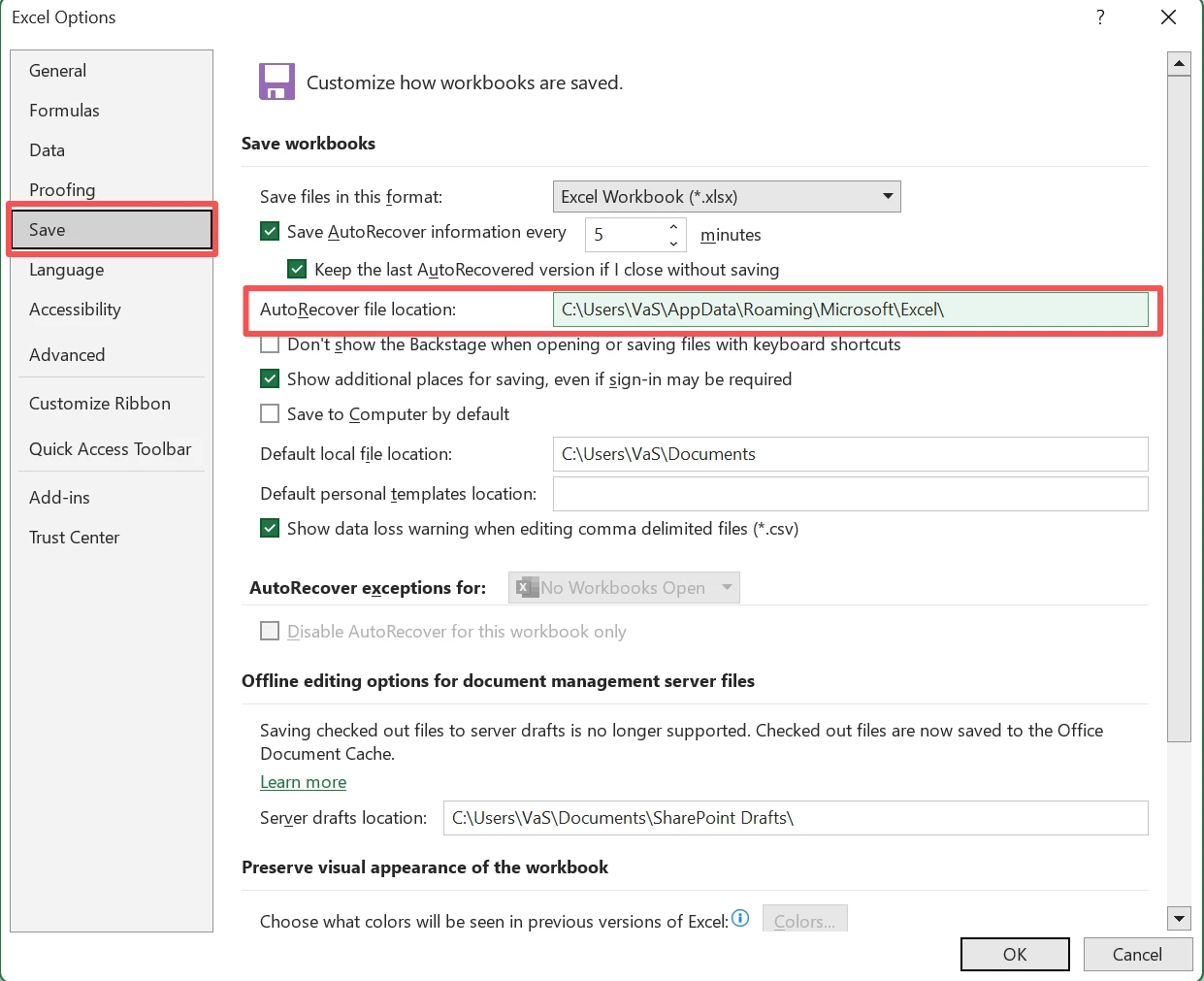
Steps to check AutoRecover:
- Open Excel.
- Click File > Options > Save.
- Look for AutoRecover file location.
- Copy that folder path.
- Open File Explorer.
- Paste the path into the address bar and press Enter.
- Look for files with extensions such as:
.asd.xlsb.tmp
- Copy those files to another folder before opening them.
- Open each file in Excel to check which version is usable.
- Save the best version as a new
.xlsxfile.
Alternative place to check:
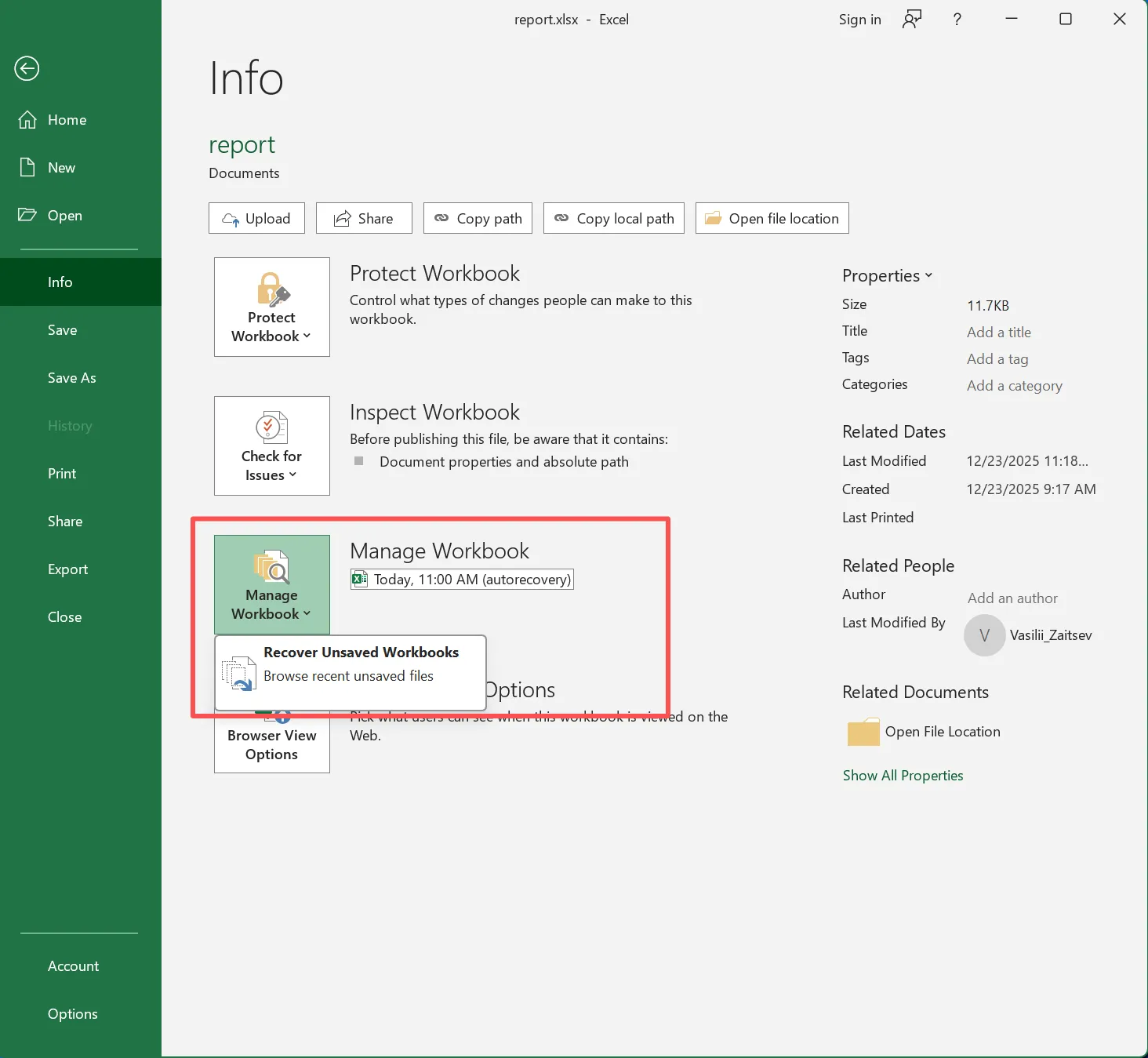
You can also open Excel and go to:
- File > Open > Recover Unsaved Workbooks
Best for:
- Unsaved or partially recovered Excel files
- Files lost after crashes or sudden shutdowns
- Cases where the recovered version opens but misses recent changes
Important note:
.xlsb files are especially important because Excel often stores AutoRecover content in binary workbook format rather than .asd only.
Method 3 – Extract Data from the XLSX File Manually
If Excel still cannot repair the file, you may still recover the workbook content manually. This method does not fully repair the workbook, but it often preserves text, sheet data, and shared strings.
Steps:
1. Open File Explorer.
2. Click View and enable File name extensions so you can see .xlsx.
3. Copy the recovered file to a new folder.
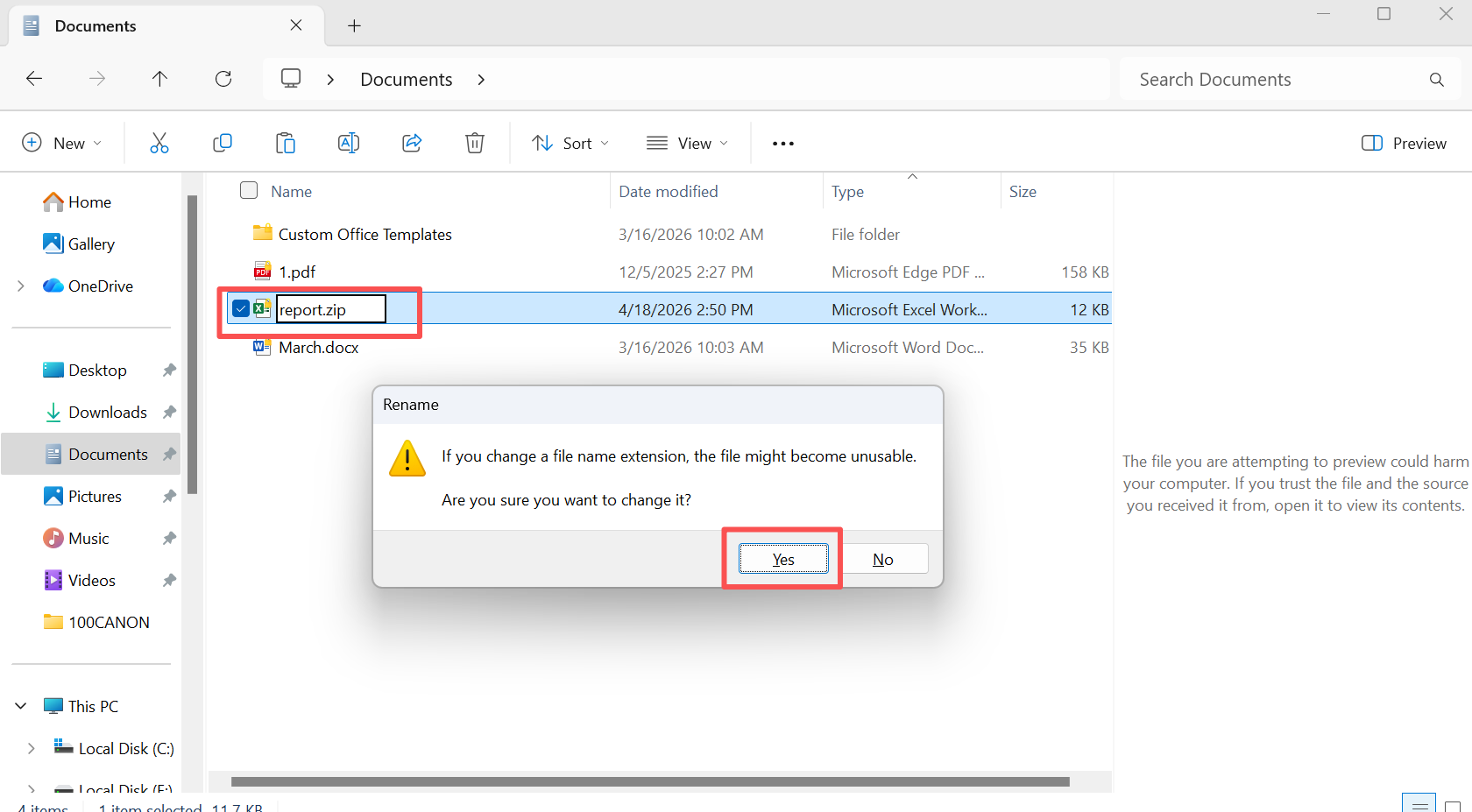
4. Rename the copied file from:
filename.xlsx to filename.zip
5. Press Enter and confirm the extension change.
6. Right-click the ZIP file and choose Extract All.
7. Open the extracted folder.
8. Go to: xl
9. Then check these files and folders:
sharedStrings.xmlworksheetsstyles.xml
10. Open sharedStrings.xml with a browser, Notepad, or another text editor.
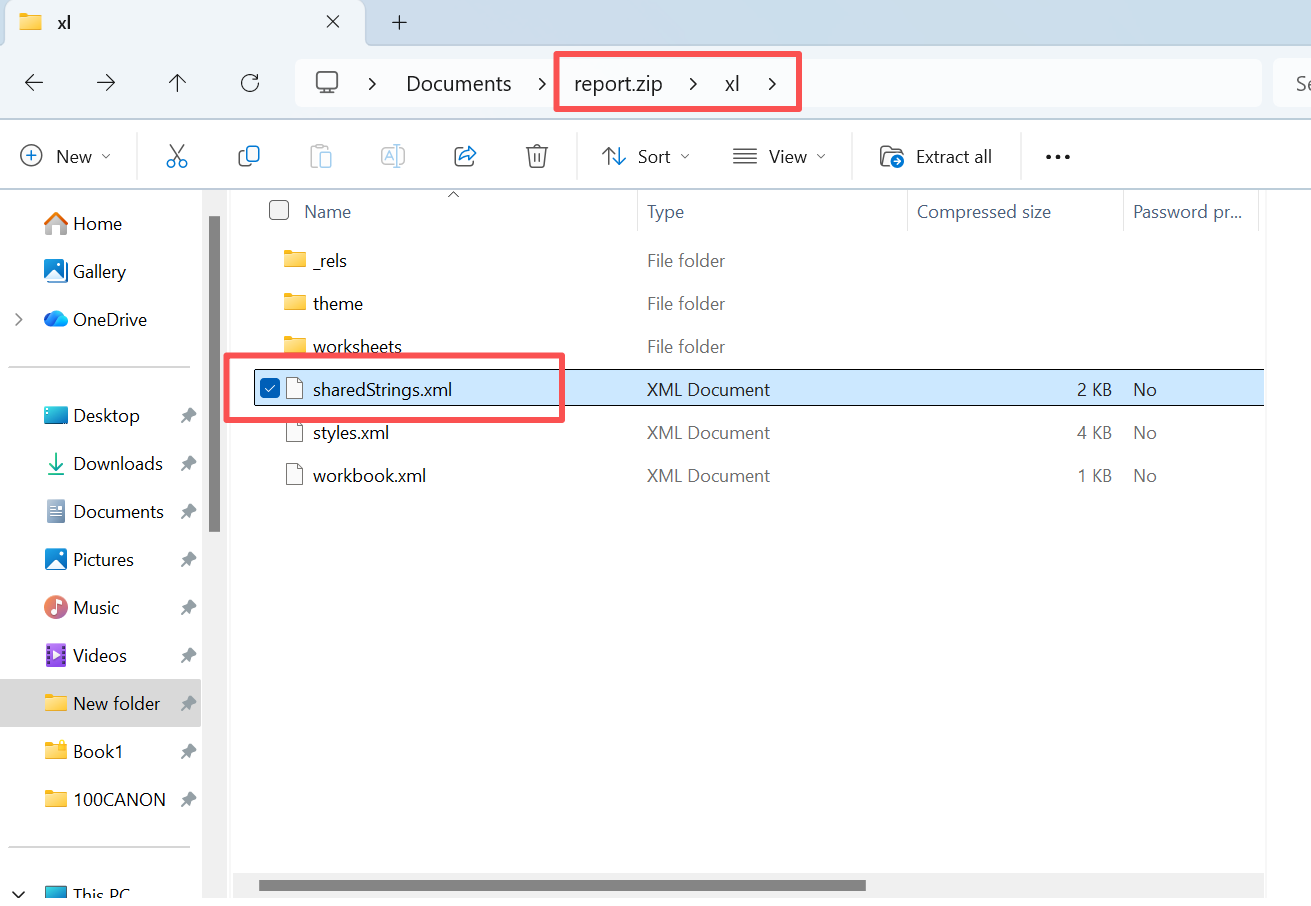
11. Review whether your original cell text still exists.
12. If needed, copy the visible content into a new Excel workbook manually.
Best for:
- Files that will not open at all
- Cases where workbook structure is badly damaged
- Situations where recovering raw content is more important than restoring layout
Important note:
This method usually restores content only, not the full spreadsheet structure. However, it is still useful when you need to rescue key text, labels, or values quickly.
Method 4 – Use a Professional Excel Repair Tool
If the workbook still fails after the methods above, a dedicated repair program may rebuild damaged workbook components more effectively.
Steps:
- Install the repair tool on a healthy drive.
- Launch the program.
- Add the recovered Excel file.
- Start the scan or repair process.
- Preview the repaired result if the tool supports preview.
- Save the repaired workbook as a new file.
- Open the repaired file in Excel and verify:
- sheet names
- formulas
- charts
- formatting
- hidden sheets
Best for:
- Severely corrupted workbooks
- Files with damaged formulas, charts, or workbook structure
- Cases where Excel’s own repair option fails
Caution:
Repair tools can improve usability, but they do not replace recovery. Therefore, always keep the recovered original untouched before testing any repair software.
When an Excel File Recovery Tool Cannot Help
Even the best excel file recovery tool has limits. Therefore, understanding these limits prevents unrealistic expectations.
Recovery may fail if:
- Files are overwritten
- The drive has physical damage
- Data sectors are permanently lost
Therefore, stop using the device immediately after data loss. In addition, avoid installing software on the same drive.
Why Magic Data Recovery Is a Reliable Excel Recovery Solution
Choosing the right tool directly affects your success rate. Therefore, selecting a solution with strong recovery capabilities matters.
Key Advantages
- Deep sector-level scanning
- Works with RAW and damaged drives
- Recovers files beyond system limitations
- Supports preview before recovery
Real Scenario
For example, after a system crash, Excel cannot locate your file. However, Magic Data Recovery scans the disk directly and reconstructs recoverable data. As a result, users often retrieve files that standard methods miss.
Why It Stands Out
Unlike basic tools, it focuses on:
- Data-first recovery strategy
- Safe workflow
- Higher success rate in complex cases
Therefore, if you need a dependable solution, this recovery software is a practical choice.
Conclusion
Choosing the right excel file recovery tool determines whether your data can be restored successfully. Therefore, always start with recovery before attempting repair.
Magic Data Recovery stands out because it focuses on deep scanning, safe workflows, and real-world Excel recovery scenarios. Moreover, it aligns with best practices by prioritizing data safety first.
If your Excel file is missing or inaccessible, starting with a trusted excel file recovery tool remains the safest and most effective decision.
Supports Windows 7/8/10/11 and Windows Server
FAQs About Excel File Recovery Tool
Can an excel file recovery tool recover permanently deleted Excel files?
Yes, an excel file recovery tool can recover permanently deleted files if they are not overwritten. It scans disk sectors and reconstructs lost data. However, success depends on how quickly you act. Therefore, stop using the device immediately to improve recovery chances.
What is the best excel file recovery tool for beginners?
The best excel file recovery tool for beginners should combine ease of use with reliable scanning. Tools like Magic Data Recovery offer simple navigation while still providing deep recovery. Therefore, beginners can achieve solid results without advanced technical skills.
Can an excel file recovery tool work on a RAW drive?
Yes, a professional excel file recovery tool can scan RAW drives. It bypasses the file system and accesses data directly. As a result, it recovers files even when the system cannot recognize the drive. However, basic tools may struggle in such conditions.
Is it safe to repair Excel files before recovery?
No, repairing files first is risky. Repair tools modify file structure and may overwrite recoverable data. Therefore, always use an excel file recovery tool before repair. This approach ensures your data remains protected throughout the process.
Can an excel file recovery tool fix corrupted files?
Not directly. An excel file recovery tool retrieves data but does not repair structure. Therefore, you may need a repair tool after recovery. Using both methods in the correct order produces better results and reduces data loss risks.
How long does Excel file recovery take?
Recovery time depends on disk size and scan depth. A quick scan may take minutes, while a deep scan may take longer. However, most recovery software shows results during scanning, so you can preview files early and recover them selectively.
Why can’t my Excel file be recovered?
Recovery may fail if the file is overwritten or the disk has physical damage. Even the best excel file recovery tool cannot restore destroyed data. Therefore, acting quickly and avoiding further disk use significantly increases your success rate.

Vasilii is a data recovery specialist with around 10 years of hands-on experience in the field. Throughout his career, he has successfully solved thousands of complex cases involving deleted files, formatted drives, lost partitions, and RAW file systems. His expertise covers both manual recovery methods using professional tools like hex editors and advanced automated solutions with recovery software. Vasilii's mission is to make reliable data recovery knowledge accessible to both IT professionals and everyday users, helping them safeguard their valuable digital assets.