
How to Find Recovery Files in Excel: Complete Guide

Losing an important Excel file can be frustrating, especially when AutoSave fails or the file disappears after a crash. Many users search for how to find recovery files in Excel, but standard recovery methods don’t always work—especially in cases like accidental deletion, formatting, or file corruption.
In this guide, you’ll learn practical ways to recover Excel files using built-in features. More importantly, we’ll cover what to do when these methods fail and introduce a more reliable solution for complex data loss scenarios, and the professional data recovery tool like Magic Data Recovery.
Supports Windows 7/8/10/11 and Windows Server
Table of Contents
What Are Excel Recovery Files?
Excel recovery files are temporary backups created automatically when:
- Excel crashes unexpectedly
- The system shuts down suddenly
- You forget to save changes
These files help restore unsaved work. However, they are not permanent and can disappear if not recovered in time.
How to Find Recovery Files in Excel Using Built-in Methods
Before turning to advanced tools, it’s important to understand that Excel already provides several built-in recovery features. These methods are designed for common scenarios such as unexpected crashes, unsaved work, or temporary file storage. While they may not work in every situation, they are always the first step when learning how to find recovery files in Excel.
1. Use Document Recovery Panel
When Excel crashes or closes unexpectedly, it often reopens with a recovery panel.
Detailed Steps:
- Reopen Microsoft Excel after the crash
- Look at the left side of the screen for the Document Recovery pane
- You will see one or more recovered files labeled as:
- Original
- Recovered
- Autosaved
- Click each file to preview its content
- Select the correct version
- Click Save As and store it in a secure location
👉 Tip: Always save the recovered file immediately, or Excel may remove it later.
2. Check AutoRecover Location
Excel automatically saves temporary versions of your files at intervals.
Detailed Steps:
- Open Excel
- Click File → Options
- Select Save from the left menu
- Locate the AutoRecover file location path
- Copy this folder path
- Open File Explorer and paste the path into the address bar
- Look for files with extensions like .asd, .xlsb, or .tmp
- Double-click the file or open it via Excel
- Save it as a new workbook
👉 Tip: Files here may not have clear names, so check modification dates.
3. Recover Unsaved Workbooks
Excel keeps a temporary list of unsaved files.
Detailed Steps:
1. Launch Excel
2. Click File → Info
3. Select Manage Workbook (or Manage Versions)
4. Click Recover Unsaved Workbooks
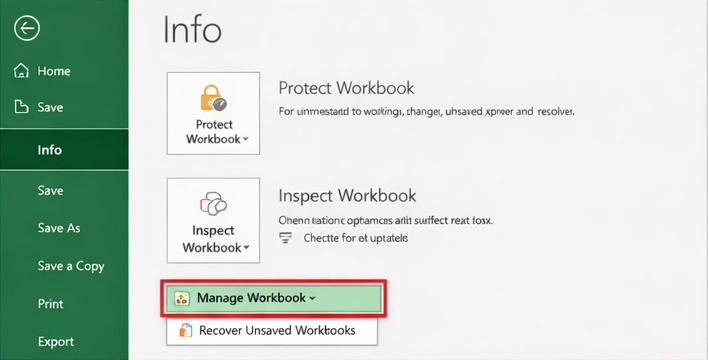
5. A folder will open with unsaved files
6. Browse through the list and select the needed file
7. Open the file and click Save As immediately
👉 Tip: These files are deleted automatically after a certain period, so act quickly.
4. Search Temporary Files Manually
If Excel doesn’t show recovery options, you can search manually.
Detailed Steps:
- Press Win + R to open the Run dialog
- Type %temp% and press Enter
- In the folder, use the search bar
- Search for keywords like:
- .tmp
- .xls
- .xlsx
- Sort files by Date Modified
- Open suspicious files with Excel
- Save the correct file once identified
👉 Tip: Temporary files often have random names, so checking recent files is important.
5. Restore Previous Versions
Windows may automatically save earlier versions of your file.
Detailed Steps:
- Navigate to the folder where the Excel file was stored
- Right-click the file (or folder if file is missing)
- Select Properties
- Go to the Previous Versions tab
- Choose a version based on date and time
- Click Open to preview
- Click Restore to recover it
👉 Tip: This feature works only if File History or System Restore is enabled.
Why Built-in Methods May Fail
Although these methods help, they often fail in real scenarios:
- Files deleted permanently (Shift + Delete)
- Drive formatted
- File system errors
- Excel corruption
- AutoRecover disabled
In such cases, users still need a reliable way to answer how to find recovery files in Excel.
Advanced Solution: Recover Lost Excel Files with Magic Data Recovery
When standard methods don’t work, a professional tool becomes necessary. This is where Magic Data Recovery provides a practical solution.
Why Choose Magic Data Recovery?
Instead of relying on temporary files, this tool scans your storage directly to recover lost Excel data.
Key Advantages
- Recovers deleted Excel files (even after emptying Recycle Bin)
- Supports formatted drives and corrupted file systems
- Deep scan technology for higher recovery success
- Works with HDD, SSD, USB drives, and SD cards
- User-friendly interface for non-technical users
Real Use Cases
- Accidentally deleted financial reports
- Lost Excel files after system crash
- Data missing due to disk formatting
- Corrupted Excel files that won’t open
How to Use Magic Data Recovery
1. Download and install the software the software
Supports Windows 7/8/10/11 and Windows Server
2. Select the drive where the Excel file was lost

3. Click Search for lost data to scan lost files

4. Preview recoverable Excel files
5. Restore the file to a safe location

👉 If you are looking for a more efficient solution, you can try Magic Data Recovery to recover Excel files quickly and safely.
Why It’s More Reliable
Unlike Excel’s built-in recovery, this tool does not depend on temporary files. It retrieves actual data remnants from storage, which makes it more effective in severe data loss scenarios.
Best Tips to Prevent Excel Data Loss
- Enable AutoSave and AutoRecover
- Save files regularly
- Use cloud storage (OneDrive, Google Drive)
- Avoid sudden shutdowns
- Keep backup copies
Conclusion
Understanding how to find recovery files in Excel is essential for anyone working with spreadsheets. Built-in recovery features can help in simple cases, such as crashes or unsaved work.
However, for more complex situations—like deletion, formatting, or corruption—these methods are often not enough. That’s why tools like Magic Data Recovery offer a more dependable solution by recovering files directly from storage.
If you want a safer and more effective way to recover Excel files, this tool is a practical choice.
Supports Windows 7/8/10/11 and Windows Server
FAQs
How do I find recovery files in Excel after a crash?
After reopening Excel, check the Document Recovery panel on the left side. If it doesn’t appear, go to File → Info → Manage Workbook → Recover Unsaved Workbooks. Excel stores temporary versions that you can open and save manually before they are removed.
Where are Excel AutoRecover files stored?
AutoRecover files are stored in a predefined folder set in Excel options. You can find it under File → Options → Save. Copy the AutoRecover path, paste it into File Explorer, and locate files with extensions like .asd or .tmp for recovery.
Can I recover Excel files after deleting them permanently?
Yes, but Excel itself cannot recover permanently deleted files. In such cases, you need a data recovery tool like Magic Data Recovery, which scans storage devices and retrieves deleted Excel files even after they are removed from the Recycle Bin.
Why can’t I find recovery files in Excel?
Recovery files may not appear if AutoRecover was disabled, the temporary files were deleted, or Excel did not have time to save a backup. System cleanup tools can also remove these files, making recovery through built-in features impossible.
How long does Excel keep recovery files?
Excel keeps AutoRecover files for a limited time, usually until the next successful save or after a system cleanup. If you don’t reopen Excel soon after a crash, the temporary files may be automatically deleted and become unrecoverable.
Can corrupted Excel files be recovered?
Yes, corrupted Excel files can often be recovered using specialized tools. While Excel has a built-in repair feature, advanced software like Magic Data Recovery can extract usable data even when the file is severely damaged.
Is it safe to use data recovery software for Excel files?
Using trusted data recovery software is generally safe. These tools scan your storage without modifying original data. To avoid risks, always download software from official sources and avoid overwriting the drive before recovery.
What is the best way to recover Excel files in all scenarios?
The most effective approach combines Excel’s built-in recovery features with professional tools. Built-in options work for minor issues, while Magic Data Recovery is more reliable for complex cases like deletion, formatting, or system errors.

Jason is a data recovery and technical support specialist with over 15 years of hands-on experience. He has worked extensively with frontline users, troubleshooting difficult data loss cases and providing practical recovery solutions for accidental deletion, formatted drives, damaged file systems, lost partitions, system failures, and other recovery emergencies. His expertise also includes backup and restoration, file repair, and disaster recovery, with a strong emphasis on safe, reliable, and technically accurate guidance.