
External Hard Drive Repair & Recovery Guide
When your drive suddenly stops working, searching for external hard drive repair becomes urgent. You may face errors, missing files, or even complete inaccessibility. However, many users rush into repair without understanding the risks. As a result, they accidentally overwrite recoverable data.
Therefore, this guide explains how external hard drive repair works, when to fix issues, and why recovering data from the external drive first is often the safest approach. In addition, you will learn practical solutions, understand when to consider external hard drive repair near me services, and see how tools like Magic Data Recovery can help you securely recover files before any repair attempts.
Supports Windows 7/8/10/11 and Windows Server
Table of Contents
What Is External Hard Drive Repair?
In simple terms, external hard drive repair refers to fixing issues that prevent a drive from working properly. Generally, these issues fall into two categories.
- Logical errors (file system corruption, RAW drive)
- Physical damage (hardware failure, clicking sounds)
Most importantly, software tools can only fix logical problems. In contrast, physical damage usually requires professional repair.
Can You Fix External Hard Drive Repair Issues Yourself?
Before choosing a solution, you need to identify the type of problem.
Logical Problems You Can Repair
You can often resolve:
- Corrupted partitions
- RAW file systems
- Drive not recognized errors
Situations That Need Experts
You should consider external hard disk repair near me when:
- The drive makes unusual noises
- The device is not detected at all
- Hardware damage is likely
However, even in these cases, recovering data first remains critical.
Common Problems That Require External Hard Drive Repair
Different issues require different approaches. Therefore, understanding symptoms helps you avoid mistakes.
Drive Not Detected
First, try a different port or cable. Then, check Disk Management. If the drive appears without files, your data may still exist.
RAW Drive
This error often appears after corruption. Although the system suggests formatting, you should avoid it. Instead, recover files before repair.
Slow or Freezing Performance
This issue usually indicates bad sectors. While tools like CHKDSK may help, they can also overwrite data.
Clicking Sound
This is a hardware issue. In this case, stop using the drive immediately and consider external hard drive repair near me services.
How to Perform External Hard Drive Repair Safely
When facing an external hard drive issue, it’s essential to follow a structured process to minimize risks. Repairing the drive without understanding the potential for data loss can lead to permanent damage. Below, I will guide you through each step while emphasizing the importance of recovering data first. This will ensure that your important files are safe before taking any repair action.
Step 1: Start with Basic Checks (Cables, Ports, and Power)
The first step involves simple, non-invasive checks. Many external hard drive issues stem from faulty connections, power problems, or loose cables. Here’s how to troubleshoot:
Check the Cable and Port
- Inspect the cable for any visible damage (frayed wires, bends, etc.). A damaged USB cable is a common reason for disconnections or errors.
- Try another USB port on your computer. Sometimes the issue lies with the port itself rather than the drive.
Test on Another Computer
- Plug the drive into a different computer or laptop. This ensures that the issue isn’t specific to your current machine. If it works on another device, your computer’s USB ports may be the culprit.
Step 2: Use System Tools
If basic checks don’t resolve the issue, you can move on to system tools that help address software-related problems, such as file system errors or partition issues.
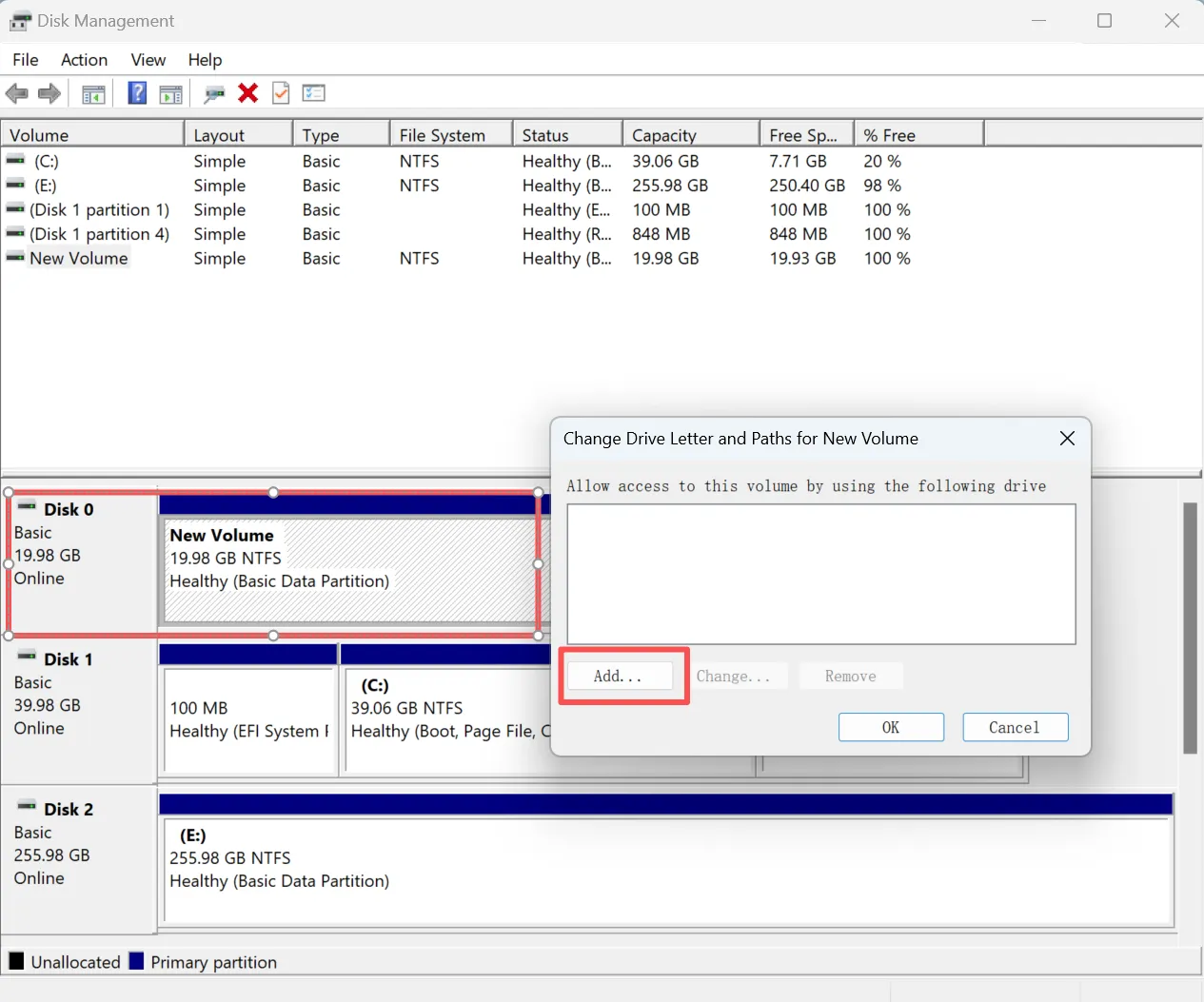
Disk Management
- Press
Win + X, then choose Disk Management. - Look for your external hard drive in the list of disks.
- If you see your drive without a drive letter, right click it and add a drive letter.
CHKDSK Command
- Open Command Prompt as an administrator:
Win + X→ Command Prompt (Admin). - Type
chkdsk X: /f(replaceX:with your drive letter). - Press Enter. This will check and fix any errors in the file system. However, CHKDSK can sometimes cause data loss, so only run it after you’ve backed up important files.

Pro Tip: These system tools help identify basic errors. However, running system tools such as CHKDSK without recovering data first could overwrite critical files, especially if the drive is formatted or the file system is changed.
Why You Should Recover Data Before External Hard Drive Repair
Many repair methods modify disk structures. As a result, they may overwrite recoverable data.
For example:
- File system repair rewrites metadata
- Formatting removes directory structure
- Partition fixes change disk layout
Therefore, recovering data first protects your files and improves success rates.
How to Recover Data with Magic Data Recovery
Before applying any repair method, you can safely extract your files using Magic Data Recovery. This approach minimizes risk and ensures your data remains intact.
Step 1: Download and Install Magic Data Recovery
First, download Magic Data Recovery and install it on a different drive. This setup prevents overwriting lost data and keeps recovery safe.
Supports Windows 7/8/10/11 and Windows Server
Step 2: Select the Drive to Scan
Next, launch the software. Then, choose the drive or partition where files were lost and start scanning.

Step 3: Scan for Recoverable Files
After that, the program automatically performs an advanced scan. Meanwhile, it displays recoverable files in real time, which helps you locate important data faster.

Step 4: Preview Files Before Recovery
Then, use the preview feature to confirm file content. This step ensures you recover only necessary files.

Step 5: Recover Files to a Safe Location
Finally, select your files and save them to another drive. Never restore data to the same location, because this action may overwrite remaining data.

Why This Method Is Reliable
Unlike repair tools, Magic Data Recovery does not modify disk structures. Instead, it scans raw sectors and reconstructs files. As a result, it works even when the system cannot access the drive normally.
External Hard Drive Repair Near Me: When to Use It
Searching for external hard drive repair near me makes sense in certain situations.
Choose Local Repair When:
- The drive has physical damage
- It produces clicking sounds
- It is completely undetectable
Avoid Local Repair When:
- The drive is still accessible
- You only need data recovery
In many cases, software solutions provide faster and more affordable results.
Cost of External Hard Drive Repair
Costs vary depending on the issue.
- Software solutions: Free to $100
- Professional services: $300 to $1000+
Therefore, starting with software-based recovery can save both time and money.
Repair vs Replace: Final Decision Guide
You should repair a drive when:
- The issue is logical
- The drive still functions
However, you should replace it when:
- Failures occur repeatedly
- Performance drops significantly
In all cases, recover important data before making a decision.
Conclusion
External hard drive repair can solve many issues, but it also introduces risks. Therefore, a safer approach starts with data recovery. By securing your files first, you reduce the chance of permanent loss and gain flexibility in choosing repair methods.
This is why Magic Data Recovery stands out as a practical solution. It allows you to recover data safely before attempting any repair. If you want a reliable and efficient way to recover your files from external drives, this tool offers a balanced and user-friendly option.
Supports Windows 7/8/10/11 and Windows Server
FAQs
Can external hard drives be repaired successfully?
Yes, you can repair many logical issues such as corrupted file systems or partition errors. However, physical damage often requires professional services. Therefore, you should first determine the type of problem before choosing a repair method.
Should I search for external hard drive repair near me immediately?
Not always. If your drive still appears in the system, you should recover your data first. Local repair services are more suitable for hardware failures or severe damage.
How much does external hard drive repair cost?
Costs depend on the issue. Software repair tools are usually affordable, while professional services can cost hundreds of dollars. Therefore, starting with software solutions is often more practical.
Can I fix a RAW drive without losing data?
Yes, but only if you recover data before repair. Formatting or repairing a RAW drive without recovery may lead to permanent data loss.
Is it safe to use repair tools like CHKDSK?
CHKDSK can fix errors, but it may overwrite data during the process. Therefore, you should use it carefully and only after recovering important files.
What causes external hard drive failure?
Common causes include file system corruption, bad sectors, power issues, and physical damage. Understanding the cause helps you choose the correct repair or recovery method.

Vasilii is a data recovery specialist with around 10 years of hands-on experience in the field. Throughout his career, he has successfully solved thousands of complex cases involving deleted files, formatted drives, lost partitions, and RAW file systems. His expertise covers both manual recovery methods using professional tools like hex editors and advanced automated solutions with recovery software. Vasilii's mission is to make reliable data recovery knowledge accessible to both IT professionals and everyday users, helping them safeguard their valuable digital assets.