
Attrib Command to Recover Files Guide
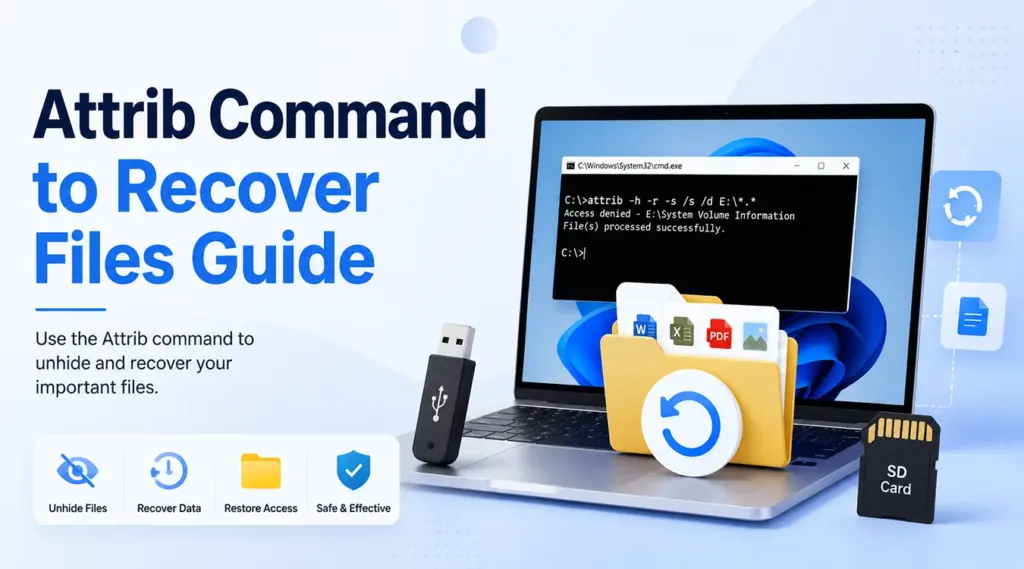
When files disappear from a USB drive, SD card, hard drive, or Windows folder, many users search for the attrib command to recover files. This built-in Windows command can reveal files that still carry Hidden, System, or Read-only attributes. However, it cannot restore data after permanent deletion, formatting, overwriting, partition loss, or physical damage.
This guide explains how to use the attrib command to recover files, identify the situations where it works, and fix common command errors. You will also learn when to stop using CMD and choose a genuine hard drive recovery solution. When the missing files no longer exist as hidden items, Magic Data Recovery provides a practical way to scan, preview, and recover deleted or lost data.
Supports Windows 7/8/10/11 and Windows Server
Table of Contents
Can the Attrib Command to Recover Files Really Work?
Yes, but only when file attributes caused the disappearance. Microsoft defines attrib as a command that displays, sets, or removes file and folder attributes. Therefore, the attrib command to recover files does not scan unused disk space or rebuild deleted file records.
Use Attrib when a drive looks empty but shows used space, files vanished after malware, or dir /a still displays the missing folders. By contrast, use recovery software after Shift+Delete, an emptied Recycle Bin, formatting, partition loss, or overwriting.
What Does the Attrib Command Do?
Windows uses attributes to control how files and folders behave. A Hidden or System attribute can keep an existing item out of File Explorer.
Use this command to remove the relevant attributes:
attrib -h -r -s /s /d X:\*.*
Replace X with the correct drive letter.
-hremoves the Hidden attribute.-rremoves the Read-only attribute.-sremoves the System attribute./sincludes subfolders./dincludes directories.*.*targets matching items.
In short, the attrib command to recover files restores visibility. It does not recover deleted data.
Before You Use the Attrib Command to Recover Files
First, stop saving new data to the affected location. Next, do not format the drive or run repair tools. Also, confirm the drive letter.
Then, check whether the missing files still exist:
dir /a X:\
The /a option displays items with all attributes. If the command lists your folders, recover hidden files from USB using CMD may work. However, if nothing appears, Attrib probably cannot help because no existing attributes remain to change.
How to Use the Attrib Command to Recover Files
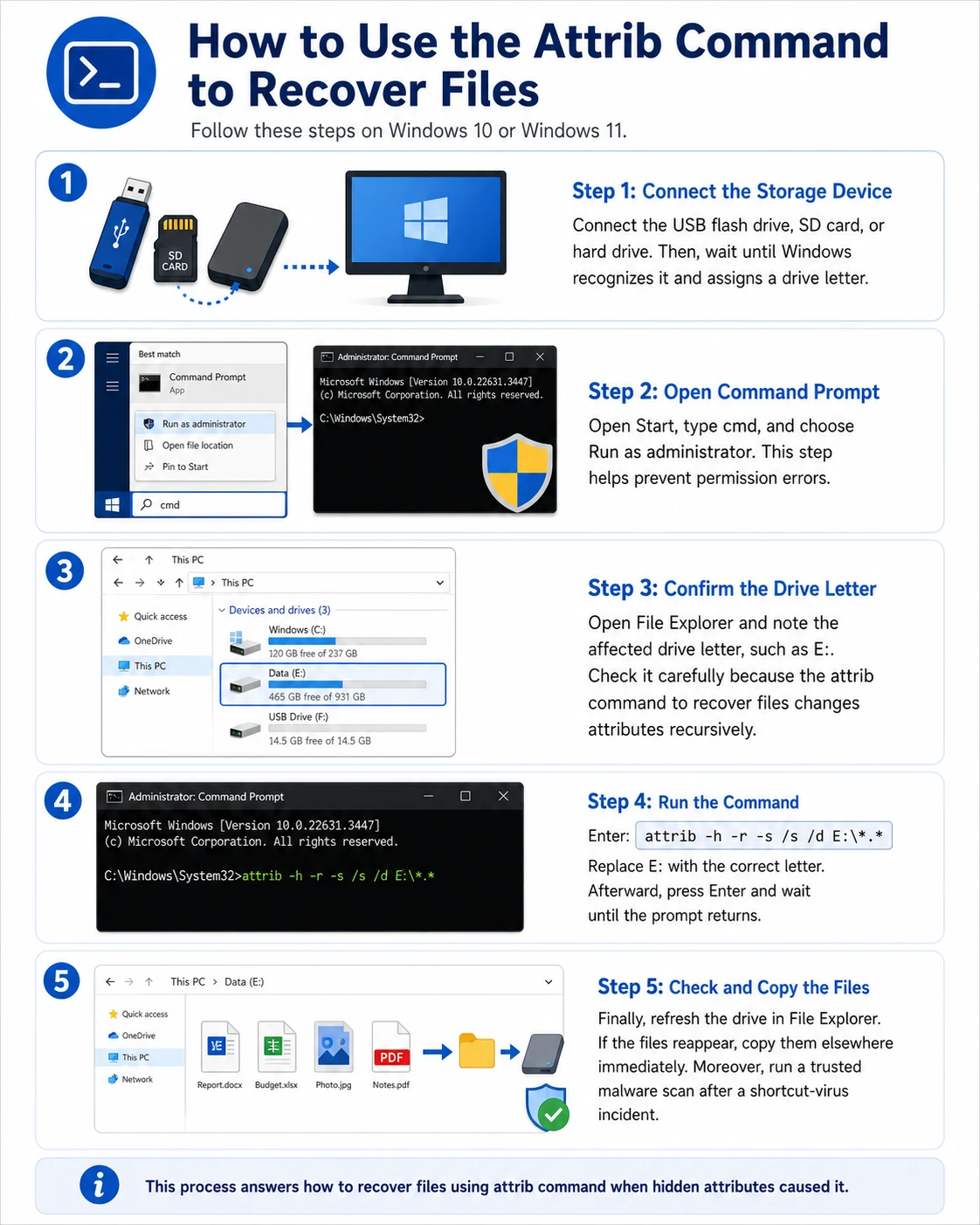
Follow these steps on Windows 10 or Windows 11.
Step 1: Connect the Storage Device
Connect the USB flash drive, SD card, or hard drive. Then, wait until Windows recognizes it and assigns a drive letter.
Step 2: Open Command Prompt
Open Start, type cmd, and choose Run as administrator. This step helps prevent permission errors.
Step 3: Confirm the Drive Letter
Open File Explorer and note the affected drive letter, such as E:. Check it carefully because the attrib command to recover files changes attributes recursively.
Step 4: Run the Command
Enter:
attrib -h -r -s /s /d E:\*.*
Replace E: with the correct letter. Afterward, press Enter and wait until the prompt returns.
Step 5: Check and Copy the Files
Finally, refresh the drive in File Explorer. If the files reappear, copy them elsewhere immediately. Moreover, run a trusted malware scan after a shortcut-virus incident.
This process answers how to recover files using attrib command when hidden attributes caused it.
Useful Attrib Command Examples
To process one folder, use its full path and quotation marks:
attrib -h -r -s /s /d "E:\Work Files\*.*"
This format supports paths with spaces and makes the attrib command Windows 11 process easier.
When Does the Attrib Command to Recover Files Work Best?
The attrib command to recover files works best when the problem involves visibility rather than deletion.
For example, a USB drive may show shortcuts while Windows still reports used space. In that case, dir /a may reveal the original folders with Hidden and System attributes. After malware removal, an attrib command for USB recovery can make those folders visible again.
Nevertheless, open several restored files afterward. If they appear but fail to open, attribute changes cannot repair corrupted content.
Attrib Command Not Working? Try These Fixes
“Access Is Denied”
First, reopen Command Prompt as an administrator. Then, check whether security software, BitLocker, or another program blocks access. Also, avoid protected Windows directories.
“File Not Found” or “Path Not Found”
Check the drive letter and spelling. Next, place quotation marks around paths with spaces. Finally, confirm that Windows still detects the device.
The Command Runs, but Nothing Appears
The files may have been deleted, formatted, overwritten, or lost with a damaged partition. Therefore, repeating the attrib command to recover files will not help.
Only Shortcut Files Appear
Do not open unknown shortcuts. Instead, scan for malware, use dir /a to locate the original folders, remove the threat, and then run attrib -h -r -s /s /d.
Attrib Command vs. Data Recovery Software
Situation | Attrib | Data Recovery Software |
Existing files have Hidden attributes | Suitable | Usually unnecessary |
Files were deleted | Not suitable | Appropriate |
Drive was formatted | Not suitable | Appropriate |
Device has physical damage | Not suitable | Use a professional service |
Windows File Recovery also exists as a separate tool for deleted local files. Therefore, the attrib command to recover files cannot replace genuine recovery software.
Recover Deleted Files When the Attrib Command Fails
If dir /a cannot find the missing files, or deletion or formatting caused the loss, choose a tool that scans the affected location for recoverable data.
Magic Data Recovery provides a visual scan, preview, and recovery workflow for Windows. It addresses the main limit of the attrib command to recover files because it searches for lost data instead of only changing attributes.
Why Magic Data Recovery Fits This Problem
Magic Data Recovery can help with deletion, formatting, lost partitions, and inaccessible storage. Key advantages include:
- A clear interface with no command-line requirement.
- Support for hard drives, SSDs, USB drives, and memory cards.
- Recovery of common documents, photos, videos, and archives.
- File preview before recovery.
- A straightforward scan, preview, and recovery process.
For example, it may help after someone deletes a project folder or formats a camera card. However, overwriting, encryption, severe corruption, and physical damage may reduce recoverability.
How to Use Magic Data Recovery Safely
Follow these steps when deletion, formatting, or another logical problem prevents the attrib command to recover files from working.
Step 1: Download and Install Magic Data Recovery
Download Magic Data Recovery and install it on a healthy partition that differs from the one containing the lost files. This choice reduces the risk of overwriting recoverable information.
Supports Windows 7/8/10/11 and Windows Server
Step 2: Select the Affected Drive or Partition
Launch the program. Then, locate the drive or partition where the files disappeared. Select it and start the scan.

Step 3: Scan for Deleted or Lost Files
Magic Data Recovery automatically starts an Advanced Scan. Meanwhile, it lists discovered files as the scan progresses, so you can review potential results before the scan finishes.

Step 4: Preview Files Before Recovery
Next, preview the discovered photos, documents, videos, or other supported files whenever possible. This step helps you confirm file content and select only the items you need.

Step 5: Recover Files to a Safe Location
Finally, select the files you want and start recovery. Save them to another drive or storage device. Never restore files to the affected location because new data may overwrite other recoverable content.

Should You Run CHKDSK Before File Recovery?
For important missing data, recover first and repair later. CHKDSK checks a volume for file-system and disk errors. Because repair options can change file-system structures, it cannot turn the attrib command to recover files into a deleted-file recovery method.
If a partition appears RAW or files vanished after corruption, scan and secure the data first. Afterward, repair, reformat, or replace the device.
Conclusion: When to Use the Attrib Command to Recover Files
The attrib command to recover files offers a fast, built-in fix when Hidden, System, or Read-only attributes prevent Windows from showing existing data. It works especially well for shortcut-virus cases and folders that remain on the drive.
However, Attrib cannot restore deleted, formatted, overwritten, or physically damaged data. Therefore, when dir /a shows no missing files, stop using the affected location and choose a genuine deleted file recovery method.
Magic Data Recovery earns a recommendation because it provides a clear scan, preview, and recovery workflow. In addition, it gives Windows users a practical next step when the attrib command to recover files reaches its limit, without unrealistic promises.
Supports Windows 7/8/10/11 and Windows Server
FAQ to Attrib Command to Recover Files Guide
Can the Attrib Command Recover Permanently Deleted Files?
No. The attrib command to recover files only changes attributes on files and folders that still exist. It cannot rebuild data after Shift+Delete, an emptied Recycle Bin, formatting, or overwriting. In those situations, stop using the affected location and try a backup, Windows File Recovery, Magic Data Recovery, or a professional service.
What Is the Correct Attrib Command for Hidden Files?
Use attrib -h -r -s /s /d X:\*.*, and replace X with the correct drive letter. This command removes Hidden, Read-only, and System attributes from matching files and folders. Beforehand, verify the drive letter and use dir /a X:\ to confirm that the missing files still exist there before you continue.
Does the Attrib Command Work on Windows 11?
Yes. Windows 11 includes the Attrib command, and the same core syntax also works on Windows 10. Open Command Prompt as an administrator, confirm the correct drive letter, and run the command carefully. However, remember that Attrib only reveals existing hidden files; it does not recover truly deleted data.
Why Are My Files Still Missing After Running Attrib?
The files may no longer exist as normal file-system entries. Deletion, formatting, overwriting, partition loss, corruption, or hardware failure can all prevent Attrib from finding them. First, run dir /a to check for hidden items. If nothing appears, stop writing to the affected location and use a recovery method instead.
Is the Attrib Command Safe to Use?
Yes, when you enter the correct drive letter and target only the affected data location. However, the command can change attributes across many files and folders at once. Therefore, avoid protected Windows directories. Also, copy restored files elsewhere and scan the device for malware if shortcut files caused the issue.
Can Attrib Repair a Corrupted USB Drive?
No. Attrib changes file and folder attributes, but it does not repair the file system, bad sectors, or damaged file content. It may reveal files that malware hid, yet it cannot fix corruption. If the USB drive appears RAW, disconnects repeatedly, or reports errors, recover important data before attempting repairs.
What Should I Do If the Attrib Command Does Not Work?
First, confirm the drive letter, use quotation marks for paths with spaces, and run Command Prompt as an administrator. Next, check the location with dir /a. If the files still do not appear, stop repeating the command. Instead, scan the affected location with Magic Data Recovery and save recovered files elsewhere.

Vasilii is a data recovery specialist with around 10 years of hands-on experience in the field. Throughout his career, he has successfully solved thousands of complex cases involving deleted files, formatted drives, lost partitions, and RAW file systems. His expertise covers both manual recovery methods using professional tools like hex editors and advanced automated solutions with recovery software. Vasilii's mission is to make reliable data recovery knowledge accessible to both IT professionals and everyday users, helping them safeguard their valuable digital assets.