
DiskGenius Recover Files: Safe Guide
Losing a work document, family photo, video, or project archive can create immediate panic. However, rushing into random repairs may overwrite the same data you want to restore. Many Windows users search for DiskGenius recover files instructions after accidental deletion, an emptied Recycle Bin, quick formatting, or a RAW partition.
This guide explains how to scan safely, choose the correct recovery mode, verify the results, and avoid common mistakes. In addition, it introduces Magic Data Recovery when you need a more guided hard drive recovery solution.
Supports Windows 7/8/10/11 and Windows Server
Table of Contents
Can DiskGenius Recover Files Successfully?
The DiskGenius recover files feature can search for deleted, formatted, lost, and inaccessible files on supported storage devices. It offers separate options for recently deleted data, broader file-system recovery, and deep file-type scanning. Therefore, the best mode depends on how the data loss happened.
Still, no recovery program can guarantee complete results. Windows may reuse deleted-file space at any time. An SSD may also run TRIM, while a damaged disk may return unreadable sectors. As a result, the DiskGenius recover files process works best when you stop using the affected drive immediately.
For example, a recently deleted Word document on a healthy HDD may remain recoverable. In contrast, downloads, updates, or a Windows reinstall can overwrite it even when the scan still shows its filename.
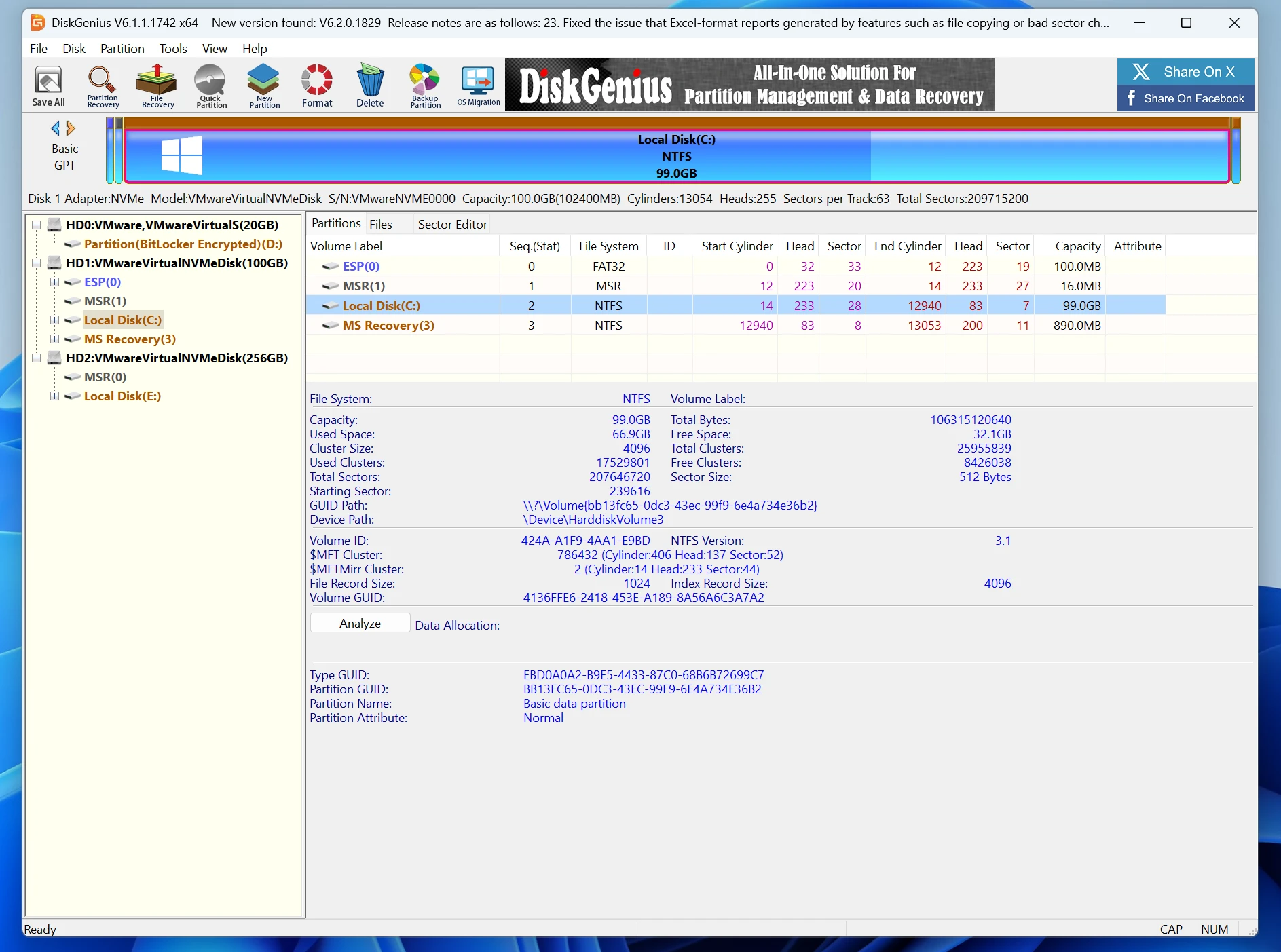
Before You Start a DiskGenius Recover Files Scan
Before scanning, protect the source drive. These steps improve recovery conditions and reduce avoidable damage:
- Stop creating, downloading, or copying files to the affected drive.
- Do not install DiskGenius on the partition that held the lost data.
- Avoid CHKDSK, formatting, defragmentation, or file-system repair.
- Prepare another drive or storage device for recovered files.
- Shut down the computer when the lost files came from the Windows system partition.
- Stop DIY recovery when the disk clicks, disconnects, freezes, or disappears.
DiskGenius also advises users to prevent new writes and save recovered files elsewhere. Moreover, it warns against repairing bad sectors before recovery because repairs may destroy readable data. Therefore, safe preparation matters more than speed.
How to Use DiskGenius Recover Files Features
The following how to recover files with DiskGenius guide covers deleted files, formatted partitions, RAW volumes, and missing folder records.
Step 1: Select the Correct Drive or Partition
First, open DiskGenius and find the location that originally stored the files. Select the affected partition when you know the old path. This approach narrows the scan and usually gives you cleaner results.
However, select the physical disk when a partition has disappeared or you cannot identify the old volume. Confirm the disk size and model before scanning.
Step 2: Choose the Right Recovery Mode
DiskGenius provides several scan options. Each option addresses a different type of data loss:
Recovery option | Best use | Main limitation |
Recover Deleted Files | Recent deletion or an emptied Recycle Bin | May miss files after metadata damage or new writes |
Complete Recovery | Formatting, RAW partitions, or wider data loss | Takes longer and may return more unrelated results |
Search for Known File Types | Severe file-system damage or deep signature scanning | May lose original filenames and folder structure |
Choose DiskGenius recover deleted files for a simple, recent deletion. On the other hand, use Complete Recovery after formatting or when Windows shows the partition as RAW.
Search for Known File Types can locate data by its file signature. However, the results may use generated names because this scan does not rely entirely on the original file-system records.
Step 3: Start the Scan
Next, click Start and let DiskGenius search the selected area. The program lists discovered files while it scans. Therefore, you can inspect early results without waiting for every sector.
Nevertheless, do not judge quality by the file count. A scan may include existing data, duplicates, fragments, and false matches. Instead, focus on the folders and file formats you need.
Step 4: Filter and Preview the Results
Use filename, extension, size, date, and status filters to reduce the list. Then preview several important documents, images, audio files, and videos.
Previewing plays a central role in the DiskGenius recover files workflow. A visible filename does not prove that the file still contains complete data.
For instance, a photo thumbnail may load while the full image contains gray blocks. Likewise, a video may play for several seconds and then stop. Therefore, preview several samples and test larger files, which often suffer more from fragmentation.
DiskGenius supports previews for common documents, photos, PDF files, audio, and video. Its manual recommends previewing files before copying them so that users can check for corruption.
Step 5: Copy Files to a Safe Location
Finally, select the files and choose Copy To. Save them to a different drive or storage device. Never write recovered data back to the source partition because the copy process may overwrite other lost files.
After copying, open the restored files. Check complete documents, archives, photos, and videos. This review separates files found from files recovered successfully.
Why DiskGenius Recover Files Results May Not Open
A common problem occurs when DiskGenius lists many files, but some results appear empty, corrupted, or incorrectly labeled. Several technical reasons can cause this outcome.
New Data Overwrote the Original Content
When you delete a file, Windows normally marks its storage space as available. It does not always erase every byte immediately. However, any later write can replace that content.
For that reason, browsing, downloads, installations, and updates can reduce recovery quality. A Windows reinstall creates an even greater risk.
The Scan Found a Signature Without a Complete File
Deep scanning looks for recognizable file headers and other patterns. Consequently, it can find content even when folder records no longer exist. Yet a matching signature does not guarantee that every part of the file survived.
This issue explains why some ZIP, JPG, or MP4 results will not open. The DiskGenius recovered files corrupted problem may involve overwritten sectors, missing fragments, or false signatures.
File-System Metadata No Longer Exists
Metadata stores filenames, dates, folder paths, and information about where file fragments belong. When formatting or corruption damages those records, DiskGenius may place results under Recovered Types or Orphaned Files.
Therefore, the content may survive even though the original names and folders do not. Preview tools become especially useful in this situation.
Encryption or Complex Storage Adds Another Layer
BitLocker, RAID, virtual disks, and caching systems require more than a standard scan. The software may need correct passwords, RAID parameters, disk order, or virtual-disk metadata.
If the files have high value, avoid repeated experiments. Instead, preserve the media and consult a specialist who understands the configuration.
Hardware Failure Requires a Different Approach
Stop scanning when the drive clicks, disconnects repeatedly, slows the computer, or disappears during access. Software scans create read activity, so repeated attempts may worsen an unstable disk.
A specialist may image the device first, which protects the original media during later analysis.
DiskGenius vs Magic Data Recovery: Which Is Easier?
DiskGenius combines file recovery with partition management, cloning, RAID tools, virtual-disk access, and sector editing. Consequently, it suits users who need detailed control. However, these utilities can overwhelm someone who only wants photos, documents, or videos.
Unlike the broader DiskGenius recover files toolkit, Magic Data Recovery takes a narrower approach. It guides users through drive selection, scanning, preview, and recovery.
In addition, its official product page currently states that the software supports more than 5,000 file types and allows users to recover up to 500MB during testing.
Comparison | DiskGenius | Magic Data Recovery |
Best for | Advanced recovery and disk-management tasks | Everyday deleted, formatted, and lost-file recovery |
Workflow | Multiple recovery modes and technical utilities | Guided selection, scan, preview, and recovery |
File preview | Available | Available |
Free testing | Scanning and preview, with a 64KB copying limit in the Free Edition | Up to 500MB of file recovery for testing |
Learning curve | Higher for beginners | Lower for general Windows users |
DiskGenius remains useful for partition recovery, virtual RAID, or sector-level work. Nevertheless, Magic Data Recovery offers a clearer path when technical scan options create the main difficulty.
How to Recover Files with Magic Data Recovery
If the DiskGenius recover files process feels too technical, Magic Data Recovery offers a more guided alternative. Follow these five steps while keeping the source drive protected.
Step 1: Download and Install Magic Data Recovery
First, download Magic Data Recovery and install it on a drive that does not contain the lost files. For example, if the data came from D:, install the program on C: or another storage device. This step helps prevent overwriting.
Supports Windows 7/8/10/11 and Windows Server
Step 2: Select the Drive to Scan
Next, launch the software and choose the drive where deletion, formatting, or file loss occurred. Confirm its drive letter and capacity. Then start the scan.

Step 3: Scan the Drive for Lost Files
Magic Data Recovery automatically starts an Advanced Scan. Meanwhile, it lists documents, photos, videos, archives, and other recoverable data. You can inspect early results. However, let the scan finish when you have not found everything you need, because the later stages may locate additional files.

Step 4: Preview Files Before Recovery
Afterward, preview the detected files to confirm their content and select the correct versions. More importantly, a successful preview provides better evidence that the file remains readable. Therefore, check several important items before recovery.

Step 5: Recover Files to a Safe Location
Finally, select the files and save them to a different drive or storage device. Never use the original location because new writes may overwrite other recoverable data. Once recovery finishes, open the files and confirm their condition. This DiskGenius alternative reduces technical decisions while preserving essential safety steps.

Which DiskGenius Recover Files Solution Should You Choose?
Choose DiskGenius when you understand partitions, need lost-partition recovery, work with RAID or virtual disks, or want advanced utilities. This DiskGenius recover files solution suits users who can interpret storage structures.
In comparison, choose Magic Data Recovery to recover deleted files on Windows through a guided interface without configuring several recovery modes.
For example, a home user recovering photos from an SD card may value simple filtering and preview more than RAID construction or sector editing. Likewise, someone restoring documents after quick formatting may prefer a clear scan-preview-recover process.
However, choose neither DIY option when the storage device shows physical failure or the missing information has exceptional value. In that case, stop using the device and seek professional assistance.
Conclusion: Use DiskGenius Recover Files Safely
A reliable DiskGenius recover files attempt starts with prevention. Stop writing to the source drive, select the correct scan mode, preview multiple results, and save restored files somewhere else. Moreover, remember that files found do not always equal files recovered intact.
DiskGenius offers valuable tools for advanced partition and storage work. However, we recommend Magic Data Recovery for many everyday Windows cases because it reduces setup decisions, previews detected files, supports common file-loss scenarios, and provides a 500MB testing allowance.
If you want a more efficient hard drive solution without unnecessary disk-management complexity, Magic Data Recovery offers a practical next step.
Supports Windows 7/8/10/11 and Windows Server
FAQs About DiskGenius Recover Files
Is DiskGenius file recovery free?
A DiskGenius recover files scan can search for lost data and preview supported files in the Free Edition. However, the official guide states that the Free Edition only copies files smaller than 64KB. Therefore, users usually need a paid edition for normal photos, videos, archives, and Office documents. Always preview important results before deciding whether a license fits your recovery case.
Can DiskGenius recover permanently deleted files?
A DiskGenius recover files scan can search for permanently deleted files when new data has not overwritten their storage space. First, stop using the source drive. Then run the appropriate recovery scan and preview the results. However, SSD TRIM, continued computer use, formatting, or a Windows reinstall may remove or replace data that software can no longer reconstruct.
Can DiskGenius recover files after formatting?
Yes, the DiskGenius recover files process can attempt formatted drive recovery through Complete Recovery and deeper file-type scanning. Nevertheless, success depends on the type of format, later writes, file fragmentation, and device health. A quick format often leaves more recoverable content than a secure overwrite. Save every restored file to another drive rather than the formatted partition.
Why are DiskGenius recovered files corrupted?
In a DiskGenius recover files result, corruption usually means that new data overwrote part of the file, the scan found only a file signature, or missing metadata prevented correct fragment reconstruction. Therefore, the filename and size may look normal while the content remains incomplete. Preview several results before recovery, and do not assume that a high file count proves successful restoration.
Why did DiskGenius remove the original filenames?
During a DiskGenius recover files deep scan, the software identifies data through signatures instead of relying on the original folder records. Consequently, it may organize files by extension and assign numbered names. The content can still remain usable, so preview the results carefully. Also check Recovered Types and Orphaned Files when the expected folders do not contain the missing data.
Is Magic Data Recovery free to use?
Magic Data Recovery currently allows users to recover up to 500MB during testing, according to its official product page. Therefore, you can scan, filter, preview, and restore a limited amount of data before deciding whether you need a paid license. The allowance may cover several documents or photos, although large videos can exceed it quickly.
Is Magic Data Recovery better than DiskGenius?
Neither tool wins every comparison. A DiskGenius recover files workflow offers more technical control, while Magic Data Recovery reduces setup decisions. DiskGenius provides advanced partition, RAID, virtual-disk, and sector-level functions. In contrast, Magic Data Recovery provides a simpler workflow for common Windows file-loss situations. Therefore, choose the tool that matches your technical experience and recovery needs.

Vasilii is a data recovery specialist with around 10 years of hands-on experience in the field. Throughout his career, he has successfully solved thousands of complex cases involving deleted files, formatted drives, lost partitions, and RAW file systems. His expertise covers both manual recovery methods using professional tools like hex editors and advanced automated solutions with recovery software. Vasilii's mission is to make reliable data recovery knowledge accessible to both IT professionals and everyday users, helping them safeguard their valuable digital assets.