
Disk Drill: How to Recover Files
For users searching for “Disk Drill: how to recover files”, the main challenge is not simply starting a scan. You also need to protect the lost data from being overwritten, select the correct storage device, and save recovered files to a safe location. Whether you accidentally deleted a document, emptied the Recycle Bin, formatted a USB drive, or lost photos from an SD card, following the right recovery process can significantly improve your chances of getting the files back.
This guide explains how to recover files with Disk Drill, troubleshoot incomplete or missing scan results, and avoid common recovery mistakes. If Disk Drill cannot locate the files you need, it also introduces Magic Data Recovery as a practical second hard drive recovery option.
Supports Windows 7/8/10/11 and Windows Server
Table of Contents
Quick Guide: Recover Deleted Files with Disk Drill
Follow these steps to start a Disk Drill file recovery:
- Stop using the drive that contained the missing files.
- Install Disk Drill on a different drive when possible.
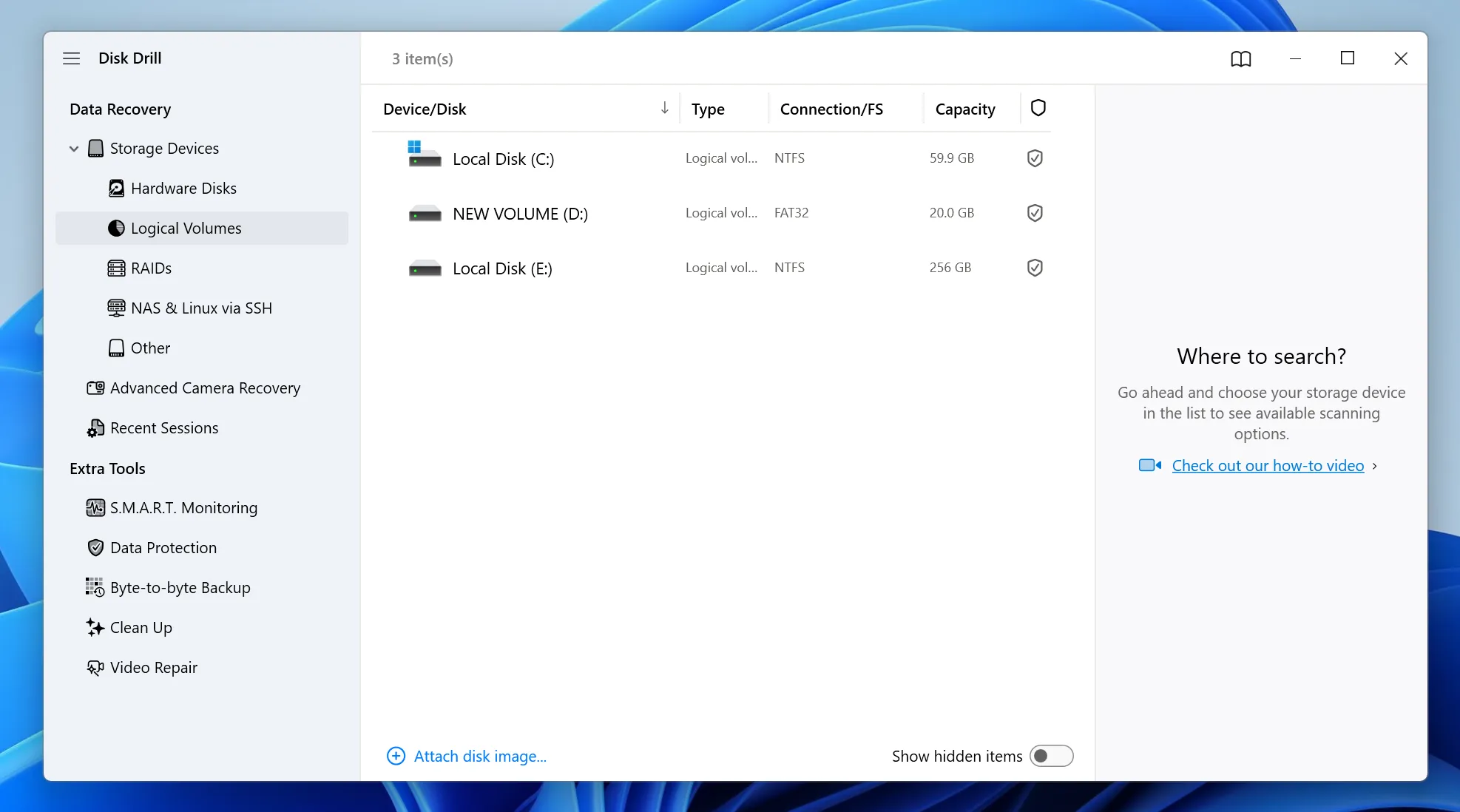
- Select the affected storage device.
- Click Search for lost data.
- Allow the scan to finish.
- Filter and preview the detected files.
- Select the files you want to restore.
- Recover them to another physical drive.
- Open the recovered files to confirm that they work.
Although the process is straightforward, choosing the wrong installation or recovery location may overwrite data that could otherwise be restored.
How to Recover Files with Disk Drill Step by Step
The following instructions explain how to use Disk Drill to recover deleted files while avoiding common mistakes.
Step 1: Download and Install Disk Drill
Download Disk Drill from the official CleverFiles website. Choose the version designed for Windows or macOS.
Whenever possible, install the software on a physical drive that does not contain the deleted files. For example, avoid installing it on drive C if you need to recover data from that same drive.
Step 2: Select the Drive That Contained the Files
Open Disk Drill and review the available storage devices. Select the disk or partition where the missing files were originally stored.
Choose the entire physical drive instead of one partition when:
- The original partition has disappeared
- The drive appears as RAW
- The disk was repartitioned
- The storage device was formatted
- Unallocated space appears in Disk Management
Scanning the entire device may help Disk Drill locate lost partitions and reconstructed files.
Step 3: Search for Lost Data
Click Search for lost data to begin scanning.
Disk Drill may display files before the scan finishes. However, allow the process to complete when your important files do not appear immediately. A deeper scan can find files that no longer have valid file-system records.
Step 4: Filter and Preview the Results
Use filters to narrow the results by:
- File type
- File extension
- File name
- File size
- Modification date
- Recovery chance
- Deleted or reconstructed status
Preview important files before recovery. A file name alone does not prove that the content remains intact. A successful preview gives you a better indication that the file can still be read.
Step 5: Recover Files to Another Drive
Select a small group of important files first. Then choose a recovery destination on another physical storage device.
Do not recover files to the same drive from which they were deleted. Writing recovered data back to the source device may overwrite other lost files that Disk Drill has not restored yet.
Step 6: Verify the Recovered Files
Open the recovered photos, videos, documents, and archives from the destination drive.
Check more than the file name and size. A damaged video may stop during playback, while a corrupted archive may fail when you try to extract it.
What to Do If Disk Drill Cannot Find Your Files
When Disk Drill is not finding files, do not immediately format or repair the original drive. Try the following solutions first.
Let the Scan Finish
A quick scan may find files whose original records still exist. A complete scan can also detect reconstructed files through their file signatures.
Check Reconstructed Files
Deep-scan results may appear without their original names or folder locations. Search by file extension and compare file sizes to identify useful files.
Scan the Entire Physical Disk
If you scanned only one partition, return to the device list and select the complete physical drive. This is especially useful after formatting, partition loss, or file-system corruption.
Avoid Running Repair Tools
Do not run CHKDSK, formatting tools, or partition repair software before recovering important data. These utilities may change the file system and remove information that recovery software could use.
Try Another Recovery Program
Different recovery tools may detect or organize lost files differently. If Disk Drill cannot preview the files you need, running a second scan may provide a more complete assessment.
Magic Data Recovery: An Alternative for Windows Users
Magic Data Recovery is a practical Disk Drill alternative for Windows. It can scan recognized hard drives, SSDs, USB drives, memory cards, and RAW partitions for deleted or lost files.
The software may help when:
- Disk Drill cannot find the required files
- You want to compare results from another recovery engine
- A USB drive or memory card was accidentally formatted
- A partition appears as RAW
- You need to test a larger group of recoverable files
Magic Data Recovery includes scanning, filtering, preview, and file recovery features. Its interface guides users through the process without requiring advanced technical knowledge.
Why Consider Magic Data Recovery?
Magic Data Recovery addresses several common recovery problems:
- It supports common Windows storage devices.
- It can search for data after deletion or quick formatting.
- It allows users to filter large scan results.
- It provides file previews before recovery.
- It supports a larger free recovery test than Disk Drill currently offers on Windows.
- It lets users perform another scan before repairing or reformatting the source device.
However, no recovery program can restore data that has already been overwritten. Recovery results also depend on the condition of the drive, the type of file system, SSD TRIM, encryption, and how much the device was used after data loss.
How to Recover Files with Magic Data Recovery
If Disk Drill does not locate the files you need, Magic Data Recovery offers Windows users another way to scan the affected device. Before you begin, stop using the source drive and prepare another storage location for the recovered files.
Step 1: Download and Install Magic Data Recovery
Download Magic Data Recovery and install it on a drive that does not contain the lost files. Installing recovery software on the affected drive may overwrite recoverable data and reduce the chance of a successful recovery.
Supports Windows 7/8/10/11 and Windows Server
Step 2: Select the Affected Drive or Partition
Open Magic Data Recovery and review the available disks and partitions on the main interface. Select the location where the missing files were originally stored, and then start the scan. If the original partition is missing, formatted, or shown as RAW, choose the corresponding physical disk instead.

Step 3: Scan for Lost and Deleted Files
Magic Data Recovery starts an Advanced Scan automatically. As the scan continues, the program displays the files it can detect. You can review the results during the scan. However, allow the process to finish when the required files do not appear immediately, especially after formatting or partition loss.

Step 4: Preview Files Before Recovery
Use the preview feature to check whether the detected photos, documents, videos, or other files contain the content you need. You can also filter the results by file type, name, size, or original location. Previewing and filtering the files helps you avoid recovering unnecessary or unusable data.

Step 5: Recover Files to a Safe Location
Select the files you want to restore and click the recovery button. Save them to a different physical drive or storage device rather than the original source. Recovering data to the affected drive may overwrite other lost files that have not yet been restored. After recovery, open the saved files and confirm that their contents remain complete and usable.

Conclusion: Recover Files with Disk Drill Safely
Learning how to recover files with Disk Drill involves more than clicking the scan button. You should stop using the affected drive, select the correct scan target, preview the results, and save recovered files to another physical device.
Disk Drill is a useful option for Windows and Mac users when it successfully locates and previews the missing files. However, no single recovery tool works equally well in every data-loss situation.
When Disk Drill cannot find the files you need, Magic Data Recovery provides Windows users with a practical second scanning option. It supports common storage devices, offers a simple hard drive recovery process, and allows users to preview files before restoring them.
For these reasons, we recommend Magic Data Recovery when you need to compare recovery results, scan a formatted or RAW device, or try another solution before making changes to the original drive.
Supports Windows 7/8/10/11 and Windows Server
FAQ
Is Disk Drill safe to use?
Disk Drill is a legitimate program when you download it from the official source. Safe recovery also depends on your actions. Install it away from the missing data and recover files to another drive.
Can Disk Drill recover permanently deleted files?
Disk Drill may recover permanently deleted files when the underlying data still exists and no new content has overwritten it. “Permanently deleted” often means that the file no longer appears in the Recycle Bin or Trash. It does not always mean that every data block has disappeared.
Can Disk Drill recover overwritten files?
No recovery tool can reliably restore content after new data has replaced the original storage sectors. Check your backups, cloud version history, email attachments, synced devices, or previous copies instead.
Why does a recovered file fail to open?
The file may be incomplete, fragmented, overwritten, or missing important header information.
Check another copy in the scan results, review reconstructed files, or try a second recovery engine.
Can I recover files to the same drive?
You should not. Saving recovered data to the source drive may overwrite other files that remain recoverable.
Can Magic Data Recovery replace Disk Drill on Mac?
No. Magic Data Recovery focuses on Windows. Mac users need a macOS-compatible recovery tool or a professional recovery service.
How long does Disk Drill take to scan a drive?
The scan time depends on the drive capacity, connection speed, storage condition, and selected scan method. A small USB drive may finish quickly, while a large HDD or damaged file system may take much longer. For the best results, allow the scan to complete and avoid disconnecting the device during the process.
Should I stop using my computer after deleting files?
Yes, especially when the deleted files were stored on the system drive. New downloads, software installations, updates, and temporary files may overwrite deleted data. Stop unnecessary activity, install recovery software on another drive when possible, and save recovered files to a separate storage device.

Vasilii is a data recovery specialist with around 10 years of hands-on experience in the field. Throughout his career, he has successfully solved thousands of complex cases involving deleted files, formatted drives, lost partitions, and RAW file systems. His expertise covers both manual recovery methods using professional tools like hex editors and advanced automated solutions with recovery software. Vasilii's mission is to make reliable data recovery knowledge accessible to both IT professionals and everyday users, helping them safeguard their valuable digital assets.