
Recover Files from an External Hard Drive
Losing photos, work documents, videos, or personal files can be stressful. Fortunately, you can often recover files from an external hard drive after accidental deletion, quick formatting, a RAW file system, or another logical data-loss problem.
However, your first action matters. Stop using the affected disk as soon as you notice missing data. Do not copy new files to it, format it, or save recovered data back to the same disk. Instead, identify what happened and choose the safest hard drive recovery method.
This guide explains how to recover files from an external hard drive with Windows tools, backups, and recovery software. It also shows when Magic Data Recovery makes sense and when physical damage requires professional help.
Supports Windows 7/8/10/11 and Windows Server
Table of Contents
How to Recover Files from an External Hard Drive: Choose the Right Method
Before trying random fixes, match your situation to the safest first step.
Situation | Best First Step |
Recently deleted files | Check the Recycle Bin |
Shift+Delete used | Use external hard drive recovery software |
Recycle Bin emptied | Run a recovery scan |
Drive was quick-formatted | Stop using it and scan |
Drive shows as RAW | Recover files before repair |
Files disappeared | Check hidden files, then scan |
HDD clicks or grinds | Stop powering it on |
Drive is not detected anywhere | Check hardware first |
Therefore, external hard drive data recovery should follow the cause of the problem. Deleted files, damaged file systems, and mechanical failures require different solutions.
Before You Recover Files from an External Hard Drive
A few precautions can protect recoverable data and prevent common mistakes.
Stop Writing New Data
When Windows deletes a file, it usually marks the space as available instead of wiping every byte immediately. As a result, new files can overwrite the old data.
For example, copying a large video folder after deleting photos may overwrite part of those photos. So, when you need to recover deleted files from external hard drive, stop using the source disk first.
Do Not Format the Disk
Windows may ask you to format the disk before using it. However, formatting changes file-system information and can make recovery harder.
If important data remains, try to recover files from external hard drive without formatting before you repair or reformat the disk.
Save Recovered Files Elsewhere
Always choose another healthy disk as the recovery destination. Otherwise, new writes may overwrite files that you have not recovered yet.
Check for Physical Damage
Software handles logical data loss, not broken hardware. Therefore, stop DIY recovery if the HDD clicks, grinds, fails to spin, smells burnt, or suffered water or impact damage.
Can You Recover Files from an External Hard Drive?
Yes, you can often recover files from an external hard drive in logical data-loss situations. For example, recovery software may help after accidental deletion, Shift+Delete, quick formatting, partition loss, or some RAW file-system problems.
Still, no recovery tool can promise every file. Recovery depends on whether new data has overwritten the lost information, whether the storage media remains readable, and whether physical damage exists.
Because of that, the safest way to recover files from an external hard drive is to stop using it early and start with the least invasive option.
6 Ways to Recover Files from an External Hard Drive
Start with simple methods. Then move to recovery software or professional help only when necessary.
Method 1: Restore Files from a Backup
Next, check Windows File History, OneDrive, Google Drive, Dropbox, NAS storage, or another backup disk.
A current backup offers the safest solution because you do not need to scan the affected disk. However, if no usable copy exists, external HDD recovery software becomes the next practical option.
Method 2: Show Hidden Files
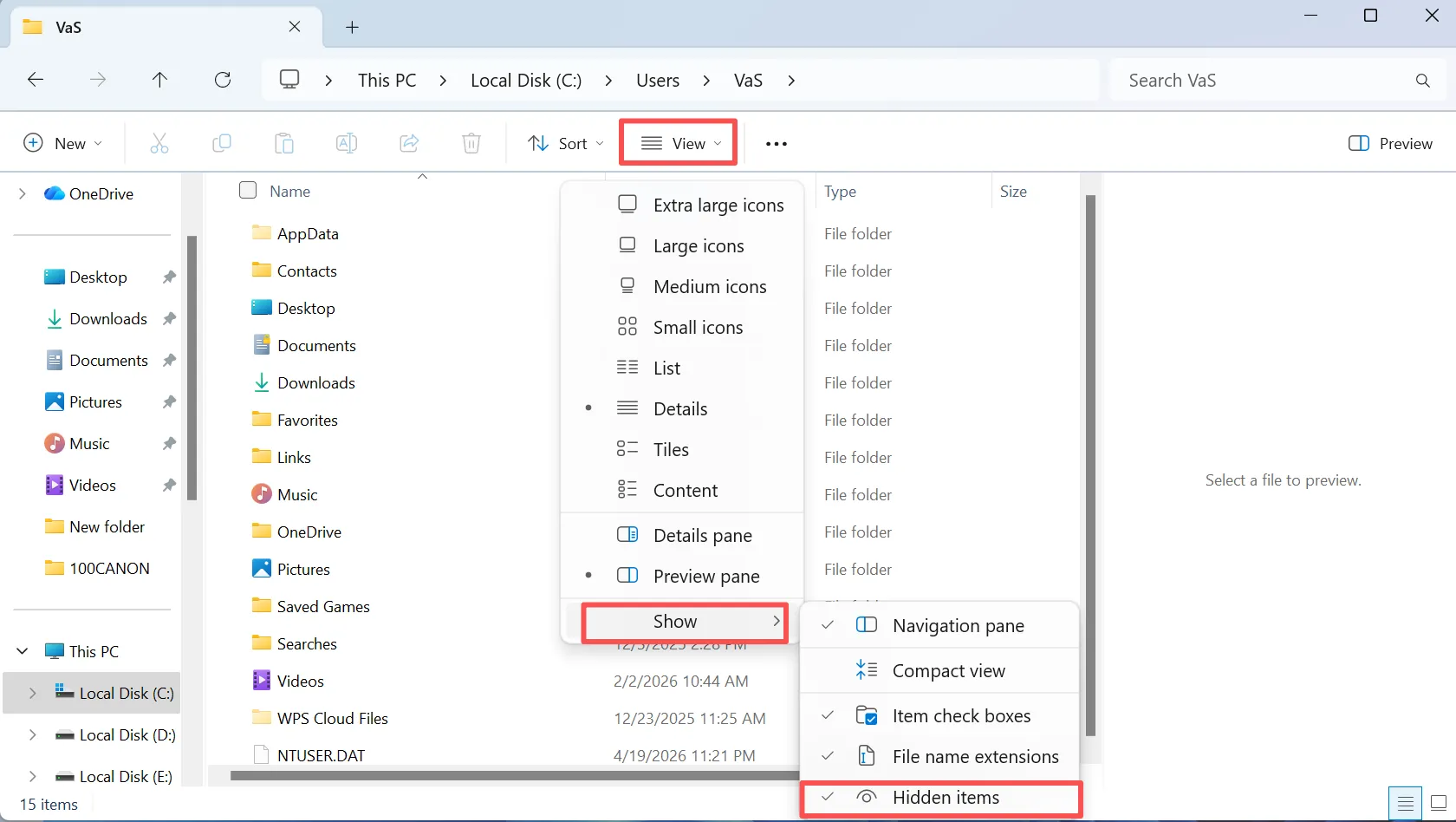
Sometimes the files still exist, but Windows hides them because of file attributes, settings, or malware. Open File Explorer, choose View, and enable Hidden items. If your missing folders appear, copy them to a safe location.
Method 3: Check Previous Versions
Windows may keep earlier copies through File History. Right-click the folder that previously held your files, choose Properties, and open Previous Versions. Then review the available copies and restore the version you need.

Method 4: Use CHKDSK Only After Recovery
CHKDSK repairs file-system structures; it is not a deleted-file recovery tool. Therefore, secure important data first. This order matters during RAW external hard drive recovery, because repair operations may change file-system structures that recovery software needs to analyze.
A safer order is:
Recover important files → verify recovered data → repair the disk.

Method 5: Use Data Recovery Software
When backups cannot help, recovery software can search the storage media for lost files.
This approach suits logical problems such as permanent deletion, quick formatting, lost partitions, and some corrupted file systems.
Magic Data Recovery fits this stage because it lets you select a disk, scan for lost data, preview files, and restore chosen items. Therefore, it offers a straightforward way to recover files from an external hard drive without complex command-line operations.
How to Recover Files from an External Hard Drive with Magic Data Recovery
When backups and built-in Windows options cannot restore your missing files, Magic Data Recovery provides a simple scan-preview-recover workflow.
In addition, you can review available files before saving them, which helps you focus on the data you actually need.
Step 1: Download and Install Magic Data Recovery
Download Magic Data Recovery and install it on your computer. Most importantly, choose a healthy disk rather than the affected one. This approach helps prevent accidental overwriting and protects data that may still be recoverable.
Supports Windows 7/8/10/11 and Windows Server
Step 2: Choose the Hard Drive to Scan
Open Magic Data Recovery. Then locate the disk that contained your missing files, confirm its drive information, and select it to start scanning.

Step 3: Scan for Lost and Deleted Files
Magic Data Recovery starts an Advanced Scan automatically. Meanwhile, found files appear in the results as the scan continues, so you can review available data during the process.

Step 4: Preview Files Before Recovery
Next, use Preview to check file contents before restoring anything. For example, review photos, documents, videos, or other supported files to confirm that you selected the correct data. This step also prevents you from restoring unnecessary files.

Step 5: Recover Files to a Safe Location
Finally, select the files you want and save them to another healthy disk or storage device.
Do not use the source disk as the destination because new writes may overwrite other recoverable data.

For users who want to recover files from an external hard drive after deletion, formatting, or another logical data-loss problem, this guided workflow avoids unnecessary technical steps.
Method 6: Use Professional Recovery for Hardware Failure
Finally, stop using software if the HDD shows signs of physical failure. Clicking sounds, severe impact damage, water damage, failed electronics, or complete detection failure often require a professional data recovery service.
Recover Files from a Formatted, RAW, or Corrupted External Hard Drive
If you quick-formatted the wrong disk, stop using it immediately. A quick format changes important file-system information, but it does not necessarily overwrite every area that held previous data. Therefore, formatted external hard drive recovery may still work if new files have not replaced the old content.
Likewise, a RAW status usually means Windows cannot interpret the file system correctly. Do not format the disk before securing important files. Instead, scan it first and attempt RAW external hard drive recovery.
The same principle applies when you need to recover files from corrupted external hard drive storage. First, recover and verify the important files. Afterward, repair or reformat the disk.
Recover Files from an External Hard Drive That Is Not Showing Up
An external hard drive not showing up in File Explorer does not always mean complete hardware failure.
First, try another USB port. Next, test another cable and computer. Then open Disk Management and check whether Windows can see the disk.
If Disk Management detects it, a drive-letter, partition, or file-system problem may be responsible. Therefore, recovery software may still access the storage.
However, if you need to recover files from external hard drive not detected by any computer, software cannot scan a device that the operating system cannot access. In that situation, seek hardware diagnosis instead of repeatedly reconnecting the device.
When Magic Data Recovery Makes Sense
Magic Data Recovery works best for logical data-loss situations where the computer can still communicate with the storage device.
For example, it can provide a practical next step after:
- Accidental deletion
- Shift+Delete
- An emptied Recycle Bin
- Quick formatting
- A RAW file system
- A missing or lost partition
- Other logical file-access problems
In contrast, clicking sounds, severe physical damage, or complete detection failure call for professional help.
Compared with command-line repair methods, Magic Data Recovery focuses on a guided process: scan, preview, select, and recover.
Moreover, the preview stage helps users confirm which files they actually need before restoration. For that reason, Magic Data Recovery provides a practical option when you need to recover files from an external hard drive and built-in Windows methods no longer solve the problem.
Data Recovery Software vs. Professional Data Recovery
Choosing between software and a professional recovery service depends mainly on whether the problem is logical or physical.
Problem | Recovery Software | Professional Service |
Deleted files | ✓ | Usually unnecessary |
Emptied Recycle Bin | ✓ | Usually unnecessary |
Quick format | ✓ | Sometimes |
RAW file system | ✓ | Sometimes |
Lost partition | ✓ | Sometimes |
Clicking HDD | ✗ | ✓ |
Mechanical failure | ✗ | ✓ |
Severe physical damage | ✗ | ✓ |
In short, use recovery software for logical data loss. In contrast, choose professional help when the drive shows clear physical failure.
7 Mistakes to Avoid During External Hard Drive Data Recovery
When you recover files from an external hard drive, avoid these common mistakes:
- Continuing to use the affected disk.
- Formatting it before recovery.
- Installing recovery software on the source disk.
- Saving recovered files back to the same disk.
- Running CHKDSK before securing important data.
- Repeatedly powering on a clicking HDD.
- Opening the hard drive mechanism yourself.
Most importantly, protect the source data before you attempt repairs.
How to Prevent Future External Hard Drive Data Loss
After recovery, improve your backup routine. For example, keep more than one copy of critical files and store those copies on different devices. In addition, eject portable storage safely and replace drives that show repeated errors.
You should also verify backups regularly. After all, a backup only helps when you can successfully open and restore the stored files.
Although these habits cannot prevent every hardware failure, they can greatly reduce the impact of future data loss.
Conclusion: Recover Files from an External Hard Drive Safely
The safest way to recover files from an external hard drive starts with one rule: stop using the affected disk.
Next, check the Recycle Bin and available backups. If those methods fail, recovery software can address logical problems such as permanent deletion, quick formatting, RAW file systems, or missing partitions.
Magic Data Recovery is worth considering because it gives ordinary users a clear scan, preview, and recovery workflow. Moreover, it avoids complex command-line recovery while allowing users to choose the files they need and save them to another location.
However, software cannot fix mechanical damage. If the HDD clicks, suffers severe impact, or remains completely undetected, stop using it and consider professional recovery.
For a physically healthy disk with logical data loss, Magic Data Recovery offers a practical way to recover files from hard drives while protecting the source data first.
Supports Windows 7/8/10/11 and Windows Server
FAQ
Can I recover deleted files from an external hard drive?
Yes, you may recover files from an external hard drive after deletion if new data has not overwritten the lost information. First, stop using the disk and check the Recycle Bin or backups. If those options fail, recovery software can scan the storage media for deleted files that Windows no longer displays normally.
Can I recover files without data recovery software?
Sometimes. First, check the Recycle Bin, File History, cloud storage, Previous Versions, and manual backups. These options work when another copy still exists. However, if you permanently deleted the data and have no backup, recovery software may need to search the disk for file information that Windows no longer shows.
Can I recover files after formatting an external hard drive?
Often, a quick format leaves some old data on the disk until new information overwrites it. Therefore, stop using the device immediately. To recover files from an external hard drive after formatting, scan it before adding new data, preview the results, and save recovered files to another healthy storage device.
Can I recover files from a RAW external hard drive?
Logical RAW external hard drive recovery may work when the device remains physically readable. RAW usually means Windows cannot interpret the file system correctly. Therefore, recover important files before formatting or repairing the disk. However, if the HDD also makes unusual mechanical sounds, stop using it and seek professional help.
Does CHKDSK recover deleted files?
Not like recovery software. CHKDSK checks and repairs file-system structures, so its main purpose is disk repair rather than deleted-file recovery. Consequently, recover important files first when data is inaccessible. After you verify the restored files, you can use repair tools with less risk to information that may still remain recoverable.
Can I recover data if the external hard drive is not detected?
Start with basic checks. Try another USB port, cable, and computer, then review Disk Management. If Windows detects the disk there, a logical problem may still allow recovery. However, if no computer detects the device, recovery software cannot scan it. At that point, hardware diagnosis or a professional recovery service may be necessary.
Why should I save recovered files to another drive?
Saving restored files to the source disk creates new writes, which can overwrite other lost data that you have not recovered yet. Therefore, always choose a different healthy disk as the destination. After you finish recovery and verify your files, you can repair, format, or reuse the original device with much less risk.

Vasilii is a data recovery specialist with around 10 years of hands-on experience in the field. Throughout his career, he has successfully solved thousands of complex cases involving deleted files, formatted drives, lost partitions, and RAW file systems. His expertise covers both manual recovery methods using professional tools like hex editors and advanced automated solutions with recovery software. Vasilii's mission is to make reliable data recovery knowledge accessible to both IT professionals and everyday users, helping them safeguard their valuable digital assets.