
How to Recover a Formatted SD Card
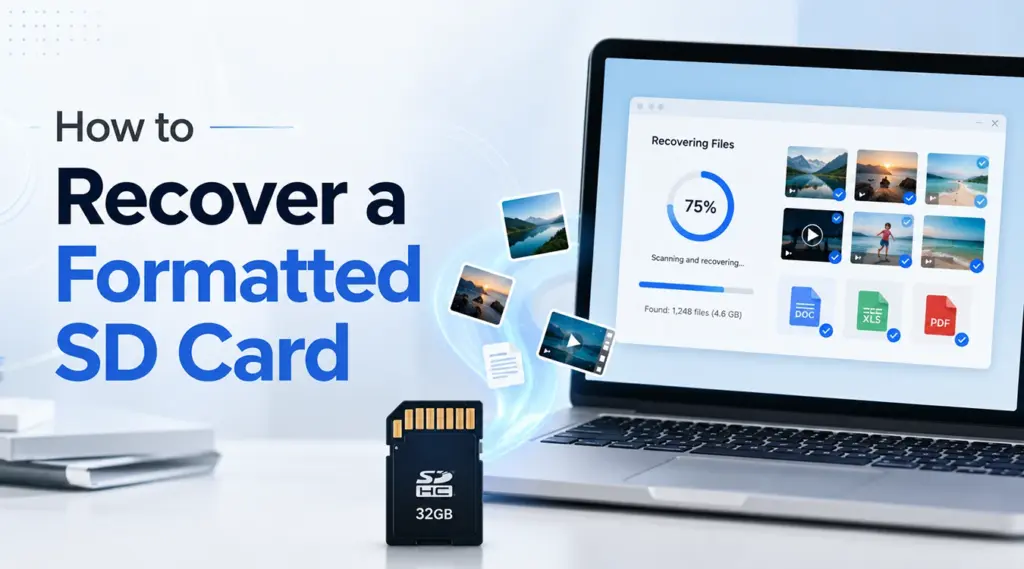
Accidentally formatting an SD card can make photos, videos, and documents disappear within seconds. However, the files may remain until new data overwrites them. This guide explains how to recover a formatted SD card, which SD card recovery methods work, and how Magic Data Recovery helps Windows users scan, preview, and restore lost files.
Important: Stop using the SD card immediately. Do not take new photos, copy files to it, format it again, or run repair commands before recovery.
Supports Windows 7/8/10/11 and Windows Server
Table of Contents
Can You Recover Formatted SD Card Files?
Many users ask, can you recover formatted sd card files after an accidental format? Often, yes. A quick format usually rebuilds the file system index while leaving underlying data untouched. Therefore, recovery software may still locate file records or recognize files by their signatures.
However, a full format creates a harder case. Likewise, new photos or videos can overwrite old sectors. Once that happens, no program can restore the replaced data.
Quick Format vs. Full Format
Before choosing how to recover a formatted SD card, identify the likely situation:
Situation | Recovery outlook | Recommended action |
Windows quick format | Often recoverable if unused afterward | Scan immediately |
Camera format | Often recoverable | Remove and scan the card |
Windows full format | Low chance | Avoid repeated DIY attempts |
Android portable storage | Sometimes recoverable | Use a card reader and PC |
Android adopted storage | Difficult because of encryption | Check the original phone and backups |
Physically unstable card | Software scans may add stress | Contact a specialist |
What to Do Before You Recover a Formatted SD Card
The first few minutes matter. Therefore, take these steps before scanning:
- Remove the card from the camera, phone, drone, or computer.
- Use a reliable card reader instead of an unstable USB hub.
- Cancel any message that asks you to format the card again.
- Avoid CHKDSK and other repair commands.
- Prepare a folder on your computer for recovered files.
In addition, stop when the card disconnects, reports the wrong capacity, or becomes unusually hot. These signs may indicate hardware failure.
How to Recover a Formatted SD Card With Magic Data Recovery
Magic Data Recovery gives Windows users a guided way to learn how to recover a formatted SD card without complex commands. It scans SD and microSD cards, displays recoverable items, and lets you filter and preview files before restoring them.
First, identify the correct card by capacity and drive letter. Next, verify important files. Finally, recover only the items you need.
Step 1: Download and Install Magic Data Recovery
Download Magic Data Recovery and install it on your computer’s internal drive. Never install the program on the formatted SD card because new files could overwrite recoverable data.
Supports Windows 7/8/10/11 and Windows Server
Step 2: Select the Formatted SD Card to Scan
Connect the SD card to your Windows computer with a reliable card reader. Then, launch Magic Data Recovery and find the formatted card on the main interface. Check the drive letter, storage capacity, and device name before starting. This quick check prevents you from scanning the wrong device.

Step 3: Scan the Formatted SD Card for Lost Files
After you select the card, Magic Data Recovery starts an Advanced Scan. Meanwhile, the program lists recoverable files as it finds them. Allow the scan to finish for a more complete result. Also, keep the reader connected and avoid restarting the computer.

Step 4: Preview Files Before Recovery
Next, use the preview feature to check whether the detected files are complete. You can also filter results by file type, filename, size, or path. For example, preview photos at full size, open documents, and check several points in a video. As a result, you can focus on usable files.

Step 5: Recover Files to a Safe Location
Finally, select the files you need and click the recovery button. Save them to your computer or another device. Do not restore files to the formatted SD card. Otherwise, the new data may overwrite other files that remain recoverable.

Afterward, open several recovered items and confirm that they work. Then, create a second backup before reusing the card.
How to Recover a Formatted SD Card for Free
People who search recover formatted sd card free usually want to test recovery before paying. Fortunately, several options exist.
Check Cloud and Local Backups
First, check Google Photos, OneDrive, Dropbox, Windows File History, phone storage, and computer folders. A backup offers the safest solution because it does not change the card. However, verify upload dates and open several files before trusting it.
Use Magic Data Recovery’s Free Allowance
Magic Data Recovery currently lets Windows users recover up to 500MB for free. This may cover essential documents or selected photos. More importantly, you can scan and preview results before deciding whether you need more capacity.
Try PhotoRec
PhotoRec offers a free, open-source alternative that searches for file signatures. However, it often loses filenames and folder structures. Consequently, technical users may accept it, while beginners may find Magic Data Recovery easier.
How to Recover a Formatted SD Card Without Software
You can follow how to recover a formatted SD card without software only when another copy exists in cloud storage, a phone gallery, or a backup. Without one, you normally need a tool that scans file records or signatures.
If the card contains irreplaceable data and shows physical problems, stop repeated scans. A recovery laboratory can handle damaged hardware more safely.
Why CHKDSK Cannot Recover a Formatted SD Card
Some guides recommend chkdsk X: /f for how to recover a formatted SD card. However, CHKDSK checks and repairs file-system errors; it does not scan formatted space like recovery software.
In addition, repair commands can change allocation tables and directories. Consequently, running them first may complicate later recovery. Therefore, recover and verify important files before repairing or reformatting the card.

What Affects Formatted SD Card Recovery?
Several factors influence how to recover a formatted SD card:
- Overwriting: New photos or videos may replace old sectors. As a result, recovered files may appear incomplete.
- Fragmentation: Large videos often occupy separate areas. Therefore, losing one section can make the whole file unusable.
- Card health: Worn or counterfeit cards may disconnect or report the wrong capacity.
- Encryption: Android adopted storage may remain unreadable without the original device and encryption keys.
Stop scanning if the card becomes hot, disappears, or shows the wrong size.
Common Mistakes to Avoid
While learning how to recover a formatted SD card, avoid these errors:
- Using or formatting the card again
- Saving recovered files to the same card
- Running CHKDSK before scanning
- Installing software on the affected card
- Removing an unstable card during a scan
Therefore, work carefully and verify important files before repairing the card.
Magic Data Recovery vs. Other Recovery Options
Choosing how to recover a formatted SD card depends on your skill level and card condition. Backups offer the safest answer when another copy exists. PhotoRec provides unlimited open-source scanning, but it often loses filenames and folders. CHKDSK repairs file systems, yet it does not scan formatted space.
Magic Data Recovery offers a practical middle ground. Unlike CHKDSK, it searches for lost files. Compared with PhotoRec, it provides filters and previews through a clearer Windows interface. For example, a camera user can preview family photos and recover the most important items first.
Tips to Prevent Future SD Card Data Loss
After you understand how to recover a formatted SD card, copy files after each session, keep two backups, verify them before formatting, and replace cards that show errors. In addition, avoid using an SD card as permanent archive storage.
Conclusion: How to Recover a Formatted SD Card Safely
The safest how to recover a formatted SD card process starts with one rule: stop writing new data. Next, check backups, identify the format type, and scan the card before running repair commands.
Magic Data Recovery suits ordinary Windows users because it combines guided scanning, filters, previews, and a free recovery allowance. It cannot restore overwritten data or repair physical damage. However, it offers a clear solution when recoverable files still remain.
If you need an efficient method for how to recover a formatted SD card, try Magic Data Recovery, preview the results, and save the lost files from the SD card to a safe location.
Supports Windows 7/8/10/11 and Windows Server
FAQ
Can You Recover Formatted SD Card Data?
Yes, you can often recover data after a quick format when no new files have overwritten the original sectors. Stop using the card immediately, connect it through a reader, and scan it. However, a full format, encryption, physical damage, or continued use can greatly reduce the chance of complete recovery.
How Do You Recover Formatted SD Card Free?
To recover formatted sd card free, check cloud services, old computer folders, phone storage, and local backups first. You can also use Magic Data Recovery’s 500MB free allowance or try PhotoRec. However, PhotoRec may not preserve original filenames or folder structures, so compare convenience and recovery needs before choosing.
Can a Quick-Formatted SD Card Be Recovered?
A quick-formatted SD card often remains recoverable because the process usually removes file-system references rather than erasing every sector immediately. However, the chance drops whenever you save new data. Remove the card, avoid repair tools, scan it promptly, preview important files, and save recovered items to your computer.
Can CHKDSK Restore Files From a Formatted SD Card?
No. CHKDSK checks and repairs file-system errors, but it does not scan formatted storage for lost file signatures. Moreover, it may change allocation tables and directories. Therefore, recover important data first, verify the restored files, and only use CHKDSK later if the card still needs file-system repair.
Can I Recover a Formatted Camera SD Card?
Yes, especially when the camera performed a quick format and you did not record new photos or videos afterward. Remove the card, connect it to Windows through a reader, and scan it. Preview the results carefully because large video files may suffer from fragmentation or partial overwriting.
Can I Recover a Formatted MicroSD Card?
Yes. The same process applies to microSD cards used in phones, drones, action cameras, and tablets. Use a reliable adapter, cancel new format prompts, and scan the card on Windows. However, Android adopted storage may use encryption, which can prevent standard recovery tools from producing readable files outside the original device.
Where Should I Save Recovered Files?
Save recovered files to your computer or another storage device, never to the formatted SD card. Writing data back to the same card can overwrite files that remain recoverable. Afterward, open several photos, videos, and documents to verify them. Then, create another backup before you repair or reuse the card.

Vasilii is a data recovery specialist with around 10 years of hands-on experience in the field. Throughout his career, he has successfully solved thousands of complex cases involving deleted files, formatted drives, lost partitions, and RAW file systems. His expertise covers both manual recovery methods using professional tools like hex editors and advanced automated solutions with recovery software. Vasilii's mission is to make reliable data recovery knowledge accessible to both IT professionals and everyday users, helping them safeguard their valuable digital assets.