
Windows 11 Desktop Files Disappeared? Fix It

If your Windows 11 desktop files disappeared, do not assume Windows erased them. In many cases, the files still exist, but Windows hides them, moves them to OneDrive, switches to another user profile, or changes the Desktop path after an update. However, if the files are truly deleted, you may need a deleted file recovery tool before new data overwrites them.
This guide shows you how to diagnose the cause, check the most likely locations, and recover missing Desktop files step by step. It also explains when Magic Data Recovery becomes useful after standard Windows methods fail.
Important: If you suspect permanent deletion, reduce activity on the affected drive. Avoid large downloads, software installations, or unnecessary file copies until you finish recovery.
Supports Windows 7/8/10/11 and Windows Server
Table of Contents
Quick Diagnosis for Windows 11 Desktop Files Disappeared
Before you try every fix, match the symptom to the most likely cause.
What You See | Likely Cause | Try This First |
The whole desktop looks empty | Desktop icons are hidden | Enable desktop icons |
Files vanished after an update | Profile or folder path changed | Search This PC |
Files disappeared after OneDrive changes | Desktop moved to OneDrive | Check OneDrive Desktop |
Only a few files are missing | Deletion or security quarantine | Check Recycle Bin and Protection History |
Windows looks like a fresh setup | Different or temporary profile | Check the active account |
Files cannot be found anywhere | Files may be deleted | Restore from backup or scan for recovery |
This distinction matters. When Windows desktop files disappeared, the safest first step is to find out whether the data still exists. If Windows only moved or hid the files, you do not need recovery software.
Why Windows 11 Desktop Files Disappeared
Several Windows 11 features can make Desktop files appear to vanish. Therefore, check these common causes before you move to data recovery.
1. Desktop Icons Are Hidden
Windows can hide all desktop icons without deleting the files. For example, someone may disable “Show desktop icons” by mistake. In that case, the Desktop folder still contains the data.
Right-click the desktop, choose View, and make sure Show desktop icons is enabled.
2. OneDrive Changed the Desktop Location
OneDrive can back up the Desktop folder. As a result, your files may move from:
C:\Users\YourName\Desktop
to:
C:\Users\YourName\OneDrive\Desktop
If you sign out of OneDrive, change its backup settings, or switch Microsoft accounts, the desktop may suddenly look empty. This is a common reason users report files suddenly disappeared Windows 11 even though the files still exist.
3. Windows Loaded Another User Profile
Each Windows account has its own Desktop folder. If Windows signs you into another account or a temporary profile, you may see a clean desktop.
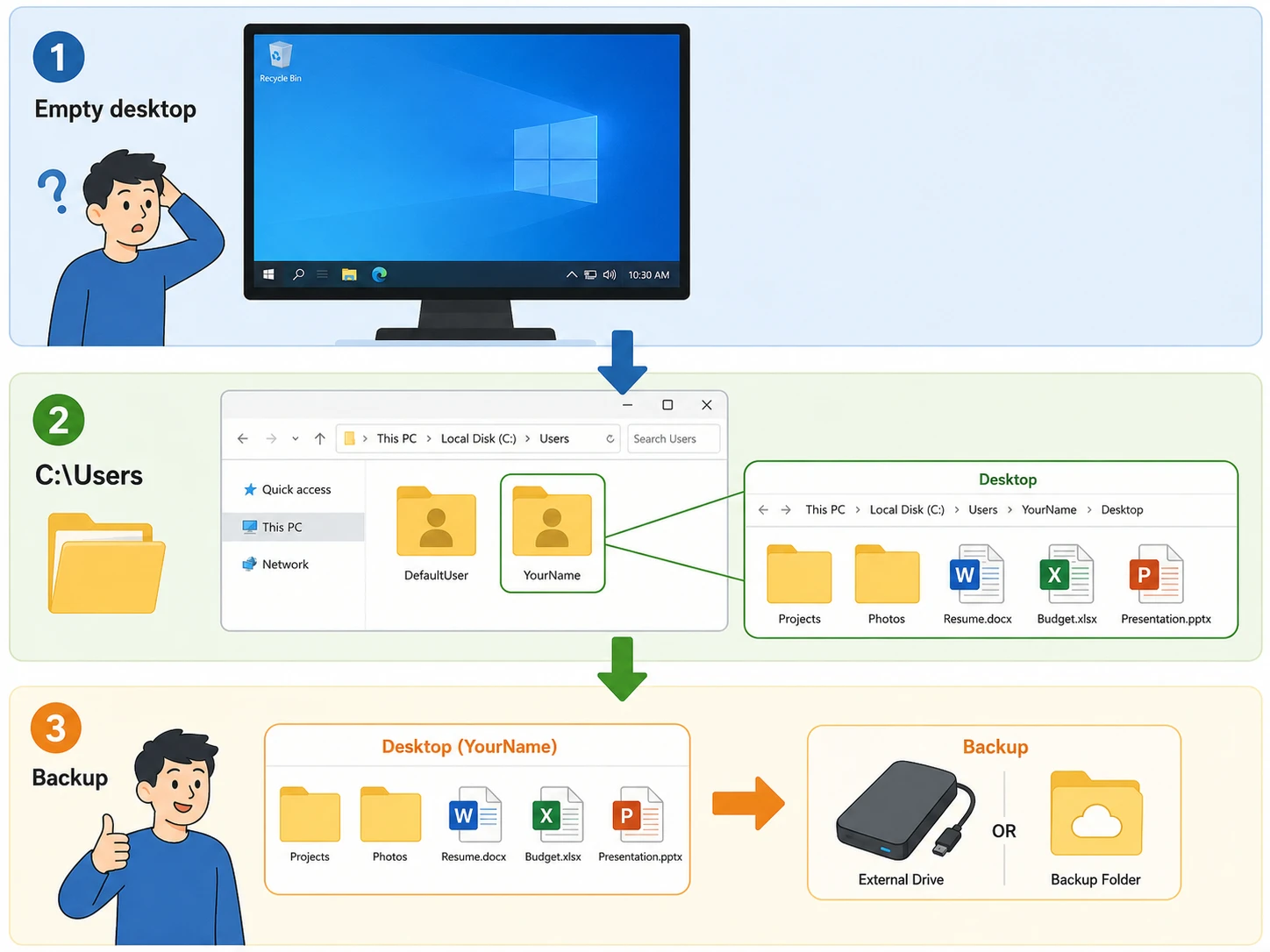
Therefore, open C:\Users and check the Desktop folder inside your usual profile. If the old files are there, copy important data to a safe location before changing profile settings.
4. A Windows Update Changed the File Location
If Windows 11 files disappeared after an update, start with a full search instead of a recovery scan. An update may coincide with profile changes, OneDrive changes, or a different Desktop path. Consequently, the files can remain on the drive while Windows displays another location.
5. Files Were Deleted
Normal deletion usually sends files to the Recycle Bin. However, Shift + Delete, an emptied Recycle Bin, cleanup software, or some application actions can remove them from normal view.
At that point, Windows may mark the storage space as available. Therefore, new writes can reduce the chance of recovery.
6. Windows Security Quarantined a File
Windows Security may quarantine suspicious executables, scripts, archives, or downloaded tools. If only a few files vanished, open Windows Security > Virus & threat protection > Protection history.
However, restore a quarantined file only when you trust its source.
7. File-System or Drive Problems
Storage errors can also make files inaccessible. Common warning signs include corruption, repeated read errors, unexpected crashes, or a drive that disconnects.
If you notice those symptoms, back up accessible data first. Then avoid unnecessary repair operations until you decide whether the priority is recovery or drive repair.
How to Fix Windows 11 Desktop Files Disappeared
Start with the least invasive methods. In most cases, these checks can confirm whether the files still exist.
Method 1: Show Desktop Icons and Hidden Files
First, right-click the desktop and select View > Show desktop icons.
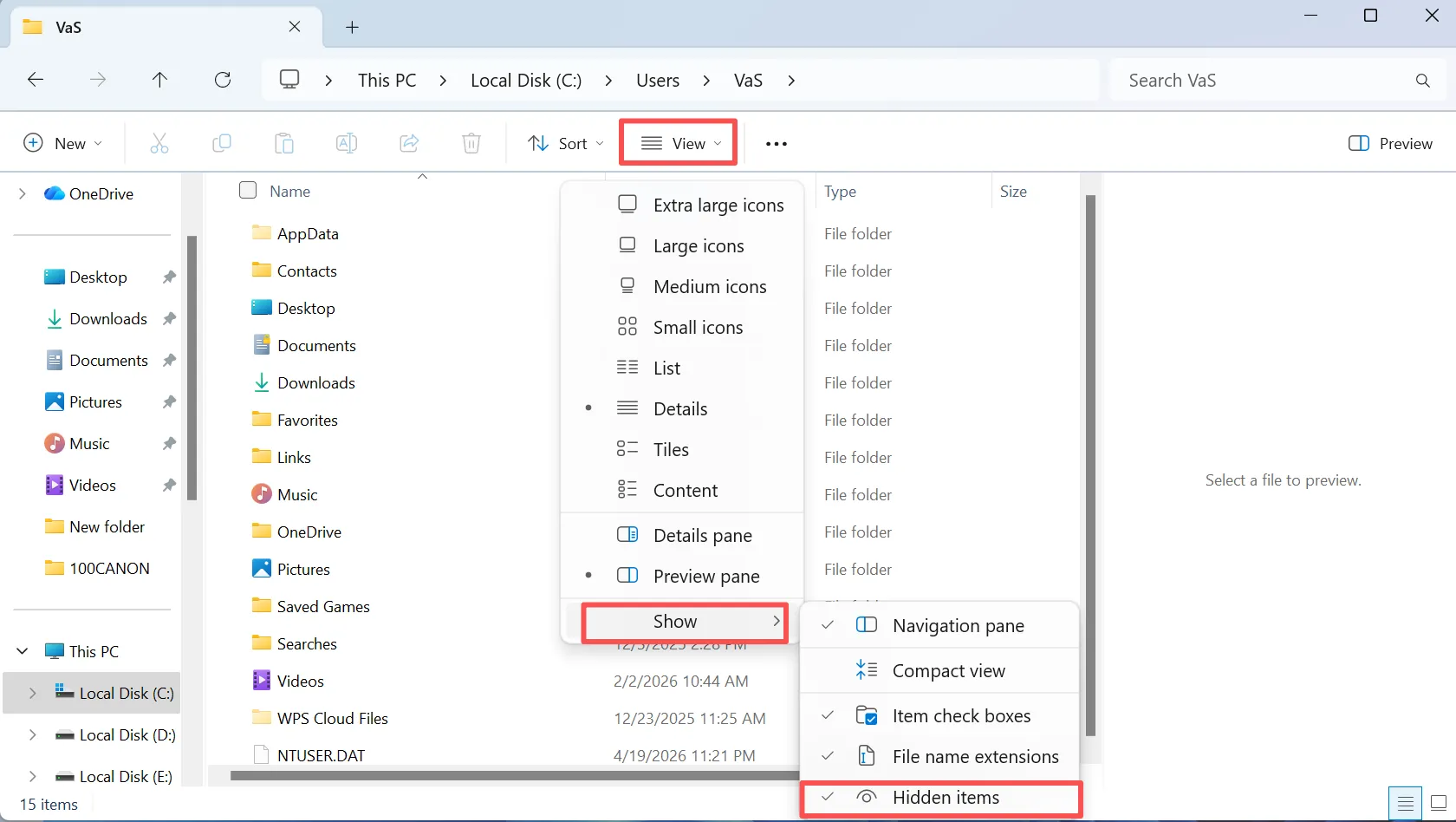
Next, open File Explorer and choose View > Show > Hidden items. Then check the Desktop folder again.
If your Windows desktop files disappeared because Windows hid them, this fix restores visibility immediately without changing the files themselves.
Method 2: Check the Actual Desktop Folders
Next, open File Explorer and inspect:
C:\Users\YourUserName\Desktop
Then check:
C:\Users\YourUserName\OneDrive\Desktop
Also review other relevant folders under:
C:\Users
For example, if Windows loads another profile after an update, the visible desktop may point to a different folder while your original data remains under the old profile.
Method 3: Search the Entire PC
If you remember a filename, open File Explorer > This PC and search for it.
Otherwise, search by file type:
*.docxfor Word files*.xlsxfor Excel files*.pdffor PDFs*.jpgfor JPEG images*.pptxfor PowerPoint files
Once you find a missing file, right-click it and choose Open file location. This method works well when files disappeared Windows 11 because Windows moved them rather than deleted them.
Method 4: Check OneDrive
If you use a Microsoft account, check both the local OneDrive folder and OneDrive online.
First, open:
C:\Users\YourName\OneDrive\Desktop
Next, search OneDrive for the missing filenames. Also inspect the OneDrive Recycle Bin. Finally, confirm that you signed in with the same Microsoft account that previously stored the files.
Because OneDrive can redirect Desktop content, this check is especially important when Windows 11 desktop files disappeared after sync or account changes.
Method 5: Check Your Windows User Profile
Open Settings > Accounts > Your info and confirm the active account.
Then compare it with the user folders under C:\Users. If Windows loaded a temporary profile, do not create many new files on that desktop. Instead, locate your original profile and secure any accessible data first.
Method 6: Check the Recycle Bin and Windows Security
Open the Recycle Bin and sort items by deletion date. If you find the missing file, right-click it and choose Restore.
After that, check Windows Security > Virus & threat protection > Protection history if only certain files are missing. This step helps when Windows 11 files disappeared because security software quarantined them.
Method 7: Restore from a Backup
A recent backup is usually the safest recovery source. Therefore, check File History, Windows Backup, OneDrive, another cloud backup, a NAS, or any separate copy you maintain.
If a backup contains the missing file, restore that version before you try disk-level recovery.
Recover Windows 11 Desktop Files Disappeared with Magic Data Recovery
If you checked the Desktop folders, searched the PC, reviewed OneDrive, inspected user profiles, checked the Recycle Bin, and found no usable backup, the files may be truly deleted. At this stage, Magic Data Recovery can scan the affected drive for recoverable data.
Unlike File Explorer search, recovery software looks for deleted file information that Windows no longer shows in the active file system. Therefore, Magic Data Recovery fits cases such as Shift + Delete, an emptied Recycle Bin, accidental folder deletion, or files suddenly disappeared Windows 11 after a software or system problem.
Magic Data Recovery supports Windows 11, deep scanning, file filtering, and preview features for supported file types. These functions help ordinary users narrow scan results and verify files before recovery. However, no recovery tool can guarantee success because later disk activity may overwrite deleted data.
How to Recover Missing Desktop Files with Magic Data Recovery
Step 1: Download and Install Magic Data Recovery
Download and install Magic Data Recovery. If the missing Desktop files were stored on your system drive, install the program on another available drive whenever possible. This approach reduces unnecessary writes to the affected drive and helps protect recoverable data.
Supports Windows 7/8/10/11 and Windows Server
Step 2: Select the Drive Where the Desktop Files Were Stored
Launch Magic Data Recovery. On the main interface, choose the drive that originally contained the missing Desktop files. For many Windows 11 users, that is the system drive. Then start the scan.

Step 3: Scan the Drive for Missing Files
Magic Data Recovery starts an Advanced Scan and searches for deleted or lost data. Meanwhile, the program lists recoverable files as the scan progresses.
Although you can review results during scanning, let the scan finish when possible. A complete scan gives the software more time to locate files that a quick search may miss.

Step 4: Preview Files Before Recovery
Next, browse the results and preview the files you want to recover. You can also use available filters to narrow results by filename, file type, or other supported criteria.
This step helps you confirm the correct documents, photos, videos, or other Desktop data before you start recovery.

Step 5: Recover Missing Desktop Files to a Safe Location
Finally, select the files you need and start recovery. Save the recovered data to a different drive from the one you scanned.
Do not restore recovered files to the source drive during the recovery process. Otherwise, new writes may overwrite other recoverable data and reduce your chance of retrieving additional files.

Magic Data Recovery does not replace OneDrive, Windows Search, or backups. Instead, it solves a different problem: recovering data when the operating system can no longer locate an active copy. That is why it makes more sense after normal troubleshooting fails, rather than as the first step.
What to Do If Windows 11 Files Disappeared After an Update
When files vanish immediately after a Windows update, use a simple order of checks.
First, search the entire PC. Next, inspect both the local Desktop and OneDrive Desktop folders. Then confirm your Windows profile and review other folders under C:\Users. After that, check OneDrive online, the Recycle Bin, and your backups.
If the Windows 11 desktop files disappeared and none of those locations contains an active copy, reduce new writes to the drive and consider a recovery scan.
This order prevents a common mistake. In particular, it keeps you from treating moved files as deleted files.
How to Prevent Windows Desktop Files Disappeared Problems
You cannot prevent every storage problem. However, a few habits can greatly reduce the risk of permanent loss.
First, keep more than one copy of important Desktop files. For example, use a backup drive, OneDrive, another trusted cloud service, or a NAS.
Next, understand where OneDrive stores your Desktop before you change folder-backup settings. In addition, enable a regular backup method such as File History or another backup solution.
Finally, if you experience genuine data loss, reduce disk activity quickly. The less new data you write, the better the chance that deleted information remains recoverable.
Conclusion: Fix Windows 11 Desktop Files Disappeared Safely
If your Windows 11 desktop files disappeared, start by determining whether Windows hid, moved, redirected, or deleted them. First, check desktop visibility, the actual Desktop folders, OneDrive, your Windows profile, the Recycle Bin, and backups. These methods solve many cases without disk-level recovery.
However, if the files no longer exist in any normal location, Magic Data Recovery offers a practical next step. Its Windows 11 support, deep scan, filtering, and preview workflow make it useful for users who need to locate recoverable deleted data without relying on command-line tools.
Most importantly, act before new writes overwrite the missing information. When files disappeared Windows 11, correct diagnosis should come first, and recovery should follow only when the data is truly lost.
Supports Windows 7/8/10/11 and Windows Server
FAQ
Why did my Windows 11 desktop files disappeared suddenly?
Several issues can make Desktop files vanish without permanent deletion. For example, Windows may hide desktop icons, switch user profiles, redirect the Desktop to OneDrive, or change folder paths after an update. Therefore, check the actual Desktop folders, OneDrive, the active Windows account, and the Recycle Bin before using recovery software.
Why have files suddenly disappeared Windows 11 after an update?
An update may coincide with a profile change, OneDrive synchronization change, or different Desktop path. As a result, Windows can display another folder while your original files remain elsewhere. First, search This PC. Then check C:\Users, the OneDrive Desktop folder, and your normal user profile before assuming the update deleted the files.
Where are Desktop files stored in Windows 11?
Windows normally stores Desktop files in C:\Users\YourUserName\Desktop. However, if OneDrive Desktop backup is active, your files may appear in C:\Users\YourUserName\OneDrive\Desktop instead. Therefore, check both paths when files seem missing. Also review other user folders if Windows recently changed accounts or loaded a temporary profile.
Can OneDrive cause Windows desktop files disappeared problems?
Yes, OneDrive can make files appear missing when Desktop backup, account sign-in, or synchronization settings change. However, OneDrive usually moves or redirects the files rather than deleting them. Check the local OneDrive Desktop folder, search OneDrive online, inspect its Recycle Bin, and confirm that you signed in with the correct Microsoft account.
Can I recover permanently deleted Desktop files?
Sometimes, but recovery depends on whether new data has overwritten the deleted file information. Therefore, stop unnecessary writes to the affected drive as soon as possible. Check backups first. If no copy exists, a data recovery tool such as Magic Data Recovery can scan the drive for recoverable files, although no tool can guarantee success.
What should I do if files disappeared Windows 11 and the Recycle Bin is empty?
First, search the entire computer and check OneDrive, other user profiles, and backups. If you still cannot find an active copy, reduce disk activity because new writes may overwrite deleted data. Then consider a recovery scan. Magic Data Recovery can search the affected drive for files that Windows no longer displays normally.
Is Magic Data Recovery a good solution when Windows 11 files disappeared?
It can be useful after normal Windows checks fail and you believe the files were actually deleted. Magic Data Recovery supports Windows 11 and provides scanning, filtering, and preview tools to help locate recoverable data. However, use it after checking OneDrive, profiles, the Recycle Bin, and backups because those methods are simpler when files still exist.

Vasilii is a data recovery specialist with around 10 years of hands-on experience in the field. Throughout his career, he has successfully solved thousands of complex cases involving deleted files, formatted drives, lost partitions, and RAW file systems. His expertise covers both manual recovery methods using professional tools like hex editors and advanced automated solutions with recovery software. Vasilii's mission is to make reliable data recovery knowledge accessible to both IT professionals and everyday users, helping them safeguard their valuable digital assets.