
Backup and Restore Guide for Windows Users
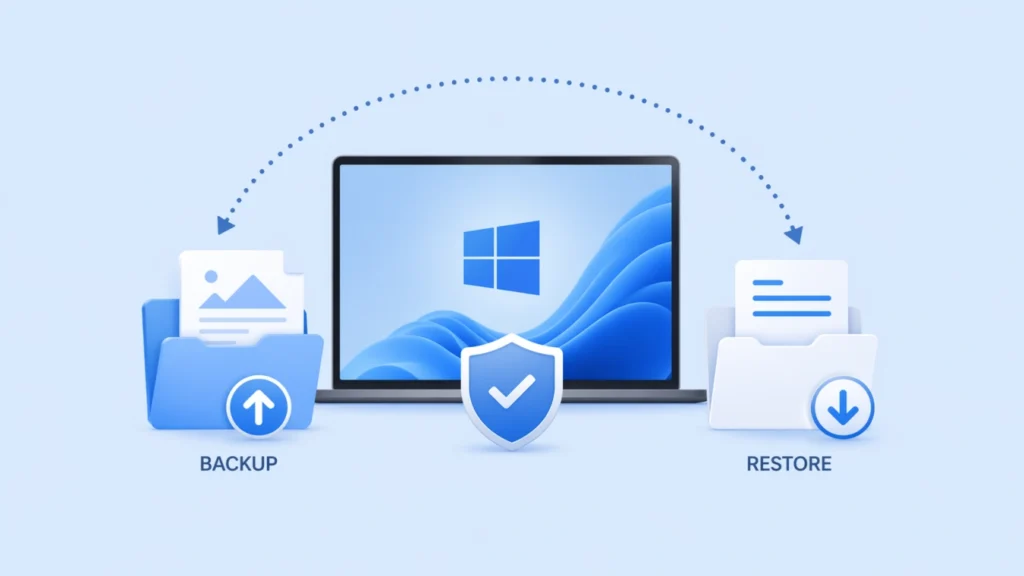
Losing important files is easier than most people think. A failed Windows update, accidental deletion, disk formatting mistake, ransomware attack, or corrupted backup image can make documents, photos, and work files disappear in minutes. That is why backup and restore matters so much. A good backup plan helps you prevent data loss. A reliable restore process helps you get back to work fast. Microsoft explains that backup, restore, and recovery are closely related but not identical, and NIST recommends maintaining and testing backups so they are usable when a real incident happens.
This guide explains how backup and restore works, how windows backup and restore fits into a practical protection plan, and how to build a safer data backup and restore routine for everyday use. More importantly, it also covers a real problem many guides ignore: what to do if you never created a backup, or if your backup image is damaged, missing, or impossible to restore. In those situations, a dedicated recovery solution may help recover files that normal backup tools cannot bring back.
Table of Contents
What Is Backup and Restore?
Backup and restore is the process of creating copies of your data and using those copies to recover files, settings, or system information after loss, corruption, or hardware failure. In simple terms, backup is the prevention step. Restore is the return step. Microsoft defines backup as making copies of data to protect against loss or damage, and restore as retrieving data from those copies when needed.
For example, if you back up your Documents folder to OneDrive or an external drive, you can restore those files later if they are deleted or damaged. If you back up system settings and installed apps through Windows Backup, you can restore much of that setup when moving to a new PC or reinstalling Windows. Microsoft says Windows Backup can help preserve files, themes, settings, installed apps, Wi-Fi information, and Edge preferences on supported devices.
The key point is simple: creating a backup is only half the job. If you cannot restore it when needed, your protection plan is incomplete.
Backup and Recovery: What Is the Difference?
Many users treat backup and recovery as the same thing. In practice, recovery is broader.
Backup and restore usually focuses on:
- creating copies of files or system data,
- storing them safely,
- restoring them when loss happens.
Backup and recovery includes the full response process:
- backup scheduling,
- storage planning,
- version retention,
- restore testing,
- system rebuild,
- post-incident recovery.
This distinction matters because many failures happen after the backup is already created. For example, a backup file may be outdated, incomplete, unreadable, or stored on a damaged drive. NIST’s guidance on protecting data from ransomware and other loss events stresses that organizations should not only create backups, but also maintain and test them.
So, if your goal is true resilience, you need both backup and restore and a broader backup and recovery mindset.
Why Windows Backup and Restore Matters
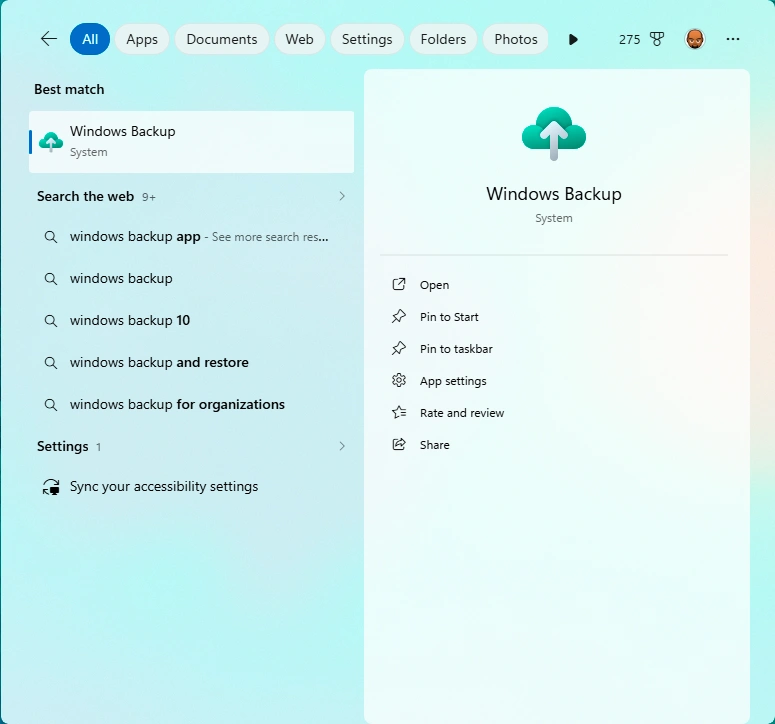
For most home users and many small office users, windows backup and restore is the most practical place to begin. Microsoft provides several built-in options, including Windows Backup and File History. These tools help users protect common folders, settings, and app-related preferences without adding complex third-party workflows.
What Windows Backup can do
According to Microsoft, Windows Backup can help back up:
- files and folders,
- settings and preferences,
- some installed apps,
- Wi-Fi information,
- Microsoft Edge favorites and preferences.
This is especially useful when:
- you are moving to a new PC,
- you need to reinstall Windows,
- you want to preserve key settings,
- you want a simple built-in backup method.
What File History can do
File History is another useful part of windows backup and restore. Microsoft explains that it helps back up versions of files and folders so you can recover deleted or accidentally changed items later. This makes it especially helpful for documents, spreadsheets, creative work, and folders that change often.
Why built-in tools are helpful but not perfect
Built-in Windows tools are convenient, but they do not solve every risk. A synced folder is not the same as a full disk image. A settings backup is not the same as a complete system recovery plan. Also, if the only backup source becomes corrupted, deleted, or unavailable, restore may fail.
That is why a stronger data backup and restore routine usually includes more than one method.
Best Methods for Data Backup and Restore
A dependable data backup and restore strategy should match your actual risk level. The best setup is rarely one tool alone.
1. Cloud backup for convenience
Cloud backup works well for daily files, especially if you work across devices. It is easy to automate, and it helps protect against local disk failure.
Best for:
- documents,
- photos,
- small business files,
- cross-device access.
2. External drive backup for local control
An external HDD or SSD gives you a second copy that is physically separate from your PC. This is useful when you need quick restore access or want protection against account sync issues.
Best for:
- large media files,
- project archives,
- family photos,
- local business data.
3. File History for version-based restore
File History helps when a file was changed by mistake, overwritten, or deleted. It is one of the easiest ways to recover earlier versions of working files in Windows.
Best for:
- drafts,
- office files,
- design assets,
- work-in-progress folders.
4. System image or full-device backup
A full system image is helpful when the whole system becomes unstable, corrupted, or unbootable. It takes more storage, but it supports a larger restore scope.
Best for:
- OS failure,
- migration,
- disaster recovery,
- advanced users.
5. Layered backup based on the 3-2-1 mindset
NIST recommends maintaining backup copies in ways that reduce the impact of ransomware and other loss events. In practice, that usually means keeping multiple copies, using separate storage, and making sure at least one copy is not exposed to the same risk as the original.
A practical version looks like this:
- one working copy on your PC,
- one backup on an external drive,
- one backup in cloud storage.
That layered approach is often far more reliable than depending on a single device or single sync service.
How to Set Up a Safer Windows Backup and Restore Routine
A practical windows backup and restore routine does not have to be complicated. It just needs to cover your most important data.
Step 1: Identify critical files
Start with what matters most:
- work documents,
- photos and videos,
- financial records,
- client files,
- downloaded installers,
- desktop folders.
Step 2: Turn on Windows Backup
Microsoft documents Windows Backup through the Start menu and Settings. Sign in with the correct Microsoft account, review which folders are included, and confirm your preferences are enabled.
Step 3: Enable File History if versioning matters
If you regularly edit important files, File History adds another layer of protection. It is especially helpful when a file is modified by mistake and you need an earlier copy.
Step 4: Add a second backup location
Use an external drive or another trusted storage location. This protects you if your cloud sync fails, your account becomes inaccessible, or your primary backup copy gets corrupted.
Step 5: Test restore before an emergency
This is one of the most overlooked steps in backup and recovery. Restore a few sample files. Open them. Check if older versions are available. Confirm the files are readable and complete.
A backup that has never been tested may not protect you when it matters most.
Common Backup Mistakes That Lead to Restore Failure
Many users think backup failed only when there is no copy at all. In reality, restore fails for several predictable reasons.
The backup was outdated
You backed up months ago, but the lost files were created last week.
Important folders were never included
A backup may look complete while quietly skipping the Desktop, Downloads, or another custom folder.
There was only one backup copy
If your only backup drive fails or goes missing, restore becomes impossible.
The backup image became corrupted
This is more common than people expect. The file exists, but it cannot mount, open, or restore correctly.
The backup location changed
An external drive letter changed, a NAS path broke, or a cloud folder was moved.
Nobody tested restore
The backup job said it succeeded, but no one verified that recovery actually worked.
These problems are exactly why NIST recommends testing and maintaining backups rather than treating backup creation as the final step.
What to Do When a Backup Cannot Be Restored
This is where many articles stop too early. Real users often discover the problem only after the restore attempt fails.
You may face one of these situations:
- you did not back up in time,
- the backup image is damaged,
- the backup file is missing,
- the storage device has file system errors,
- the system was reinstalled before files were copied,
- malware damaged the original data and the backup is unusable.
At that point, a normal backup and restore workflow may not help anymore. The issue becomes a recovery problem, not just a restore problem.
That is when data recovery software becomes relevant.
Recover Lost Files with Magic Data Recovery
When standard backup and restore methods fail, a recovery tool can help scan the affected drive and search for recoverable files directly.

Magic Data Recovery is a practical option for users who need to recover data after:
- accidental deletion,
- formatting,
- file system errors,
- Windows reinstallation,
- virus damage,
- partition loss or access issues.
What pain point does it solve?
Backup tools work best when a usable backup already exists. They are not designed for cases where:
- you forgot to create a backup,
- the backup archive is corrupted,
- the backup image is lost,
- the restore point is incomplete,
- the original files disappeared before backup finished.
In these scenarios, recovery software fills the gap.
Why Magic Data Recovery is worth recommending
The recommendation makes sense because it addresses a real failure point in the backup and recovery chain. Instead of depending on an intact backup archive, it helps search for lost data directly from the affected storage device. That makes it useful when standard Windows restore options can no longer solve the problem.
Practical usage scenarios
For example:
- You reinstalled Windows and realized your project files were never copied out.
- Your external backup disk became unreadable.
- A partition was formatted by mistake.
- A virus damaged access to files before you could make a fresh backup.
- A backup image exists, but it fails during restore.
In each of these cases, Magic Data Recovery can be a more reliable next step than retrying the same failed restore process.
If you are looking for a more efficient way to recover files after backup failure, Magic Data Recovery is worth trying.
Supports Windows 7/8/10/11 and Windows Server
Why a Combined Strategy Works Best
The strongest protection plan is not backup alone and not recovery alone.
Use backup and restore to prevent loss before it happens.
Use backup and recovery planning to prepare for larger failures.
Use data recovery software when the backup path is broken.
That combined approach gives users a far better chance of avoiding permanent data loss.
A practical model looks like this:
- Turn on Windows Backup.
- Use File History for active files.
- Keep a second copy on external storage.
- Test restore regularly.
- Use recovery software if the backup is missing or unusable.
Final Thoughts
A good backup and restore strategy should be simple enough to maintain and strong enough to survive common failures. For Windows users, that means more than enabling one setting and hoping for the best. It means understanding how windows backup and restore works, adding a second layer of protection, and testing recovery before a real emergency. Microsoft’s guidance makes clear that backup, restore, and recovery serve different purposes, while NIST emphasizes the importance of maintaining and testing backup files to reduce the impact of ransomware and other data-loss events.
At the same time, not every failure can be solved by a backup. Sometimes there was no backup. Sometimes the image is corrupted. Sometimes the archive is missing. In those cases, a recovery tool becomes the practical answer. That is why Magic Data Recovery is a sensible recommendation. It helps users recover files lost through deletion, formatting, file system errors, system reinstallation, and virus damage, especially when normal restore methods are no longer enough.
Supports Windows 7/8/10/11 and Windows Server
FAQs
What does backup and restore mean?
Backup and restore means creating a copy of your files, settings, or system data and using that copy to recover information after loss or damage. Backup is the preventive step. Restore is the process of bringing that data back when a problem happens, such as deletion, corruption, or hardware failure.
What is the difference between backup and recovery?
Backup and recovery is broader than simple restore. Backup means saving copies of data, while recovery includes the full process of restoring operations after a problem. That may involve restoring files, rebuilding Windows, checking backup integrity, and handling larger issues like ransomware, drive failure, or system corruption.
Is windows backup and restore enough for most users?
For many home users, windows backup and restore is a good starting point because it can protect files, settings, apps, and preferences. However, it should not be your only layer. A second copy on an external drive or another storage location gives better protection if sync fails, data is overwritten, or a backup becomes unavailable.
What is the best way to handle data backup and restore?
The most practical method is a layered one. Keep your active files on your PC, back up important folders to cloud storage, and maintain another copy on an external drive. Then test the restore process regularly. This approach improves data backup and restore reliability and reduces dependence on a single device or account.
Why do backups sometimes fail to restore?
Restore failures usually happen because the backup is outdated, incomplete, damaged, or stored in the wrong place. In some cases, the image file becomes corrupted. In others, users never tested the restore process before an emergency. A backup file may exist, but that does not always mean it can be restored successfully.
Can I recover files if I did not create a backup?
Yes, in some cases you still can. If no valid backup exists, data recovery software may help scan the storage device and recover lost files directly. This is often useful after deletion, formatting, file system errors, OS reinstallation, or virus damage. Recovery software does not replace backup, but it can help when backup fails.
What should I do if my backup image is corrupted?
First, avoid writing new data to the affected drive. Then check whether you have another backup copy in a different location. If the image is the only copy and it cannot be restored, a recovery tool may help retrieve the original files from the source drive or damaged storage device, depending on the condition of the data.
Why recommend Magic Data Recovery in a backup and restore article?
Because backup does not solve every loss scenario. Many users discover the real problem only when restore fails. Magic Data Recovery fits naturally into this topic because it helps recover lost files after deletion, formatting, file system errors, system reinstallation, and virus damage, especially when a usable backup is missing or damaged.

Jason is a data recovery and technical support specialist with over 15 years of hands-on experience. He has worked extensively with frontline users, troubleshooting difficult data loss cases and providing practical recovery solutions for accidental deletion, formatted drives, damaged file systems, lost partitions, system failures, and other recovery emergencies. His expertise also includes backup and restoration, file repair, and disaster recovery, with a strong emphasis on safe, reliable, and technically accurate guidance.