
Forgot My BitLocker Password? Recover & Unlock Without Data Loss
If you are thinking, “I forgot my BitLocker password—how can I unlock my drive?”, do not panic and do not format the drive yet.
Forgetting a BitLocker password does not necessarily mean your files are gone. In many cases, you can still regain access with the 48-digit BitLocker recovery key. The key may have been saved to your Microsoft account, a work or school account, a USB drive, a printed document, or another backup location.
If those standard methods fail, you may also be able to search for previously stored BitLocker recovery key information before considering more destructive options.
This guide explains what to do when you forgot your BitLocker password, which password recovery methods to try first, and what your realistic options are if both the password and recovery key appear to be missing. If the standard recovery methods do not work, tools such as Magic Recovery Key can also help search for previously stored BitLocker recovery key information before you consider formatting or resetting the drive.
Supports Windows 7/8/10/11 and Windows Server
Table of Contents
Why BitLocker Locks You Out When the Password Is Forgotten
BitLocker is a full-disk encryption technology built into Windows. It protects your data by encrypting every sector of a drive using an encryption key.
Access to that key depends on one or more of the following:
- Your BitLocker password or PIN
- A USB startup key
- A 48-digit BitLocker recovery key
If both the password and recovery key are unavailable, Windows blocks access to the encrypted drive by design. This limitation explains why many official guides claim that recovery is ‘impossible’.
However, what most guides fail to explain is this:
Losing access doesn’t always mean the recovery key no longer exists.
Forgot My BitLocker Password: What Should I Do First?
When you forget a BitLocker password, the most important thing is to avoid making the situation worse.
Start with these three steps:
- Do not format, initialize, or repartition the encrypted drive.
- Write down the BitLocker Recovery Key ID shown on the recovery screen.
- Search every possible location where your 48-digit recovery key may have been backed up.
Microsoft recommends noting the Recovery Key ID because it helps you identify the correct recovery key when several keys are associated with your accounts or devices. r next step depends on what information you still have.
Situation | Best Next Step |
Forgot BitLocker password but have recovery key | Unlock the drive with the 48-digit key |
Recovery key may be in Microsoft account | Check your Microsoft account |
Work or school computer | Check your organization account or contact IT |
Key may have been backed up manually | Check USB drives, printouts, and saved files |
Windows is still accessible | Check existing BitLocker protectors |
Password and recovery key are both missing | Look for previously stored key information before resetting |
7 Ways to Unlock BitLocker If You Forgot the Password
Try the methods below in order. Start with the built-in and free recovery options before using additional recovery software.
Method 1: Use Your 48-Digit BitLocker Recovery Key
The fastest solution is to use your BitLocker recovery key.
When Windows displays the BitLocker recovery screen:
- Select the option to enter a recovery key if necessary.
- Enter the correct 48-digit BitLocker recovery key.
- Confirm the key.
- Allow Windows to unlock the encrypted drive.
Microsoft describes the BitLocker recovery key as a 48-digit number that can restore access when BitLocker cannot unlock a drive automatically. you already have the correct key, you normally do not need the original BitLocker password.
Do not have the key? Move to the next method.
Method 2: Find the BitLocker Recovery Key in Your Microsoft Account
Many Windows users discover that their recovery key was automatically or manually backed up to a Microsoft account.
From another device:
- Sign in to the Microsoft account associated with the locked computer.
- Open the BitLocker recovery key section of your account.
- Compare the displayed keys with the Recovery Key ID shown on the locked computer.
- Find the matching 48-digit key.
- Enter that key on the BitLocker recovery screen.
Microsoft also notes that if another person originally configured the device or enabled BitLocker, the recovery key might be stored in that person’s Microsoft account instead. rting with Windows 11 version 24H2, the BitLocker recovery screen may also show a hint about the Microsoft account associated with the recovery key, which can make identifying the correct account easier. a detailed walkthrough, see our guide on how to recover a BitLocker key from a Microsoft account.
Method 3: Check Your Work or School Account
If you forgot your BitLocker password on a company or school computer, the recovery key may be controlled by your organization.
This commonly applies when the device:
- Was issued by your employer or school
- Was connected to a work or school account
- Is managed by an IT administrator
- Uses Microsoft Entra ID or another organization-managed environment
Sign in to your work or school account and check the device information for available BitLocker keys.
If you cannot access the recovery information directly, contact your organization’s IT department.
Microsoft confirms that recovery keys for organization-connected devices may be stored in the organization’s account and may require IT support to retrieve. Method 4: Check USB Drives, Printouts, and Saved Files
Not every BitLocker recovery key is stored online.
When BitLocker was configured, you or the person who set up the computer may have saved the recovery key elsewhere.
Check:
- USB flash drives
- Printed documents
- Text files
- Screenshots
- Old backup folders
- Another computer
- Cloud-storage folders
- Personal records related to the computer
Microsoft specifically recommends checking printed copies and USB flash drives when searching for a missing BitLocker recovery key. n you find a possible key, compare its Recovery Key ID with the ID displayed by BitLocker before entering it.
This is especially useful when you have several computers or multiple recovery keys.
Method 5: Check Existing BitLocker Protectors If Windows Still Works
This method applies only when you can still sign in to Windows or access the relevant system with administrator privileges.
Windows includes the manage-bde command-line utility for viewing and managing BitLocker information.
For example, administrators can inspect the protectors associated with a drive by opening Command Prompt as administrator and using:
manage-bde -protectors -get C:
Replace C: with the correct drive letter when necessary.
This can help identify the protectors and IDs currently associated with the encrypted volume.
However, Command Prompt does not magically reveal a forgotten password or bypass BitLocker encryption.
Think of this method as a way to inspect the existing BitLocker configuration when Windows remains accessible—not as a BitLocker password cracking method.
Method 6: Find a Lost BitLocker Recovery Key (Recommended)
Can a BitLocker Recovery Key Be Recovered from a Disk?
Yes, in many real-world cases it can.
Although BitLocker is secure, recovery keys may still exist in:
- System files
- Old partitions
- Residual disk sectors
- Previously saved key containers
Magic Recovery Key specifically scans storage devices to locate lost or forgotten BitLocker recovery keys.
What Is Magic Recovery Key?
Magic Recovery Key is a professional BitLocker key retrieval tool that:
- Scans internal and external drives
- Searches for BitLocker recovery key remnants
- Extracts usable 48-digit recovery keys
- Allows you to unlock a BitLocker drive directly once the key is found
Unlike general data recovery software, it focuses on key discovery, not file recovery.
How to Use Magic Recovery Key (Step-by-Step)
Magic Recovery Key cannot bypass encryption — but it can help retrieve BitLocker keys that were previously stored on the system. This gives you a final chance before resetting and losing data.
1. Download it from Amagicsoft then Install and launch Magic Recovery Key
Supports Windows 7/8/10/11 and Windows Server

3. Click Search to let the software scan for the BitLocker key.
4.Once the software retrieves the key, you can immediately use it to unlock the protected drive.

Method 7: Recover Data from a BitLocker Drive Using Magic Data Recovery
When Should You Use Magic Data Recovery?
Use Magic Data Recovery in the following situations:
• When Windows cannot unlock the BitLocker drive
• If file system corruption prevents normal access
• After Windows repeatedly prompts you to format the disk
• In cases where a valid recovery key still fails to open the partition
This tool recovers files directly from BitLocker-encrypted drives.
What Makes Magic Data Recovery Different?
Magic Data Recovery:
- Supports BitLocker-encrypted partitions
- Works even if the drive cannot be mounted
- Recovers data without requiring Windows to unlock the disk
- Supports documents, photos, videos, and more
It treats the disk as a data source, not a usable volume.
How to Use Magic Data Recovery (Step-by-Step)
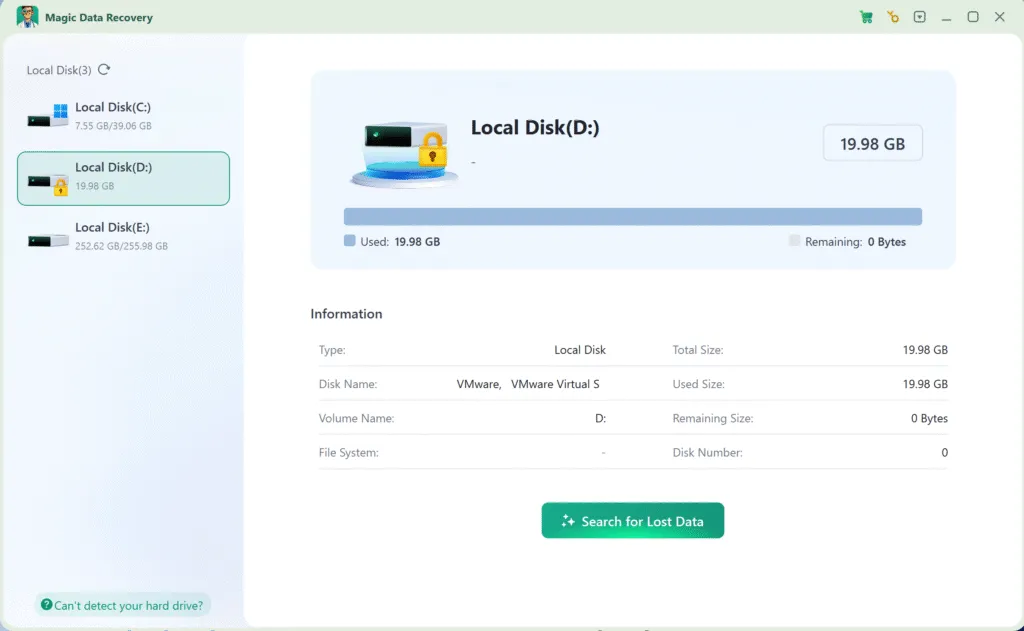
Magic Data Recovery scan encrypted, partially damaged, or RAW drives and retrieve files when built-in BitLocker tools no longer work.
Below is a safe and practical recovery process.
1. Install Magic Data Recovery on a Healthy System. Please download and install Magic Data Recovery to your computer first.
Supports Windows 7/8/10/11 and Windows Server



Magic Recovery Key vs Magic Data Recovery
Situation | Best Tool |
Want to unlock the original BitLocker drive | Magic Recovery Key |
Recovery key lost but may still exist | Magic Recovery Key |
Drive won’t unlock even with key | Magic Data Recovery |
File system is damaged or RAW | Magic Data Recovery |
Best practice:
➡️ Always try Magic Recovery Key first, then move to Magic Data Recovery if needed.
Common Mistakes to Avoid After Forgetting BitLocker Password
Many users lose recoverable data due to panic actions:
- ❌ Formatting the drive immediately
- ❌ Repeated forced unlock attempts
- ❌ Initializing the disk in Disk Management
- ❌ Using random “BitLocker crack” tools
If you forgot your BitLocker password and recovery key, every write operation reduces your chances of success.
Final Thoughts: Don’t Give Up Just Yet
If you’re stuck thinking “forgot my BitLocker password” or “I forgot my BitLocker password and recovery key”, don’t assume formatting is your only option.
A smarter recovery strategy is:
- Scan the disk for the lost BitLocker recovery key using Magic Recovery Key
- Unlock the drive normally if possible
- Recover data safely from the BitLocker drive using Magic Data Recovery if unlocking fails
Following this order gives you the highest password recovery success rate with the lowest risk of data loss.
Supports Windows 7/8/10/11 and Windows Server
FAQs
What happens if you forgot your BitLocker?
Is it possible to unlock BitLocker without a password?
Where are BitLocker passwords stored?
How do I unlock my external hard drive if I forgot my password?
How many times can you try BitLocker password?
How to automatically unlock BitLocker?
What if I lost my BitLocker recovery key?
How to skip BitLocker recovery?
Where can I get the BitLocker recovery key if I forgot it?
How to recover PC without BitLocker key?

Erin Smith is recognized as one of the most professional writers at Amagicsoft. She has continually honed her writing skills over the past 10 years and helped millions of readers solve their tech problems.