
Unlock BitLocker on Windows 10 – Step-by-Step Guide
Supports Windows 7/8/10/11 and Windows Server
What Is BitLocker Drive Encryption on Windows 10?
BitLocker Drive Encryption is a built-in security feature in Windows 10 that provides full disk encryption. It ensures that unauthorized users cannot access your data, even if your device is lost or stolen. By encrypting the entire drive, BitLocker adds an extra layer of protection for sensitive information.
Common Scenarios Requiring BitLocker Unlock
The following are some prevalent circumstances in which you may be required to unlock BitLocker:
1. System Drive Unlock during Startup
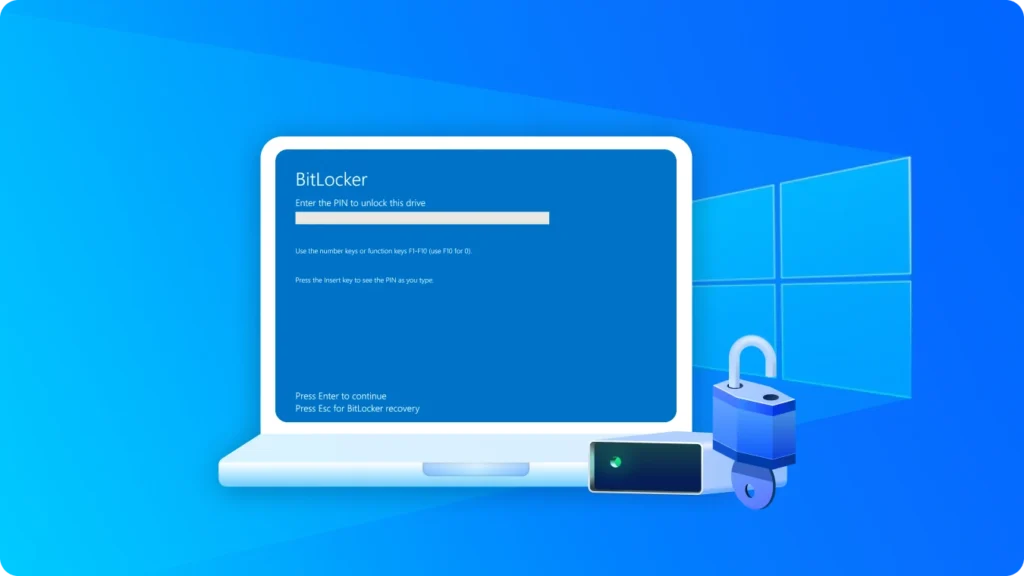
If BitLocker has been activated for your system drive, you must enter a password, PIN, or utilize a smart card to unlock it when booting up.
2. Accessing Encrypted External Drives
Upon plugging in an external hard drive or USB device encrypted with BitLocker, you need to unlock it to retrieve the data.
3. Following Credential or Device Alterations
In case you have updated your password, PIN, or replaced a smart card, you will have to re-authenticate using the new credentials to unlock BitLocker.
4. Recovering from a Forgotten Password
When you forget the BitLocker password, you can employ the recovery key to regain access.
5. Switching Devices or Hardware Migration
If you move a BitLocker-encrypted drive to another computer, you’ll need to unlock it to access its contents.
6. After System Resets or Crashes
In the event of a system reset or crash, BitLocker-protected drives require unlocking to recover or back up data.
Methods to Unlock BitLocker on Windows 10
There are multiple ways to unlock BitLocker depending on your situation. Follow the steps below carefully.
Method 1 – Using the Recovery Key
- Locate your BitLocker recovery key. It may be stored in:
- Your Microsoft account
- A printed copy
- A USB drive
- Insert the locked drive into your PC.
- When prompted, enter the recovery key.
- Click Unlock. Your drive should now be accessible.
Tip: Always keep a backup of your recovery key to prevent data loss.

Method 2 – Using the Password
- Right-click the BitLocker-encrypted drive in File Explorer.
- Select Unlock Drive.
- Enter your BitLocker password.
- Click Unlock.
If the password is correct, the drive will be accessible immediately. This is the fastest and most straightforward method.

Method 3 – Unlocking via Command Prompt
For advanced users, you can unlock BitLocker via Command Prompt:
1) Open Command Prompt as an administrator
2) Type the following command:
manage-bde -unlock X: -RecoveryPassword YOUR-RECOVERY-KEY
Replace X: with your drive letter and YOUR-RECOVERY-KEY with your actual recovery key.
3) Press Enter to unlock the drive.
Method 4 – Unlock BitLocker Using Magic Recovery Key
1) Download and install Magic Recovery Key from a trusted source.
Supports Windows 7/8/10/11 and Windows Server
2) Open the software and select BitLocker Recovery Key in the left menu.

3) Click Search to let the software scan for the BitLocker key.
4) Once the key is found, copy it and use it to unlock your encrypted drive.

Troubleshooting Common Issues
Lost Recovery Key: Download Magic Recovery Key to search for your recovery key, or check your Microsoft account, printouts, or USB drives for the recovery key.
Access Denied: Ensure you have administrative privileges on your computer.
Incorrect Password: Double-check for typos or try the recovery key instead.
Conclusion
Unlocking BitLocker on Windows 10 is simple when you have access to the correct password or BitLocker recovery key. Whether you’re unlocking an encrypted drive after a system update, hardware change, or security verification, Windows 10 provides several reliable methods to restore access without compromising your data security.
As Microsoft’s built-in BitLocker Drive Encryption technology, BitLocker helps protect sensitive files from unauthorized access through full-disk encryption. By understanding how to unlock a BitLocker-protected drive and securely manage your recovery information, you can maintain both strong data protection and convenient access to your files.
To avoid future lockouts, it’s important to store your BitLocker recovery key in a safe location, regularly back up important data, and follow recommended security practices. With proper recovery key management, BitLocker remains one of the most effective Windows 10 security features for safeguarding personal and business information.
Supports Windows 7/8/10/11 and Windows Server
FAQs about Unlocking BitLocker on Windows 10
How can I unlock BitLocker on Windows 10 if I forgot my password?
What are the different ways to unlock BitLocker on Windows 10?
Why is my BitLocker drive not unlocking on Windows 10?
Where can I find my BitLocker recovery key on Windows 10?
Why does BitLocker suddenly ask for a recovery key on Windows 10?
Can I unlock a BitLocker-encrypted drive without the password?
Will unlocking a BitLocker drive cause data loss?

Erin Smith is recognized as one of the most professional writers at Amagicsoft. She has continually honed her writing skills over the past 10 years and helped millions of readers solve their tech problems.