
How to Make a Recovery USB for Windows 10: A Complete Step-by-Step Guide
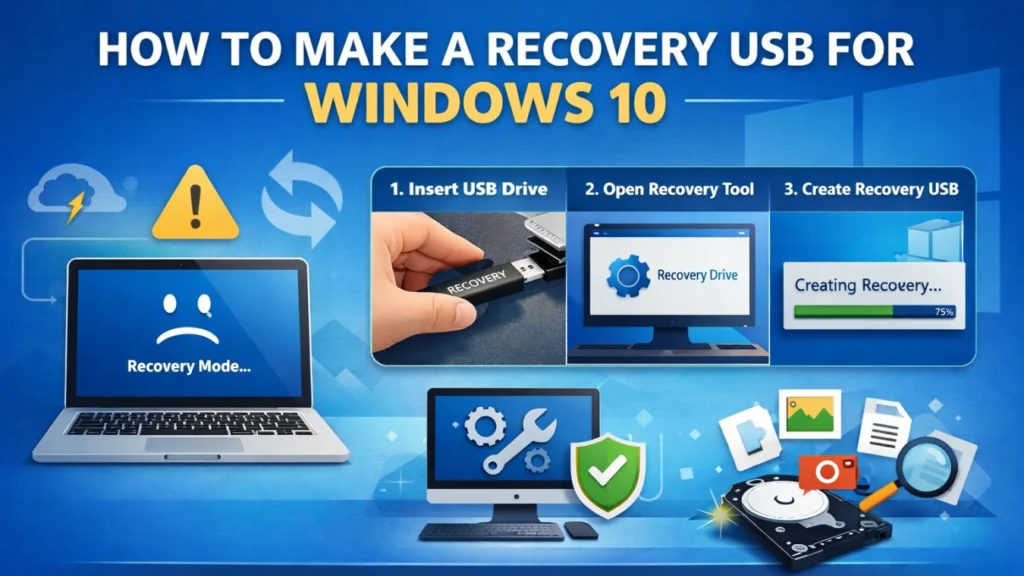
Knowing how to make a recovery USB for Windows 10 is essential if your system suddenly stops working, fails to boot, or becomes unstable after an update. Many users only search for a solution after Windows crashes, which often makes recovery more stressful and time-consuming.
A recovery USB helps you access repair tools, troubleshoot startup issues, or reinstall Windows when the system becomes unusable. This guide explains how to make a recovery USB for Windows 10 using the official method, what you should prepare in advance, and what to expect after using it. In addition, it covers a common real-world problem: data loss after system recovery, along with a reliable solution when important files disappear.
Table of Contents
What a Windows 10 Recovery USB Is and Why It Matters
A Windows 10 recovery USB is a bootable drive that contains system recovery tools. These tools allow you to repair startup problems, reset Windows, or reinstall the operating system when normal booting fails.
Common situations where a recovery USB becomes useful include system file corruption, repeated blue screen errors, and failed updates. Because these problems often occur without warning, making a recovery USB for Windows 10 in advance is considered a best practice rather than an optional step.
Unlike a standard installation USB, a recovery USB focuses on restoring system functionality. As a result, it provides faster access to repair options during emergencies.
What You Need Before Making a Recovery USB for Windows 10
Before you start making a recovery USB for Windows 10, a few basic requirements must be met.
You need a USB flash drive with sufficient capacity. In most cases, 16 GB is recommended to ensure compatibility. The computer used for creation must run Windows 10 and allow administrator access.
The USB drive will be erased during the process. Therefore, backing up any existing files on the drive is important. This step reduces unnecessary risks and avoids accidental data loss.
How to Make a Recovery USB for Windows 10 Using the Official Method
Windows includes a built-in tool designed specifically for creating recovery drives. This method is safe, stable, and recommended for most users.
First, connect the USB flash drive to your computer and confirm that the system detects it correctly.
Next, open the Start menu, type “Recovery Drive,” and select the option to create one. When prompted, confirm administrator permissions.
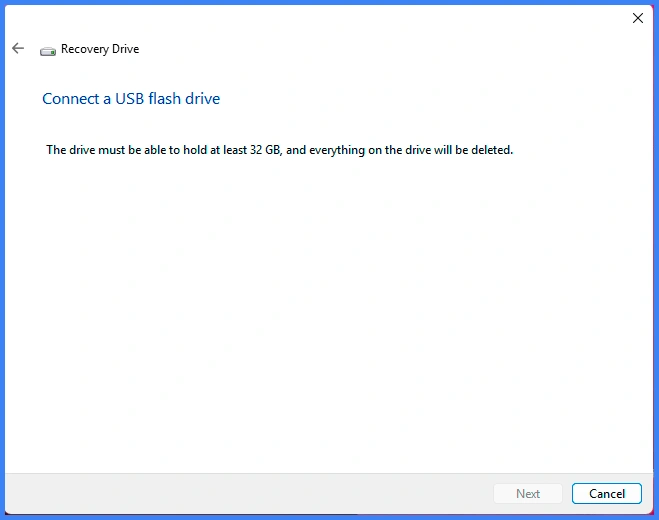
Follow the on-screen instructions carefully. You can choose to back up system files to the recovery drive, which is generally recommended. After selecting the USB drive, start the process and wait until it completes. Once finished, you will have a working recovery USB ready for use.
This approach remains the most reliable way to make a recovery USB for Windows 10, especially for non-technical users.
Common Issues When Making a Recovery USB and How to Fix Them
Although the process is simple, problems may still occur.
Sometimes the USB drive does not appear in the list. In that case, reconnecting the drive or switching USB ports often helps. If the recovery tool fails to start, checking available disk space and system integrity can resolve the issue.
When the creation process stops unexpectedly, restarting the computer and using a different USB drive usually fixes the problem. Addressing these issues early ensures that making a recovery USB for Windows 10 goes smoothly.
Does Making or Using a Recovery USB Cause Data Loss?
Creating a recovery USB does not affect files stored on your system drive. However, using the recovery drive can result in data loss under certain conditions.
For example, reinstalling Windows removes personal files if backups are not available. Formatting a system partition also erases stored data. In addition, file system errors during recovery may make some files inaccessible.
Understanding these risks helps users make informed decisions before starting recovery operations.
What to Do If Data Is Lost After Reinstalling Windows 10
Data loss after system recovery is a common experience. Users often notice missing documents, photos, or work files after reinstalling Windows or repairing corrupted partitions.
In such cases, continuing to use the affected drive can reduce the chance of successful recovery. Therefore, stopping further disk activity is important. Acting quickly improves the likelihood of retrieving lost data.
Recovering Lost Files on Windows 10 with Magic Data Recovery
When data disappears after system repair or reinstallation, Magic Data Recovery by Amagicsoft offers a practical solution.
This tool addresses several common scenarios, including files deleted during Windows reinstallation, data lost after formatting, and errors caused by damaged file systems. It supports recovery from typical Windows 10 storage environments and works with common file types.
A practical example involves reinstalling Windows using a recovery USB and later realizing that important folders are missing. Instead of assuming the data is gone forever, Magic Data Recovery scans the affected drive and identifies recoverable files before they are overwritten.
Compared with manual recovery attempts or unstable free tools, it provides a more controlled and reliable recovery process. If unexpected data loss occurs after making a recovery USB for Windows 10, this solution offers a safer path forward.
Supports Windows 7/8/10/11 and Windows Server
Final Thoughts
Learning how to make a recovery USB for Windows 10 prepares you for system failures that often occur without warning. Creating the recovery drive in advance saves time and reduces stress during emergencies.
However, recovery operations can still involve data risks. For this reason, pairing system preparation with a dependable crashed OS recovery solution is a smart strategy. Magic Data Recovery adds an extra layer of protection by helping users recover important files when standard recovery methods are not enough.
Preparation and the right tools together ensure better control over both system stability and data safety.
FAQs
What is the best way to make a recovery USB for Windows 10?
Can I make a recovery USB for Windows 10 on another computer?
Does making a recovery USB delete files on my PC?
How large should a Windows 10 recovery USB be?
What happens if I lose data after using a recovery USB?
Can Magic Data Recovery restore files after Windows reinstallation?
Is a recovery USB the same as an installation USB?
Should I create a recovery USB before system problems occur?

Jason is a data recovery and technical support specialist with over 15 years of hands-on experience. He has worked extensively with frontline users, troubleshooting difficult data loss cases and providing practical recovery solutions for accidental deletion, formatted drives, damaged file systems, lost partitions, system failures, and other recovery emergencies. His expertise also includes backup and restoration, file repair, and disaster recovery, with a strong emphasis on safe, reliable, and technically accurate guidance.