
How to Recover Deleted Files in Tally ERP 9
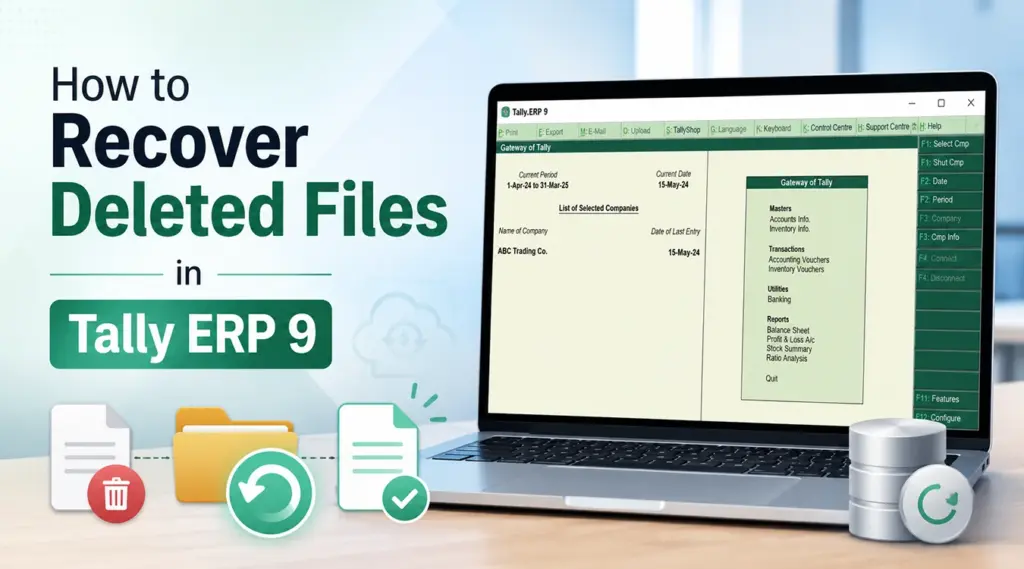
If you need to know how to recover deleted files in Tally ERP 9, first identify what disappeared. A missing company, an Alt+D deletion, a Windows-deleted folder, database corruption, and a deleted voucher require different fixes. Start with Tally’s built-in options. If the original files were deleted from the drive and no backup remains, Magic Data Recovery may help you recover the deleted files before new data overwrites them.
Supports Windows 7/8/10/11 and Windows Server
Table of Contents
Before You Recover Deleted Tally Data
For how to recover deleted files in Tally ERP 9, avoid changing the affected drive. Do not reinstall Tally there, create a company in the same folder, or copy large files onto that disk.
Match the problem to the right recovery route:
Situation | Best first action |
Company missing from the list | Check the Tally data path |
Folder deleted in Windows | Check Recycle Bin |
Company deleted with Alt+D | Restore a backup |
Company files exist but show errors | Back up, then rewrite |
Voucher or ledger deleted | Restore an older backup or recreate it |
Files deleted and no backup exists | Scan the original drive |
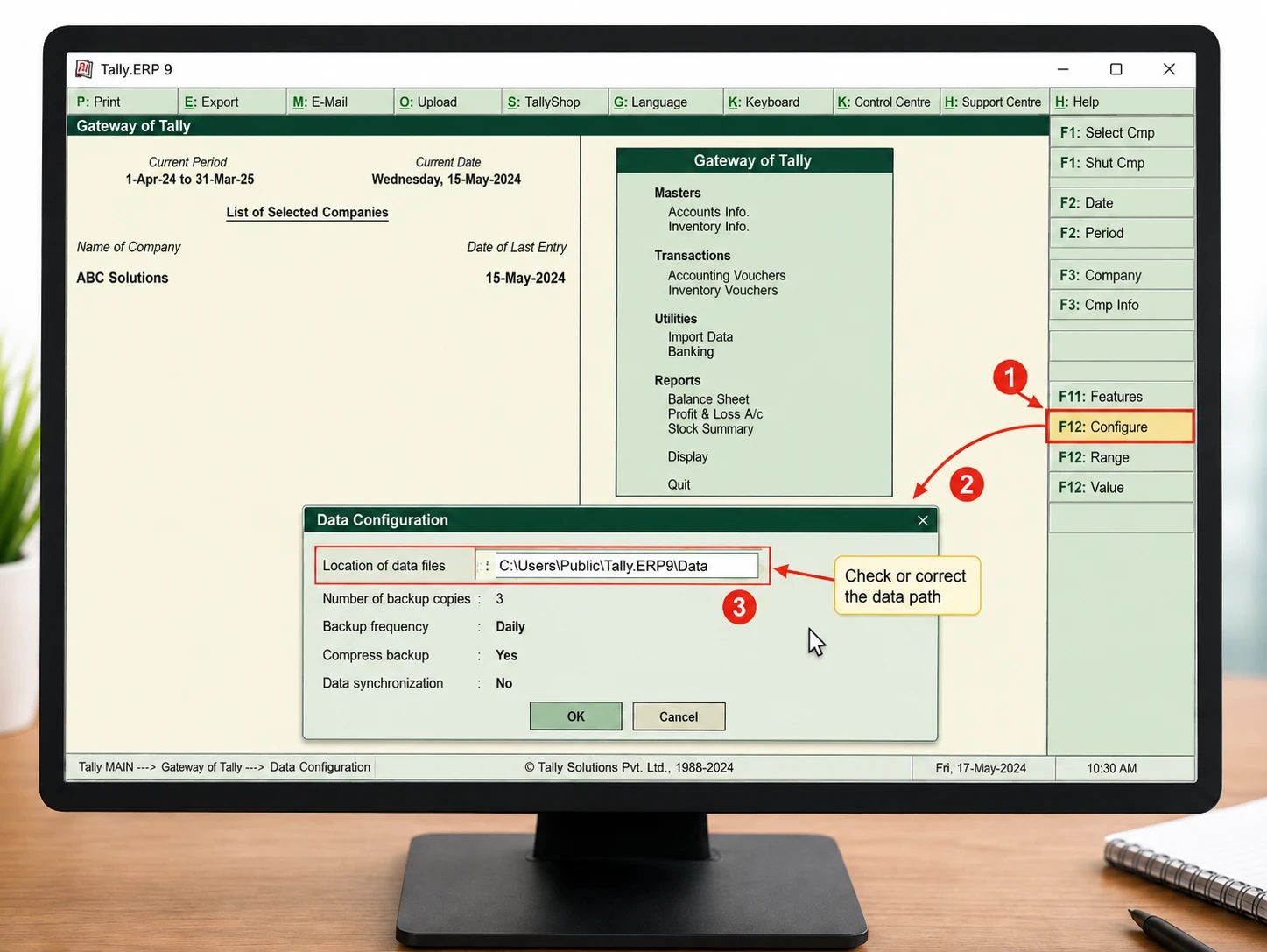
Tally lists C:\Users\Public\Tally.ERP9\Data as the default data location, although users can change it. A company can therefore look deleted when Tally points elsewhere.
Method 1: Check the Data Path in Tally.ERP 9
One safe answer to how to recover deleted files in Tally ERP 9 is to confirm that the files are actually missing.
- Open Tally.ERP 9.
- Go to Gateway of Tally > F12: Configure > Data Configuration.
- Check Location of data files.
- Enter the correct folder if your company data lives elsewhere.
- Press Ctrl+A and reopen the company list.
Tally allows users to change the company data path. If the folder still exists, fix the path before recovery.
Method 2: Check Windows Recycle Bin
If someone deleted the Tally company folder through File Explorer, Recycle Bin is the next place to check when solving how to recover deleted files in Tally ERP 9.
Open Recycle Bin, find the Tally folder or related files, choose Restore, then reopen Tally and verify the data path.
However, this method does not apply to a company deleted inside Tally with Alt+D. Tally’s official documentation says that deleting a company this way is irreversible within the application.
Method 3: Restore a Tally.ERP 9 Backup
If a backup exists, it is usually the preferred method for how to recover deleted files in Tally ERP 9 because it restores company data in a format Tally expects.
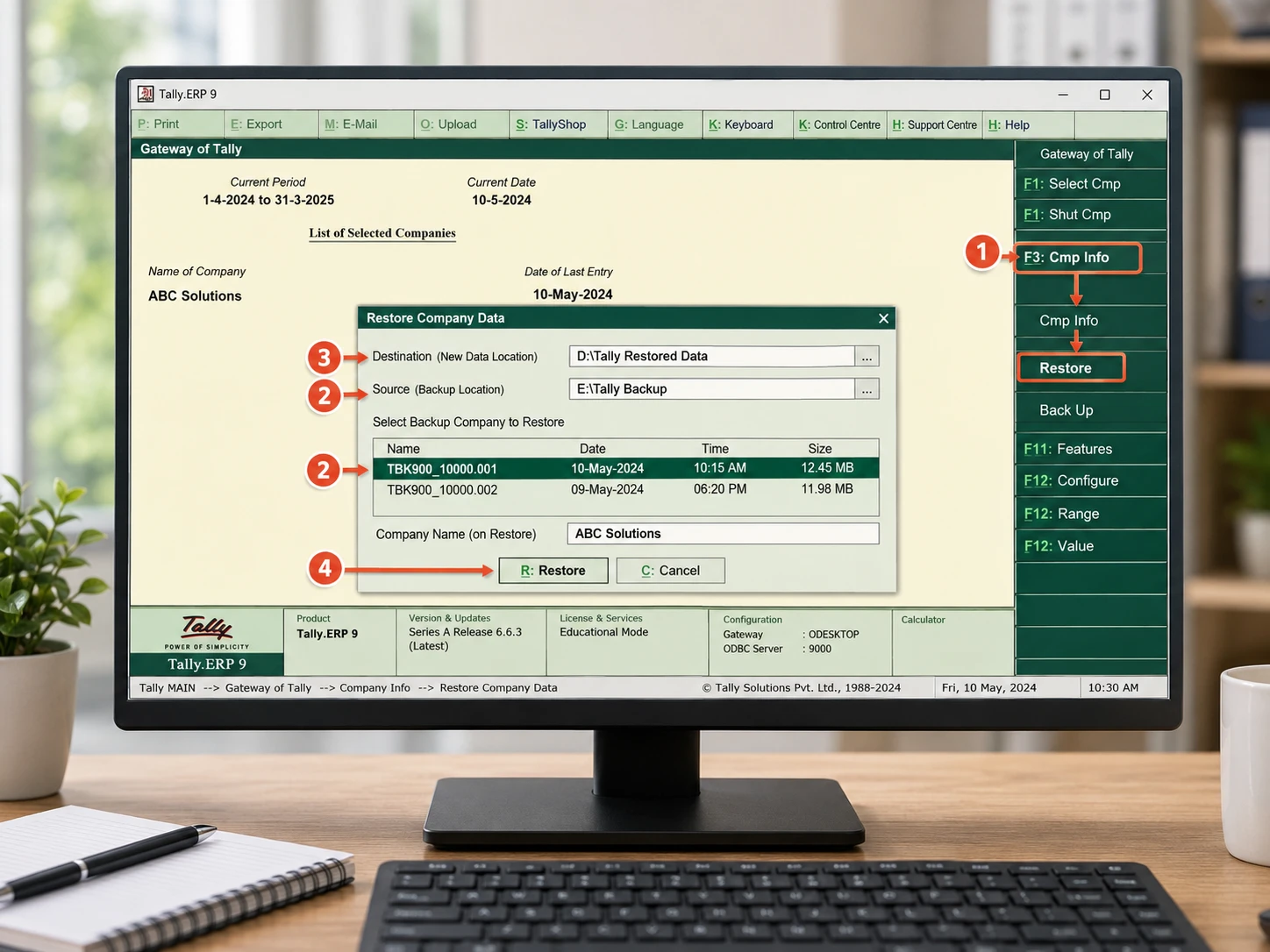
- Open Gateway of Tally.
- Go to F3: Cmp Info > Restore.
- Set Destination to a safe folder.
- Set Source to the folder containing the backup.
- Select the required company.
- Press Ctrl+A to restore.
Tally.ERP 9 backups can use names such as TBK900_10000.001, while older releases may use TBK900.001. Tally warns against restoring into the existing company folder because it may overwrite current data.
After restoration, check the latest voucher date and key reports. A backup only contains data captured when it was created.
Method 4: Restore a Copied Tally Data Folder
Some businesses back up the complete Data folder instead of using a Tally backup file. This can also solve how to recover deleted files in Tally ERP 9 if the copy is intact.
Keep the original backup untouched. Work from a duplicate, then point Tally.ERP 9 to that folder through F12 > Data Configuration. Tally supports folder-format backups for a full Data folder or individual company folder.
Method 5: Rewrite Corrupted Data Instead of Recovering Deleted Files
Corruption is different from deletion. If the company folder exists but Tally reports damaged files, how to recover deleted files in Tally ERP 9 is not the right recovery model.
Tally recommends backing up current company data before rewriting. Press Ctrl+Alt+R from Gateway of Tally or Company Info, select the company, and run the rewrite.
If transactions disappear after rewriting, Tally recommends restoring an earlier backup and updating later entries manually.
What If You Deleted a Ledger or Voucher?
This is an important limit in how to recover deleted files in Tally ERP 9. A ledger or voucher is a logical record inside the Tally company database, not a standalone Windows document.
If you deleted a record inside Tally, restore an older backup to a separate folder, compare the old and current data, and recreate the missing information. File recovery software cannot reliably restore one voucher as an independent file. It becomes relevant when the actual company files or folder were deleted from disk.
Method 6: Use Magic Data Recovery When No Backup Exists
When the original company files were deleted from the storage drive, Recycle Bin is empty, and no usable backup remains, how to recover deleted files in Tally ERP 9 becomes a storage-level recovery problem.
Magic Data Recovery scans the affected drive for deleted files rather than relying on Tally’s backup system, so it is a reasonable complement after built-in restore options fail.
A Tally company depends on related data files, so partial recovery may not produce a usable database. Overwriting and SSD TRIM can also reduce recovery chances, while software cannot fix physical drive damage.
If the built-in recovery options no longer work, you can try Magic Data Recovery before new data overwrites the deleted files.
How to Use Magic Data Recovery for Deleted Tally.ERP 9 Files
This five-step workflow supports how to recover deleted files in Tally ERP 9 when the loss happened at the Windows storage level.
Step 1: Download and Install Magic Data Recovery
Download Magic Data Recovery, but do not install it on the drive or partition that contained the deleted Tally data. Installing software there may overwrite recoverable content.
Supports Windows 7/8/10/11 and Windows Server
Step 2: Select the Drive Where the Tally Data Was Stored
Launch the program. Select the drive that originally contained the Tally Data folder or custom company path, then start the scan.
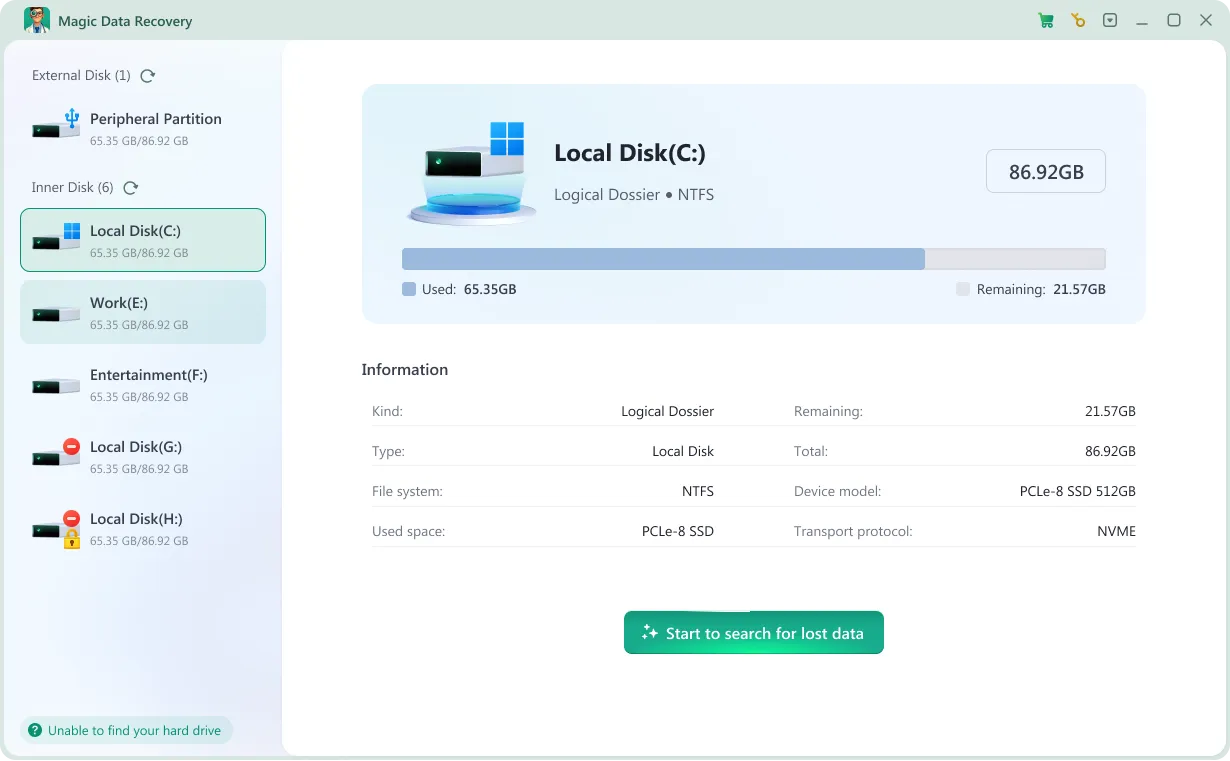
Step 3: Scan for Lost or Deleted Tally Files
Let the scan continue while the program searches for deleted data. Focus on the original company location, folder names, dates, and related Tally files.

Step 4: Recover Files to a Safe Location
Recover the selected Tally files or folder to a different drive. Do not save them back to the original loss location. Afterward, keep the recovered copy unchanged and test a duplicate in Tally.ERP 9.

Limits That Affect Tally Data Recovery
A realistic guide to how to recover deleted files in Tally ERP 9 should account for these limits:
- Overwriting: New data can reuse deleted sectors.
- SSD TRIM: TRIM can sharply reduce recoverability.
- Partial recovery: Missing database components may prevent Tally from opening.
- Physical failure: Clicking or undetected drives may need professional hardware recovery.
- Corruption: If files exist, use Tally backup and rewrite first.
Prevent Tally.ERP 9 Data Loss
After learning how to recover deleted files in Tally ERP 9, improve your backup routine. Tally supports local, external, and network backup locations. Keep at least one copy on a different physical device, document the active data path, maintain several backup generations, and test restoration periodically.
Conclusion
The safest approach to how to recover deleted files in Tally ERP 9 starts with identifying the exact problem. Check the data path, use Recycle Bin for Windows-deleted folders, restore Tally backups or copied Data folders, and use rewrite only for corruption.
If the original company files were deleted from the drive and built-in recovery options no longer work, Magic Data Recovery can provide a storage-level deleted file recovery option. Stop using the affected drive, recover files elsewhere, and remember that overwriting, SSD TRIM, incomplete database files, and physical damage can limit the result.
Supports Windows 7/8/10/11 and Windows Server
FAQs
Can I recover a company deleted with Alt+D in Tally.ERP 9?
Tally’s official documentation says company deletion with Alt+D is irreversible inside Tally.ERP 9. Therefore, the preferred recovery method is to restore a backup created before deletion. If no backup exists, stop using the affected drive and consider file recovery software to search for deleted company files, although complete database recovery cannot be guaranteed.
How to recover deleted files in Tally ERP 9 without backup?
If you have no backup, first confirm the correct Tally data path and check Windows Recycle Bin for manually deleted folders. If the company files are truly gone, stop writing to that drive and scan it with data recovery software. Recover found files to another drive, because overwriting or SSD TRIM may make some deleted data unrecoverable.
Where are Tally.ERP 9 company data files stored?
Tally.ERP 9 commonly stores company data under C:\Users\Public\Tally.ERP9\Data by default, but you can change the location in Data Configuration. Check Gateway of Tally > F12: Configure > Data Configuration before assuming a company was deleted. In server or customized environments, active company data may live on another drive or network location.
Can file recovery software restore a deleted Tally ledger or voucher?
Usually not as a single standalone item. A ledger or voucher exists as a logical record inside the Tally company database rather than as an independent Windows document. The safer approach is to restore an older backup to a separate folder, find the missing record, and recreate or transfer the required information without overwriting current company data.
Should I use Ctrl+Alt+R to recover deleted Tally files?
Ctrl+Alt+R rewrites corrupted Tally.ERP 9 company data; it does not restore files physically deleted from the drive. If company files still exist but Tally reports corruption, back them up before rewriting. If the company folder itself is gone, use Recycle Bin, an existing backup, a copied Data folder, or file recovery software instead.
Does SSD TRIM affect how to recover deleted files in Tally ERP 9?
Yes. If Tally company files were deleted from an SSD, TRIM can allow the drive to clear blocks that Windows no longer uses. Consequently, recovery software may find fewer usable files. Stop using the SSD, avoid installing recovery software on it, and save recovered results to another drive to reduce additional overwriting.
What is the best way to prevent Tally.ERP 9 data loss?
Create frequent Tally backups and keep at least one copy on a different physical device or network location. Also document the company data path, limit permissions to reduce accidental deletion, and test restoration periodically. For important accounting data, keep multiple backup generations so one corrupted or outdated backup does not become your only recovery option.

Vasilii is a data recovery specialist with around 10 years of hands-on experience in the field. Throughout his career, he has successfully solved thousands of complex cases involving deleted files, formatted drives, lost partitions, and RAW file systems. His expertise covers both manual recovery methods using professional tools like hex editors and advanced automated solutions with recovery software. Vasilii's mission is to make reliable data recovery knowledge accessible to both IT professionals and everyday users, helping them safeguard their valuable digital assets.