
How to Recover a Permanently Deleted File in Windows 10
Many users face this situation after using Shift + Delete or emptying the Recycle Bin, only to realize the file is still needed. Fortunately, how to recover a permanently deleted file in Windows 10 is a solvable problem in many real-world scenarios.
This guide explains what really happens when you permanently delete files, what you should do immediately to avoid permanent loss, and how to recover deleted data safely. When built-in options are no longer available, we will also introduce a reliable solution, Magic Data Recovery, designed specifically for file deletion scenarios.
Supports Windows 7/8/10/11 and Windows Server
Wondering if your files can be recovered? Find out in seconds with our quick check below.
Data Recovery Assessment
Answer 3 quick questions to estimate your recovery chances
Table of Contents
What Happens After a File Is Permanently Deleted in Windows 10?
Understanding how Windows handles deleted files is essential before attempting recovery.
When you permanently delete a file in Windows 10—either by using Shift + Delete or by clearing the Recycle Bin—the operating system does not instantly erase the file data. Instead:
- The file system marks the space as “available” for new data
- The original file content remains on the disk until overwritten
- Windows removes the file reference, making it invisible to the system
Because of this mechanism, how to recover permanently deleted file in Windows 10 often depends on timing and user behavior after deletion. Continued use of the same drive increases the risk of overwriting the lost data.
Important Things to Stop Doing Immediately
Before attempting any recovery method, take the following precautions to maximize success:
- Stop using the affected drive as soon as possible
- Avoid installing recovery software on the same drive
- Do not copy or create new files on that disk
These steps help preserve the remaining recoverable data and prevent irreversible overwriting.
Common Reasons Files Are Permanently Deleted
Users often search for how to recover a permanently deleted file in Windows 10 due to one of these scenarios:
- Files deleted using Shift + Delete
- Recycle Bin emptied manually or automatically
- Accidental deletion from external drives or USB devices
- System crashes or improper shutdowns
- Partition or disk errors
Recognizing the deletion scenario helps determine which recovery approach is most suitable.
Available Methods to Recover Permanently Deleted Files in Windows 10
Restore from Backup or File History (If Available)
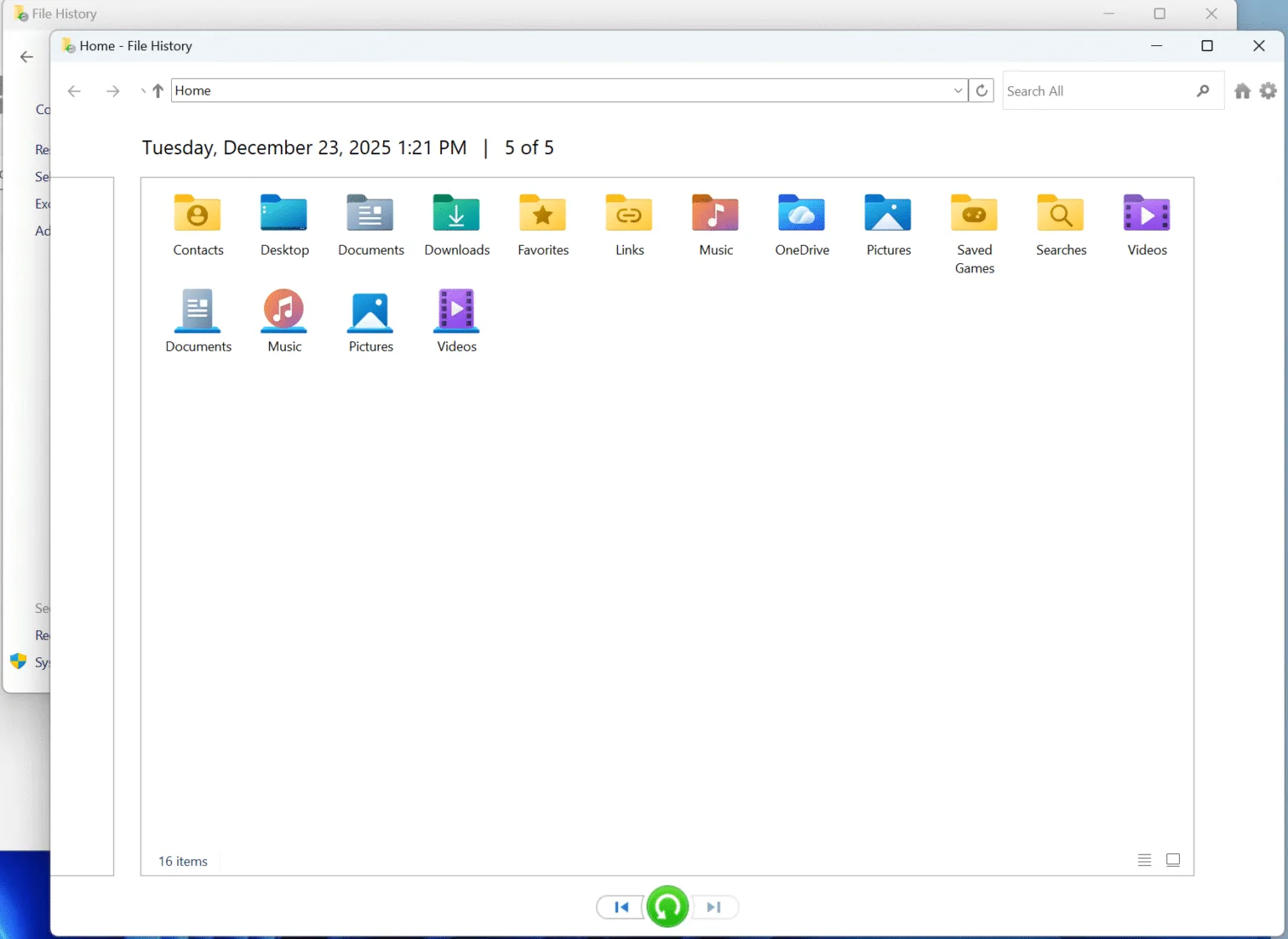
If you enabled File History (Control Panel—System and Security — File History) or a third-party backup solution before deletion, restoring files may be straightforward. However, many users do not maintain active backups, which limits this option.
Use Data Recovery Software
When no backup exists, specialized recovery software becomes the most practical solution. These tools scan the drive at a low level to locate file remnants that Windows no longer lists.
This is where Magic Data Recovery offers a dependable and user-friendly option.
Lorem ipsum dolor sit amet, consectetur adipiscing elit. Ut elit tellus, luctus nec ullamcorper mattis, pulvinar dapibus leo.
How to Recover a Permanently Deleted File in Windows 10 with Magic Data Recovery
Magic Data Recovery can recover files lost through permanent deletion, formatting, or unexpected file system issues. It supports Windows 10 environments and a wide range of storage devices.
Step 1: Download and Install Magic Data Recovery
Install Magic Data Recovery on a drive that is different from the one where the files were deleted. This reduces the risk of overwriting lost data during installation.
Supports Windows 7/8/10/11 and Windows Server
Step 2: Select the External Hard Drive to Scan
After launching the software, choose the drive where you deleted the files. Start the scan from the main interface.

Step 3: Scan the External Hard Drive for Deleted Files
Magic Data Recovery automatically runs an Advanced Scan to detect recoverable files. As the scan progresses, files appear in real time, allowing you to assess results early.

Step 4: Preview Deleted Files Before Recovery
Use the built-in preview function to verify file integrity. This step ensures that you recover only the files that are relevant and usable.

Step 5: Recover Files to a Safe Location
Select the files you want to restore and save them to a different storage device. Avoid restoring data to the original drive to prevent corruption.

Why Magic Data Recovery Is a Reliable Choice
Magic Data Recovery addresses the most common pain points users face when searching for how to recover a permanently deleted file in Windows 10:
- Designed specifically for Windows file systems like NTFS, FAT32 and exFAT
- Supports recovery after Shift + Delete and Recycle Bin removal
- Allows file preview before recovery
- Minimizes risk of data overwriting
- Suitable for internal drives, external disks, and USB storage
Compared with manual methods or unreliable tools, it provides a controlled and safer recovery workflow. If you are looking for an efficient and dependable solution, Magic Data Recovery is worth considering.
When Permanently Deleted Files Cannot Be Recovered
While recovery is often possible, some situations limit success:
- Data has already been overwritten
- Long-term continued use of the drive
- Certain SSDs with active TRIM functions
- Severe physical disk damage
Understanding these limits helps set realistic expectations and builds trust in the recovery process.
Conclusion
Recovering permanently deleted files in Windows 10 is often possible when the right steps are taken quickly. Understanding how deletion works, avoiding actions that overwrite data, and choosing a reliable deleted file recovery tool are critical factors.
Magic Data Recovery stands out as a practical solution for users who need a safe, structured approach to file recovery. Its focus on Windows compatibility, preview functionality, and controlled recovery process makes it a dependable choice when standard options are no longer available.
Supports Windows 7/8/10/11 and Windows Server
FAQ – How to Recover a Permanently Deleted File in Windows 10
Is there a way to recover permanently deleted files in Windows 10?
Can permanently deleted files be retrieved?
Where do permanently deleted files go in Windows 10?
How to recover permanently deleted files not in the Recycle Bin?
Are deleted computer files gone forever?
Does Windows 10 system restore delete files?
How to recover permanently deleted files using command prompt in Windows 10?
Are deleted files permanently stored in the Recycle Bin?

Vasilii is a data recovery specialist with around 10 years of hands-on experience in the field. Throughout his career, he has successfully solved thousands of complex cases involving deleted files, formatted drives, lost partitions, and RAW file systems. His expertise covers both manual recovery methods using professional tools like hex editors and advanced automated solutions with recovery software. Vasilii's mission is to make reliable data recovery knowledge accessible to both IT professionals and everyday users, helping them safeguard their valuable digital assets.